
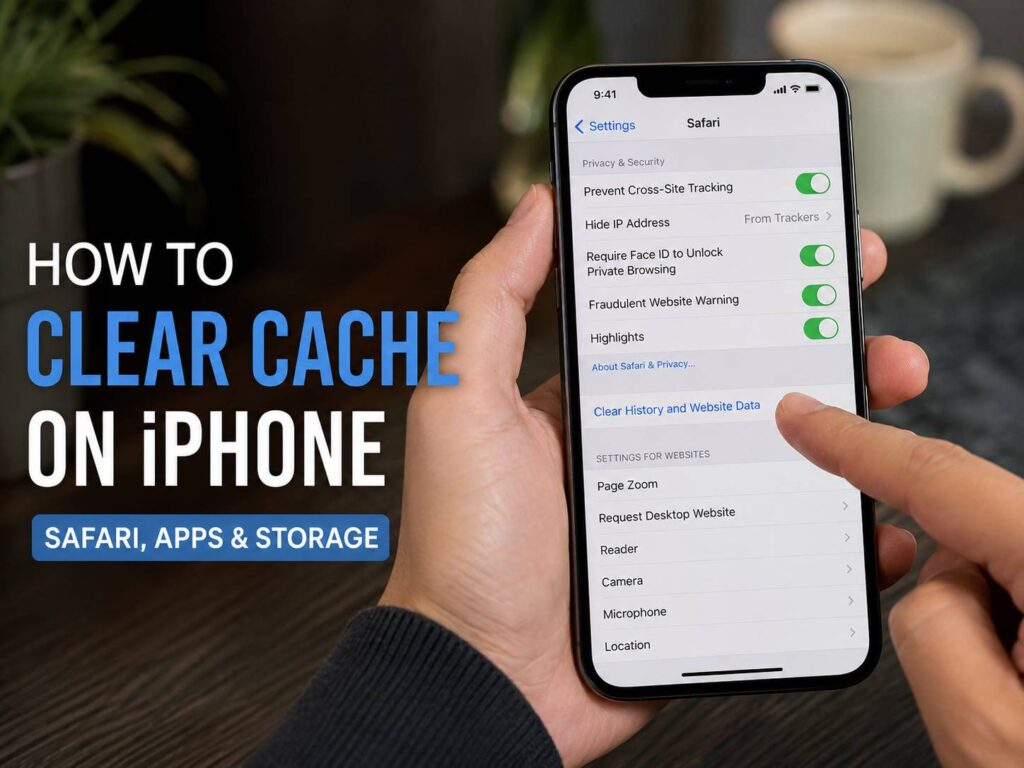
Your iPhone saves temporary files to help websites and apps open faster. Most of the time, that works exactly as intended. Still, cached files can build up, websites can keep outdated data, and some apps can slowly take more storage than expected.
Clearing the cache can help in those cases. It can fix pages that refuse to load correctly, remove old website data, reduce app storage, and free a little space.
There is one catch. iPhone does not have a single button that clears every cache at once. Safari has its own controls, apps manage temporary files in different ways, and iOS handles much of its system cache automatically.
So, the best method is to target the area causing the problem. This guide explains how to clear Safari cache, remove website data, deal with app cache, offload apps, understand System Data, and free storage without deleting something you wanted to keep.
What cache means on an iPhone
A cache is temporary data saved for later use. Safari stores parts of websites so they can open faster the next time you visit. Apps can save thumbnails, previews, temporary databases, downloaded media, and other files that reduce loading time.
In many cases, cached files are useful. They save your iPhone from downloading the same content over and over.
Problems can appear when those files become outdated or unusually large. For example, a website can keep showing an older version of a page. An app can take several gigabytes more than expected after months of use.
Cache is not the same thing as your photos, documents, messages, or notes. Still, some apps mix temporary data with offline downloads and local files.
For that reason, do not start by deleting apps at random. Start with the least destructive option, then move to stronger cleanup methods only when needed.
How to clear Safari cache on iPhone
Safari gives you the easiest cache controls on iPhone.
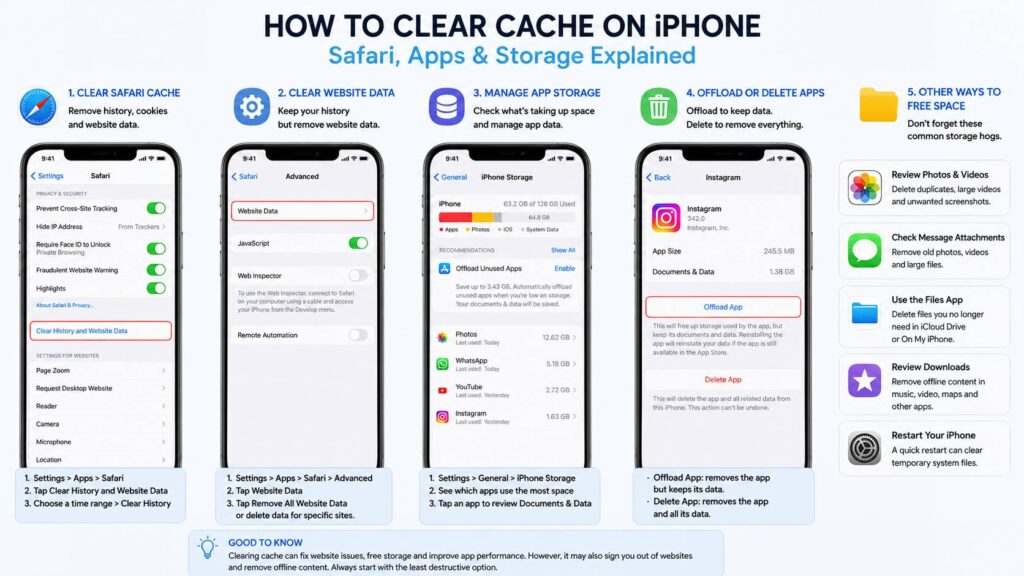
To clear Safari history and website data:
- Open Settings.
- Scroll down and tap Apps.
- Select Safari.
- Tap Clear History and Website Data.
- Choose the time range you want to clear.
- Confirm by tapping Clear History.
This removes Safari browsing history for the selected period and clears related website data.
After that, some websites can ask you to sign in again. A few site preferences can reset too.
For example, a shopping website can forget your preferred region. A forum can end your login session. A web app can reload images and scripts the next time you open it.
Even so, this is a good first fix when Safari feels sluggish or a website keeps behaving strangely.
How to clear Safari cache without deleting history
You do not always need to erase your browsing history.
Safari lets you remove website data separately. This is useful if you want to clear cookies and cached files but keep the list of websites you visited.
Follow these steps:
- Open Settings.
- Tap Apps.
- Choose Safari.
- Tap Advanced.
- Open Website Data.
- Tap Remove All Website Data.
- Confirm the removal.
This clears stored website information such as cookies and cached files.
Your browsing history remains.
Still, some websites can sign you out. They can also load a little more slowly on the first visit after the cleanup, since Safari has to download fresh files again.
That is normal and usually temporary.
How to clear cache for one website in Safari
Sometimes only one website is broken.
In that case, removing every Safari cookie and cache file is unnecessary.
Go to:
Settings > Apps > Safari > Advanced > Website Data
You can search through the stored websites and remove the data for the site causing trouble.
This method is useful when a page keeps looping, displays outdated information, or refuses to load after a website redesign.
For example, imagine your banking website suddenly stops opening correctly in Safari. Clearing only that site’s stored data is often a better first step than wiping everything.
It also means you are less likely to get signed out of unrelated websites.
How to clear app cache on iPhone
This part is less simple.
iOS does not offer a universal Clear Cache button for every installed app.
Instead, app developers decide how temporary files are handled. Some apps include a built-in storage control. Others give you no manual cache option at all.
Start by opening the app itself.
Look for sections such as:
- Settings
- Storage
- Data
- Downloads
- Privacy
- Offline content
- Manage storage
If the app includes a clear cache button, use it first. That is usually the safest choice since the app knows which temporary files it can remove.
Streaming, social media, podcast, map, and messaging apps are common places to find storage controls.
Check iPhone Storage before deleting anything
If an app does not include a cache option, check its storage use inside iOS.
Open:
Settings > General > iPhone Storage
Your iPhone will show a list of apps and the amount of storage each one uses.
Tap an app to see more detail.
You can usually see:
- App Size
- Documents & Data
That difference matters.
If the app itself is large, offloading it can free a useful amount of space.
If Documents & Data is the main problem, offloading can make little difference. In that case, you need to clean files inside the app or delete and reinstall it after checking your data.
Offload App vs Delete App
These two options sound similar, but they do different things.
Offload App
Offloading removes the application itself from the iPhone but keeps its documents and data.
That makes it useful for apps you rarely use.
For example, you can offload a large game, travel app, or editing tool. The app disappears, but iOS keeps its stored information. Reinstalling it later can restore access to that data.
There is a downside, though.
If Documents & Data is taking most of the storage, offloading will not solve much. The large data section stays on your phone.
Delete App
Deleting removes the app and its related local data.
This can clear much more storage. It can also reset an app that has collected too many temporary files over time.
Still, deletion carries more risk.
An app can contain local drafts, offline downloads, projects, game saves, recordings, or files that have not synced anywhere else.
So, check the app first. Make sure anything important is backed up or synced to an account before deleting it.
How to reduce app storage without deleting the app
Deleting an app should not be your first move.
Instead, open the app and look for content you no longer need.
Common storage hogs include:
- Downloaded movies and TV shows
- Offline music
- Podcasts
- Saved maps
- Message attachments
- Video drafts
- Photo-editing projects
- Browser downloads
- Voice recordings
- Offline documents
Removing those files can free far more storage than clearing a small cache.
For example, a streaming app can use several gigabytes for downloaded episodes. A messaging app can collect years of videos and photos. An editing app can store project files much larger than the app itself.
So, clean the obvious files first.
Then check the storage size again.
What System Data means on iPhone
Many people open iPhone Storage and notice a large category called System Data.
This can be confusing, especially when it seems to grow without explanation.
System Data can include cached files, logs, indexes, fonts, dictionaries, system resources, and other information used by iOS.
Its size can change over time.
There is no standard button that clears all System Data instantly. iOS manages much of that storage automatically.
For that reason, guides that promise a guaranteed one-tap System Data reset should be treated with care.
A restart can sometimes clear temporary files and fix incorrect storage readings. Still, it is not a guaranteed way to shrink System Data by a fixed amount.
Instead, focus on storage you can control.
Large videos, downloads, app data, messages, and Safari files usually give you more predictable results.
Does clearing cache make an iPhone faster?
It can, but only in certain situations.
For example, clearing Safari website data can fix a page that loads old or broken files. Removing a bloated app cache can help an app that crashes or behaves oddly.
Freeing storage can also help if your iPhone has very little space left.
Still, cache exists for a reason. Apps and websites use it to avoid downloading the same files again.
So, clearing everything every few days does not make much sense.
In fact, apps can feel slower right after a cache cleanup. They need to rebuild thumbnails, download images again, and recreate temporary files.
My preference is to clear cache only when there is a clear reason. A broken website, an oversized app, or low storage are good examples.
What happens after you clear iPhone cache?
The result depends on what you remove.
After clearing Safari data, you can notice:
- Websites asking you to sign in again
- Pages loading fresh images and scripts
- Website preferences resetting
- Safari storage becoming smaller
- Broken pages starting to work normally
After cleaning an app, you can see:
- Offline content disappearing
- Thumbnails downloading again
- The app rebuilding temporary files
- Login sessions ending
- Storage increasing again over time
None of that is unusual.
Cache grows as you use your iPhone. Clearing it does not stop apps from creating new temporary data later.
Why is Clear History and Website Data grayed out?
Sometimes the Safari cleanup button appears gray.
That can happen when there is no website data available to remove.
Screen Time restrictions can affect the option too.
If you know Safari contains browsing data but the button remains unavailable, check:
Settings > Screen Time
Review web content restrictions and related settings.
You do not need a third-party cleaner app just to fix a gray Safari button.
Should you use iPhone cleaner apps?
Be careful with apps that promise to clean every cache on your iPhone with one tap.
iOS isolates apps from one another. One app cannot simply open every other app’s private storage and delete whatever it wants.
Some cleaner apps can still be useful for things they have permission to access.
For example, they can help find:
- Duplicate photos
- Similar images
- Large videos
- Old contacts
- Screenshots
- Repeated media files
That can free storage, but it is not the same thing as clearing every app cache.
For most people, Apple’s built-in storage tools are enough.
If you also use Android devices, the cleanup process works differently. This guide on how to free up storage on Android without a microSD card explains the options available there.
Best order to clear cache and free storage
A random cleanup often wastes time.
Instead, use a simple order.
- Open Settings > General > iPhone Storage.
- Check which apps use the most space.
- Remove old downloads and large files.
- Clear Safari website data if browser storage is the issue.
- Use an app’s built-in storage controls.
- Offload apps you rarely use.
- Delete and reinstall a problem app only after checking its local data.
- Restart your iPhone if storage numbers look wrong.
- Check iPhone Storage again after iOS recalculates the totals.
This order gives you a better chance of fixing the real problem without deleting useful data.
How often should you clear cache on iPhone?
There is no fixed schedule.
You do not need to clear iPhone cache every day or every week.
Instead, do it when you have a reason.
For example, clear Safari data if a website stops working correctly. Check app storage if one app suddenly grows to several gigabytes. Remove downloads if your storage is getting low.
At the same time, leave normal cache alone when everything works properly.
Apps will rebuild much of it anyway.
Common iPhone cache problems
A few problems appear more often than others.
Safari keeps showing an old page
Remove the website’s stored data first. If the problem remains, clear Safari history and website data.
An app uses much more storage than expected
Open iPhone Storage and compare App Size with Documents & Data. Then check for downloads, attachments, or project files inside the app.
Offloading barely frees any space
That usually means Documents & Data is larger than the app itself.
System Data looks unusually large
Restart the iPhone and check again later. Then focus on large files and apps you can manage directly.
Storage fills again after clearing cache
That is normal. Apps recreate temporary files as you use them.
How to keep iPhone storage under control
A few habits can prevent storage from filling unexpectedly.
Check iPhone Storage from time to time. Large apps are easy to spot there.
Remove offline media after you finish using it. Downloaded video can consume several gigabytes very quickly.
Review message attachments too. Long conversations can contain large amounts of photos and videos.
Delete old files from the Files app when you no longer need them.
Offload rarely used apps if the app itself is large.
Most of all, do not focus only on cache. Photos, videos, downloads, and app documents often use far more space.
Final tips for clearing cache safely
The safest way to clear cache on iPhone is to target the problem instead of trying to wipe everything.
Use Safari’s own controls for website data and browser cache. Check iPhone Storage before deleting apps. Remove offline downloads first. Offload apps when you want to keep their documents and data.
Delete and reinstall an app only after you confirm that important local data is backed up or synced.
System Data needs less attention than many people think. iOS manages much of it in the background, and its size can change.
So, start with what you can see and control.
For Safari problems, clear website data. For a bloated app, check its storage settings. For a nearly full iPhone, open Settings > General > iPhone Storage and work from the largest items downward.
That method is simple, safe, and far more useful than repeatedly clearing random files.