Running out of storage on an Android phone can become annoying fast. Apps stop updating, photos fail to save, downloads get stuck, and the camera may refuse to record new videos.
Still, a storage warning does not always mean that you need a new phone. In many cases, a careful cleanup can recover several gigabytes in less than an hour. Better yet, you can do it without deleting valuable photos, messages, or work files.
This guide explains how to free up storage on Android without a microSD card. You will learn how to remove large files, archive unused apps, clean messaging attachments, manage photos, and stop the problem from coming back.
Check What Is Using Your Android Storage
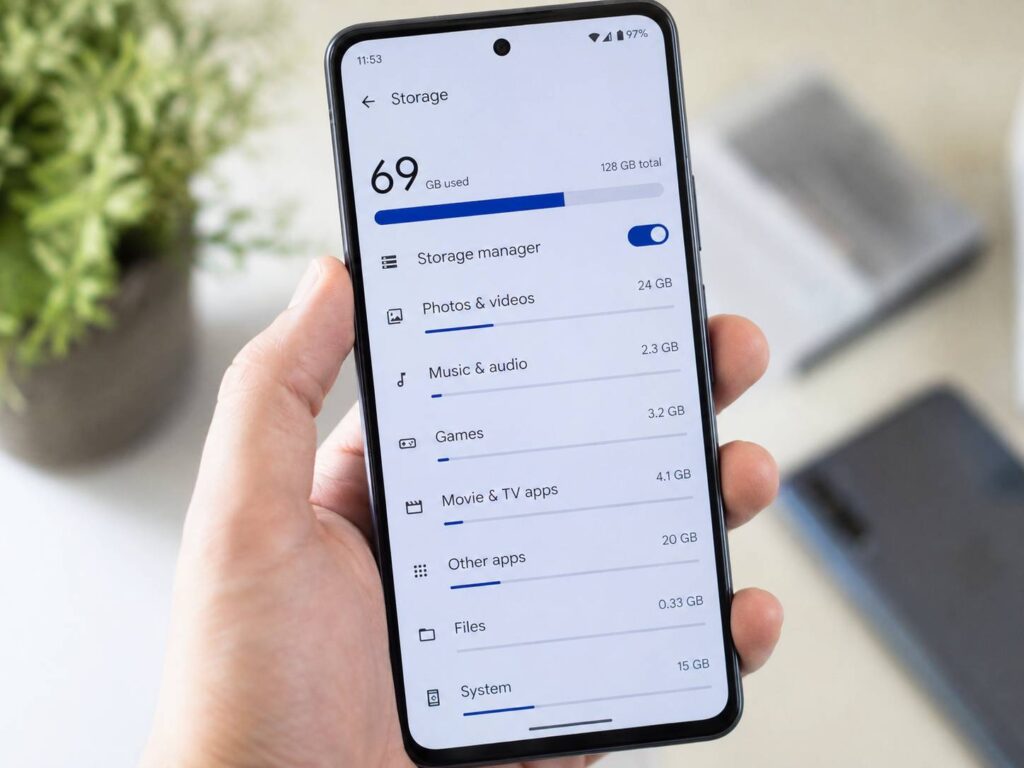
First, find out what is taking up the most space.
Open:
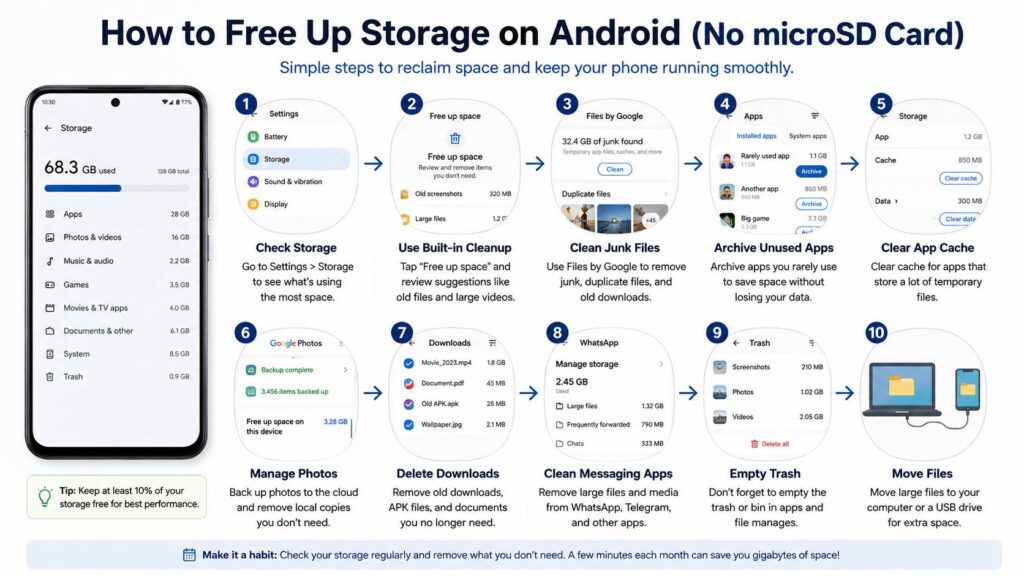
Settings > Storage
The menu can look slightly different on Samsung, Google Pixel, Motorola, Xiaomi, OnePlus, and other Android phones. Still, most devices show similar storage categories.
You may see:
- Apps
- Photos
- Videos
- Music and audio
- Games
- Documents
- Downloads
- Trash
- System files
- Other files
Next, open each category and look at the largest items. This step saves time since random file deletion rarely fixes the real problem.
For example, one video-editing app can hold several gigabytes of unfinished projects. At the same time, a messaging app can keep years of downloaded photos, clips, stickers, and voice notes.
In my experience, videos and messaging apps cause the biggest surprises. A phone may show only a few hundred photos, yet hidden chat media can use far more space.
Try to keep at least 10% of your internal storage free. On a 128GB phone, that means keeping roughly 12GB or more available. This free space gives Android room for app updates, camera processing, and temporary files.
Use the Built-In Free Up Space Tool
Next, check Android’s built-in cleanup feature.
Open:
Settings > Storage > Free up space
Your phone may suggest old downloads, large videos, duplicate items, unused apps, and temporary files. Review every suggestion before deleting anything.
For instance, a 2GB video may be a movie you no longer need. Then again, it may be an important family recording. A quick preview can prevent an unpleasant mistake.
My honest view is that the built-in Storage page should always be the first place you check. It gives you a clear picture of the problem without pushing paid upgrades or showing aggressive ads.
Samsung phones often place storage controls inside Device Care. Meanwhile, Xiaomi, Oppo, and other brands use their own menu names. The layout changes, but the basic process stays the same.
Clean Junk Files With Files by Google
After that, open Files by Google. The app can identify temporary files, duplicate items, large videos, old screenshots, and forgotten downloads.
Tap:
Menu > Clean
You may see cleanup suggestions for:
- Junk files
- Duplicate files
- Large files
- Old screenshots
- Blurry photos
- Downloads
- Unused apps
Start with junk files. These are usually temporary items that apps no longer need.
Then, move to duplicate files. Check them carefully before removal. Two photos can look identical in a small preview, but one may have better quality or edits.
Next, sort large files by size. This is often the fastest way to recover storage. A few long 4K videos can use more room than several thousand regular photos.
The same idea applies to other devices around your desk. A quick digital cleanup helps your phone, and regular physical care helps your accessories last longer. This guide on how to clean a mechanical keyboard the right way covers another easy maintenance task that is easy to put off.
Archive Apps Instead of Deleting Them
App archiving is useful for apps that you rarely open but expect to use again.
Open:
Settings > Apps > Select an app > Archive
Archiving removes most of the installed app files but keeps the app icon and your personal data. Later, tap the icon to restore the app.
This works well for:
- Airline apps
- Hotel booking apps
- Large games
- Shopping apps
- Event apps
- Food delivery services
- Photo editors
- Video editors
For example, an airline app may be useful only once or twice each year. Keeping the full app installed for months wastes space. Archiving keeps it within reach without using as much storage.
Still, not every app supports archiving. System apps, apps installed outside Google Play, and some security tools may not show the option.
Use a simple rule. Delete apps that you will not use again. Archive apps that you expect to need later.
Clear App Cache Carefully
Cached files help apps load pages, images, and videos faster. Over time, though, some apps can build very large caches.
Go to:
Settings > Apps > See all apps > Select an app > Storage and cache > Clear cache
Start with apps that load a lot of visual content:
- Web browsers
- Social media apps
- Shopping apps
- News apps
- Streaming services
- Map apps
After clearing the cache, the app may open a little more slowly the next time. It needs to download some content again. Still, your account and personal settings should remain intact.
Be careful with Clear storage or Clear data. Those buttons can remove saved logins, settings, offline downloads, local projects, and unsynced files.
For this reason, use Clear storage only after checking what the app keeps locally. When in doubt, start with Clear cache.
Back Up Photos and Remove Local Copies
Photos and videos often use more storage than any other category.
First, open Google Photos and check the backup status. Wait until the app confirms that the backup has finished.
Then tap:
Profile picture > Free up space on this device
Google Photos will remove local copies of files that already exist in your cloud library.
Before you continue, open several recent photos on another device or through the Google Photos website. This simple check confirms that your backup works.
After that, keep local copies of anything you need without internet access. Good examples include:
- Travel tickets
- Medical documents
- Hotel reservations
- Work files
- Emergency information
- Important identity documents
Cloud storage is convenient, but it should not be your only copy of valuable files. For important photos and documents, keep another copy on a computer or external drive.
Delete Large Videos and Screen Recordings
Next, check your camera and video folders.
Modern Android phones can create very large files, mainly at 4K resolution, high frame rates, or HDR settings.
Look inside:
- DCIM/Camera
- Movies
- Screen recordings
- Downloads
- Video Editor
- Bluetooth
- Messaging media folders
Screen recordings deserve extra attention. A 20-minute recording can use hundreds of megabytes. People often forget these files after sharing them.
Then, look for failed or unfinished recordings. Camera apps can leave incomplete files after overheating, low battery warnings, or storage errors.
Sort the folder by file size instead of date. This makes the biggest storage users easy to spot.
In my view, this step gives the best return for most people. Deleting three or four unwanted videos can free more space than clearing dozens of small app caches.
Remove Offline Downloads From Streaming Apps
Streaming apps can quietly store entire seasons, playlists, podcasts, audiobooks, and maps.
Check offline content inside:
- Netflix
- Disney+
- Prime Video
- YouTube
- YouTube Music
- Spotify
- Audible
- Podcast apps
- Google Maps
Delete downloads from inside each app. Removing them through a file manager can leave broken entries inside the service.
Next, lower the download quality. Standard video quality often looks perfectly fine on a phone screen and takes much less room than the highest setting.
Music apps can create the same issue. A large playlist saved at high audio quality can use several gigabytes.
After that, turn off automatic downloads for shows or podcasts you rarely finish. This small change can stop storage from filling again.
Clean WhatsApp and Telegram Storage
Messaging apps can become some of the largest apps on an Android phone.
Group chats often download:
- Photos
- Videos
- GIFs
- Stickers
- Voice messages
- Documents
In WhatsApp, open:
Settings > Storage and data > Manage storage
Review large files, frequently forwarded items, and chats using the most space.
Then, open Telegram:
Settings > Data and Storage > Storage Usage
Telegram lets you clear cached media without removing the actual messages. The app can download the files again later.
After that, change automatic download settings. Turn off automatic video and document downloads on mobile data. You can still tap individual files when you need them.
This change makes a real difference. Large group chats can refill several gigabytes within weeks when automatic downloads remain active.
Empty Trash and Bin Folders
Deleting a file does not always free the space straight away.
Gallery apps, Google Photos, file managers, and cloud services often keep deleted items in a trash folder for several days or weeks.
Check the trash inside:
- Google Photos
- Your phone’s Gallery app
- Files by Google
- Google Drive
- Voice recorder apps
- Note-taking apps
- File manager apps
Review the contents, then empty the trash.
Take extra care inside Google Photos. Deleting an image from the main library can remove it from connected devices. By comparison, the Free up space on this device tool removes only local copies that already exist in the cloud.
Move Files to a Computer or USB-C Drive
Cloud storage is not the only option.
You can move photos, videos, documents, and editing projects to a computer with a USB cable.
Connect the phone, unlock it, tap the USB notification, then select:
File Transfer
Copy the files to your computer. Next, open several copied items to confirm that they work. Only then should you delete the originals from your phone.
A USB-C flash drive can help too. Many modern Android phones support external USB storage.
This option works well for:
- Large videos
- Work documents
- Photo archives
- Offline movies
- Exported editing projects
Still, a flash drive should not hold your only copy. Drives can fail, become corrupted, or get lost.
Clean the Downloads Folder
The Downloads folder can collect years of forgotten files.
Common examples include:
- PDF menus
- Invoices
- ZIP archives
- APK installation files
- Email attachments
- Wallpapers
- Duplicate documents
- Memes
- Exported videos
Open your file manager, go to Downloads, then sort files by size.
APK files need special attention. After installing an app manually, the installation file often stays in the folder. Deleting the APK does not remove the installed app.
At the same time, avoid opening old APK files from unknown websites. They may contain unsafe or modified software.
Avoid Random Cleaner Apps
Many cleaner apps promise more storage, faster performance, lower temperatures, and longer battery life.
In practice, some show aggressive ads, request broad permissions, or remove files that Android rebuilds soon afterward.
I prefer to stick with:
- Android Settings
- Files by Google
- Google Photos
- Your phone maker’s storage tools
- Storage controls inside each app
RAM cleaner apps do not create more internal storage. They simply close apps in the background. Those apps often reload later, which can use more battery.
For this reason, avoid installing extra cleaner apps unless they come from your phone maker or a company you already trust.
Stop Your Storage From Filling Up Again
A one-time cleanup fixes the current warning. A short monthly routine can keep the problem from returning.
Once a month:
- Check the Storage screen
- Delete old screen recordings
- Review the Downloads folder
- Remove unused offline videos
- Clean messaging attachments
- Archive unused apps
- Check photo backups
- Empty trash folders
- Review large app caches
Then, try to keep at least 10% of your storage free.
My recommendation is to start with videos, offline downloads, messaging attachments, and unused apps. These categories usually produce the biggest gains.
Cache cleaning helps too, but it rarely fixes a heavily overloaded phone on its own.
Final Thoughts
You can free up storage on Android without a microSD card by focusing on the files that use the most space.
First, check Android’s Storage screen. Next, remove large videos, archive unused apps, clean messaging attachments, and delete offline downloads.
Then, back up important photos before removing local copies. Move valuable files to a computer, cloud account, or USB-C drive.
Most phones do not need constant cleaning. A short storage check once a month is usually enough to keep apps updating, the camera working, and low-storage warnings away.