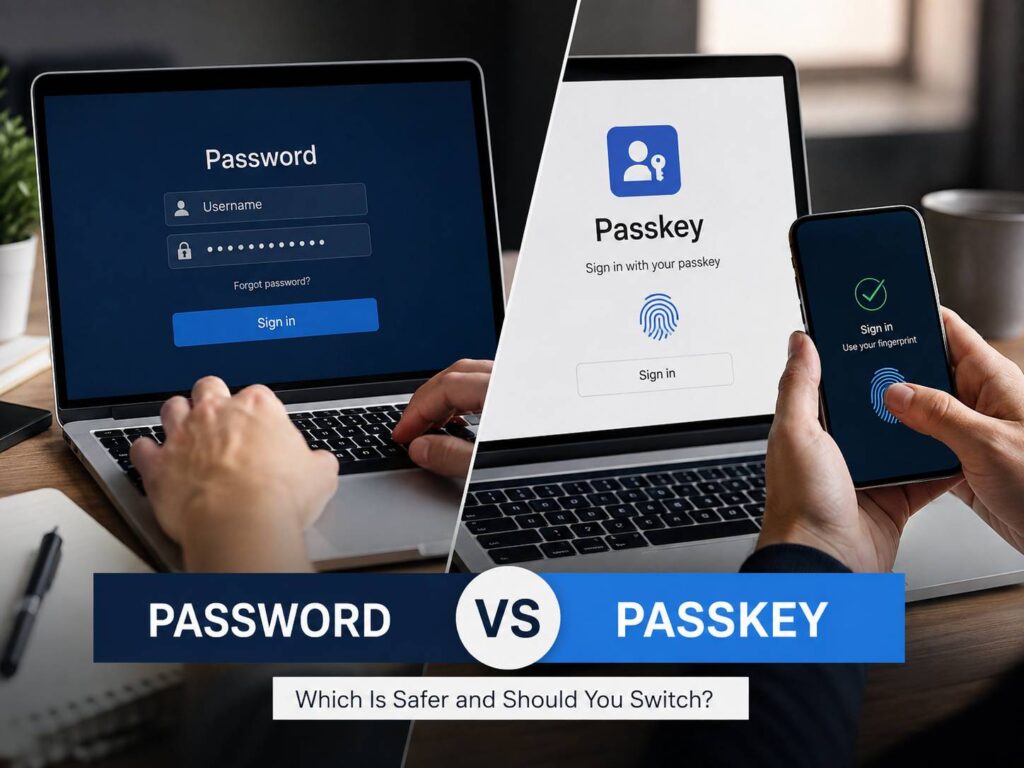
Passwords have been part of online life for decades. It is easy to end up with dozens of them. That creates a familiar problem. Passwords get forgotten, reused, leaked, guessed, or typed into fake websites.
Passkeys try to fix those weaknesses.
The passkey vs password debate matters more in 2026 since major services now support passkey sign-in. Instead of typing a password, you can often sign in with your fingerprint, face scan, device PIN, or another trusted device.
So, are passkeys actually safer?
For most people, yes. Passkeys give much stronger protection against phishing, password reuse, and stolen login details. Still, passwords remain easier to use on older websites and devices.
The best choice right now is not to throw away every password. Instead, use passkeys for important accounts that support them and keep strong, unique passwords for the rest.
What Is a Passkey?
A passkey is a digital login key that replaces a traditional password.
With a normal password, you create a secret phrase or set of characters. You then type that same secret whenever you sign in.
A passkey works differently.
Your phone, computer, tablet, security key, or password manager creates a pair of digital keys. One part stays protected on your side. The website stores the matching public part.
When you sign in, the two parts work together to prove that you are the account owner.
You usually approve the login with one of these methods:
- Fingerprint
- Face recognition
- Phone PIN
- Computer PIN
- Device password
- Physical security key
So there is nothing long to remember or type.
Signing in with a passkey feels similar to unlocking a phone.
Passkey vs Password: What Is the Main Difference?
The biggest difference is simple.
A password is a secret you know.
A passkey is a digital key stored on a trusted device or account.
That changes the way attackers can target your login.
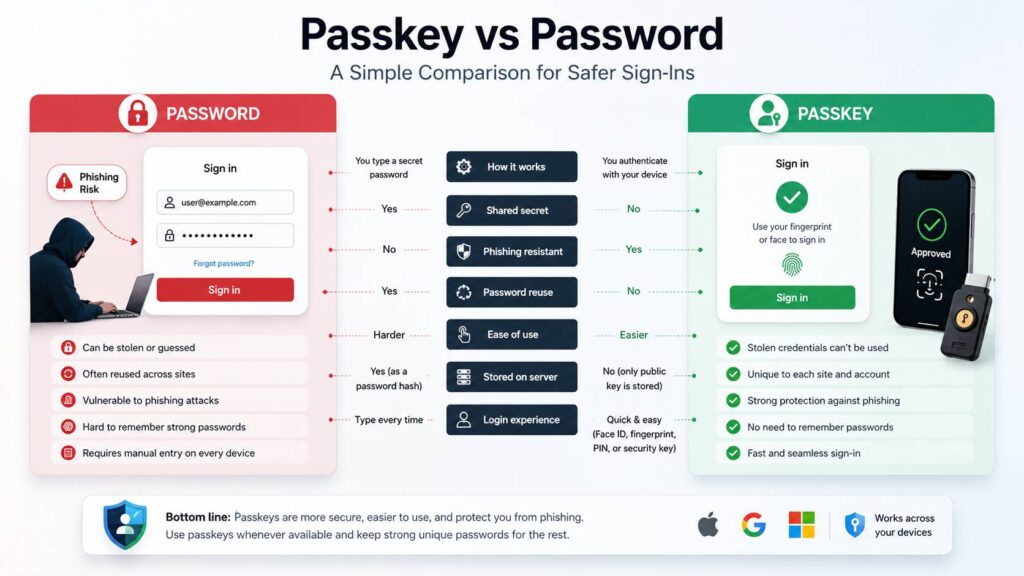
| Feature | Passkey | Password |
|---|---|---|
| Needs to be remembered | No | Usually |
| Can be typed into a fake site | No | Yes |
| Protects against phishing | Strong protection | Limited protection |
| Can be reused | No | Yes |
| Can be guessed | Not in the usual way | Yes |
| Uses fingerprint or face login | Yes | Not by itself |
| Works on nearly every website | Not yet | Yes |
| Can sync between devices | Yes, in many cases | Yes through a password manager |
| Needs account recovery options | Yes | Yes |
From a security point of view, passkeys have the clear edge.
Passwords still win in one area. Compatibility.
Nearly every site supports a password. Passkeys are much more common than they were a few years ago, but support is still not universal.
Why Passkeys Are Better at Stopping Phishing
Phishing is one of the biggest problems with passwords.
Imagine getting an email that looks like it came from Google, Microsoft, Amazon, your bank, or another service you use.
The message tells you that someone tried to access your account. You click the link and see what appears to be a normal login page.
You enter your password.
The site was fake.
At that point, the attacker has your password.
A passkey does not work the same way. It is tied to the real website where it was created. A fake website cannot simply ask you to enter the passkey as text.
That removes a major weak point.
You still need to watch for scams, but the attacker has a much harder time stealing your main login credential.
Passkeys Fix the Password Reuse Problem
Many people still reuse passwords.
That often happens for a practical reason. Remembering 50 or 100 unique passwords is almost impossible without a password manager.
Still, reuse is risky.
Imagine using the same password for your email account, an online shop, and a forum. The forum gets hacked and your login details leak.
An attacker can then try the same email address and password on other sites.
This type of attack is called credential stuffing.
Passkeys avoid that problem. Each account gets its own digital credential.
There is no single master password that you keep typing across several websites.
So, even if one service has a security incident, attackers do not get a reusable passkey that works somewhere else.
Can Someone Steal Your Fingerprint Through a Passkey?
No.
Your fingerprint or face is not the passkey.
Biometric checks such as Face ID, Touch ID, Windows Hello, or Android fingerprint unlock simply approve access to the passkey stored on your device.
The website does not receive a copy of your fingerprint or face scan during a standard passkey login.
Think of your fingerprint as the local approval step.
Your device checks that it is really you. Then it uses the passkey to complete the login.
This setup is one reason passkeys can feel both safer and easier than passwords.
What Happens If the Website Gets Hacked?
This is another area where passkeys offer an advantage.
A website that supports passkeys stores the public part of your credential. That public key cannot be used on its own to sign in as you.
Traditional password systems store protected versions of passwords, often called hashes. Weak passwords can still create problems after a database leak, since attackers can try to crack them.
Passkeys remove that type of password guessing from the equation.
The part needed to approve the login stays under your control.
So a stolen website database becomes less useful to attackers.
Are Passkeys the Same as Two-Factor Authentication?
No, but they can replace some of the steps you normally see with two-factor authentication.
A common password login looks like this:
- Enter your password.
- Receive a code.
- Enter the code.
- Complete the login.
With a passkey, the process can be much shorter.
You choose the account, then approve the sign-in with your fingerprint, face, device PIN, or another trusted method.
That gives you a strong login without asking you to remember a password and type a separate code every time.
Still, account security can involve more than the main login method. Recovery email addresses, phone numbers, backup codes, and old devices can all matter.
Passkey vs Password Manager: Do You Still Need Both?
A password manager is still useful.
You cannot switch every account to passkeys yet. Some websites still support passwords only.
A password manager can handle both.
You can use it to:
- Store unique passwords
- Create long random passwords
- Save passkeys
- Keep login details organized
- Store recovery codes
- Find old accounts more easily
So passkeys do not make password managers pointless.
Instead, password managers are becoming a place where both old and new login methods can live together.
For many people, that is the easiest setup in 2026.
Can Passkeys Sync Between Your Devices?
Yes, many passkeys can sync.
For example, a passkey saved through a supported Apple, Google, Microsoft, or password manager account can often appear on your other devices.
That makes switching between a phone, tablet, and computer much easier.
Still, the experience can vary.
A passkey saved in one system may not show up where you expect on another system. Sometimes the login page asks you to scan a QR code with your phone.
At first, this can feel strange.
Once you understand where your passkeys are stored, the process becomes much easier.
My preference is to keep most passkeys inside one main credential system rather than spreading them across several apps and browsers. It makes account recovery much less confusing.
What Happens If You Lose Your Phone?
Losing your phone does not always mean losing your passkeys.
Many passkeys sync through your main account or password manager. In that case, you can often recover them after signing in on a replacement device.
Still, not every passkey works this way.
Some passkeys stay tied to one device or physical security key.
For that reason, important accounts should have more than one safe recovery route.
Good backup options can include:
- Another trusted device
- A second registered passkey
- A hardware security key
- Recovery codes
- A trusted recovery email
- Account recovery through the service
Do not wait until your phone is lost to check these options.
Are Passkeys Safe If Someone Steals Your Phone?
A stolen phone does not automatically give the thief access to your accounts.
The thief still needs to unlock the phone or pass the local check required to use the passkey.
That is why your device lock matters.
A weak PIN lowers the security of everything stored on the device, including email, banking apps, saved passwords, and passkeys.
Use a strong device passcode. Then use fingerprint or face unlock for convenience.
That combination gives you a much better balance between speed and security.
What Are the Main Problems With Passkeys?
Passkeys are safer, but they are not perfect.
Some websites still do not support them
You will still need passwords for plenty of accounts.
That means you will likely use a mix of both systems for some time.
Passkeys can be saved in different places
This is one of the most common sources of confusion.
A passkey can end up inside:
- Your phone’s credential system
- A browser
- A password manager
- Your computer
- A hardware security key
Later, you may forget where you saved it.
Picking one main place for passkeys can make life easier.
Recovery can feel confusing
A service might let you recover an account through email, SMS, another device, or backup codes.
That gives you more ways back into the account.
At the same time, each extra recovery option can become another path an attacker may target.
Review those methods from time to time.
Cross-device login can look odd
Sometimes a computer asks you to scan a QR code with your phone.
Then your phone asks for a fingerprint or face check.
It feels more complicated the first few times, especially if you are used to typing a password from memory.
Still, the process becomes easy once you know what the QR code is doing.
Should You Remove Your Password After Creating a Passkey?
Not straight away.
Create the passkey first, then test it.
Try signing in on your phone.
Next, test your computer.
Then check how account recovery works.
Once you know the passkey works across your normal devices, you can review the older login methods.
Some services let you go fully passwordless. Others keep a password as a backup.
From a security point of view, leaving a weak password active can still create risk. An attacker may ignore the passkey and target the older login method instead.
So your account is only as strong as the weakest login or recovery path still available.
Which Accounts Should Get Passkeys First?
Start with accounts that control other accounts or hold valuable data.
Good candidates include:
- Main email account
- Google account
- Microsoft account
- Apple Account
- Password manager
- Cloud storage
- Shopping accounts with saved payment details
- Social media accounts
- Work accounts
- Financial accounts that support passkeys
Your main email account deserves special attention.
Password reset messages for many other services often arrive there. If someone gets access to that inbox, they can try to reset several of your other accounts.
Passkeys can help reduce that risk.
Account verification is changing in other ways too. Some services now use extra identity checks when a login looks suspicious. For an example of how another type of identity check works, see this guide to Google selfie video sign-in explained.
How to Switch From Passwords to Passkeys Safely
You do not need to move everything at once.
A slower switch is easier to manage.
Start with your main device
Set a strong phone or computer PIN.
Turn on fingerprint or face recognition if your device supports it.
Protect your main email account
Add a passkey to the email account you use for password resets.
Then check the recovery details.
Create a passkey
Open the security settings for the account.
Look for wording such as:
- Passkey
- Create passkey
- Passwordless sign-in
- Security key
- Face, fingerprint, or PIN
Follow the setup steps.
Test the new login
Sign out and sign back in.
Then try another device you use regularly.
This simple test can reveal where the passkey is stored.
Check recovery methods
Make sure your recovery email and phone number are current.
Save backup codes if the service offers them.
Remove old devices
Delete passkeys linked to phones, computers, or security keys you no longer own.
This is easy to forget after upgrading a phone.
Common Passkey Problems You Might Run Into
Passkeys are still new enough that small problems can be annoying.
The site keeps asking for a password.
The service may support passkeys only on some devices, apps, browsers, or account types.
Your passkey does not appear on another device.
Check which account or password manager stores the passkey.
A QR code appears on your computer.
Scan it with the phone that holds the passkey.
Bluetooth needs to be active.
Some cross-device logins use Bluetooth to confirm that your phone is physically near the computer.
You have several passkeys with similar names.
Open the account security page and remove old entries you no longer need.
You bought a new phone.
Confirm that your passkeys appear on the new phone before erasing the old one.
These little checks can save a lot of frustration later.
Passkey vs Password: Which Is Safer?
Passkeys are the safer option.
They remove several common password problems at once.
You cannot reuse a passkey across dozens of accounts.
You cannot accidentally type one into a normal phishing page.
Attackers cannot guess it like a weak password.
A stolen website database does not expose a reusable password.
Passwords still matter, though.
Some services do not support passkeys, and older devices can make passkey use harder. For those accounts, use a long, unique password stored in a trusted password manager.
The best setup in 2026 is a mix.
Use passkeys wherever they work well. Keep strong passwords where they are still required. Protect your email account first. Check your recovery methods. Remove access from devices you no longer own.
Switching your important accounts to passkeys is worth doing. The login process often becomes faster, and attackers lose several of the tricks that work against passwords.