
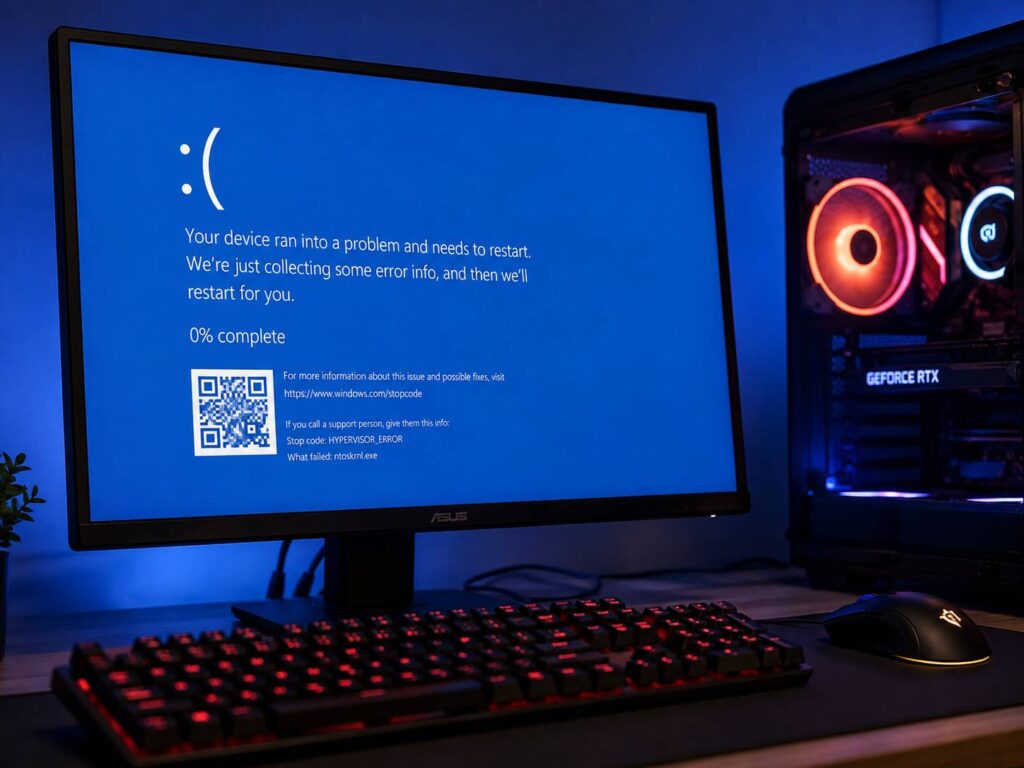
Few things are more frustrating than installing a Windows update, launching a game, and suddenly dealing with crashes that were not there the day before.
That is exactly what happened to some Windows 11 users after Microsoft released the KB5089573 preview update in May 2026. Microsoft later confirmed that the update could trigger serious system errors during certain gaming workloads, including blue screens with HYPERVISOR_ERROR and KMODE_EXCEPTION_NOT_HANDLED.
Fortunately, Microsoft fixed the confirmed issue in a later cumulative update. Still, game crashes after a Windows update can have several causes, so it helps to know what to check before you start uninstalling drivers or changing security settings.
Here is how to identify the problem, apply the right fix, and avoid wasting time on troubleshooting steps that probably will not help.
Which Windows 11 Update Caused Game Crashes?
The confirmed problem was linked to KB5089573, a Windows 11 cumulative preview update released on May 26, 2026.
It applied to Windows 11 versions 24H2 and 25H2 and moved them to OS builds 26100.8524 and 26200.8524.
After the update, some PCs could encounter stop errors during certain workloads. Gaming was one of the situations Microsoft specifically identified.
The main error codes included:
- HYPERVISOR_ERROR, code 0x20001
- KMODE_EXCEPTION_NOT_HANDLED, code 0x1E
These were full Windows stop errors rather than ordinary cases where a game simply closed to the desktop.
That distinction is useful. If one game crashes once and Windows continues running normally, KB5089573 may not be the cause. If the entire PC freezes, restarts, or displays one of the confirmed blue-screen errors, the connection becomes more plausible.
Microsoft Has Already Fixed the KB5089573 Problem
The most useful thing to know is that this issue is no longer waiting for a fix.
Microsoft addressed it in the June 9, 2026 cumulative security update KB5094126. That update moved Windows 11 24H2 and 25H2 to builds 26100.8655 and 26200.8655.
Because Windows updates are cumulative, newer Windows 11 updates also include the previous fixes.
So, if your PC still runs the affected May build, the first thing to do is simple. Install the latest available Windows update.
There is usually no reason to uninstall KB5089573 first if a newer cumulative update is already available.
Check Which Windows 11 Build You Are Running
Before changing anything, confirm what Windows actually installed.
Open:
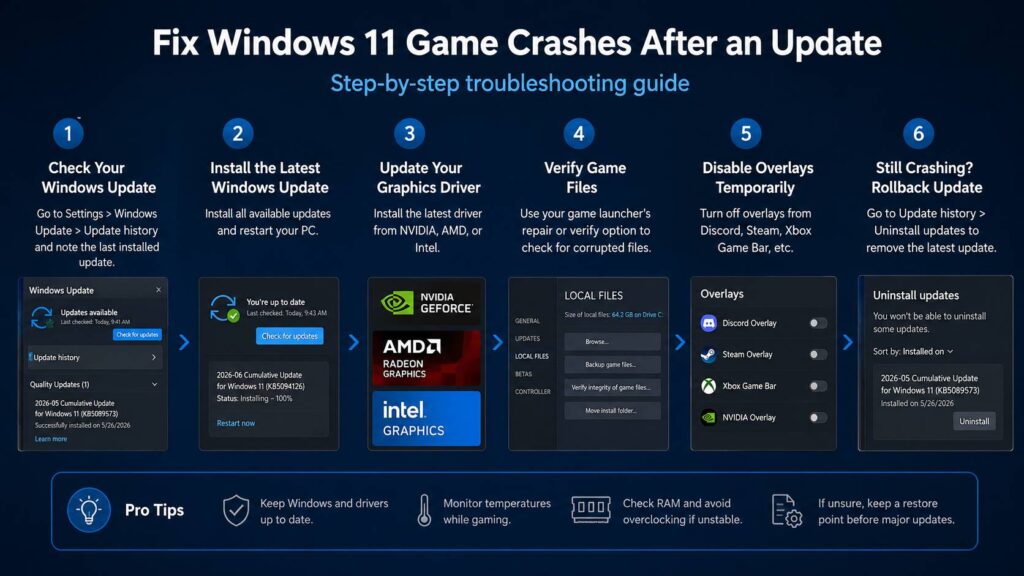
Settings > Windows Update > Update history
Look at the latest quality updates and compare their installation dates with the day your crashes started.
You can also check your Windows build directly.
Press Windows + R, type:
winver
Then press Enter.
Windows will show your version and OS build.
If you are still on build 26100.8524 or 26200.8524, updating Windows should be your first step.
If you are already running a much newer build, another cause becomes more likely.
Install the Latest Windows Update First
Go to:
Settings > Windows Update
Select Check for updates, install everything available, and restart the PC.
The restart matters. Windows can download and prepare an update in the background, but some fixes do not fully apply until the computer reboots.
Once Windows starts again, launch the same game that was crashing before.
Try to reproduce the issue under roughly the same conditions. That gives you a much clearer idea of whether the update actually fixed the problem.
What If Games Still Crash After Updating Windows?
If Windows is fully updated and crashes continue, start checking the other common causes.
The graphics driver is the obvious next place to look.
NVIDIA, AMD, and Intel regularly release drivers that include game-specific fixes, performance changes, and compatibility updates. Unfortunately, a new driver can sometimes cause problems too.
Install the latest stable driver for your GPU and restart the PC.
If the crashes started immediately after a GPU driver update rather than a Windows update, rolling back the graphics driver may be a better test.
The goal is to change one thing at a time.
If you update Windows, replace the GPU driver, disable security features, change the BIOS, and remove overlays all at once, you will have no idea which change actually solved the problem.
Check Whether One Game or Several Games Are Crashing
This is one of the easiest ways to narrow down the cause.
If only one game crashes, the problem is more likely to involve that specific title.
Possible causes include:
- Corrupted game files
- A buggy game patch
- Anti-cheat conflicts
- Mods
- Graphics settings
- Overlays
- Damaged shader caches
If several unrelated games start crashing, a system-level problem becomes more likely.
That could involve:
- A GPU driver
- Windows itself
- Unstable RAM
- CPU or GPU overclocking
- High temperatures
- Power delivery problems
- Background software
The pattern often tells you more than the crash message.
Verify the Game Files
Most major PC launchers include a built-in file verification or repair option.
Steam, Epic Games Launcher, the Xbox app, and other platforms can scan installed game files and replace damaged or missing data.
This is worth doing even if the crash started around the same time as a Windows update.
Updates often happen close together. Windows may update on Tuesday, the game may receive a patch on Wednesday, and a graphics driver may install soon after. It is easy to blame the wrong one.
Verify the affected game, restart it, and test again.
Try Disabling Overlays
Game overlays can also create conflicts.
Common examples include:
- Steam Overlay
- Discord Overlay
- Xbox Game Bar
- NVIDIA overlay features
- AMD overlay features
- FPS and hardware monitoring tools
Try disabling non-essential overlays temporarily.
Then run the game again.
If the crashes stop, turn the overlays back on one at a time until the problem returns. That is a much cleaner test than disabling several Windows features at once.
Be Careful With Security Features
Because the confirmed KB5089573 issue involved Windows virtualization components, some users may be tempted to disable Hyper-V, Memory Integrity, Virtual Machine Platform, or other security-related features.
That should not be your first move.
Microsoft already fixed the confirmed fault through a Windows update. Turning security features off can reduce protection and may only hide the symptom.
The same logic applies to Android devices. Security tools sometimes get blamed when an app behaves badly, but turning protection off is not always the right answer. Our guide on whether you should turn off Google Play Protect explains why disabling built-in security should be treated as a targeted troubleshooting step rather than a default fix.
For Windows gaming crashes, update the operating system first. Then investigate drivers, game files, overlays, and hardware stability.
How to Uninstall a Windows 11 Update
Sometimes uninstalling an update still makes sense.
For example, you might install a brand-new cumulative update and immediately start experiencing repeatable crashes. If Microsoft has not released a corrected build yet, rolling back can help confirm whether the update is responsible.
Open:
Settings > Windows Update > Update history > Uninstall updates
Select the recent update and choose Uninstall.
Restart the PC when Windows finishes.
Then test the same game again.
If the crashes disappear immediately after removing the update, you have much stronger evidence that Windows caused the problem.
Keep in mind that removing a security update also removes the security fixes included with it. Use rollback as a temporary troubleshooting measure rather than a permanent strategy.
What If Windows Will Not Start?
A severe update problem can occasionally stop Windows from booting normally.
In that situation, Windows Recovery Environment can remove recent updates.
Go to:
Troubleshoot > Advanced options > Uninstall Updates
From there, you can remove the latest quality update.
This option is especially useful if the problem appeared immediately after Windows updated and you cannot reach the normal desktop.
Should Gamers Avoid Windows Preview Updates?
For most gaming PCs, there is little reason to rush into optional Windows preview updates.
Preview updates give users early access to non-security changes before Microsoft includes them in a wider monthly release.
That can be useful if you need a specific fix. For a gaming PC that is already stable, though, waiting for the regular cumulative update is often the safer choice.
It does not guarantee that you will never encounter an update bug. Still, it reduces the number of early changes reaching your system.
If maximum stability matters, there is nothing wrong with skipping optional preview releases.
Windows Update or GPU Driver, Which One Is the Problem?
Look at the timeline.
If Windows updated immediately before the crashes started and the graphics driver did not change, investigate Windows first.
If your GPU driver also updated around the same time, test that separately.
You can make troubleshooting much easier by keeping notes of what changed and when.
For example:
- Install the latest Windows cumulative update.
- Restart the PC.
- Test the game.
- Update or roll back the GPU driver only if the problem remains.
- Test again.
- Verify game files.
- Disable overlays if necessary.
It may feel slower, but this process makes it much easier to identify the real cause.
What to Do If Windows 11 Games Keep Crashing
The KB5089573 case was a real Windows 11 gaming problem, not just speculation. Microsoft confirmed that affected PCs could encounter HYPERVISOR_ERROR and KMODE_EXCEPTION_NOT_HANDLED stop errors during some gaming workloads.
The good part is that Microsoft fixed the issue with the June 2026 cumulative update, and newer Windows builds include that correction.
So, if games started crashing after a Windows 11 update, check your installed build first. Then install the latest cumulative update before trying more aggressive fixes.
If the problem remains, check the GPU driver, verify the game files, disable unnecessary overlays, and look for signs of broader hardware instability.
Most importantly, avoid changing five things at once. A careful, one-step-at-a-time approach usually gets you to the real cause much faster.