
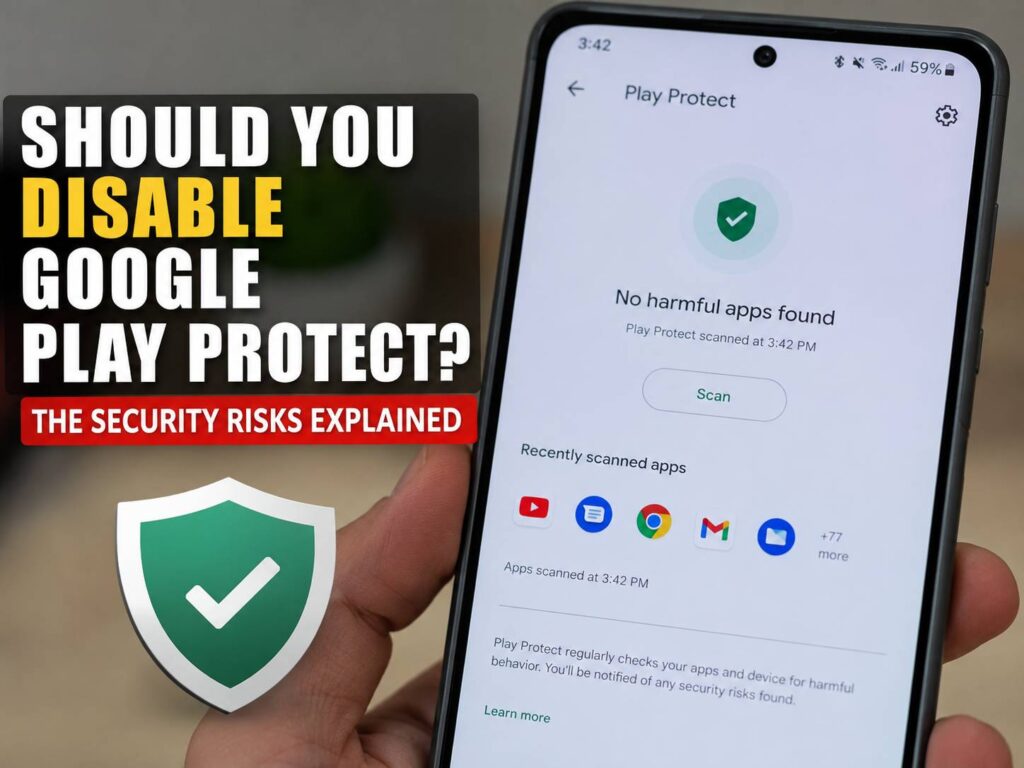
Should you disable Google Play Protect when it blocks an app you want to install? For most Android users, the answer is no. Turning it off removes a useful security layer that checks apps for malware, fraud, spying, hidden subscriptions, and suspicious permission requests.
At first, Play Protect can look like a simple antivirus scanner for the Google Play Store. Yet it does much more than that. It checks apps downloaded through browsers, messaging services, file managers, third-party app stores, and APK websites.
For example, Play Protect can warn you about a dangerous app before installation. It can block an unsafe download, disable harmful software, or remove a known threat from your phone. It can keep checking apps after you install them too.
Still, the service is not perfect. A safe app can trigger a warning, mainly when it is new or has not been scanned before. Even so, turning off protection across your whole phone is rarely the right response. Instead, check the app, its developer, its permissions, and the website that supplied it.
What Google Play Protect Actually Does
Google Play Protect is Android’s built-in app security system. It comes switched on by default on certified Android devices that use Google Play services.
First, it checks Play Store apps before you download them. Next, it scans apps already installed on your device. Then, it watches for harmful changes or suspicious activity.
Play Protect checks apps from outside Google Play too. This matters if you download APK files or use third-party stores.
The service can:
- Scan an app before installation
- Check installed apps for harmful activity
- Warn you about suspicious software
- Block risky app installations
- Disable or remove harmful apps
- Flag unsafe permission use
- Remove permissions from dangerous apps
- Send unknown apps for deeper analysis
In practice, Play Protect acts like a safety net. It cannot catch every threat, but it can stop many common attacks before they reach your accounts or personal files.
For this reason, disabling it does more than remove an annoying pop-up. It reduces the number of checks applied to every app on your phone.
What Happens When You Disable Google Play Protect?
Once you turn off Google Play Protect, your phone loses several automatic security checks. Android still keeps features such as app sandboxing and permission controls. Yet your installed apps no longer receive the same level of scanning and monitoring.
For example, harmful APK files can reach the installation screen without the usual Play Protect warning. At the same time, existing apps can avoid routine checks for suspicious activity.
Turning off Play Protect can create these risks:
- Malicious APK files can be easier to install
- Existing apps lose continuous security checks
- Fake banking apps can remain unnoticed for longer
- Spyware can collect photos, messages, or passwords
- Fraud apps can request powerful permissions
- Malware can change its behaviour after installation
- Other phone users can install unsafe apps more easily
A fake parcel-tracking app, for instance, can ask to read your text messages. That permission can expose one-time banking codes. In another case, a fake customer support app can request Accessibility access. It can then read screen content or control parts of the device.
Play Protect cannot promise complete protection. No security scanner can. Still, removing it gives harmful apps one less barrier to pass.
Sideloading Creates the Greatest Risk
Sideloading means installing an Android app from outside the Google Play Store. Common sources include websites, messaging apps, email attachments, cloud folders, file-sharing services, and third-party app stores.
Sideloading is not always dangerous. Some respected developers distribute apps through their own websites. Open-source developers often publish APK files through official project pages.
The main problem is trust. A copied website can offer a modified version of a real app. A fake download button can install malware. Likewise, a message claiming to contain a bank update can send you to a harmful APK file.
For example, cracked games and modified premium apps often contain extra code. The app can still open and appear normal. Yet it can steal login details, show hidden advertisements, or subscribe the user to paid services.
For this reason, Play Protect becomes more useful when you install apps manually. Turning it off at that moment removes protection at the exact point where the danger rises.
How Play Protect Checks Unknown APK Files
Older malware scanners relied mainly on lists of known threats. Modern malware changes fast, so that method is no longer enough on its own.
Instead, Play Protect can analyse unfamiliar apps in real time. When you try to install an APK that Google has not seen before, the system can request a deeper scan. It can then inspect patterns in the app’s code and compare them with known malware behaviour.
Next, the service decides whether to allow the installation, display a warning, or block the app. This process is useful for apps shared through chat groups, file-hosting websites, and unofficial stores.
Modified WhatsApp apps are a good example. They often use a familiar icon and promise extra privacy settings or visual themes. Yet they can contain spyware, advertising tools, or code that collects account information.
The same warning applies to premium-unlocked apps. A developer has little reason to distribute a paid app for free through a random website. In many cases, the person sharing it has changed the original file.
Can Google Play Protect Show a False Warning?
Yes, Play Protect can flag an app that its developer considers safe. This happens most often with new apps, small open-source projects, internal company software, testing builds, and apps from less common distribution services.
A warning does not prove that an app contains malware. At the same time, you should not dismiss it without checking the details.
Before you install a flagged app, ask these questions:
- Did the file come from the developer’s official website?
- Does the file name match the current release?
- Does the developer publish a checksum?
- Does the app request permissions that fit its purpose?
- Is the project available through a trusted code repository?
- Has the developer explained the warning?
- Did someone ask you to disable security during a call?
The final question matters a lot. Scammers often call victims and guide them through an app installation. They can pretend to represent a bank, delivery company, public office, or support centre.
First, the caller creates urgency. Next, they send a download link. Then, they ask the victim to ignore warnings and disable Play Protect. After that, the malicious app can request access to messages, screen content, or banking information.
A real bank does not need you to install an APK from a text message. It will not ask you to disable your phone’s security tools either.
Does Play Protect Slow Down Your Phone?
Some users turn off Play Protect in the hope of improving battery life or phone speed. In normal use, though, the service should not cause a noticeable performance problem on a modern Android device.
Play Protect does not perform a full scan every second. Instead, it checks apps at relevant times and runs many tasks in the background.
If your phone feels slow, check other causes first:
- Low storage space
- Too many apps running in the background
- A large number of open browser tabs
- Automatic photo or video backups
- An old or damaged battery
- Apps with unrestricted battery access
- Malware already installed on the device
Browser changes can affect privacy and device behaviour too. For example, Chrome is shutting down old ad blockers as it completes its move away from older extension technology. This change is separate from Play Protect, but it shows why users should review every security and privacy setting instead of switching protections off without checking what they do.
In my view, disabling Play Protect for a small and unproven speed gain is a poor trade. The scanner provides more value than the tiny amount of background activity it can create.
When Turning Off Play Protect Can Make Sense
A few specialised cases can justify turning Play Protect off for a short period.
For example, an Android developer can need to test an internal app that Google does not recognise. A security researcher can inspect a controlled malware sample. A company can use private software through its own device management system.
These situations do not match normal personal phone use. Developers and researchers usually work with emulators, isolated test devices, or phones that contain no personal data.
A test phone should not hold:
- Banking apps
- Personal photos
- Saved passwords
- Work email
- Private messages
- Authentication apps
- Payment cards
After testing, turn Play Protect back on. Then, remove the test app and run a manual scan.
Using your main phone for unknown apps is risky. One careless installation can expose far more than the app itself.
Safer Options Than Disabling Google Play Protect
A blocked installation does not leave you with only two choices. You do not have to abandon the app, and you do not have to switch off all protection.
Instead, try these steps:
- Download the app again from the developer’s official website.
- Check whether an official Play Store version exists.
- Confirm the developer’s name and website.
- Review every requested permission.
- Compare the app’s version number with the official release.
- Test the app in an Android emulator.
- Contact the developer about the warning.
- Wait for a newer release.
- Scan the APK with a trusted multi-engine scanner.
- Avoid cracked or premium-unlocked versions.
At the same time, pay attention to how you found the app. A download link sent through an unexpected message deserves extra care. The same applies to pop-ups that claim your phone is infected.
Never disable Play Protect after instructions from an unknown caller, email, advertisement, or text message. That request is a major warning sign.
How to Check Whether Play Protect Is Active
You can check Google Play Protect through the Play Store:
- Open the Google Play Store.
- Tap your profile picture.
- Select Play Protect.
- Tap the settings icon.
- Check that Scan apps with Play Protect is switched on.
- Keep Improve harmful app detection active.
After that, return to the main Play Protect screen. You can start a manual scan from there.
The exact menu names can differ slightly between phone brands and Android versions. Still, most devices place the controls inside the Play Store’s Play Protect section.
Some managed phones do not allow users to turn the service off. Phones using stronger protection settings can restrict the option too. In those cases, the device owner or administrator controls the setting.
Should You Disable Google Play Protect?
For almost every personal Android phone, you should keep Google Play Protect switched on.
The service becomes most useful when an app comes from outside Google Play, asks for sensitive permissions, or has not been widely scanned. Turning it off can leave you exposed to spyware, fake banking apps, password theft, malicious APK files, subscription fraud, and support scams.
Still, Play Protect is only one part of Android security. You should check app permissions, developer names, download sources, reviews, and unexpected account activity too.
My opinion is simple. A false warning can be frustrating, especially when you trust the developer. Yet a stolen bank account or compromised email address can create a much larger problem.
Keep Play Protect active on your main phone. Investigate warnings instead of ignoring them. For testing unknown software, use a separate device or emulator that contains no personal information.