
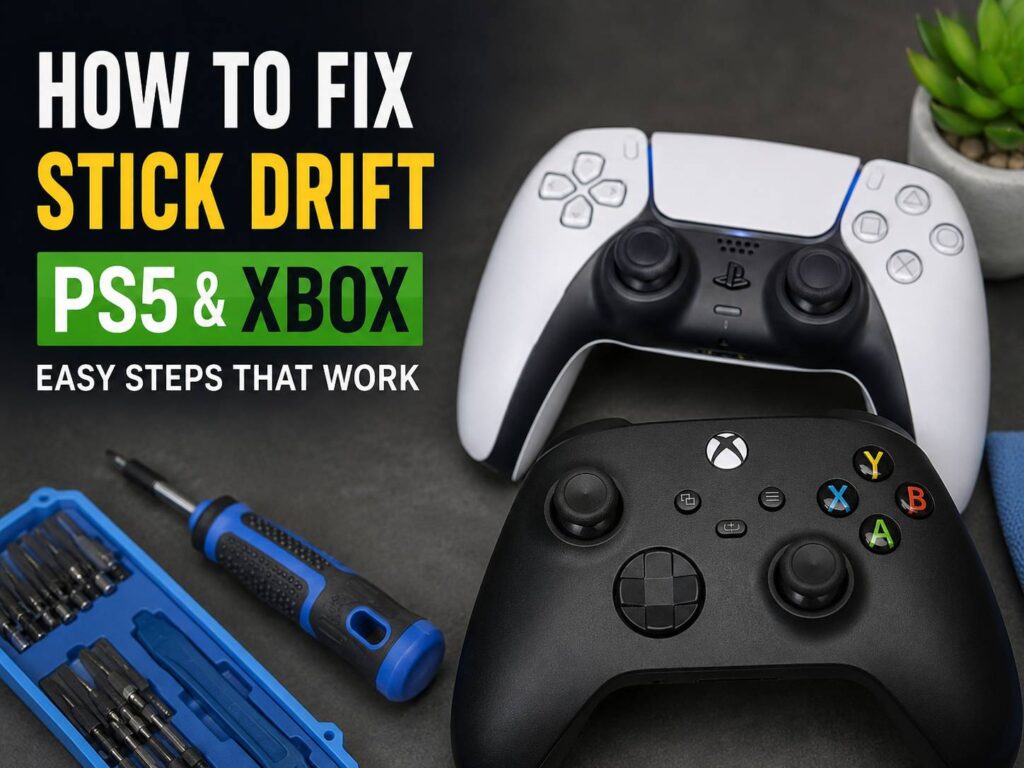
Stick drift can make an otherwise good PS5 or Xbox controller frustrating to use. Your character starts walking on its own, the camera slowly rotates, or your aim keeps creeping away from the target.
It often feels like the controller has suddenly failed. Still, stick drift does not always mean you need a replacement.
Sometimes the cause is a firmware issue, a bad calibration, dirt around the analog stick, or a game with an unusually low deadzone. In other cases, the stick mechanism itself has started to wear out.
The best way to deal with the problem is to start with the simplest fixes and work your way toward repair only if the easier options fail.
This guide explains how to fix PS5 and Xbox stick drift, including DualSense drift, Xbox Series X|S controller drift, calibration problems, deadzone settings, cleaning, resets, and worn analog sticks.
What Is Stick Drift?
Stick drift happens when a controller detects movement from an analog stick even though you are not touching it.
You may notice problems such as:
- Your character slowly walking forward.
- The camera turning left or right by itself.
- Your crosshair moving after you release the stick.
- Menus scrolling without input.
- A racing game pulling the car slightly to one side.
- Small movements appearing only in certain games.
The analog stick should return very close to its neutral position after you release it. A game then applies a small deadzone around that center point.
Any movement inside the deadzone gets ignored.
Once the controller starts reporting movement outside that area, the game reacts to it. That is the movement people commonly call stick drift.
Test the Controller Before Trying to Fix It
Start by checking whether the controller itself is really the problem.
Open the game where you first noticed the drift. Put the controller on a flat surface and release both analog sticks.
Watch the screen for unwanted movement.
Next, test a completely different game.
If the same stick causes movement in several games, the controller becomes the likely cause.
If the problem appears in only one game, check that game’s settings first.
Look for options such as:
- Left stick deadzone
- Right stick deadzone
- Inner deadzone
- Aim deadzone
- Movement deadzone
- Controller sensitivity
- Controller calibration
Reset unusual settings to their defaults and test again.
For example, setting an inner deadzone close to zero can expose tiny movements that another game ignores.
So, a controller can feel perfect in one game and badly affected in another.
Increase the Deadzone Slightly
Changing the deadzone is one of the quickest ways to deal with mild stick drift.
Open the controller settings inside the affected game and look for the inner deadzone option.
Raise it a little, then test the stick.
If the unwanted movement continues, increase the value by another small amount.
Once the drift stops, play normally for a few minutes and see how the controls feel.
A small increase often works well.
Still, there is a downside.
A larger deadzone means you must move the stick farther from the center before the game reacts. That can make aiming feel less precise, especially in shooters.
For that reason, I would keep the deadzone as low as possible.
If you have to raise it dramatically just to stop the camera from moving, the stick likely has a deeper problem.
Deadzone adjustment hides the symptoms. It does not repair worn hardware.
Update Your PS5 DualSense Controller
Firmware is an easy place to start with DualSense stick drift.
Keep the PS5 system software and DualSense controller software current.
On the PS5, check for system updates and install any controller update offered by the console.
DualSense firmware can also be managed through PlayStation’s controller software on compatible Windows PCs.
After updating, restart the controller and test the affected stick again.
A firmware update cannot repair a physically worn analog stick.
Yet it can rule out software problems before you start cleaning the controller or thinking about taking it apart.
That makes firmware updates worth checking early.
Reset the PS5 DualSense Controller
A full controller reset is another useful DualSense troubleshooting step.
Turn the PS5 completely off first.
Disconnect the DualSense controller from its USB cable.
Now turn the controller over. You will find a small reset hole on the back.
Use a pin or another narrow object to press the button inside. Hold it for several seconds.
Next, connect the controller back to the PS5 with a USB cable.
Press the PS button and allow the controller to reconnect.
Test the stick again.
A reset can fix communication or software-related controller problems.
If the drift returns immediately, move on to the next steps.
Update Your Xbox Controller
Xbox Wireless Controllers receive firmware updates through the Xbox Accessories app.
You can use the app on Xbox consoles and supported Windows PCs.
Connect the controller, open Xbox Accessories, and check whether an update is available.
Install it before recalibrating the sticks.
Then restart the controller and test it in the same game that showed the original problem.
This takes only a few minutes, and there is little reason to skip it.
If the controller still drifts after the update, calibration is the next useful test.
Recalibrate the Xbox Controller
Xbox provides a recalibration option for supported controllers through the Xbox Accessories app.
Calibration can help if the analog stick no longer reports its center position correctly.
Open Xbox Accessories and select your controller.
Look for the recalibration option, then follow the instructions shown on screen.
Move the sticks only as requested during the process.
Once calibration finishes, return to the game that showed the problem.
Leave the sticks untouched and see whether the unwanted movement has disappeared.
If calibration fixes the drift and it stays fixed, the center position was probably part of the problem.
If the drift returns soon afterward, hardware wear becomes more likely.
At that point, repeating calibration over and over rarely helps.
Clean Around the Analog Sticks
Controllers collect dust, skin oils, crumbs, pet hair, and other debris surprisingly quickly.
Some of that dirt ends up around the base of the analog sticks.
A careful clean is worth trying.
Turn the controller off first.
Disconnect any cable, headset, or accessory.
Move the affected stick slowly in a full circle several times.
Next, wipe around the base of the stick with a soft cloth.
Do not pour cleaning liquid into the controller.
Do not spray household cleaner directly onto the stick.
Avoid soaking the gap around the analog mechanism.
For a DualSense controller, a soft dry cloth is the safest starting point.
Xbox cleaning guidance permits limited use of suitable isopropyl alcohol on supported surfaces with a soft, lint-free cloth. Still, the cloth should be damp rather than wet.
After cleaning, rotate the stick again and test the controller.
If dirt was interfering with the movement, you may notice an improvement.
If nothing changes, the problem may be inside the stick assembly.
Be Careful With Compressed Air
Compressed air appears in plenty of controller drift tutorials.
It can remove loose dust around the stick, but aggressive use can create new problems.
A strong blast can push debris deeper inside the controller.
Canned air can release cold propellant too, especially if the can is tilted or held incorrectly.
So, do not put the nozzle directly against the stick opening and blast it at full pressure.
Gentle exterior cleaning is a safer first choice.
More force does not mean a better repair.
What Actually Causes PS5 and Xbox Stick Drift?
Several different problems can create the same symptoms.
Dirt around the stick
Dust and debris can interfere with smooth analog movement.
Cleaning sometimes helps when contamination is the main cause.
Incorrect center calibration
The controller may no longer report its neutral stick position accurately.
Recalibration can correct certain cases.
Firmware problems
Controller software can affect how input gets reported.
Updating the controller removes that possibility from the diagnosis.
Worn analog stick parts
Traditional controller sticks use moving electrical components.
Those parts wear down with use.
Once the internal components deteriorate far enough, software adjustments become temporary fixes.
A weak centering mechanism
Release an analog stick and it should return toward the middle.
A worn mechanism may leave it slightly off-center.
The controller then reports movement even though your thumb is no longer touching the stick.
Very low game deadzones
Some games make small inaccuracies far easier to notice.
For example, a competitive shooter may use a much smaller default deadzone than an action game.
The same controller can look broken in one title and completely normal in another.
Why Hall Effect Controllers Get Mentioned So Often
Hall Effect sticks work differently from the potentiometer-based sticks used in many traditional controllers.
They measure stick position using magnetic sensing rather than relying on the same type of sliding electrical contact.
That design can reduce one common source of wear-related drift.
If you are deciding whether your next controller should use this technology, our guide to what a Hall Effect switch is and how the technology works explains the basics in more detail.
Still, Hall Effect does not mean a controller can never develop input problems.
Springs, mechanical parts, calibration, firmware, and other components can still cause issues.
So, treat Hall Effect as a different stick technology, not a promise of a controller that will last forever.
DualSense Edge Owners Have Another Option
The DualSense Edge handles serious stick problems differently from the standard DualSense.
Sony designed its stick modules to be removable.
If one module develops a problem, you can remove it and install a replacement module instead of replacing the entire controller.
The process does not require the type of soldering often associated with replacing traditional analog stick assemblies.
That is a major practical advantage.
The standard DualSense does not use the same removable module system.
So, do not buy a DualSense Edge stick module expecting it to work in a normal DualSense controller.
It will not solve the problem.
Why Stick Drift Can Come and Go
Intermittent drift is common.
You might play for an hour with no issue, then suddenly notice the camera pulling to the right.
Later, the problem seems to vanish again.
That does not necessarily mean the controller fixed itself.
Tiny changes in the analog reading can move the stick input in and out of the game’s deadzone.
Dirt can shift position too.
Mechanical wear can create inconsistent readings rather than one constant level of drift.
Game settings make the issue even more confusing.
One title may ignore the unwanted movement.
Another may react instantly.
For that reason, test the controller in at least two or three games after each fix.
Is Increasing the Deadzone a Permanent Fix?
No.
The controller still produces the unwanted input.
The game simply ignores it.
For mild drift, that can be a perfectly acceptable workaround.
You may raise the inner deadzone by a small amount and never notice any difference during normal play.
Still, watch the value over time.
If you have to keep increasing it every few weeks, the stick is probably getting worse.
A very large deadzone can make aiming feel slow and imprecise.
Competitive players tend to notice this much sooner.
Should You Open the Controller?
Check warranty and repair options before opening a PS5 or Xbox controller.
A controller that still qualifies for official service should usually go through that route first.
Opening a controller introduces new risks.
You can break plastic clips, damage ribbon cables, strip screws, or damage the circuit board.
Replacing a traditional stick assembly can require soldering too.
That is not a beginner-friendly repair.
If the controller is old and out of warranty, opening it becomes easier to justify.
Still, compare the repair cost with the price of a replacement before spending money.
A professional repair can make sense for an expensive controller.
For a heavily worn standard controller with several other faults, replacement may be the better choice.
Can Replacing the Analog Stick Fix Drift?
Yes, if the stick assembly itself caused the drift.
Replacing the faulty hardware can restore proper input.
Still, diagnosis matters.
A technician should confirm the problem before replacing components.
There is little value in changing the stick assembly if a calibration error or game setting caused the symptoms.
Installation quality matters too.
Poor soldering can damage circuit board pads, create calibration issues, or stop other controller functions from working.
DualSense Edge owners have a simpler path.
Its removable stick module avoids much of that board-level repair work.
Stick Drift Fixes That Often Waste Time
Some fixes are worth trying once. Others become a habit long after they stop helping.
Raising the deadzone again and again
A small increase is fine.
A huge deadzone hides a controller that is becoming harder to use.
Constant recalibration
Calibrate the controller properly once.
If severe drift keeps returning, repeated calibration is unlikely to repair worn hardware.
Pouring alcohol into the stick opening
Too much liquid creates unnecessary risk.
Clean the exterior carefully instead.
Pushing the stick aggressively
Force will not restore worn internal parts.
It can make the mechanism worse.
Opening the controller immediately
Start with firmware, resets, calibration, deadzone settings, and cleaning.
You may solve the problem without taking anything apart.
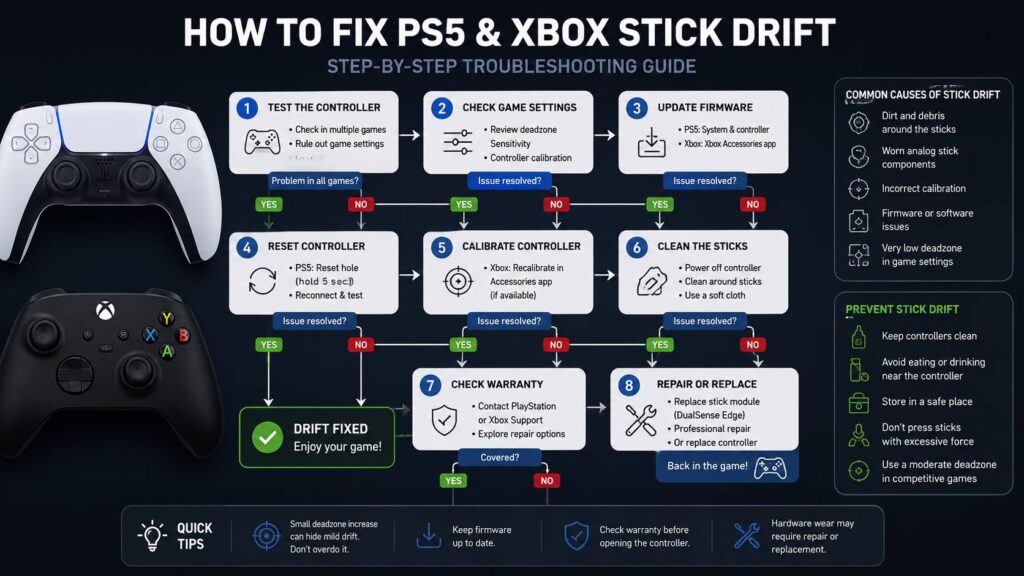
Best Order to Fix PS5 or Xbox Stick Drift
For most controllers, this order makes sense:
- Test the controller in more than one game.
- Reset unusual in-game controller settings.
- Raise the inner deadzone slightly.
- Update the console and controller firmware.
- Reset the DualSense if you use a PS5 controller.
- Recalibrate a supported Xbox controller.
- Clean around the analog stick carefully.
- Test again in several games.
- Check warranty or official repair options.
- Consider hardware repair or replacement.
This order keeps the risky steps at the end.
It can save money too.
There is no point opening a controller if a firmware update or calibration fixes the problem.
How to Reduce the Chance of Stick Drift Returning
No analog controller lasts forever, but a few habits can help.
Keep food and drinks away from the controller.
Store it somewhere clean.
Avoid leaving heavy objects pressing against the sticks.
Do not throw the controller loose into a bag where the analog sticks stay pushed sideways for hours.
Clean the exterior from time to time.
Use normal thumb pressure during games too.
Pushing the stick harder after it reaches its physical limit does not create stronger input.
It only puts more stress on the mechanism.
A small deadzone is fine for fast games, but setting it to zero can expose tiny analog inaccuracies that you would never notice otherwise.
When Should You Replace the Controller?
Replacement starts to make sense once several fixes have failed.
Look for signs such as:
- Drift remains after firmware updates.
- Resetting the controller makes no difference.
- Xbox recalibration does not help.
- Cleaning has no effect.
- The stick feels unusually loose.
- The stick does not return properly to center.
- You need a very large deadzone to make games playable.
- Input jumps unpredictably.
- Other buttons or triggers are already failing.
At that stage, compare repair and replacement costs.
DualSense Edge owners have one extra option. Replace the affected stick module first.
For a standard DualSense or Xbox Wireless Controller, repair makes the most sense if the rest of the controller is still in good condition.
Can PS5 and Xbox Stick Drift Really Be Fixed?
Yes, many cases can be fixed or at least improved.
A firmware issue may disappear after an update.
Incorrect calibration can respond to recalibration.
Dirt around the stick may clear up after careful cleaning.
A game with a tiny deadzone can feel normal after a small adjustment.
Worn hardware is the harder case.
Once internal stick components start failing, settings can only hide the problem for so long.
At that point, repair, stick module replacement, official service, or a new controller becomes the practical answer.
Start with the simple fixes and test after every change.
Most important, do not assume that a larger deadzone means the controller itself has been repaired.