
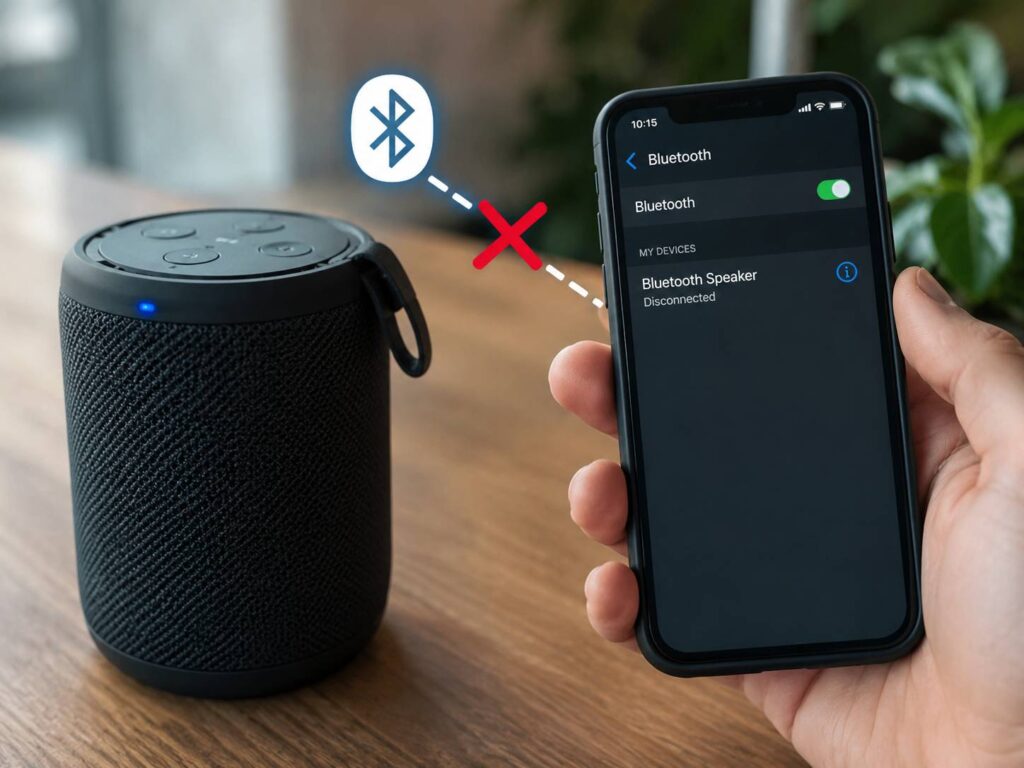
A Bluetooth speaker that keeps disconnecting can turn a relaxing playlist into a constant annoyance. One minute the music plays normally. Then the sound cuts out, the speaker reconnects, and the same problem returns a few minutes later.
The good news is that most Bluetooth connection problems come from simple causes. For example, the speaker may have a low battery, the phone may be too far away, or another paired device may be trying to connect. In many cases, you can fix the issue without replacing the speaker.
Start with the basic checks below. Then move to the deeper fixes only if the connection still drops.
Try These Quick Fixes First
Before changing advanced settings, try these quick steps:
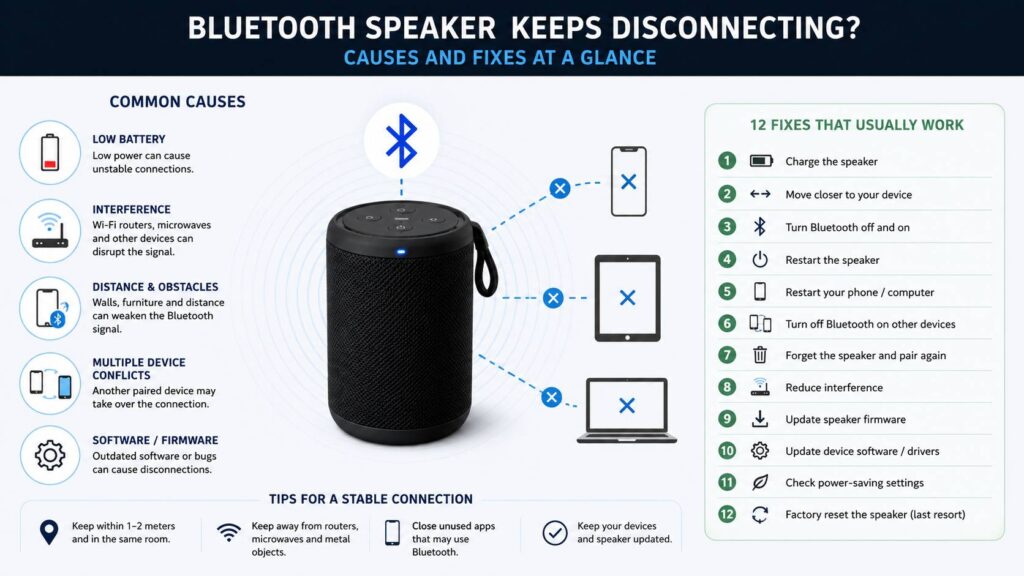
- Charge the speaker to at least 50 percent.
- Move the speaker closer to your phone, tablet, or computer.
- Turn Bluetooth off for 10 seconds, then turn it back on.
- Restart the Bluetooth speaker.
- Restart the phone, tablet, or computer.
- Turn off Bluetooth on nearby devices that used the speaker before.
- Forget the speaker in Bluetooth settings, then pair it again.
- Install pending phone, computer, and speaker updates.
After each step, play audio for a few minutes. This makes it easier to see which change fixed the problem.
Why Does a Bluetooth Speaker Keep Disconnecting?
Bluetooth uses short-range radio signals. As a result, walls, furniture, metal objects, and other wireless devices can weaken the connection.
Distance is one of the most common causes. A speaker may work across a large open room, yet disconnect when the phone sits behind a wall or inside a bag. At the same time, nearby Wi-Fi equipment can add interference.
Other common causes include:
- A low or worn speaker battery
- A corrupted saved Bluetooth pairing
- Another phone taking control of the speaker
- Old speaker firmware
- Outdated Windows Bluetooth drivers
- Battery-saving settings
- Automatic standby mode
- Physical damage to the speaker
- Too many nearby wireless devices
The timing can help you find the cause. For instance, regular disconnects every 10 or 15 minutes often point to standby settings. Random drops near a router or computer dock usually point to interference.
Charge the Speaker Fully
A Bluetooth speaker can still switch on with a weak battery. Still, the wireless connection may become unstable once the battery level drops too far.
Charge the speaker fully with the correct cable and adapter. Then test it again at a medium volume.
Pay attention to what happens during bass-heavy songs. A worn battery may work at low volume but shut down when the speaker needs more power. In practice, this often feels like a Bluetooth fault, even though the battery is the real cause.
Next, check whether the battery drains much faster than it did before. Fast battery loss can mean the battery has reached the end of its useful life.
Check Auto Standby and Power-Saving Settings
Many Bluetooth speakers include an automatic standby feature. This setting turns the speaker off after a period with no audio.
For example, the speaker may shut down during a long pause in a podcast. It may do the same between videos or after a streaming app stops playback.
Open the official companion app for the speaker and look for settings such as:
- Auto Standby
- Auto Power Off
- Sleep Timer
- Power Saving
- Idle Shutdown
Turn the setting off for one test session. Then play music or a podcast and watch the connection.
Auto standby saves battery, but it can become frustrating on a desk speaker or a speaker used with a television. Personally, I prefer to disable it on speakers that stay near a power outlet.
Move the Speaker Closer
Next, place the speaker within one or two metres of the source device. Keep both products in the same room and remove large objects between them.
Avoid placing the phone:
- Inside a drawer
- Behind a television
- Inside a backpack
- Under a pile of clothes
- Near large metal objects
- On the opposite side of a thick wall
Then test the speaker again. If it works normally at close range, the issue probably comes from distance or obstacles.
Bluetooth range figures often describe ideal open conditions. Real homes rarely match those conditions, so walls and furniture can reduce the practical range.
Reduce Wireless Interference
Bluetooth and many Wi-Fi networks use the crowded 2.4 GHz frequency range. For this reason, nearby wireless equipment can cause audio drops.
Move the speaker away from:
- Wi-Fi routers
- Mesh Wi-Fi nodes
- Microwave ovens
- Wireless security cameras
- USB 3.0 hubs
- External hard drives
- Smart home bridges
- Wireless keyboards and mice
- Crowded computer docks
A quick test can help here. Download a song or podcast to your phone, then play it without streaming.
If local audio works normally, the internet connection or streaming app may be the problem. If the downloaded audio still cuts out, the Bluetooth link needs more attention.
Stop Other Devices From Reconnecting
Many speakers remember several phones, tablets, and computers. Some models can stay connected to two devices at once.
That sounds useful, but it can create unexpected switching. For example, a laptop may reconnect as soon as it wakes from sleep. A family member’s phone may take over when they enter the room.
As a test, turn Bluetooth off on every nearby device except the one you want to use. Then play audio for at least 10 minutes.
If the connection stays stable, remove the speaker from the other devices. You can also turn off multipoint inside the speaker app.
This fix often gets missed. People reset the speaker, pair it again, and still see the same problem. Meanwhile, another saved device keeps reconnecting in the background.
Forget the Speaker and Pair It Again
A saved Bluetooth pairing can become damaged after a failed update, phone transfer, firmware change, or interrupted connection.
To create a clean pairing:
- Open Bluetooth settings.
- Select the speaker.
- Choose Forget, Unpair, or Remove Device.
- Turn the speaker off.
- Restart the phone, tablet, or computer.
- Turn the speaker on in pairing mode.
- Connect it again as a new device.
Remove any duplicate speaker entries too. Some speakers create a second listing after a reset or firmware update.
After pairing, play music before opening the speaker app. This helps confirm whether the basic Bluetooth connection works on its own.
Update the Speaker Firmware
Speaker manufacturers sometimes fix connection faults through firmware updates. As a first step, install the official app for your speaker brand.
Then connect the speaker, open the app, and check for updates. Keep the speaker charged throughout the update.
Do not turn the speaker off during the process. Do not close the app until the update finishes.
Firmware updates can improve Bluetooth stability, battery reporting, multipoint switching, and compatibility with newer phones.
Smart speaker owners may see similar connection changes as voice platforms add new features. For example, Google has been working on deeper Gemini support for its home devices, which you can read about in this guide to the Google Home speaker with Gemini.
Fix Bluetooth Disconnects on Android
Android menu names vary between phone brands. Even so, the main checks remain similar.
Start with these steps:
- Turn Bluetooth off and back on.
- Restart the phone.
- Forget the speaker and pair it again.
- Install Android updates.
- Update the speaker app.
- Turn off battery restrictions for the speaker app.
- Disable third-party battery managers during testing.
Next, check whether the problem started after you installed an equalizer, automation app, battery tool, or sound manager. These apps can affect audio routing.
You can also reset Wi-Fi and Bluetooth settings. Use this as a later step, since it removes saved Wi-Fi networks and Bluetooth pairings.
Fix Bluetooth Disconnects on iPhone or iPad
Start by charging the speaker and moving it close to the iPhone or iPad. Then restart both devices.
Next, open Settings, tap Bluetooth, and select the information icon beside the speaker. Tap Forget This Device, then pair it again.
If the speaker uses a companion app, check its Bluetooth permission under Privacy and Security. The app needs access to find the speaker and manage settings.
Install the latest iOS or iPadOS update too. System updates often fix connection and audio-routing problems.
A network settings reset can help with persistent faults. Still, save it for later, since it removes saved Wi-Fi details.
Fix Bluetooth Disconnects on Windows
Windows computers can disconnect Bluetooth audio after driver errors, sleep changes, or power-saving activity.
Try these steps:
- Run the Bluetooth troubleshooter in the Get Help app.
- Turn off Battery Saver for a test.
- Open Device Manager.
- Expand the Bluetooth section.
- Update the Bluetooth adapter driver.
- Open the adapter properties.
- Check the Power Management tab.
- Turn off the setting that lets Windows shut down the adapter.
- Restart the computer.
- Remove the speaker and pair it again.
For desktop computers, move USB hubs, external drives, and Wi-Fi adapters away from the Bluetooth dongle. A small adapter hidden behind a metal computer case may have poor reception.
Also, use Windows Update before downloading drivers from another site. If needed, check the support page from the laptop or motherboard maker.
Factory Reset the Speaker
A factory reset clears saved devices and custom settings. For that reason, use it only after the other fixes fail.
The reset buttons vary by model. Check the official manual for the exact steps.
After the reset:
- Remove the old speaker entry from your devices.
- Restart the phone or computer.
- Pair only one device.
- Test the speaker before adding more devices.
Do not pair every old device straight away. Start with one source so you can see whether the connection remains stable.
Signs the Speaker May Have a Hardware Problem
Test the speaker with another phone in a different room. Keep the phone close and play a downloaded audio file.
The speaker may need repair or replacement if:
- It disconnects from several phones.
- It still fails after a factory reset.
- The battery drains very quickly.
- It shuts down at high volume.
- Bluetooth works only from a very short distance.
- The charging port feels loose.
- The issue started after a drop.
- The speaker was exposed to water beyond its rated protection.
A failing battery is common in older portable speakers. Once the battery wears out, the speaker may restart during loud sections or bass-heavy tracks.
How to Prevent Future Bluetooth Disconnects
Keep the speaker firmware updated. At the same time, install phone and computer updates when they become available.
Charge the speaker before the battery reaches zero. Repeated deep discharges can place extra strain on older batteries.
Store the speaker away from extreme heat, freezing temperatures, and damp areas. Also, keep the charging port clean and dry.
Limit the number of saved devices if the speaker moves between many phones and computers. Turn off multipoint if you never use it.
Most of all, avoid resetting the speaker every time the sound cuts out. Check the battery, distance, interference, and saved devices first. These checks usually find the real cause faster.
The Fix That Works Most Often
For most people, the best order is simple. Charge the speaker, move it closer, turn off Bluetooth on nearby devices, forget the old pairing, restart both products, and pair them again.
Then update the speaker firmware and check power-saving settings. If the Bluetooth speaker keeps disconnecting from several phones after a clean reset, the speaker may have a worn battery or a hardware fault.