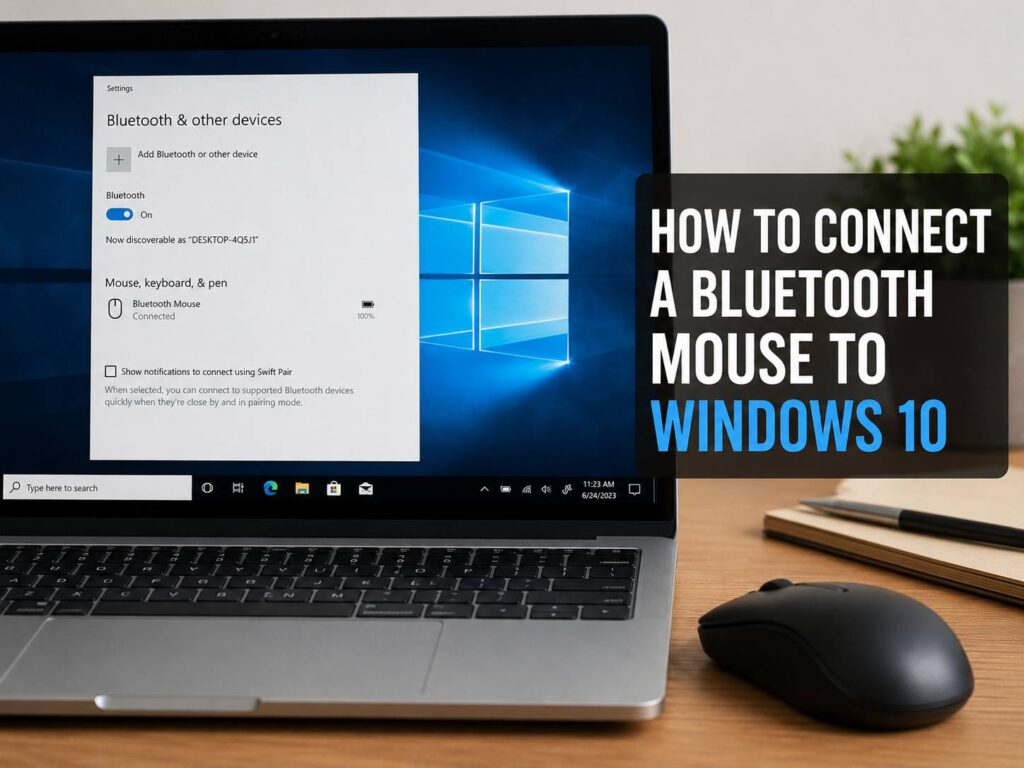
A Bluetooth mouse can make your Windows 10 laptop or desktop feel cleaner and easier to use. There is no cable pulling across the desk, no tiny USB receiver taking up a port, and no extra clutter around your keyboard.
Still, the setup is not always perfect. Sometimes the mouse does not show up. Sometimes Windows says it is connected, but the cursor refuses to move. Other times, the mouse works for a day, then randomly drops the connection.
The good news is that most Bluetooth mouse problems on Windows 10 are easy to fix. You just need to check the right things in the right order. This guide walks you through the full process, from turning on Bluetooth to fixing lag, pairing issues, and missing Bluetooth settings.
Before You Start
Before you try to pair the mouse, take a minute to check the basics. This small step can save a lot of frustration later.
You need:
- A Windows 10 PC with Bluetooth support
- A Bluetooth mouse with charged batteries
- A working pairing button or Bluetooth switch on the mouse
- Access to Windows Settings
- A touchpad, wired mouse, or keyboard during setup
One thing matters here: not every wireless mouse is a Bluetooth mouse. Some wireless mice use a small USB receiver instead. If your mouse came with a tiny dongle and does not have a Bluetooth pairing mode, it likely needs that receiver to work.
A true Bluetooth mouse connects directly through Windows 10. It does not need a USB dongle, which is great if your laptop has only a few ports.
Turn On Bluetooth in Windows 10
The mouse cannot connect if Bluetooth is turned off, so start there.
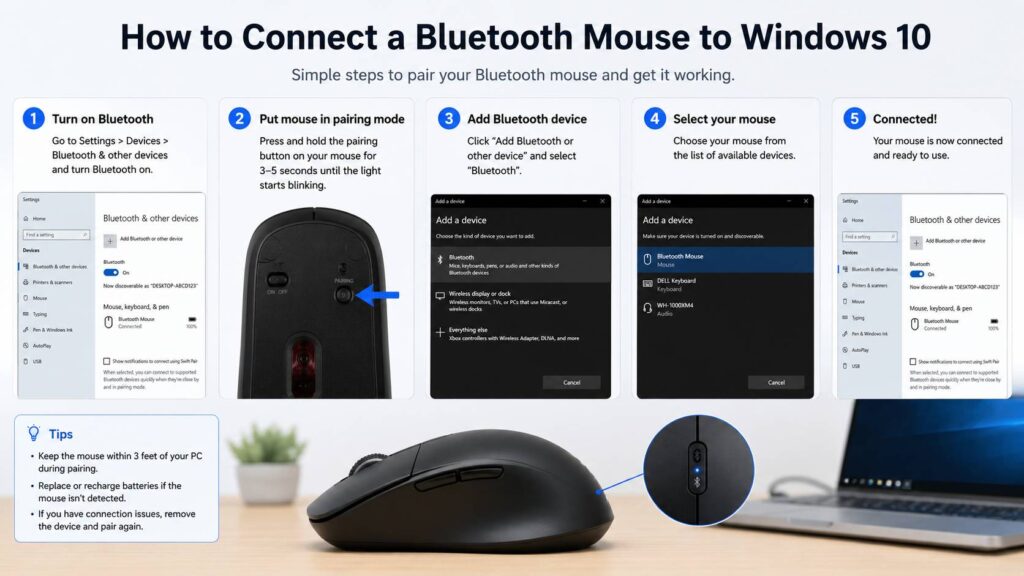
Follow these steps:
- Click the Start button.
- Open Settings.
- Select Devices.
- Click Bluetooth & other devices.
- Turn Bluetooth On.
You can also press Windows + A to open the Action Center. Look for the Bluetooth tile and click it to turn Bluetooth on.
If Airplane mode is turned on, switch it off first. Airplane mode can block Bluetooth connections, and it is easy to miss if you rarely use it.
If you do not see a Bluetooth switch at all, your PC may not have Bluetooth built in. The driver may also be missing or broken. I cover that problem later in the guide.
Put the Bluetooth Mouse in Pairing Mode
Your mouse must be in pairing mode before Windows 10 can find it. This step varies, since every brand does it a little differently.
Most Bluetooth mice use one of these methods:
- Hold the pairing button for 3 to 5 seconds.
- Hold the power button until the light flashes.
- Slide the switch on the bottom to the Bluetooth position.
- Press a device channel button, then hold it until the light blinks.
Look at the bottom of the mouse first. You may see a Bluetooth logo, a small round button, or a channel button marked 1, 2, or 3.
A flashing light usually means the mouse is ready to pair. A steady light often means the mouse is already connected to another device.
This is a common real-world issue. If your mouse was paired with an old laptop, tablet, or work computer, it may keep trying to reconnect to that device. Turn Bluetooth off on the old device, then put the mouse back into pairing mode.
How to Connect a Bluetooth Mouse to Windows 10
Once Bluetooth is on and the mouse is ready to pair, you can add it in Windows.
Use these steps:
- Click Start.
- Open Settings.
- Select Devices.
- Click Bluetooth & other devices.
- Select Add Bluetooth or other device.
- Choose Bluetooth.
- Wait for your mouse name to appear.
- Click the mouse name.
- Wait for Windows to finish pairing.
- Click Done.
After that, move the mouse and check the cursor. In most cases, it starts working right away.
If nothing happens, wait a few seconds. Some Bluetooth mice take a moment to wake up after the first connection. Click once, then move the mouse again.
What to Do If the Mouse Does Not Appear
If your Bluetooth mouse does not show up in the Windows 10 device list, do not panic. This usually means the mouse is not in pairing mode, the batteries are weak, or Windows needs a quick reset.
Try these fixes:
- Replace or recharge the batteries.
- Move the mouse close to the PC.
- Turn the mouse off, then turn it back on.
- Hold the pairing button again until the light flashes.
- Turn Bluetooth off in Windows, wait 10 seconds, then turn it back on.
- Restart the PC.
Keep the mouse within one meter of the computer during setup. Once paired, it can usually work farther away, but pairing works best at short range.
If the mouse supports several devices, make sure you choose a free channel. For example, some mice let you pair with three computers. Each channel needs its own pairing process.
What to Do If Bluetooth Is Missing
If Windows 10 does not show a Bluetooth option, the issue is probably with the PC, not the mouse.
Check these things:
- Make sure Airplane mode is off.
- Restart your computer.
- Run Windows Update.
- Open Device Manager and look for Bluetooth.
- Install the Bluetooth driver from your laptop or motherboard maker.
- Use a USB Bluetooth adapter if your desktop has no built-in Bluetooth.
To open Device Manager, right-click the Start button and select Device Manager. Look for a section called Bluetooth. If you see a yellow warning icon, the driver has a problem.
If Bluetooth does not appear anywhere, your PC may not have Bluetooth hardware. This is common on older desktop computers. A small USB Bluetooth adapter can fix that, and most are simple to install.
What to Do If the Mouse Connects but Does Not Move
This one is annoying. Windows says the mouse is connected, but the cursor sits there like nothing happened.
Try this first:
- Turn the mouse off.
- Wait 10 seconds.
- Turn it back on.
- Click the left mouse button once.
- Move it on a mouse pad or sheet of paper.
- Restart the PC if it still does not respond.
Some mice wake from sleep only after a click. Glass desks, glossy surfaces, and uneven tables can also confuse the sensor. A mouse pad usually fixes that part.
If the mouse still does not work, remove it and pair it again.
Go to:
Settings > Devices > Bluetooth & other devices
Click your mouse, then choose Remove device. After that, put the mouse back into pairing mode and add it again.
This often fixes failed first-time pairings, old connection data, and random Bluetooth glitches.
How to Fix Bluetooth Mouse Lag or Freezing
A Bluetooth mouse can lag, freeze, or disconnect for a few different reasons. Low battery is the most common one, but signal problems and driver issues can cause the same behavior.
Try these fixes:
- Replace or recharge the batteries.
- Move the mouse closer to the PC.
- Move USB 3.0 drives away from the Bluetooth adapter.
- Keep the PC away from thick metal objects.
- Restart Windows 10.
- Update the Bluetooth driver.
- Remove the mouse and pair it again.
If you use a USB Bluetooth adapter, plug it into a front USB port. Better yet, use a short USB extension cable. That keeps the adapter away from interference behind the computer.
This small change can make the mouse feel much more stable.
If you are building a cleaner desk setup, it is worth thinking about all your wireless gear together. A quiet mouse, a better keyboard, and a good pair of noise canceling headphones in 2026 can make a home office feel much easier to work in.
Check Power Saving Settings
Windows can turn off some Bluetooth adapters to save power. That sounds helpful, but it can make a mouse disconnect or wake up slowly.
To check this setting:
- Right-click the Start button.
- Open Device Manager.
- Expand Bluetooth.
- Right-click your Bluetooth adapter.
- Select Properties.
- Open the Power Management tab.
- Uncheck Allow the computer to turn off this device to save power.
- Click OK.
Not every Bluetooth adapter shows this tab. If you do not see it, skip this step and focus on driver updates instead.
Bluetooth Mouse vs USB Receiver Mouse
Bluetooth is great for everyday use. It keeps your setup tidy and saves USB ports. It works well for browsing, writing, office tasks, school work, and travel.
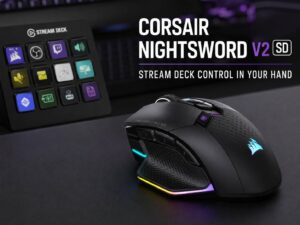
A mouse with a USB receiver can feel better for gaming or fast design work. Many gaming mice use a 2.4 GHz receiver, which often gives a faster and more stable connection than Bluetooth.
For most people, Bluetooth is good enough. The only small downside is the wake-up delay. Some Bluetooth mice pause for a second after sitting idle. That is normal, but it can feel strange at first.
If you need the lowest delay possible, use the USB receiver that came with the mouse. If you want fewer cables and fewer accessories, Bluetooth is the cleaner choice.
Adjust Mouse Settings in Windows 10
After the mouse connects, take a moment to adjust how it feels.
Open:
Settings > Devices > Mouse
From there, you can change:
- Primary mouse button
- Cursor speed
- Scroll wheel behavior
- Number of lines scrolled at a time
For more settings, click Additional mouse options. This opens the older Windows mouse menu, where you can adjust pointer speed, double-click speed, pointer trails, and other options.
For normal work, a medium pointer speed feels best for most users. For gaming, you can lower Windows sensitivity and adjust the mouse speed inside each game.
Common Mistakes That Stop Pairing
Most Bluetooth mouse pairing problems come from simple mistakes. Check these before you spend time on drivers.
Common problems include:
- The mouse is not in pairing mode.
- The mouse is already paired with another device.
- The batteries are weak.
- Bluetooth is off in Windows 10.
- Airplane mode is on.
- The PC has no Bluetooth hardware.
- The Bluetooth driver is missing.
- The mouse is too far from the PC.
- USB interference is weakening the signal.
- The wrong device type is selected during setup.
One detail matters in the Add device menu. Choose Bluetooth. Do not choose “Everything else” for a Bluetooth mouse.
My Practical Advice
A Bluetooth mouse is worth using on Windows 10 if you want a simple, clean setup. It is especially nice on laptops, where every USB port matters.
That said, I would not overthink the setup. If the mouse does not pair in the first minute, reset the basics. Turn Bluetooth off and on. Restart pairing mode. Remove old connections. Check the battery.
Most of the time, the problem is not serious. It is just a stuck pairing mode or an old connection from another device.
For people who work from home, comfort matters more than it seems. A smooth mouse, a decent chair, and fewer background distractions can make the day feel lighter. If sound is part of the problem, this guide to noise-canceling headphones in 2026 fits naturally with a better desk setup.
Final Checklist
Before you finish, run through this quick checklist:
- Bluetooth is turned on in Windows 10.
- The mouse has fresh or charged batteries.
- The mouse is in pairing mode.
- The mouse is close to the PC.
- Old pairings have been removed.
- Bluetooth drivers are updated.
- The mouse works on a normal surface.
- USB devices are not blocking the Bluetooth signal.
Once all of that is done, your Bluetooth mouse should connect and stay connected without much trouble.