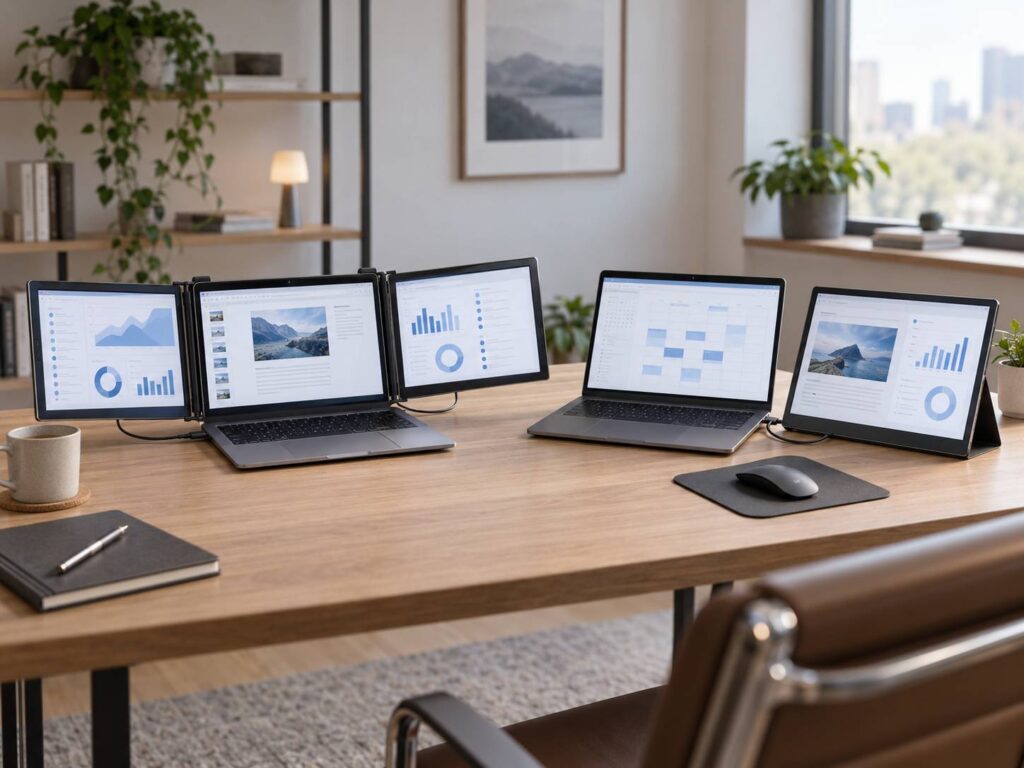
Working from a laptop is convenient until your desktop starts feeling cramped. Once you have a spreadsheet, browser, video call, and notes open at the same time, a second screen can make a real difference.
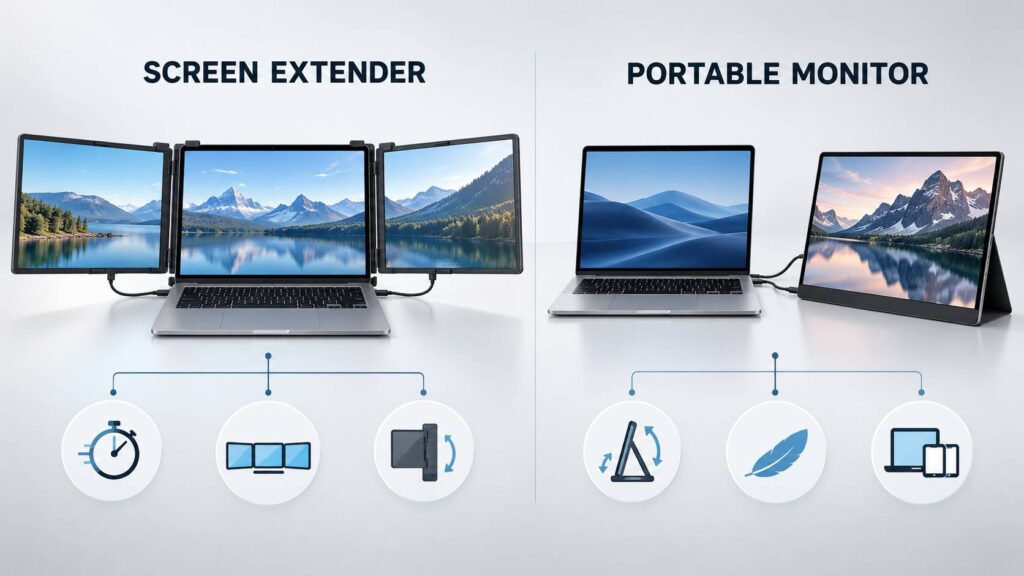
Two popular options are laptop screen extenders and portable monitors. Both give you more display space, but they do it in different ways. A screen extender attaches to the laptop or sits directly behind it. A portable monitor stands separately and connects through USB-C, HDMI, or another supported video connection.
For most people, a portable monitor is the more practical choice. It gives you greater flexibility, a wider selection of screens, and fewer physical compatibility concerns. Still, a laptop screen extender can be very convenient if you often need two or three displays while traveling.
Here is how the two options compare and what you should check before buying either one.
What Is a Laptop Screen Extender?
A laptop screen extender adds one or two displays beside your laptop’s built-in screen. Some models clip directly onto the lid, while others use a frame that rests behind the computer.
A single-screen model gives you one extra display. A dual-screen extender adds a panel to each side, creating a three-screen workstation once you include the laptop display.
The biggest advantage is the integrated design. You do not need to find a separate position for each monitor. Open the frame, slide out the panels, connect the necessary cables, and you are almost ready to work.
Still, screen extenders are not as universal as they sometimes appear. The frame must fit your laptop’s screen size and lid thickness. It also needs enough space around the vents, ports, and hinges.
The added weight matters too. Some extenders are surprisingly heavy, especially models with two panels. A lightweight laptop may become rear-heavy or unstable once both screens are open.
What Is a Portable Monitor?
A portable monitor is a separate, slim display designed for travel. It normally includes a folding cover, kickstand, or detachable stand.
Many models use one USB-C cable for both video and power. Others connect through HDMI and need a second USB cable for power. Some include both connection types, which makes them easier to use with different devices.
Portable monitors come in a much wider range of configurations. You can find basic Full HD models for office work, as well as high-resolution, high-refresh-rate, touchscreen, OLED, and color-focused displays.
Because the monitor stands independently, you can place it on either side of your laptop. Some models also support portrait orientation. Better still, you can use the same screen with another laptop, a compatible phone, a tablet, a mini PC, or a game console.
Laptop Screen Extender vs Portable Monitor at a Glance
| Feature | Laptop screen extender | Portable monitor |
|---|---|---|
| Design | Attaches to or rests behind the laptop | Stands separately |
| Extra screens | Usually one or two | Usually one |
| Setup time | Fast once properly fitted | Requires separate positioning |
| Placement options | Limited by the frame | More flexible |
| Weight | Can add considerable weight to the lid | Does not place weight on the laptop |
| Screen selection | Usually focused on productivity | Wider choice of panels and features |
| Compatibility | Can become complicated with two screens | Usually simpler with one screen |
| Desk space | Needs room beside the laptop | Needs space for its stand |
| Other devices | Mainly intended for laptops | Often works with several device types |
| Best suited to | Frequent mobile multitasking | General travel, work, gaming, and media |
Which One Is Easier to Carry?
A portable monitor is usually easier to carry. You can place it in a protective sleeve next to your laptop and leave it at home when you do not need it.
A screen extender keeps the displays and mounting system together. This makes setup faster, but it also creates a thicker and often heavier package. Dual-screen versions include two panels, sliding rails, hinges, and a supporting frame.
If you work from hotels, client offices, or temporary desks every day, the integrated design may save you time. You open the system, connect it, and have three screens without arranging separate stands.
For occasional travel, though, a portable monitor feels less cumbersome. It also gives you more freedom when packing because you can store it separately from the laptop.
Whichever option you choose, use a proper protective case. Portable displays are thin and can flex under pressure. Screen extenders have moving parts that may bend or loosen if they are packed carelessly.
Screen Quality and Everyday Performance
Portable monitors usually offer more choice in display quality. You can find models with higher resolutions, faster refresh rates, better color coverage, OLED panels, and touch input. Most laptop screen extenders focus more on portability and screen count.
That does not mean every portable monitor looks better. Panel quality varies widely in both categories. Before buying, check the following specifications:
- Native resolution
- Refresh rate
- Panel type
- Brightness
- Contrast
- Color coverage
- Viewing angles
- Response time
- Screen coating
- Touch support
Full HD at 60 Hz is usually fine for emails, spreadsheets, documents, browser tabs, and video calls. Still, text may look less sharp on a larger Full HD screen, especially when you sit close to it.
A higher resolution can improve text clarity and give you more usable workspace. Yet it also needs more display bandwidth and may require scaling to keep menus and text readable.
If you edit photos or videos, pay close attention to color coverage and factory calibration. Portable displays rarely match the size and image controls of a full desktop monitor. For comparison, a professional model such as the ASUS ProArt Display 6K PA32QCV prioritizes resolution, workspace, and color-focused features rather than travel convenience.
Be cautious with basic HDR claims as well. A monitor may accept an HDR signal without producing convincing HDR images. Good HDR also requires suitable brightness, contrast, and color performance.
For gaming, a portable monitor is usually the better option. Gaming-focused models may offer higher refresh rates, faster response times, and adaptive-sync support. Most screen extenders are designed for office work and general multitasking.
Compatibility Matters More Than the Connector Shape
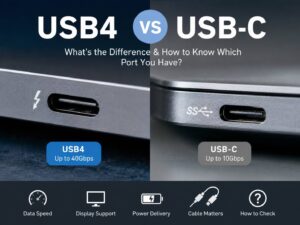
One of the most common mistakes is assuming that every USB-C port supports video. It does not.
USB-C only describes the physical connector. The port may support charging, data, video, or a combination of these functions. To send video directly to a monitor, the laptop normally needs DisplayPort Alt Mode, USB4, or a compatible Thunderbolt connection.
The cable must support video too. A charging-only USB-C cable may fit both devices but still show a blank screen.
HDMI can make things simpler because it provides a dedicated video connection. Still, many slim portable monitors use Mini HDMI rather than full-size HDMI. They may also need a separate USB connection for power.
Dual-screen extenders need even more attention. To show different content on both added screens, the laptop must provide two independent display streams. Depending on the extender, this may require:
- Two USB-C video connections
- One USB-C connection and one HDMI connection
- DisplayPort Multi-Stream Transport on compatible Windows hardware
- DisplayLink or another USB graphics system
- A dedicated dock or adapter
An HDMI splitter does not solve this problem. Most splitters copy the same image to two displays instead of creating two independent desktops.
Also, a hub with several video outputs cannot automatically increase the laptop’s display limit. The graphics hardware and operating system still decide how many native screens the computer can support.
Windows and Mac Display Support Can Differ
Windows handles extended displays well, but the laptop’s graphics hardware still sets the final limit. A Windows laptop may have enough ports for two screens while supporting only one additional display through a particular dock or connection.
Mac compatibility can be more confusing. The number of supported external displays depends on the exact Mac model, processor, resolution, refresh rate, and connection method.
Some MacBook models support only one native external display in certain configurations. Newer models may support more, but you should still check Apple’s specifications for your exact device.
Some dual-monitor adapters use DisplayPort Multi-Stream Transport. They can provide two extended desktops on compatible Windows computers but may mirror the outputs on macOS. A product description that simply says “Mac compatible” does not confirm that both screens will work independently.
If you own a Mac, look for a clear compatibility table that lists your processor generation and the number of supported extended displays.
Native Video vs DisplayLink
Native HDMI, DisplayPort, USB4, Thunderbolt, and USB-C video connections use the laptop’s regular display output. They normally offer the simplest setup and do not require extra graphics software.
DisplayLink takes a different route. Compatible hardware and software send display information through USB. This can add more screens when the laptop does not support enough native outputs.
For office tasks, DisplayLink can work very well. It is especially useful for email, documents, development tools, research, and spreadsheets.
There are still a few things to consider. DisplayLink needs compatible software or drivers. On macOS, the DisplayLink Manager application requires Screen Recording permission so it can access the pixels that appear on the external display.
A company-managed computer may block that permission or prevent you from installing the required software. For this reason, check with your IT department before buying a DisplayLink-based extender for a work laptop.
Software-driven displays may also use more system resources than native video connections. The effect depends on the laptop, screen resolution, displayed content, and DisplayLink hardware.
Native video remains the safer choice for competitive gaming, demanding video work, color-sensitive projects, and high-refresh-rate output. Some protected streaming services may also behave differently on software-based display connections.
Power Use and Battery Life
A portable display needs power, and that power often comes from the laptop. One small screen may have a manageable effect on battery life. Two bright panels can drain the battery much faster.
Power use changes with panel size, brightness, resolution, speakers, touch input, and display technology. Lowering the brightness helps, but a three-screen setup can still be difficult to run for long periods without a charger.
Some portable monitors support USB-C power pass-through. In this setup, you connect a charger to the monitor, then connect the monitor to the laptop. The monitor powers itself and sends the remaining power to the computer.
Do not assume the laptop will receive the charger’s full rated wattage. The monitor uses some of the available power, and the pass-through output may have its own limit.
Before relying on this feature, check:
- The monitor’s maximum power input
- Its maximum power output to the laptop
- The wattage required by your laptop
- Whether the necessary USB-C cable comes in the box
A low-power charger may keep the laptop running during light office work but fail to charge it during gaming, rendering, or other demanding tasks.
Comfort and Desk Space
A screen extender creates a neat row of displays. Still, all the screens normally remain at laptop height. During a long work session, that may leave you looking downward for hours.
A portable monitor gives you more freedom. You can place it farther away, raise it with a stand, or turn it vertically. This makes it easier to create a comfortable arrangement.
Of course, a separate display needs space for its stand. That can become awkward on a small café table, train tray, or narrow hotel desk. A screen extender has a compact footprint, although it still needs enough room for the side panels to open.
Stability matters as well. A dual-screen extender can make a lightweight laptop feel top-heavy. Soft surfaces, narrow tables, and flexible hinges may make the setup wobble.
This does not mean an extender will automatically damage your laptop. Still, handle the system carefully. Avoid forcing the lid backward or carrying the laptop by the screen while the extender remains attached.
If you use a 2-in-1 laptop, detachable computer, or very thin ultrabook, a freestanding portable monitor will usually be the easier choice.
Which Option Gives You Better Value?
A portable monitor often delivers better screen quality for the money. Most of the price goes toward the panel, electronics, connections, and stand.
With a laptop screen extender, you also pay for the folding frame, sliding mechanism, hinges, and compact design. A dual-screen model includes two panels, so prices can rise quickly.
Still, value is personal. If an extender saves you setup time every working day, the added cost may make sense. If you want one screen that works with several devices, a portable monitor offers more flexibility over time.
Remember to include any extra accessories in your budget:
- USB-C video cable
- HDMI or Mini HDMI cable
- USB-C charger
- DisplayLink adapter or dock
- Protective sleeve
- Adjustable stand
A cheaper monitor can become expensive if you need several adapters just to connect it.
Choose a Laptop Screen Extender If You:
- Regularly need three visible applications
- Work from temporary locations
- Want all screens aligned with the laptop
- Prefer a quick, integrated setup
- Have confirmed support for two external displays
- Mainly use office, coding, research, or communication tools
- Do not mind carrying extra weight
A screen extender works best for someone who genuinely uses three displays. Buying a dual-panel system just because it looks productive may leave you carrying more equipment than you need.
Choose a Portable Monitor If You:
- Need only one extra screen
- Want simpler compatibility
- Care about image quality or gaming features
- Prefer flexible screen positioning
- Use several laptops or other devices
- Own a 2-in-1 or thin ultrabook
- Want to travel with the lightest practical setup
For many remote workers, a laptop and one 15-inch or 16-inch portable monitor provide a comfortable middle ground. You gain useful desktop space without carrying a full three-screen frame.
What to Check Before Buying
Before choosing either display type, answer these questions:
- Does the laptop’s USB-C port support video output?
- How many external displays can the laptop run natively?
- Does the display need a driver?
- Does the required driver support your operating system?
- Will your employer allow the software on a managed laptop?
- Does the product need one cable or several?
- Can the laptop power the screen without a charger?
- Does the frame fit your laptop’s size and lid thickness?
- Will the screen block any vents or ports?
- Is the display bright enough for your usual workspace?
These checks may feel tedious, but they prevent most compatibility surprises.
Frequently Asked Questions
Can any laptop use a screen extender?
No. The frame must physically fit the laptop, and the computer must support the required video connections. Some extenders also need drivers that may not work with every operating system.
Can a portable monitor work with one cable?
Yes, if the laptop’s USB-C port supports video output and provides enough power. The monitor and cable must support the same features. Otherwise, you may need HDMI for video and USB for power.
Do two USB-C ports mean I can use two monitors?
Not necessarily. Some USB-C ports do not carry video, while others share the same display resources. Check the specifications for your exact laptop model.
Can I use a laptop screen extender for gaming?
You can, but most extenders focus on productivity. A portable gaming monitor will usually offer better refresh rates, response times, and connection options.
Will an extra monitor slow down my laptop?
Basic office work across a native second display should have little effect on a modern laptop. High resolutions, fast refresh rates, games, video editing, and software-based USB graphics can place more demand on the system.
Does a portable monitor reduce battery life?
Yes, if it draws power from the laptop. The actual effect depends on the display, brightness level, workload, and laptop battery capacity.
Laptop Screen Extender or Portable Monitor: Which Is Better?
In the laptop screen extender vs portable monitor comparison, a portable monitor is the better choice for most buyers. It is easier to position, works with more devices, and gives you a much wider selection of display features.
A laptop screen extender makes more sense for people who often need three screens and want the fastest possible mobile setup. Yet compatibility can be complicated, especially with dual-panel models and some Macs.
Start by checking your laptop’s native display limit. Then confirm the connection type, cable requirements, power needs, and driver support. Once those details are clear, the final choice becomes much easier.