Monitor Arm vs Stock Stand: The Desk Upgrade That Actually Changes Comfort

A monitor arm can look like a small desk accessory, but it often changes the whole setup. A stock stand does the basic job. It holds the screen, keeps it stable, and lets you start using the monitor right away. For many people, that is enough.

Still, once you care about posture, desk space, cable routing, or dual monitors, the choice gets more serious. A monitor arm gives you more control. A stock stand gives you simplicity. Both can work well, but they solve different problems.

So, which one should you choose? For most people, a monitor arm is better for comfort and desk space. A stock stand is better for simple setups, tighter budgets, and monitors that already include a good adjustable stand.

What Is a Stock Monitor Stand?

A stock monitor stand is the stand that comes in the box with your monitor. It usually connects to the back of the display through a quick-release mount or screws. Once attached, it sits directly on your desk.

Some stock stands feel basic. They tilt forward and backward, but that is all. Better monitor stands include height adjustment, swivel, and pivot. Premium office and gaming monitors often come with stands that feel strong, smooth, and easy to adjust.

The main benefit is convenience. You do not need extra parts, tools, or compatibility checks. You unpack the monitor, attach the stand, and place it where you want it.

A stock stand usually works best if:

  • Your desk has enough space
  • The monitor already sits at a comfortable height
  • You do not move the screen often
  • You want the lowest-cost setup
  • You prefer a simple installation

That said, the base can be annoying. Some stock stands take up a large part of the desk. Others push the monitor too far forward. On smaller desks, this can make your keyboard, mouse, speakers, and notebook feel cramped.

What Is a Monitor Arm?

A monitor arm is a separate mount that holds your screen above the desk. Most models attach with a desk clamp or through a grommet hole. The monitor connects to the arm through a VESA mount, usually 75 x 75 mm or 100 x 100 mm on common desktop monitors.

The big advantage is movement. A good monitor arm lets you raise, lower, pull, push, tilt, swivel, and rotate the screen. Gas spring arms feel smoother, so they are popular for home offices and gaming desks. Mechanical arms cost less, but they can take more effort to adjust.

A monitor arm works best if you want a cleaner desk and better control over screen position. It also helps if you use more than one monitor.

A monitor arm usually makes sense if:

  • Your screen sits too low
  • Your desk feels crowded
  • You use a dual-monitor setup
  • You want portrait mode
  • You use a sit-stand desk
  • You need better cable routing
  • You switch between work, gaming, and video calls

In practice, a monitor arm can make an average monitor feel more premium. The screen becomes easier to place, and the desk feels more open.

Monitor Arm vs Stock Stand: The Main Difference

The biggest difference is adjustability.

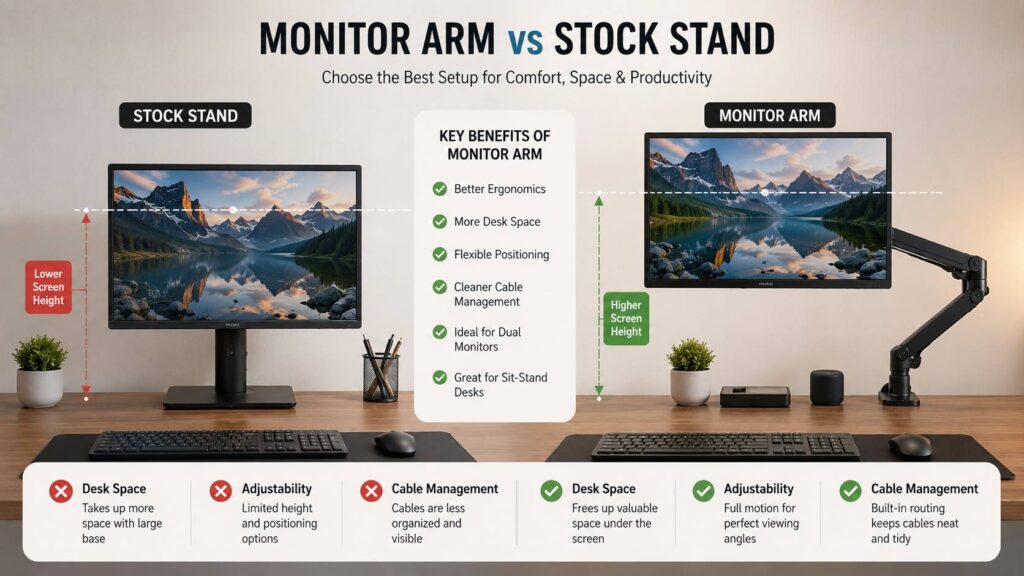
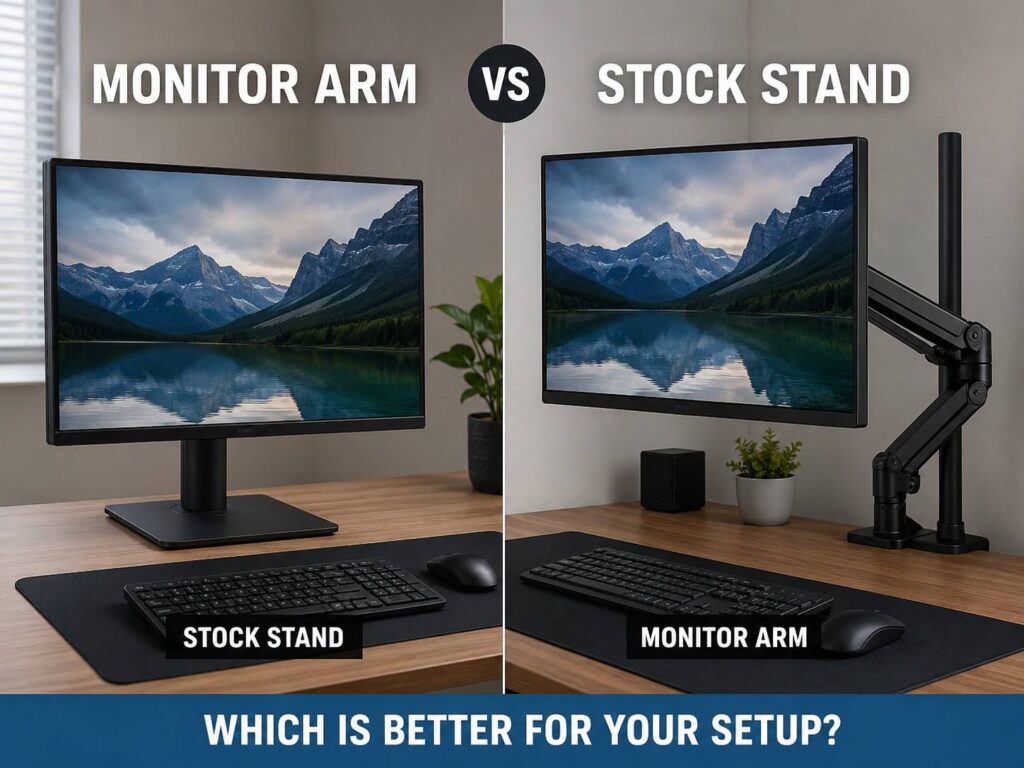
A stock stand gives you a fixed base and limited movement. A monitor arm gives you more freedom. You can move the screen higher, lower, closer, farther back, or off to the side.

That extra movement matters more than it sounds. A monitor that sits too low can make you bend your neck. A screen that sits too close can feel tiring during long work sessions. A display that sits too far away can make text harder to read.

A monitor arm lets you fix these issues without stacking books under the screen. It also frees the desk surface below the monitor, which makes the whole setup feel lighter.

By comparison, a stock stand keeps things simple. There are fewer parts, fewer adjustments, and fewer things that can go wrong. If your current stand already gives you a good viewing position, replacing it may not be necessary.

Comfort and Ergonomics

Comfort is the main reason to buy a monitor arm.

A good screen position should let you sit naturally, with your neck relaxed and your eyes looking slightly downward toward the screen. The monitor should not force you to hunch, lean forward, or twist your neck.

A stock stand can achieve this if it has enough height adjustment. Many budget monitors do not. They sit low, and the only real fix is a monitor riser, a stack of books, or a monitor arm.

A monitor arm gives you cleaner control. You can set the screen height, then adjust the distance. After that, you can fine-tune the angle. This is useful for long writing sessions, coding, spreadsheets, editing, and general office work.

For a full ergonomic desk setup, your mouse choice matters too. If wrist comfort is part of your setup plan, this trackball vs mouse comparison fits naturally with the monitor arm discussion.

Real opinion: once you use a good monitor arm for a few weeks, going back to a fixed stand can feel restrictive. That does not mean every arm is great. Cheap arms can sag, wobble, or feel stiff. A quality arm makes the upgrade feel worth it.

Desk Space and Setup Cleanliness

Desk space is where a monitor arm often wins fast.

A stock stand base sits in the middle of your desk. Some bases are flat and neat. Others are wide, deep, or awkwardly shaped. They can block your keyboard, desk mat, soundbar, docking station, or speakers.

A monitor arm lifts the screen off the desk. As a result, you get usable space under the monitor. You can place a notebook, audio interface, small speaker, charging dock, or keyboard there.

Cable management is cleaner too. Many monitor arms include cable clips or channels. They guide the display cable and power cable along the arm, so the back of your desk looks less messy.

Still, a monitor arm does not magically hide every cable. You still need the right cable length, and you need to route things neatly. Short HDMI, DisplayPort, or USB-C cables can become a problem after you mount the screen.

Stability and Wobble

A monitor arm is not always more stable than a stock stand.

This surprises many people. A strong stock stand can feel more solid than a cheap arm. If your desk shakes while typing, a monitor arm can amplify that movement. The farther the screen extends from the clamp, the more noticeable wobble can become.

A monitor arm may wobble if:

  • The desk is thin
  • The arm is near its weight limit
  • The monitor is too heavy
  • The clamp is loose
  • The screen sits far forward
  • The desk surface flexes
  • The arm uses weak joints

A stock stand may wobble if:

  • The base is too small
  • The stand neck is thin
  • The monitor is large or ultrawide
  • The desk itself moves
  • The stand is made from light plastic

For gaming, this matters a lot. If you type hard or play fast shooters, even small screen movement can become distracting. Pick an arm with a higher weight rating than your monitor needs. Do not buy one that barely matches the display weight.

Monitor arm vs stock stand diagram

VESA Mounts and Compatibility

Before buying a monitor arm, check compatibility.

Most arms need a VESA mount on the back of the monitor. The common patterns are 75 x 75 mm and 100 x 100 mm. If your monitor has no VESA holes, you may need an adapter. Some monitors do not support clean adapters at all.

Next, check weight. Use the monitor weight without the stock stand. This number matters more than screen size. A 27-inch monitor can be light, and another 27-inch monitor can be much heavier.

Desk compatibility matters too. Clamp mounts need a strong desk edge. A glass desk, hollow desk, or very thin desk can be risky. Some desks have rear bars, panels, or cable trays that block the clamp.

Before buying, check:

  • Monitor weight without stand
  • VESA pattern
  • Desk thickness
  • Clamp clearance
  • Arm height range
  • Maximum reach
  • Supported screen size
  • Cable length
  • Warranty
  • User reviews about sagging

This step prevents most bad purchases.

Monitor Arm Pros

A monitor arm gives you more freedom and a cleaner desk.

Main benefits include:

  • More usable desk space
  • Better screen height control
  • Easier dual-monitor alignment
  • Cleaner cable routing
  • Better support for portrait mode
  • More flexible screen distance
  • Better fit for sit-stand desks
  • Easier sharing during calls or meetings
  • Cleaner look for small desks

For many home office setups, this upgrade feels practical right away. The desk looks better, but the bigger win is comfort.

Monitor Arm Cons

A monitor arm has drawbacks too.

Main issues include:

  • Extra cost
  • More installation work
  • Possible wobble
  • Desk clamp marks
  • VESA compatibility problems
  • Tension adjustment hassle
  • Sagging on cheaper arms
  • Poor fit behind desks near a wall
  • Bad support for very heavy ultrawide screens

The most common issue is sagging. Gas spring arms need tension adjustment. If the tension is too low, the monitor drops. If it is too high, the screen rises. After setup, it should stay in place, but low-quality arms can drift over time.

Stock Stand Pros

A stock stand is simple, and that matters.

Main benefits include:

  • Included with the monitor
  • No extra cost
  • Fast setup
  • No desk clamp needed
  • Good stability on many premium monitors
  • Fewer compatibility issues
  • Better match with the monitor design
  • Easy to move from one desk to another

A good stock stand is not a bad choice. Many gaming and office monitors include strong stands with height, tilt, swivel, and pivot. If your monitor already has those features, a monitor arm may feel less necessary.

Stock Stand Cons

The main problem is limited control.

Common issues include:

  • Takes up desk space
  • May sit too low
  • May lack height adjustment
  • Large base can block accessories
  • Harder to align dual monitors
  • Less useful on sit-stand desks
  • Cable routing is often basic
  • Portrait mode may not be supported

Budget monitors often cut costs on the stand. The panel can be good, yet the stand may feel cheap. In that case, a monitor arm can fix the weakest part of the setup.

Which One Is Better for Dual Monitors?

A monitor arm is usually better for dual monitors.

Two stock stands take up a lot of desk space. They can also make alignment harder, especially if the monitors are different sizes or brands. A dual monitor arm helps line them up more neatly.

Still, do not pick the cheapest dual arm for heavy displays. Two 27-inch monitors need a stronger mount than many people expect. Two 32-inch monitors or ultrawide screens need even more care.

For standard 24-inch and 27-inch displays, a good dual gas spring arm can work very well. For heavy monitors, separate single arms often feel more stable than one cheap dual arm.

Which One Is Better for Gaming?

For gaming, the answer depends on stability and screen position.

A monitor arm is great if you like to pull the screen closer for competitive games. It also helps if you switch between keyboard and controller. You can move the screen based on how you sit.

A stock stand is fine if it feels stable and already has good height adjustment. Many gaming monitors come with decent stands, so replacing them is not always a must.

Choose a monitor arm for gaming if desk space, screen distance, or cable routing bothers you. Keep the stock stand if it feels solid and already places the screen where you want it.

Which One Is Better for Work?

For work, a monitor arm often makes more sense.

Long work sessions make small comfort issues more obvious. A low screen can strain your neck. A screen placed off-center can make you twist during the day. A crowded desk can slow you down and make the setup feel messy.

A monitor arm helps fix those issues. It also pairs well with laptop setups, docking stations, and standing desks. If your work includes writing, coding, spreadsheets, editing, or customer support, the extra adjustment is useful.

Desk ergonomics should include input devices too. For users with wrist strain or limited desk space, this trackball mouse guide is a useful follow-up after setting the monitor height correctly.

Best Choice by User Type

Pick a monitor arm if you want:

  • More desk space
  • Better screen height
  • Cleaner cable routing
  • Easier dual-monitor setup
  • More flexible screen movement
  • A cleaner-looking desk
  • Better support for sit-stand use

Pick a stock stand if you want:

  • Simple setup
  • No extra cost
  • Fewer compatibility checks
  • Strong stability from the included stand
  • No clamp marks on the desk
  • A setup that works straight from the box

The best choice depends on your desk, monitor, and daily habits. Still, if your current stand feels too low, too bulky, or too limited, a monitor arm is usually worth it.

Final Verdict: Monitor Arm vs Stock Stand

A monitor arm is the better choice for most people who care about comfort, desk space, and a cleaner setup. It gives you more control over height, distance, angle, and layout. It is especially useful for small desks, dual monitors, laptop setups, and long work sessions.

A stock stand is still a smart choice if it is sturdy, adjustable, and already comfortable. It costs nothing extra and avoids compatibility problems.

So, start with your current problem. If the screen sits well and your desk has room, keep the stock stand. If your desk feels crowded or your monitor position feels wrong, a good monitor arm can be one of the most useful upgrades you make.

Related posts

Latest posts

What Is QMK? The Keyboard Firmware That Makes Custom Keyboards Feel Truly Yours

QMK is one of those terms you see often once you start looking at mechanical keyboards. At first, it sounds technical and maybe a...

What Are PTFE Mouse Feet? The Tiny Mouse Upgrade That Makes Glide Feel Smoother

A mouse can look perfectly fine and still feel bad to use. The clicks may work. The sensor may track well. Yet the glide...

Spinning Mop Pads vs Roller Mop Robot Vacuum: Which Cleaning System Is Better for Real Homes?

Robot vacuum mops have changed a lot in a short time. Older models often dragged a damp cloth across the floor and called it...