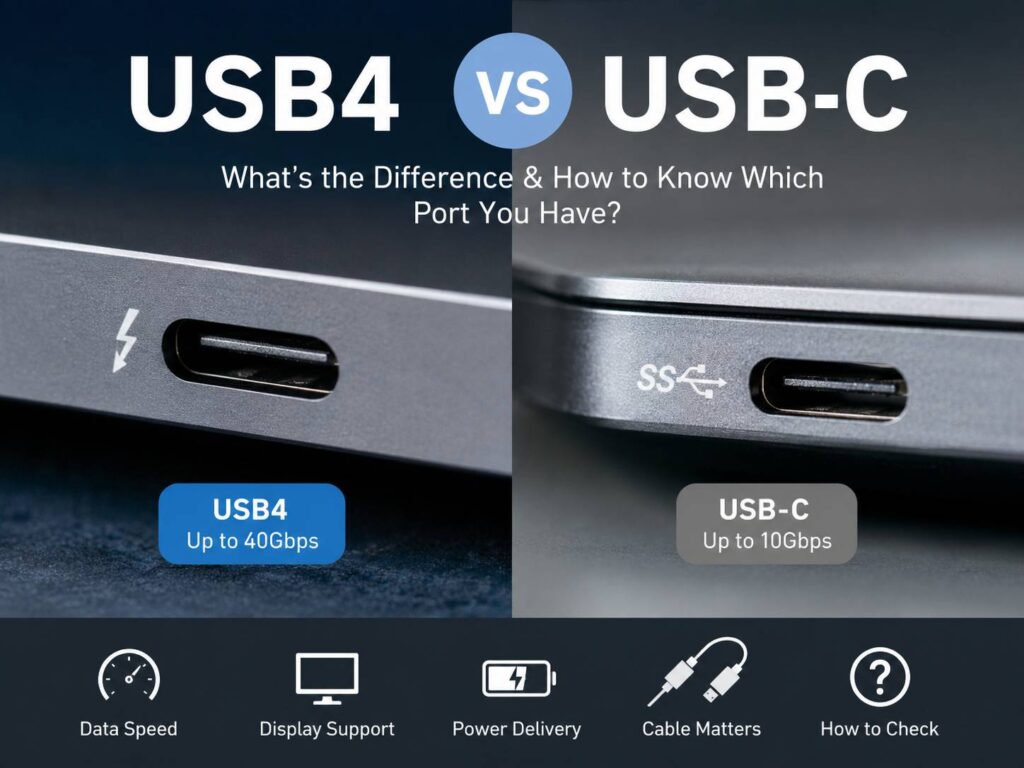
USB-C is the oval connector, and USB4 is one of several standards that can run through it, so the shape of a laptop port says nothing about whether it will drive a monitor. One USB-C port may carry nothing faster than USB 2.0 and no picture at all, while an identical-looking port runs USB4 with video and charging on the same cable. For a monitor, three questions decide whether one cable is enough: does the port send video, how much power will the laptop take through it, and how much bandwidth is left for the monitor's USB ports once the picture is running. USB4 and Thunderbolt ports answer the first question with a yes by definition. Plain USB-C ports have to be checked one by one.
The connector and the standard
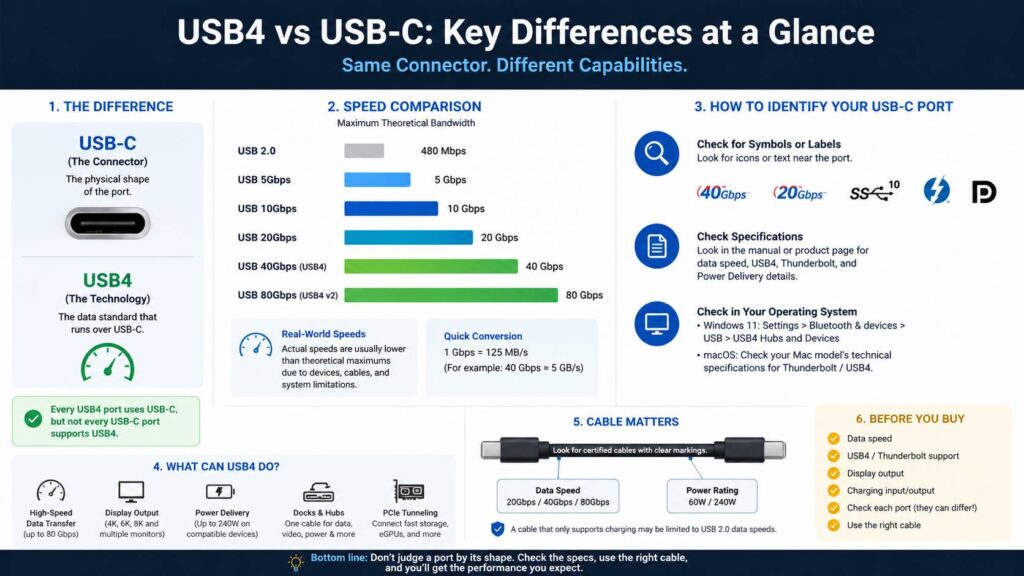
The USB Implementers Forum (USB-IF) formally calls the connector USB Type-C, and its standard defines the plug, the reversible shape and the pins. What travels over those pins is negotiated when you plug in: USB 2.0 at 480 Mbps, USB 3.x at 5, 10 or 20 Gbps, USB4 at 20, 40 or 80 Gbps, DisplayPort video, Thunderbolt, and USB Power Delivery for charging. Every USB4 port uses the USB-C connector, but a USB-C port can be wired for USB 2.0 and charging and nothing else.
USB-IF published USB4 Version 2.0 in October 2022. It doubled the maximum to 80 Gbps, over the passive cables already certified for the old speed and over new active cables, and it lets a link run lopsided, up to 120 Gbps in one direction with 40 Gbps coming back, for very demanding displays. The same update aligned USB4 with DisplayPort 2.1.
Divide by eight for a rough ceiling in bytes, which puts the middle USB4 tier at 5 GB/s and the top one at 10 GB/s. Protocol overhead keeps real transfers below them, and the slowest part of the chain (port, cable, dock or device) sets the speed you get. A 10 Gbps drive keeps that speed on the fastest USB4 port.
Two ways a USB-C port carries a picture
A USB-C monitor receives a DisplayPort signal, and it can arrive in one of two ways. DisplayPort Alternate Mode hands some of the cable's high-speed wire pairs over to a native DisplayPort signal. USB4 and Thunderbolt instead wrap DisplayPort into packets and send them alongside USB and PCIe data on a shared link.
VESA, the group behind DisplayPort, describes Alt Mode as an optional capability of a USB-C port, and lists DisplayPort as mandated for USB4 and Thunderbolt. A laptop spec sheet that says "USB4" or "Thunderbolt 4" has a port that will output video. One that says "USB-C 10Gbps" may or may not, and only the words "DisplayPort" or "DP Alt Mode" next to it settle the question.
The lane split on Alt Mode monitors
A full-featured USB-C cable has four high-speed lanes. In VESA's description of Alt Mode, DisplayPort can take all four, which leaves only USB 2.0 and charging on the cable, or it can take two and leave the other two for USB 3 data. With a laptop that outputs DisplayPort 1.4, two lanes are enough for 4K at 60 Hz. With an older DisplayPort 1.2 laptop, two lanes manage 4K only at 30 Hz.
The Dell S2725QC, a 4K, 120 Hz monitor whose single USB-C upstream port carries DisplayPort 1.4 Alt Mode, USB 5Gbps data and up to 65 W of charging, puts this trade in its menu. The setting is called USB-C Prioritization, with two choices, High Data Speed and High Resolution. Dell's user guide says to pick High Data Speed when the laptop's port is DisplayPort 1.4, and High Resolution on DisplayPort 1.2 or older, which gives full video "with data and network speed drop". The troubleshooting table lists the symptom you would see with the wrong choice: the refresh rate at native resolution falls from 60 Hz to 30 Hz.
So on an older laptop, the monitor's USB ports slow to USB 2.0 so the picture can have all four lanes. A keyboard and mouse on the monitor's hub will not notice. A webcam, a wired network adapter or an external drive plugged into the monitor will.
Thunderbolt and USB4 monitors avoid the split because video and data share one link instead of dividing fixed lanes. The Dell U3225QE carries its picture, its USB hub and 140 W of charging over one Thunderbolt 4 cable, and the ASUS ProArt PA32QCV has two Thunderbolt 4 ports with 96 W of charging, the second one there to chain another display. Intel's requirements for Thunderbolt 4 computers include driving two 4K displays, and Thunderbolt 5 raises that to two 6K displays, with links twice as fast as Thunderbolt 4 that Intel's Bandwidth Boost can push to 120 Gbps toward the screen.
Some screens depend on the port entirely. The Apple Studio Display XDR connects over Thunderbolt 5 and USB-C and has no HDMI or DisplayPort input, so a computer without Thunderbolt has no easy way to drive it. Small accessories follow the same rule. Corsair says its Xeneon Edge touchscreen gets picture and power over one USB-C cable only from a Thunderbolt or USB4 port, and from any other USB-C port it needs a second cable for power.
Charging through the monitor
USB Power Delivery now reaches 240 W on compatible hardware, and a monitor's figure, such as those on the two Dell models above, is the most it will offer. The laptop takes what it negotiates, and Intel's rules require Thunderbolt 4 computers to accept up to 100 W on at least one port and Thunderbolt 5 computers up to 140 W. A laptop that came with a 100 W charger will run on the S2725QC, but under heavy load the battery can still drain.
The cable can cap all of it. USB-IF requires every certified USB-C to USB-C cable to carry a logo with its data rate and its power rating, for example "20Gbps/60W" on a cable rated for 20 V at 3 A. That figure is a hard ceiling, since 20 V times 3 A comes to exactly the wattage on the logo. Among cables carrying USB-IF's current logos, only those marked 240W are rated for more, so the U3225QE on a 60W cable charges no faster than the cable allows. A cable marked with power alone and no data rate is a USB 2.0 cable, which charges but cannot carry DisplayPort.
Checking the port you already have
On Windows 11, Settings, then Bluetooth & devices, then USB, then USB4 Hubs and Devices lists a USB4 system's capabilities and whatever is attached. Microsoft added the page in its July 2023 update and says it does not appear on systems whose USB4 support runs through a different connection manager, so a missing page is a reason to check the spec sheet, not proof the port lacks video.
Apple's port guide for Macs names the types directly: Thunderbolt / USB 4, Thunderbolt 4 and Thunderbolt 5, with the Thunderbolt symbol printed above each Thunderbolt / USB 4 port. Every one of them outputs video, but the number of external screens a MacBook drives depends on its chip.
Elsewhere, look at the printing beside the port. USB-IF's port logos, such as USB 40Gbps, are optional and allowed only where the chip or the whole product is certified, so their absence proves little. A lightning bolt means Thunderbolt, and a small DisplayPort symbol means Alt Mode video.
Before you buy a USB-C monitor
- Find the exact laptop model's spec sheet and read the line for each USB-C port, since two ports on one laptop can differ.
- Look for USB4, Thunderbolt or DisplayPort Alt Mode on the port you will use. Without one of the three, the monitor will need HDMI.
- On an Alt Mode laptop, find the DisplayPort version. DisplayPort 1.4 keeps a 4K monitor's USB ports at full speed, while 1.2 forces the lane trade described above.
- Compare the monitor's Power Delivery figure with the wattage of the charger that came with the laptop.
- Use the cable from the monitor's box, or a certified one whose logo shows both the data rate and 240W if the monitor offers more than 60 W.