
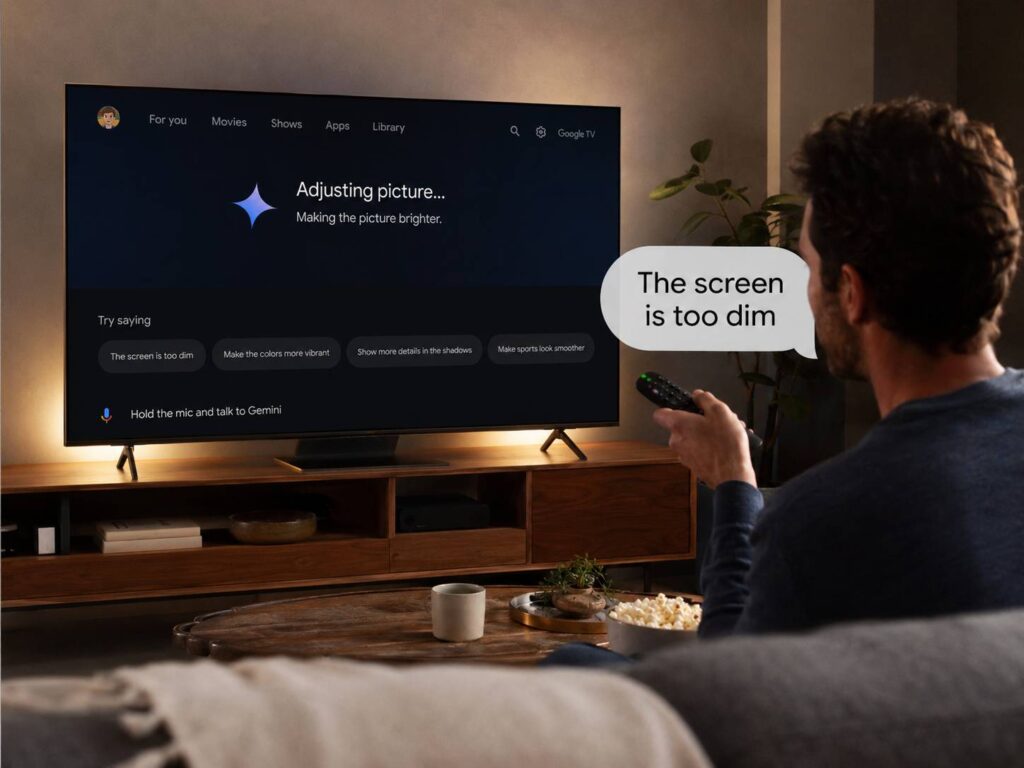
Google TV is getting a smarter way to handle one of the most annoying parts of home viewing: picture settings. Gemini can now help adjust picture and sound with simple voice commands, so users no longer need to pause a movie, open a settings menu, and guess which slider will fix the problem.
That sounds like a small change at first. Still, it solves a real living room problem. Many people buy a new TV, turn it on, and never touch the picture settings again. Then they wonder why dark movies look muddy, sports look too smooth, or voices sound weak during action scenes.
Gemini changes that flow. You can say what looks or sounds wrong, and Google TV can react in a more natural way.
What Gemini Picture Settings on Google TV Can Do
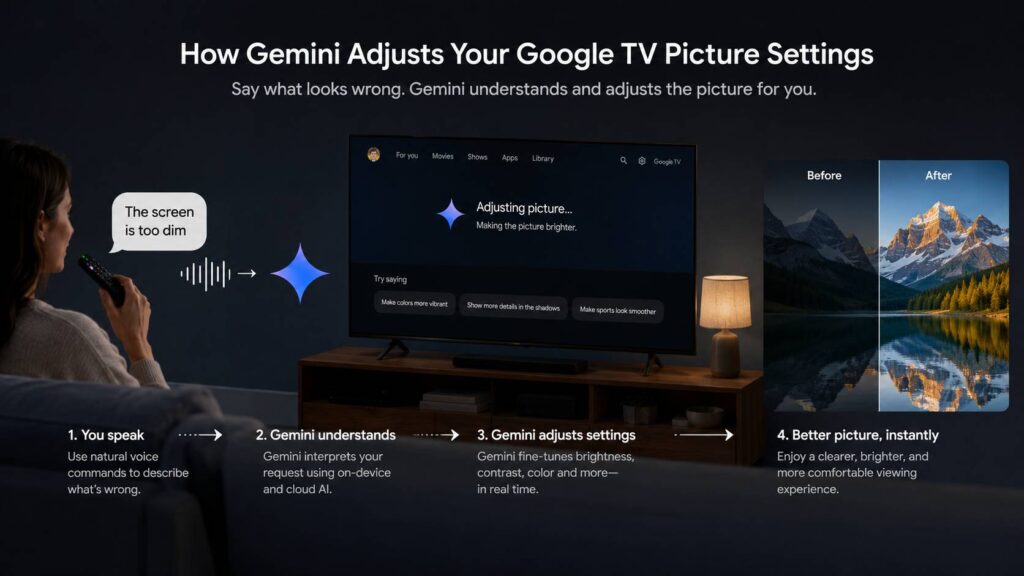
Gemini for Google TV lets users describe a problem in plain language. For example, a viewer can say, “The screen is too dim,” and Gemini can adjust the picture without taking the viewer out of the show or movie.
That matters, mainly for people who hate digging through TV menus. Most viewers do not think in terms like gamma, contrast, tone mapping, backlight, black level, or motion interpolation. They just know the image looks too dark, too bright, too soft, or too fake.
With Gemini, the request can sound more like a normal complaint:
- “Make the picture brighter.”
- “The screen looks too dark.”
- “Make the colors look more natural.”
- “Make voices clearer.”
- “The dialogue is hard to hear.”
- “Make sports look smoother.”
- “Turn down the sharpness.”
- “The picture looks washed out.”
Next, Google TV handles the setting change in the background. That makes the feature feel practical, not just flashy.
Why This Upgrade Feels Useful in Real Homes
TV picture menus have grown crowded over the years. Some brands use terms like vivid mode, filmmaker mode, motion clarity, dynamic contrast, local dimming, HDR tone mapping, and AI picture. Each one changes the image, but the names do not always help normal users.
For this reason, many people leave the TV in its default mode. That can work for bright stores, but it often looks wrong at home. A default picture mode can push colors too hard. It can make faces look too red. It can smooth films until they look like cheap video. It can hide detail in dark scenes.
Gemini helps remove that guesswork. Instead of finding the correct setting, the viewer explains the issue. Then the TV tries to fix it.
At the same time, this does not turn every Google TV into a professionally calibrated display. A budget TV still has panel limits. A weak backlight will still struggle in a bright room. Poor streaming quality will still look poor. Still, Gemini gives casual viewers a faster way to improve the image they already have.
That is why this feature feels more useful than many AI TV tools. It fixes a clear problem.
Picture Settings Still Matter More Than Most People Think
A TV can look very different from one mode to another. Vivid mode can make colors pop, but it can look harsh during movies. Standard mode can work for daytime TV, but it can crush shadows in darker scenes. Cinema or Movie mode often looks more natural, yet some people find it too warm at first.
Then there is motion. Sports fans often like smoother motion. Movie fans often hate it. That “soap opera effect” comes from motion smoothing, and it can make films look unnatural.
Brightness creates another common issue. HDR movies can look impressive on a bright TV, but darker on cheaper screens. In a sunlit room, even a good image can look flat. At night, the same settings can feel too bright.
This is where Gemini can help. It gives users a quick fix without making them learn every setting first.
People comparing big-screen setups should think about this too. A TV with smarter controls can feel easier to live with than a projector that needs more room control and setup. For a deeper look at that choice, this guide on budget projector vs budget TV in 2026 explains the trade-offs in a simple way.
Best Voice Commands to Try First
Short commands usually work best. The request should tell Gemini what feels wrong, not list every setting by name.
Try these first:
- “The screen is too dim.”
- “Make the picture brighter.”
- “The colors look too strong.”
- “Make the picture more natural.”
- “The movie looks too dark.”
- “Make sports smoother.”
- “Make voices clearer.”
- “The music is too loud.”
- “The dialogue is lost.”
- “Make the picture less sharp.”
After that, check the image with your own eyes. AI can help, but your room still matters. A sunny room needs different settings than a dark bedroom. A sports broadcast needs different motion settings than a film.
For this reason, the best result often comes from small changes. Ask Gemini for one fix, look at the screen, then ask again if the picture still feels off.
Which Google TV Devices Support Gemini
Gemini for TV does not work on every Google TV device right away. Current support covers selected Google TV devices, countries, and languages. Google lists models such as TCL QM9K, QM7K, QM8K, and X11K, Google TV Streamer, Walmart onn. 4K Pro, and selected Hisense U7, U8, and UX models.
Support is also tied to location and language. At the time of writing, Gemini for TV is available in the United States and Canada, with English in the US and Canada and French in Canada. The profile must meet the age requirement, and Gemini for TV does not work in Google TV kids’ profiles.
Google says wider support is planned by late 2026 for more Google TV devices with Android TV OS 14 or higher and at least 2 GB of RAM. So, a device can run Google TV and still miss the newest Gemini features.
This is a key detail for shoppers. Do not buy a TV based only on the Google TV label. Check the exact model, software version, country support, and Gemini for TV eligibility.
My Opinion: This Is the Right Use of AI on a TV
Gemini picture control feels like the right kind of AI for a smart TV. It does not ask users to care about AI. It just makes a daily task easier.
That is the best part. Many TV features sound impressive in a product demo, then disappear into menus. This one solves a problem people notice during real viewing. The screen looks too dim. The voices sound too low. The colors look strange. Gemini gives the viewer a simple way to say that out loud and get a fix.
The feature will matter most for families, casual viewers, and people who never touch settings menus. Home theater fans will still prefer manual controls and proper calibration. Yet for most living rooms, quick voice fixes are enough.
My only real concern is mixed support. Google TV covers many brands and price ranges, so the rollout can feel confusing. Some users will search for Gemini picture settings and expect every Google TV to support them. That will not be true for every model.
What to Check Before You Try It
Before you look for Gemini picture controls, check these points:
- Your TV or streaming box appears on Google’s supported device list.
- Your device runs a supported Google TV version.
- Your profile meets the age rule.
- Your country and language support Gemini for TV.
- Your TV connects to the internet.
- Your device is added to Google Home where needed.
- Your remote microphone or hands-free microphone works.
- Your Google account uses an eligible profile, not a kids’ profile.
Then open Google TV and check the top navigation area for Gemini. You can also look under Settings, then Accounts & Profiles, then Voice assistant.
Final Thoughts
Gemini picture settings on Google TV make the TV feel easier to control. The idea is simple: say what looks wrong, then let the TV adjust it.
This will not replace a better panel, a good soundbar, or proper picture calibration. It will not make every cheap TV look like a premium OLED. Still, it can make everyday viewing less frustrating.
For many users, that is enough. Dark scenes can look better. Voices can become easier to hear. Sports can feel smoother. The viewer spends less time in menus and more time watching.
That is a useful upgrade, and it makes Google TV feel more ready for how people actually use their screens at home.