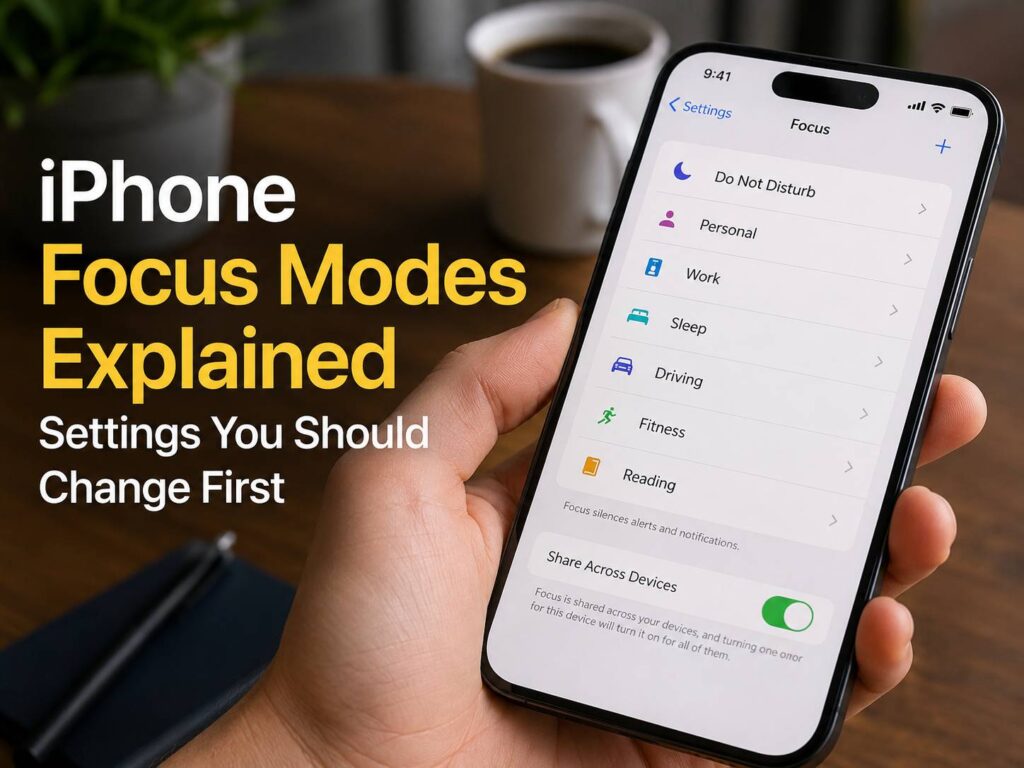
iPhone Focus modes can do much more than silence a few notifications. Set them up properly and they can change who can contact you, which apps can interrupt you, which Home Screen appears, and when your phone switches into a quieter mode.
That sounds simple. Still, Focus can feel confusing the first time you open its settings. There are options for people, apps, schedules, screens, filters, Focus Status, calls, and newer Apple Intelligence features. It is easy to change too much at once and end up with notifications appearing at the wrong time.
So the best place to start is with the settings that make the biggest difference.
This guide explains the iPhone Focus settings worth changing first, how each one works, and where common problems usually come from. The goal is not to create a complicated phone setup. Instead, the goal is to make Focus predictable enough that you can turn it on and trust it.
What Are Focus Modes on iPhone?
Focus is Apple’s system for controlling interruptions during different parts of your day.
You can use built-in modes such as:
- Do Not Disturb
- Personal
- Work
- Sleep
- Driving
You can create your own Focus too. Common examples include Study, Reading, Gaming, Gym, Family Time, or Travel.
Each Focus can have different notification rules. For example, Work can allow messages from coworkers and block social apps. Personal can mute work chat but leave family messages active.
At the same time, Focus can change the way your iPhone looks. You can connect a Focus to a certain Lock Screen or Home Screen. So your work apps can appear during work hours, then disappear from view once your Personal Focus starts.
That is where Focus becomes much more useful than simply putting the phone on silent.
Start With Two or Three Focus Modes
It is tempting to create a Focus for every activity. In practice, that often creates more work than it saves.
Start with two or three.
For most people, these are enough:
- Work: work contacts, work apps, calendar alerts, and a simpler Home Screen
- Personal: friends, family, personal apps, and fewer work interruptions
- Do Not Disturb: meetings, movies, reading, or any time you want very few interruptions
Then use them for a few days.
After that, create a custom mode only when you find a real need for one. For example, a separate Study Focus makes sense if you regularly want different notifications and apps during study sessions.
This keeps the setup easy to understand.
1. Choose Who Can Contact You
The People section should be one of the first settings you change.
Apple lets you decide which contacts can send notifications during a Focus. You can either allow selected people or silence selected people.
For a Work Focus, an allow list is often easier.
You can allow:
- Your partner
- Close family
- Your manager
- Key coworkers
- Anyone who needs to reach you quickly
Then everyone else stays quiet.
A Personal Focus can work the opposite way. Instead, you can silence work contacts and leave most personal conversations alone.
For that reason, decide what the Focus is meant to block before adding dozens of names.
A short list is easier to manage.
2. Check the Call Settings
Calls have extra controls that are easy to miss.
Inside a Focus, you can choose which people are allowed to call. Depending on your setup, you can permit calls from selected people, Favorites, contacts, or other groups.
For example, your Work Focus can allow calls from Favorites but silence most other callers.
Then check Repeated Calls.
This setting lets a second call from the same person come through when they call again within a short period. It exists for situations where someone is trying hard to reach you.
For some people, that is useful.
For a very strict Focus, it can defeat the point.
So decide how you use that Focus. If Do Not Disturb is meant for uninterrupted sleep or deep concentration, you may prefer to turn Repeated Calls off.
3. Review Emergency Bypass for Key Contacts
Emergency Bypass works separately from many Focus rules.
A contact with Emergency Bypass turned on can make your iPhone ring or alert you even when you have silenced notifications.
This is useful for close family members, caregivers, or someone who must always be able to reach you.
Still, use it carefully.
If too many contacts have Emergency Bypass enabled, your Focus modes will seem unreliable. In reality, the contact setting is overriding your normal silence rules.
So if calls keep getting through unexpectedly, check the contact’s ringtone and text tone settings.
4. Select Which Apps Can Interrupt You
Next, review apps.
This is one of the most useful parts of Focus. You can allow notifications from selected apps or silence selected apps.
For a Work Focus, a small allow list works well.
For example:
- Phone
- Messages
- Calendar
- Reminders
- Authenticator app
- Work chat
- Work email
- Banking app
Then silence apps that are easy to get lost in.
That often includes:
- Social media
- Shopping apps
- Games
- Video apps
- News apps
- Entertainment apps
For a Personal Focus, do the reverse. Silence work email, team chat, task management apps, and other tools that pull you back into work.
In practice, this small change can make Focus feel far more useful.
5. Review Time Sensitive Notifications
Time Sensitive Notifications can break through a Focus.
Apps use this notification type for alerts that are supposed to need quick attention.
Examples can include:
- Delivery updates
- Security alerts
- Calendar events
- Travel changes
- Account activity
- Smart-home alerts
That can be useful.
Still, it can create confusion if you expect complete silence.
You may turn on Focus, see a notification, and assume something is broken. In many cases, the alert was marked as time sensitive.
So review this option for every Focus.
For Personal Focus, keeping time-sensitive alerts on often makes sense.
For Do Not Disturb, you may prefer to turn them off.
That creates a clear difference between a quieter mode and a strict quiet mode.
6. Change Your Lock Screen With Focus
Focus can switch your Lock Screen automatically.
This sounds cosmetic, but it is surprisingly useful.
For example, you can use a simple Lock Screen during work. Add a calendar widget, weather, or your next appointment.
Then use a different Lock Screen during personal time.
The visual change gives you an immediate clue about which Focus is active.
That matters if you use automatic schedules. You do not need to check Control Center every time. The phone itself looks different.
You can set this from Settings > Focus, then choose the Focus and connect the Lock Screen you want.
7. Create a Separate Home Screen for Work
This is one of my favorite Focus settings.
You can show certain Home Screen pages only during a selected Focus.
For example, a Work Home Screen can contain:
- Calendar
- Notes
- Reminders
- Work chat
- Files
- Authentication tools
- Useful widgets
Then hide social media and entertainment pages.
The apps are not deleted. They are still available through the App Library.
Instead, they are simply removed from your main view during that Focus.
That small change can reduce mindless tapping more than muting notifications alone.
Then your Personal Focus can bring your normal Home Screen back.
8. Set Focus to Turn On Automatically
Manually enabling Focus every day gets old fast.
So use schedules.
A Focus can start based on factors such as:
- Time
- Location
- App usage
- Driving activity
- Car Bluetooth
- CarPlay
For example, Work Focus can start at 9:00 on weekdays and end at 17:30.
A Study Focus can start when you open a reading or note-taking app.
Driving Focus can start once your iPhone connects to your car.
The best schedule is one you barely notice.
Still, avoid adding too many triggers at once.
Start with one.
Then watch how it behaves for a few days. If Focus keeps turning on at the wrong time, check every schedule attached to that mode.
9. Use Focus Filters for Mail and Calendar
Focus Filters change what certain apps show during a Focus.
This is very useful if work and personal information live on the same iPhone.
For example, your Work Focus can show only your work calendar.
Then your Personal Focus can show your personal calendar.
The same idea can work with supported apps and system settings.
This is more useful than simply blocking notifications.
Think about email. Silencing work email notifications helps, but it does not stop you from opening Mail and immediately seeing your work inbox.
A Focus Filter can make that separation cleaner.
For people who keep work and personal accounts on one phone, this is one of the settings worth spending a few minutes on.
10. Decide Whether to Share Focus Across Devices
If you use several Apple devices, Focus can work across them.
For example, you can have:
- iPhone
- Apple Watch
- iPad
- Mac
Turn on a Focus on one device and the others can follow.
That works well for people who want the same quiet period everywhere.
Still, it can be annoying if every device has a different job.
For example, you may want your iPhone quiet during work but still want full notifications on a personal iPad.
So check Share Across Devices.
Keep it on if you want one Focus state across your Apple devices.
Turn it off if you prefer separate rules.
11. Check Focus Status
Focus Status lets supported apps tell other people that your notifications are silenced.
It does not need to tell them which Focus you are using.
For example, someone messaging you may see that notifications are silenced. That gives them context if you do not reply straight away.
This setting works well for:
- Work
- Meetings
- Study
- Sleep
- Do Not Disturb
It can reduce follow-up messages too.
If you prefer more privacy, turn Focus Status off for selected situations.
This is a small setting, but it changes how Focus feels during real conversations.
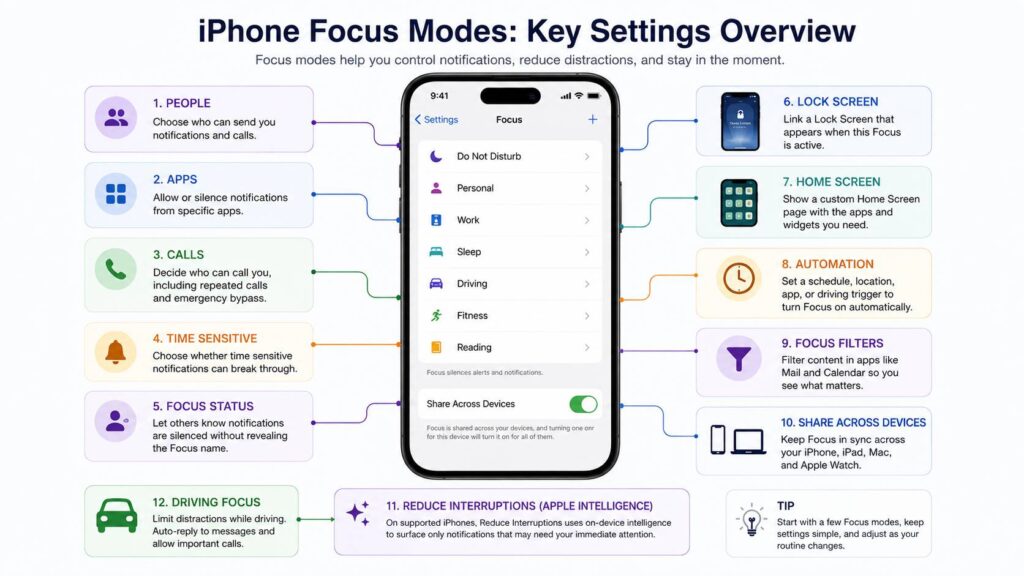
12. Try Reduce Interruptions on Supported iPhones
Supported iPhones with Apple Intelligence can use Reduce Interruptions.
This Focus looks at incoming notifications and tries to surface ones that seem to need your attention soon. Less pressing alerts stay quiet.
That makes it different from a traditional allow list.
For example, a message with urgent information can get more attention than a routine alert from the same app.
You can still set your own rules for people and apps.
In practice, Reduce Interruptions fits situations where you want fewer notifications but do not want a hard block.
Good examples include:
- Family time
- Errands
- Light work
- Travel
- Reading
- Quiet evenings
For a meeting or deep work session, I still prefer a stricter Focus with clearly defined rules. It feels more predictable.
Privacy Settings Worth Checking Alongside Focus
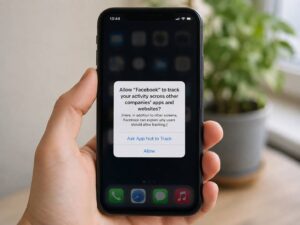
Focus controls interruptions, but it does not stop apps from tracking activity across other apps and websites.
That is a separate privacy control.
So if you are cleaning up your iPhone settings, it is worth checking what Ask App Not to Track actually does on iPhone.
The two features solve different problems.
Focus changes what can interrupt you.
App Tracking Transparency controls whether apps can request permission to track your activity across other companies’ apps and websites.
Taken together, these settings give you more control over both attention and privacy.
Best Focus Setup for Work
A simple Work Focus can look like this:
People
Allow close family and work contacts who need quick access to you.
Apps
Allow Phone, Messages, Calendar, Reminders, authentication tools, work chat, and work email.
Home Screen
Show only work apps and a few useful widgets.
Time Sensitive Notifications
Keep them on only if you regularly need urgent alerts.
Schedule
Turn Work Focus on automatically during work hours.
Focus Filter
Show your work calendar and work account where supported.
This setup keeps distractions low without making your phone feel disconnected.
Best Focus Setup for Personal Time
Personal Focus should do almost the opposite.
People
Allow friends, family, and personal contacts.
Apps
Silence work chat, work email, task tools, and other work-related apps.
Home Screen
Bring back entertainment, smart-home, fitness, photos, and personal apps.
Time Sensitive Notifications
Keep them on for travel, delivery, security, and account alerts if you need them.
Schedule
Start Personal Focus after work hours.
This creates a cleaner boundary between work and personal time.
Best Focus Setup for Do Not Disturb
Do Not Disturb works best when you keep it strict.
For example:
- Allow only close family
- Limit calls
- Review Repeated Calls
- Turn off Time Sensitive Notifications if you want complete quiet
- Use a simple Lock Screen
- Keep the Home Screen minimal
- Activate it manually for meetings, reading, movies, or deep concentration
This makes Do Not Disturb different from Work and Personal.
That distinction matters.
If every Focus has almost the same settings, there is little reason to use several modes.
Best Driving Focus Settings
Driving Focus deserves extra care.
You want the phone to demand less attention in the car.
Set it to activate through:
- CarPlay
- Your car’s Bluetooth connection
- Driving detection
- Manual activation
If your car has CarPlay, using CarPlay as the trigger is a clean choice.
For older cars, Bluetooth can work well.
Then review Auto-Reply.
You can send an automatic message to selected people so they know you are driving.
Test the setup before you start driving. Check it while parked.
You should not need to change Focus settings once the car is moving.
Common iPhone Focus Problems
Notifications still appear
Check:
- Allowed people
- Allowed apps
- Time Sensitive Notifications
- Emergency Bypass
- Reduce Interruptions settings
- Any app-specific notification settings
One of those is usually responsible.
Calls still ring
Check the allowed caller list first.
Then review Repeated Calls.
After that, inspect Emergency Bypass for the contact.
Focus turns on at the wrong time
Open the Focus and inspect all schedules.
You may have a time trigger, app trigger, or location rule still active.
Remove old triggers you no longer use.
The wrong Home Screen appears
Open Settings > Focus and check which Home Screen page is linked to that mode.
Then confirm that the page contains the apps you actually want.
Focus behaves differently on another device
Check Share Across Devices.
Then review settings on the other Apple device.
Not every Focus-related setting behaves exactly the same across every device.
Which Focus Settings Should You Change First?
If you do not want to spend an hour in Settings, use this order:
- People
- Calls
- Repeated Calls
- Apps
- Time Sensitive Notifications
- Lock Screen
- Home Screen
- Automatic schedules
- Focus Filters
- Share Across Devices
- Focus Status
- Reduce Interruptions
Start with notification rules.
Then set up screens.
After that, add automation.
This order makes it easier to spot mistakes.
Final Thoughts
iPhone Focus modes work best when every mode has one clear purpose.
Work should feel like work.
Personal should quiet work-related interruptions.
Do Not Disturb should be stricter than both.
Driving should activate without extra effort.
From there, Lock Screens, Home Screens, schedules, and filters make each mode feel more natural.
You do not need dozens of rules. A few well-chosen settings work better than a complicated setup you forget how to manage.
Start with people and apps. Then review calls and time-sensitive alerts. After that, set schedules and screens.
Once those parts are right, Focus stops feeling like another menu buried in Settings. It starts working quietly in the background, which is exactly what it should do.