Dragging a long block of cells or a big selection means keeping a finger pressed the whole way. The newest PowerToys can now do the holding for you. Version 0.102, released by Microsoft on October 21, adds Mouse Button Lock.
Press a button for about a second, let go, and Windows keeps treating it as held until your next click. It works on the right and middle buttons, which the ClickLock setting built into Windows has never covered.
PowerToys is Microsoft’s free set of add-on tools for Windows 11 and for Windows 10 from version 2004 on. To get 0.102, check for updates in PowerToys Settings, or install it from the Microsoft Store or Microsoft’s GitHub page.
Mouse Button Lock stays off until you switch it on.
How the lock works
- Press and hold an enabled button without moving the mouse.
- Let go once the hold time has passed. The button stays down.
- Move the mouse to drag or select.
- Click any button to end the lock.
If you move more than a few pixels while you’re still holding, the press counts as an ordinary drag and nothing locks. When you end a right-button lock with another right click, PowerToys closes the context menu that click would normally open.
The settings to check first
Only the right button is enabled at first, and Microsoft leaves the left one off because Windows already has ClickLock for it. The middle button starts off too. You can tick any of the three under Mouse Utilities in PowerToys Settings.
The hold time can be set anywhere from 0.2 to 2.2 seconds. It starts at 1.2 seconds, the same default that Microsoft’s developer documentation gives for ClickLock.
The second setting, the drag threshold, is how far the pointer may drift while you hold before the lock is canceled. It starts at 5 pixels and goes up to 100. If locks keep failing because the pointer creeps during the press, raise it a few pixels.
A locked middle button helps in apps that pan or scroll while you hold the wheel down. You can move around a large drawing or spreadsheet without keeping pressure on the wheel the whole time.
Where it doesn’t work
The release notes call Mouse Button Lock especially useful for gaming. Microsoft’s documentation adds that it might not work in games that use raw or exclusive mouse input, so try it in the game you have in mind before you count on it.
The lock also doesn’t work over on-screen keyboards or over windows of apps running as administrator, unless PowerToys itself runs as administrator.
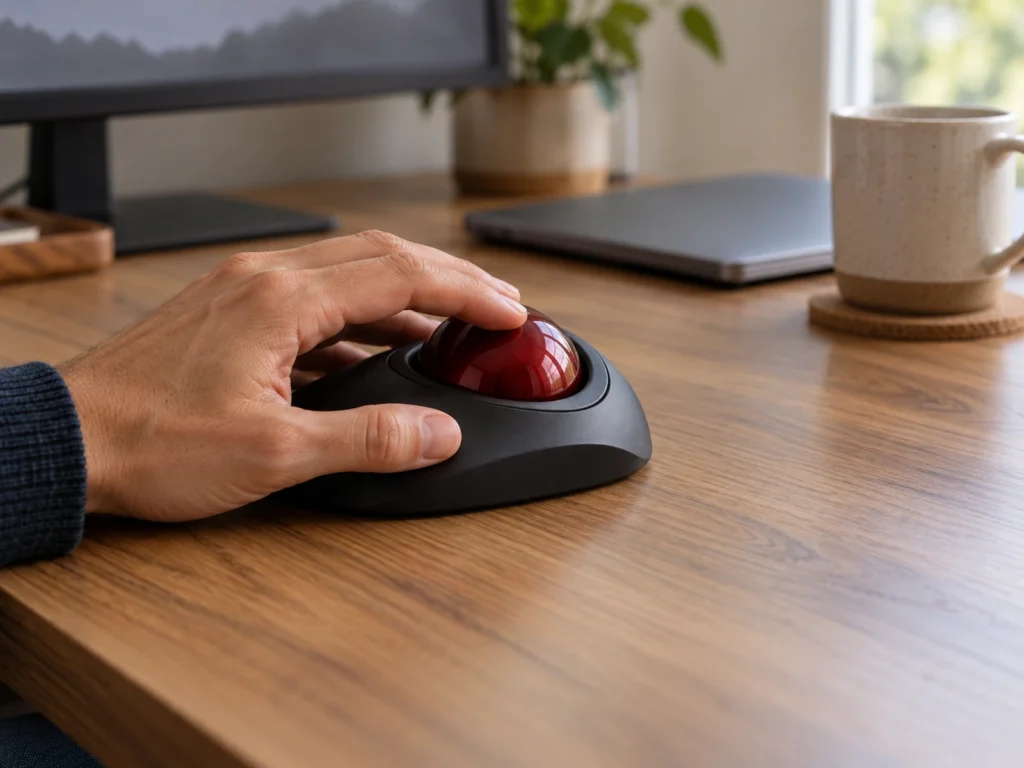
Microsoft’s notes also name people who find it hard to hold a mouse button down for long. On a finger-operated trackball such as the Kensington SlimBlade Pro, a locked button leaves every finger free for the ball during a long drag.
CursorHide, the renamed pointer hider
The same release renames Auto Hide Cursor to CursorHide in PowerToys Settings, though Microsoft’s help page still uses the old name. It hides the pointer while you type, after a stretch of no movement, or both. The pointer comes back when you move the mouse, click or scroll.
Hiding after typing is selected by default once you switch the tool on. Pressing Ctrl or Shift on its own doesn’t hide the pointer, and neither does text that software types for you. Small movements are ignored, so a mouse that jitters on the desk won’t bring it back.
The option to hide it after a pause has to be ticked separately. Its delay starts at 5 seconds, and you can stretch it to a full minute. Apps that draw their own cursor may keep showing it.
Tap-alone keys in Keyboard Manager
Keyboard owners get one change in the same release. Keyboard Manager can now give a key a second job when you tap it on its own, while the key keeps working normally in shortcuts and with the mouse.
The remapping editor also has a searchable key picker that lists every key, media keys and keys your keyboard lacks included. Long lists of remaps can be searched, filtered by modifier or by app, and deleted in bulk.
ClickLock or Mouse Button Lock for the left button
ClickLock locks only the primary button, the left one for most people.
| Windows ClickLock | PowerToys Mouse Button Lock | |
|---|---|---|
| Buttons | Primary (left) only | Left, right and middle, each switched on separately |
| Where to turn it on | Settings, Bluetooth & devices, Mouse, Additional mouse settings, Buttons tab | PowerToys Settings, Mouse Utilities |
| Switched on by default | No | No |
| Default hold time | 1.2 seconds | 1.2 seconds |
| Extra software | None | PowerToys has to be running |
Keep ClickLock for the left button and let PowerToys handle the other two. ClickLock keeps working when PowerToys is closed, and Microsoft’s own defaults split the buttons the same way.