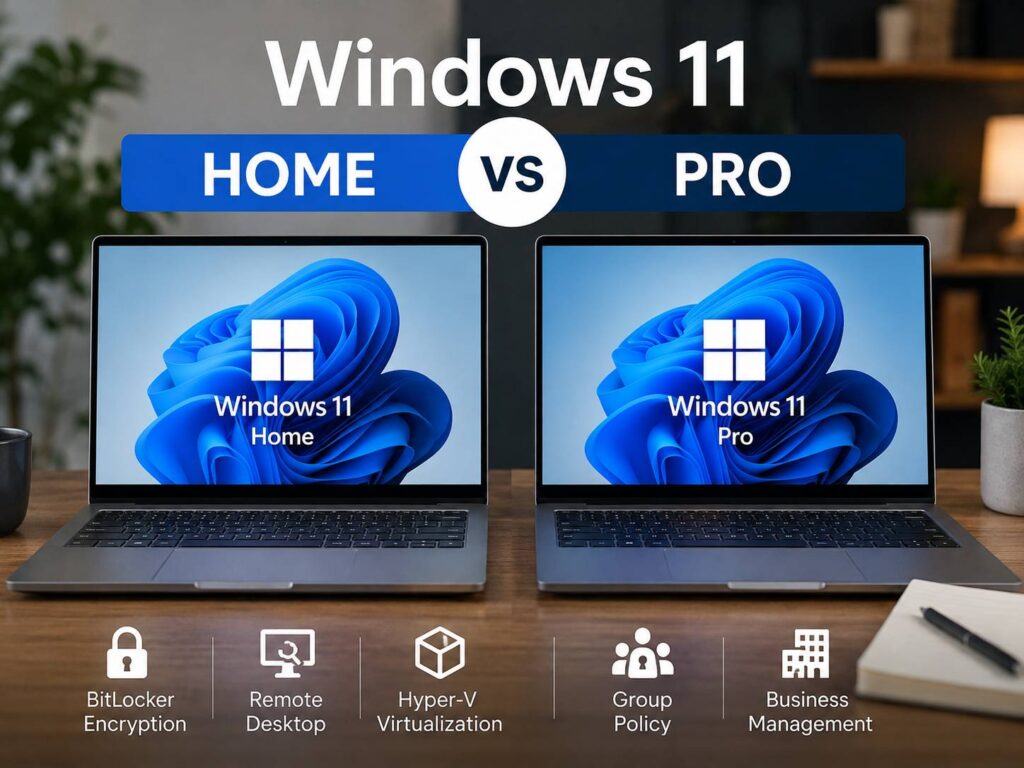
Choosing between Windows 11 Home and Windows 11 Pro can feel confusing at first. Their names suggest that Pro must be faster or more complete, yet the two editions share most of the features people use every day.
Both versions include the same Windows 11 interface, Microsoft Defender, Windows Hello, gaming tools, Microsoft Store access, virtual desktops, Snap Layouts, and support for standard desktop software. So, for normal home use, the experience feels almost identical.
The bigger differences appear in business security, remote access, virtual machines, device management, and memory limits. Windows 11 Pro adds tools aimed at companies, developers, IT workers, and advanced users. Home focuses on personal computers, gaming systems, family laptops, and general productivity.
That raises the main question. Is Windows 11 Pro worth paying extra for? For most people, the answer is no. Still, certain professional features can make Pro the better choice for work or technical use.
This Windows 11 Home vs Pro comparison explains what changes between the editions, what stays the same, and which version gives you better value.
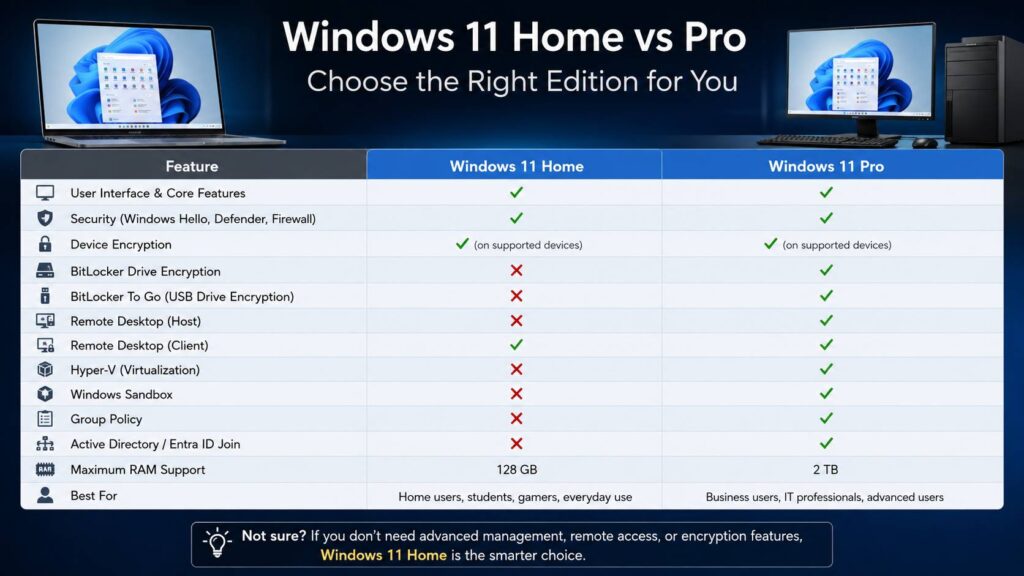
Windows 11 Home vs Pro at a glance
Here are the main differences between Windows 11 Home and Pro:
| Feature | Windows 11 Home | Windows 11 Pro |
|---|---|---|
| Windows 11 interface | Yes | Yes |
| Microsoft Defender | Yes | Yes |
| Windows Hello | Yes | Yes |
| Gaming features | Yes | Yes |
| Device Encryption on supported PCs | Yes | Yes |
| Full BitLocker controls | No | Yes |
| BitLocker To Go | No | Yes |
| Remote Desktop host | No | Yes |
| Remote Desktop client | Yes | Yes |
| Hyper-V | No | Yes |
| Windows Sandbox | No | Yes |
| Group Policy Editor | No | Yes |
| Active Directory domain join | No | Yes |
| Microsoft Entra ID join | No | Yes |
| Maximum supported RAM | 128 GB | 2 TB |
| Best for | Personal use and gaming | Business and advanced work |
At first glance, Pro looks much more capable. Yet many of its extra tools have little value on a personal laptop or gaming PC. For that reason, the more expensive version is not always the better purchase.
What Windows 11 Home and Pro have in common
Windows 11 Home and Pro share the same core operating system. They run the same browsers, office software, photo editors, video tools, communication apps, games, and hardware drivers.
The visual experience is the same too. Both editions include the centered Start menu, File Explorer, Widgets, Snap Layouts, multiple desktops, Windows Search, and accessibility tools.
Security remains strong on both versions. Microsoft Defender Antivirus, Windows Firewall, Secure Boot, Smart App Control on supported installations, and Windows Hello are available across the two editions.
Parents can use Microsoft Family Safety tools on Windows 11 Home or Pro. Likewise, students can access Microsoft 365, Teams, OneDrive, educational websites, and classroom software on either version.
Gamers receive the same core features as well. DirectX 12 Ultimate, Game Mode, Auto HDR, Xbox services, and DirectStorage work on supported hardware regardless of the edition.
So, Windows 11 Home is not a basic or stripped-down operating system. It contains nearly everything an everyday user expects from a modern Windows computer.
Does Windows 11 Pro make a computer faster?
Windows 11 Pro does not make a PC faster by itself.
A computer with Windows 11 Home can easily outperform a Pro machine with weaker hardware. The processor, graphics card, SSD, RAM, and cooling system affect speed far more than the Windows edition.
The same rule applies to gaming. Moving from Home to Pro will not increase frame rates, reduce input lag, or improve graphics quality. In most cases, a game will perform the same on both editions when the hardware and drivers match.
Pro does include more optional components. Yet most of them remain inactive until someone turns them on. As a result, they do not give the operating system a built-in performance advantage.
Our honest view is simple. Do not buy Windows 11 Pro to make a laptop feel quicker. Spend the difference on more RAM, a larger SSD, a better monitor, or stronger cooling instead.
Windows 11 Pro gives you full BitLocker controls
Drive encryption is one of the most useful Pro features.
Windows 11 Pro includes full BitLocker Drive Encryption management. BitLocker can protect the Windows drive, extra internal drives, and removable storage. BitLocker To Go can encrypt USB flash drives and portable drives.
This feature is useful when a computer stores confidential documents, company files, customer records, financial data, or private work projects. If someone steals the device or removes its storage drive, encryption can stop them from reading the files without the recovery key.
Windows 11 Home takes a simpler route. Many modern Home devices support Device Encryption, which can turn on automatically on compatible computers. The recovery key is normally linked to the Microsoft, work, or school account used during setup.
There is one catch. Device Encryption does not appear on every Windows 11 Home PC. The computer must meet Microsoft’s hardware and security requirements.
For a normal personal laptop, Device Encryption can provide enough protection. Pro becomes the stronger choice when you need manual controls, removable-drive encryption, detailed recovery settings, or company security policies.
Remote Desktop works differently on Home and Pro
Both editions can use the Microsoft Remote Desktop client. This means a Home computer can connect to another supported PC.
The difference appears when you want to connect into your own computer.
Windows 11 Pro can act as a Remote Desktop host. So, you can leave a Pro desktop in the office and access it from another computer. This is handy for business owners, developers, administrators, and people who work across several locations.
Windows 11 Home cannot act as the host for Microsoft’s built-in Remote Desktop service. Still, third-party remote access apps can work on Home, so Pro is not the only way to control a computer remotely.
For occasional personal access, a third-party app may be enough. For regular business use, Pro’s built-in hosting feature often feels cleaner and easier to manage.
Remote Desktop should stay limited to trusted networks and secure configurations. A VPN is the safer option for access from outside your local network.
Hyper-V makes Windows 11 Pro better for virtual machines
Windows 11 Pro includes Hyper-V, Microsoft’s virtual machine platform.
Hyper-V lets you create a virtual computer inside your main Windows installation. For example, a developer can test software in another copy of Windows. An IT worker can reproduce a technical problem without changing the main system. A security researcher can isolate a test environment from personal files.
Windows 11 Home does not include the full Hyper-V feature.
Pro includes Windows Sandbox too. Sandbox creates a temporary Windows environment for opening files or testing software away from your normal desktop. Once you close it, the temporary apps and files are removed.
That sounds useful for anyone, but most home users rarely need it. Developers, system administrators, testers, and technical support workers are more likely to use these tools regularly.
There is some good news for Home users. Windows Subsystem for Linux 2 works on both Home and Pro. So, you can use Linux command-line tools, Git, coding environments, and many development workflows without buying Pro.
Group Policy and company management tools
Windows 11 Pro includes several features built for managed business computers.
Group Policy Editor gives administrators control over many Windows settings. A business can set password rules, block certain features, configure security options, manage updates, and control user access from one place.
Pro can join an Active Directory domain or Microsoft Entra ID. These services help companies manage employee accounts, computers, permissions, and security policies.
Other professional tools include assigned access, kiosk configurations, business update controls, mobile device management support, and Windows Autopilot scenarios. Some of these services require separate company subscriptions.
Most personal users will never need these options. You can change many everyday settings in Windows 11 Home without opening Group Policy.
Still, Pro is often required when an employer provides the device or asks you to connect it to a managed company network.
Windows 11 Pro supports more RAM
Windows 11 Home supports up to 128 GB of RAM. Windows 11 Pro raises the limit to 2 TB.
That difference sounds huge, but it will not matter on a home PC. Many personal laptops support only 16 GB or 32 GB. Gaming desktops often use 32 GB, and higher-end systems may use 64 GB.
Even 128 GB is far beyond the needs of normal browsing, streaming, gaming, office work, and home photo editing.
The 2 TB limit targets specialist workstations. Large virtual machine setups, engineering programs, scientific workloads, professional 3D rendering, and high-end media production can use much more memory.
So, the RAM limit should not affect the average Windows 11 Home buyer. It matters only when you already own hardware built for extremely demanding work.
Is Windows 11 Pro better for gaming?
No, Windows 11 Pro is not a better gaming edition.
Home and Pro support the same games, graphics drivers, DirectX features, Xbox app, Game Bar, Auto HDR, DirectStorage, controllers, keyboards, mice, and gaming headsets.
A game will not gain extra frames merely from the word “Pro” appearing in the Windows settings menu.
The edition can matter to a game developer who runs virtual machines, tests builds, or uses company management tools. Yet those are development needs, not gaming benefits.
For a gaming desktop or laptop, Windows 11 Home offers better value. Put the saved money toward hardware or peripherals that directly affect comfort and performance.
A good mouse can make a real difference during long work sessions too. Our Razer Pro Click Mini review covers a compact wireless model designed for productivity, travel, and quiet clicking.
Is Windows 11 Pro worth it for working from home?
Working from home does not automatically require Windows 11 Pro.
Windows 11 Home runs Microsoft 365, Teams, Zoom, Slack, web browsers, accounting tools, cloud storage apps, VPN software, and creative programs. It also supports printers, webcams, external monitors, docking stations, and common USB accessories.
Pro makes sense when your employer needs one of its business tools. These may include:
- Active Directory domain joining
- Microsoft Entra ID joining
- Group Policy management
- Remote Desktop hosting
- Full BitLocker control
- Hyper-V virtual machines
- Windows Sandbox
- Business device management
Check the company’s IT requirements before paying for Pro. In many cases, remote employees can do their entire job on Windows 11 Home.
Can you upgrade from Windows 11 Home to Pro later?
Yes, you can upgrade from Windows 11 Home to Pro later.
The upgrade can be completed through the Microsoft Store or with a valid Windows 11 Pro product key. You can find the option under Settings, System, and Activation.
Windows normally unlocks the Pro features after activation and a restart. You do not need to erase your files or reinstall all your programs.
This makes Windows 11 Home a low-risk choice. You can buy the less expensive edition now, then move to Pro if your work changes or you start using advanced features.
Keep in mind that moving back from Pro to Home is less convenient. A clean installation may be required, so it is better to choose carefully before downgrading.
Who should choose Windows 11 Home?
Windows 11 Home is the right choice for most people.
It suits:
- Home and family computers
- Gaming desktops and laptops
- School and university work
- Streaming and entertainment
- Web browsing and shopping
- Microsoft Office tasks
- Photo and video editing
- Freelance work without company device rules
- Coding through Windows Subsystem for Linux
- Everyday security on compatible hardware
Home gives you the full everyday Windows experience without charging extra for company tools you may never open.
Who should choose Windows 11 Pro?
Windows 11 Pro suits people with a clear business or technical need.
It is a better fit for:
- Company-owned computers
- PCs managed by an IT department
- Active Directory environments
- Microsoft Entra ID accounts
- Group Policy settings
- Full BitLocker management
- BitLocker To Go
- Remote Desktop hosting
- Hyper-V virtual machines
- Windows Sandbox
- Advanced device management
- Workstations with more than 128 GB of RAM
Pro can be worth the cost for developers, business owners, administrators, technical support workers, and people who handle sensitive data.
Windows 11 Home vs Pro: which one should you buy?
Windows 11 Home is the smarter choice unless you need a Pro feature. It runs the same everyday software and games, includes strong built-in security, and supports modern Windows features.
Windows 11 Pro earns its higher price through BitLocker controls, Remote Desktop hosting, Hyper-V, Windows Sandbox, Group Policy, domain joining, and business management features.
In practice, the Pro name sounds more powerful. Yet it does not improve normal speed or gaming performance.
Choose Home for personal use, school, entertainment, gaming, and most freelance work. Pick Pro for a business requirement or a technical feature you already plan to use.
When there is no clear reason to buy Pro, Windows 11 Home offers better value. You can always upgrade later without replacing the computer.