Choosing between exFAT and NTFS sounds simple at first. Both file systems support large files, modern storage drives, and current versions of Windows. Still, they serve different purposes, and the wrong choice can lead to compatibility problems later.
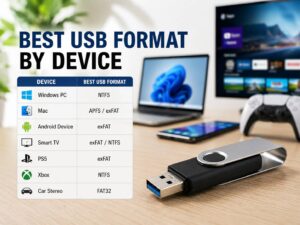
NTFS works best for internal Windows drives, game libraries, long-term storage, and backup drives that stay connected to one computer. exFAT makes more sense for USB drives, memory cards, and portable SSDs that move between Windows, macOS, phones, cameras, and other devices.
So, which file system should you choose?
For most people, the answer comes down to three things:
- Which devices will use the drive
- How often the drive will move between systems
- How much protection the stored files need
This exFAT vs NTFS guide explains every major difference. It covers compatibility, speed, reliability, gaming, external SSDs, USB drives, photo storage, and common formatting problems.
What Is exFAT?
exFAT stands for Extensible File Allocation Table. Microsoft created it as a modern replacement for FAT32 on removable storage devices.
FAT32 still works with a huge range of products. Yet it has one serious problem. It cannot store a single file larger than 4 GB.
That limit was less noticeable years ago. Today, one 4K video, virtual machine, game file, disk image, or compressed archive can easily pass 4 GB. So, FAT32 no longer works well for many modern storage tasks.
exFAT removes that limit. It can store extremely large files and supports high-capacity drives. For this reason, it has become one of the most common formats for portable storage.
You will often find exFAT on:
- USB flash drives
- Portable SSDs
- External hard drives
- SDXC and SDUC memory cards
- Camera storage cards
- Drives shared between Windows and Mac
- Storage used for large video recordings
- Removable drives connected to phones and tablets
exFAT has a simpler structure than NTFS. As a result, it lacks some advanced protection and management features. That simpler design still makes it a good fit for storage that moves between devices.
In daily use, exFAT feels flexible. You can plug the same portable SSD into a Windows laptop, copy files, move it to a Mac, and continue working. That freedom is its biggest advantage.
What Is NTFS?
NTFS stands for New Technology File System. Windows uses it as the default file system for internal system drives.
Microsoft designed NTFS for permanent storage, user accounts, permissions, system files, applications, and business computers. So, it includes far more features than exFAT.
NTFS supports:
- File and folder permissions
- File ownership
- Metadata journaling
- File compression
- File-system encryption
- Disk quotas
- Hard links
- Rich file metadata
- Better recovery after an improper shutdown
Windows normally installs itself on an NTFS partition. Internal secondary SSDs and hard drives usually use NTFS too, mainly when they stay inside a Windows computer.
NTFS works well for:
- Windows system drives
- Internal SSDs and hard drives
- Windows game libraries
- External drives used only with Windows
- Local backup drives
- Work files that need user permissions
- Drives with many folders and small files
- Storage that receives frequent file changes
NTFS has stronger protection and management tools. Still, its compatibility outside Windows remains more limited.
exFAT vs NTFS: Main Differences
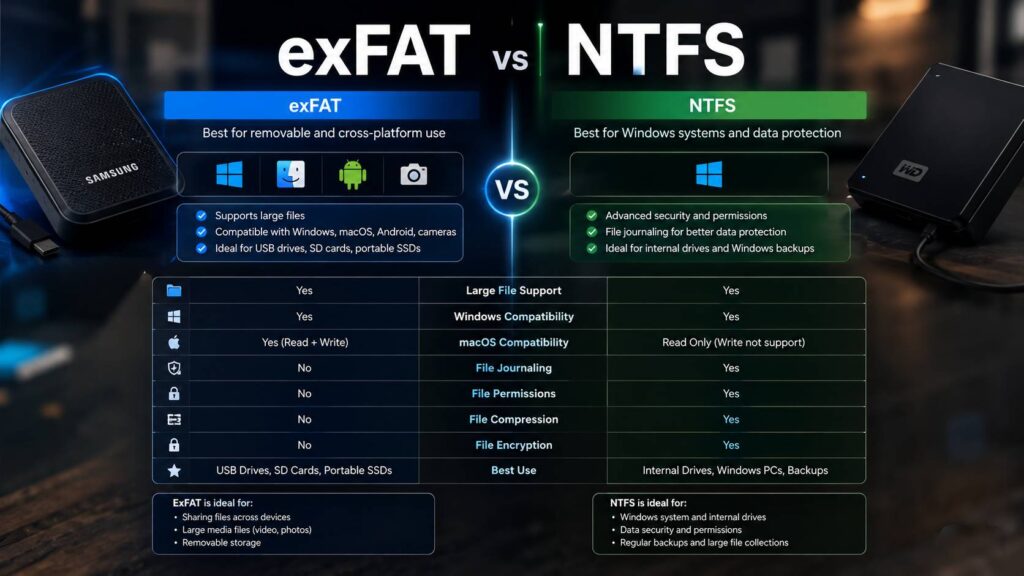
The table below shows the main differences between NTFS and exFAT.
| Feature | exFAT | NTFS |
|---|---|---|
| Windows read support | Yes | Yes |
| Windows write support | Yes | Yes |
| macOS read support | Yes | Yes |
| macOS write support | Yes | Limited without extra software |
| Large file support | Yes | Yes |
| File journaling | No | Yes |
| File permissions | No | Yes |
| Built-in compression | No | Yes |
| File-system encryption | No | Yes |
| Disk quotas | No | Yes |
| Best use | Portable storage | Windows storage |
| Suitable for memory cards | Yes | Rarely |
| Suitable for a Windows system drive | No | Yes |
So, the basic choice is clear. exFAT focuses on portability. NTFS focuses on Windows features, file protection, and long-term storage.
Which Format Has Better Compatibility?
exFAT offers better compatibility across modern operating systems.
Windows can read and write both exFAT and NTFS. A Mac can read both formats too. Yet macOS cannot normally write files to an NTFS drive without third-party software.
For example, you can connect an NTFS portable SSD to a Mac and open the files. Still, you may not be able to copy new files onto the drive, rename existing folders, or delete data.
exFAT avoids that problem. Windows and macOS can both read and write it without extra drivers.
That makes exFAT a good choice for:
- People who use a Windows PC and a MacBook
- Video editors who move projects between systems
- Students who use different computers
- Photographers who transfer large image libraries
- Families who share one portable drive
- Technicians who carry files between several devices
Modern iPhones and iPads can work with compatible exFAT external storage through the Files app. Many Android devices support it too, but support can vary between brands and models.
At the same time, TVs, car media systems, cameras, routers, game consoles, and media players do not all support the same formats. Some products accept exFAT but reject NTFS. Older devices may accept only FAT32.
So, check the device manual before formatting a drive for a specific product.
My practical choice for a portable drive is exFAT. It removes the NTFS write restriction on Mac and still supports large files.
Which File System Is More Reliable?
NTFS provides better protection against file-system damage.
It uses metadata journaling. In simple terms, NTFS keeps a record of planned file-system changes. After a crash, power cut, or forced disconnection, Windows can use that record to repair the structure of the drive.
exFAT does not include file-system journaling. So, removing an exFAT drive during a file transfer can create more serious problems.
Common results include:
- Missing folders
- Damaged file entries
- Files that appear but refuse to open
- A drive that asks to be scanned and repaired
- A partition that suddenly appears as unreadable
Still, NTFS does not make a drive immune to data loss. A failing SSD, damaged USB cable, broken controller, sudden power loss, or interrupted transfer can damage files on either format.
For this reason, never keep the only copy of valuable data on one portable drive.
A useful rule is simple:
- Use NTFS for a backup drive that stays connected to one Windows PC.
- Use exFAT for a drive used to move files between devices.
- Keep another copy of important files in a different location.
exFAT vs NTFS Performance
People often ask whether exFAT is faster than NTFS. There is no single winner in every situation.
Transfer speed changes with:
- The storage device
- USB connection speed
- File size
- Number of files
- Allocation unit size
- Operating system
- Type of workload
- Drive controller
- Available cache
exFAT can perform well with large media files on flash storage. Its simpler structure can reduce some file-system overhead.
NTFS often works better with mixed Windows workloads. It handles applications, game files, frequent updates, large folder collections, and thousands of smaller files well.
For example, copying one 30 GB video file can produce similar speeds on both formats. Copying 100,000 small files can produce a very different result.
The hardware often matters more than the format. A cheap USB flash drive will remain slow after changing from NTFS to exFAT. In the same way, a fast portable SSD cannot reach full speed through an older USB port.
So, do not format a drive only to gain a small benchmark improvement. Choose the format that matches your devices and storage habits.
Is exFAT or NTFS Better for a USB Flash Drive?
For a general-purpose USB flash drive, exFAT is usually the better choice.
It works well for:
- Large video files
- ISO files
- Photo libraries
- Work documents
- Files shared between Windows and Mac
- Portable archives
- Music and media collections
NTFS makes more sense for a USB drive that stays within a Windows setup.
Choose NTFS when the drive stores:
- Private work files
- Windows permissions
- Compressed folders
- Large numbers of small files
- Data that changes often
- Local Windows backups
One common problem appears after formatting a USB drive as NTFS. It works perfectly on Windows, but a Mac treats it as read-only. A TV, camera, or car media player may not detect it at all.
For this reason, exFAT is the safer option for a USB drive that travels between devices.
Is exFAT or NTFS Better for an External SSD?
The best format for an external SSD comes down to where you plan to use it.
Choose NTFS when:
- The SSD stays connected to a Windows computer
- You store Windows games on it
- You use it for active project files
- You need file permissions
- You want built-in file compression
- You want better recovery after unsafe shutdowns
Choose exFAT when:
- The SSD moves between Windows and macOS
- You transfer large video projects
- Several devices need direct access
- You connect it to compatible phones or tablets
- Cross-platform write access matters most
An exFAT portable SSD works very well as a transfer drive. Still, it is not the best place for the only copy of important files.
Portable drives get unplugged often. Laptop batteries run out. USB cables move. File transfers get interrupted. So, exFAT storage needs careful handling.
High-capacity SSDs can become surprisingly expensive too. For an extreme example, take a look at SanDisk’s 8TB PS5 SSD and its unusually high price. Large capacity can be useful, but price and compatibility still matter more than the number printed on the box.
For long-term Windows storage, I would choose NTFS. For regular transfers between Windows and Mac, I would choose exFAT.
Is exFAT or NTFS Better for Gaming?
NTFS is the better choice for most Windows gaming drives.
Modern games can contain thousands of files. Launchers update them often, change folders, create temporary data, and install supporting software. NTFS fits that type of workload.
Some game launchers allow installation on exFAT drives. Still, problems can appear with:
- Microsoft Store games
- Xbox app installations
- Anti-cheat systems
- Mod managers
- File permissions
- Large game updates
- Backup and restore tools
For a Windows gaming PC, format the internal or external game drive as NTFS.
Console storage works differently. A console may accept exFAT for screenshots, videos, or media playback. Yet it may reformat the same drive into its own private format before installing games.
So, always use the formatting process provided by the console.
Is exFAT or NTFS Better for Photos and Videos?
exFAT works well for removable photo and video storage.
High-resolution video files pass 4 GB quickly. exFAT supports those large files and works across Windows and macOS. Many modern cameras use exFAT on high-capacity SDXC cards.
For camera memory cards, format the card inside the camera when possible. The camera can create the correct folder structure and choose settings that match its recording system.
A practical photo and video workflow looks like this:
- Record photos or videos onto an exFAT memory card.
- Copy the files to an NTFS workstation drive.
- Create a second backup.
- Open several files and confirm that they copied correctly.
- Format the memory card inside the camera.
This setup gives you portable recording storage and stronger local file protection.
Common exFAT Problems
The drive asks to be repaired
This often happens after unsafe removal, a power loss, or an interrupted transfer.
Stop copying new data to the drive. Then move every readable file to another location. After that, use the operating system’s disk-checking tool.
Files disappear after unplugging the drive
Windows and macOS can cache write operations. So, the copy window may disappear before every piece of data reaches the drive.
Use the eject option before disconnecting the device. Then wait for the safe removal message.
A device does not recognize the drive
The device may reject:
- The file system
- Drive capacity
- Partition style
- Allocation unit size
- Number of partitions
Formatting with default settings often fixes the problem. Still, formatting erases the existing data, so copy the files first.
Small files use too much space
A large allocation unit can waste space when the drive stores many tiny files.
For normal use, leave the allocation unit size set to Default during formatting.
The drive works on Windows but not on an older device
Older devices may support FAT32 but not exFAT. Check the product manual for supported file systems and drive capacities.
Common NTFS Problems
A Mac cannot copy files to the drive
macOS can normally read NTFS drives, but it does not offer standard write support.
For regular use between Windows and Mac, copy the files elsewhere and format the drive as exFAT.
A TV or camera cannot detect the drive
The device may lack NTFS support. exFAT often works better on modern media devices, but support still varies.
Windows shows an Access Denied message
NTFS stores ownership and permission data.
Files copied from another Windows computer can keep old restrictions. An administrator can take ownership of the files and change their permissions.
The drive shows less free space than expected
NTFS stores journals, metadata, indexing information, recycle bin data, and other system files.
The difference is usually small, but it becomes more visible on lower-capacity drives.
Compression or encryption does not work
NTFS supports compression and file-system encryption. Yet some Windows editions, policies, and drive configurations can limit those features.
Can You Convert exFAT to NTFS Without Formatting?
Windows can convert some FAT and FAT32 drives to NTFS without deleting the stored files. It does not provide the same normal conversion process for exFAT.
The safest method is:
- Copy all files from the exFAT drive to another storage device.
- Open several copied files and check them.
- Format the original drive as NTFS.
- Copy the files back.
- Check the files again before deleting the temporary copy.
Use the same process when changing NTFS to exFAT.
Avoid unknown conversion programs when the drive holds valuable files. A failed conversion can damage the file system and make data recovery much harder.
How to Format a Drive as exFAT or NTFS in Windows
Follow these steps:
- Connect the drive to the computer.
- Open File Explorer.
- Select This PC.
- Right-click the correct drive.
- Select Format.
- Choose exFAT or NTFS under File system.
- Leave Allocation unit size set to Default.
- Enter a name for the drive.
- Select Quick Format for a healthy drive.
- Select Start.
Check the drive letter and storage capacity before starting. Formatting the wrong drive can erase important files.
A quick format creates a new file table. It does not check every storage sector. Use a full format when you suspect drive problems, but copy any readable data first.
How to Choose Between exFAT and NTFS
Use this simple rule:
- Choose exFAT for portability.
- Choose NTFS for Windows features and better file-system protection.
Pick exFAT for a USB stick, memory card, or portable SSD shared between Windows and Mac.
Pick NTFS for a Windows system drive, internal data drive, game library, local backup drive, or permanent external storage.
For many people, the best setup uses both formats.
Use NTFS on internal Windows drives and backup disks. Then use exFAT on portable drives that move between computers and devices.
That setup gives you stronger protection at home and fewer compatibility problems on the road.