Razer Pro Click Mini Review Summary
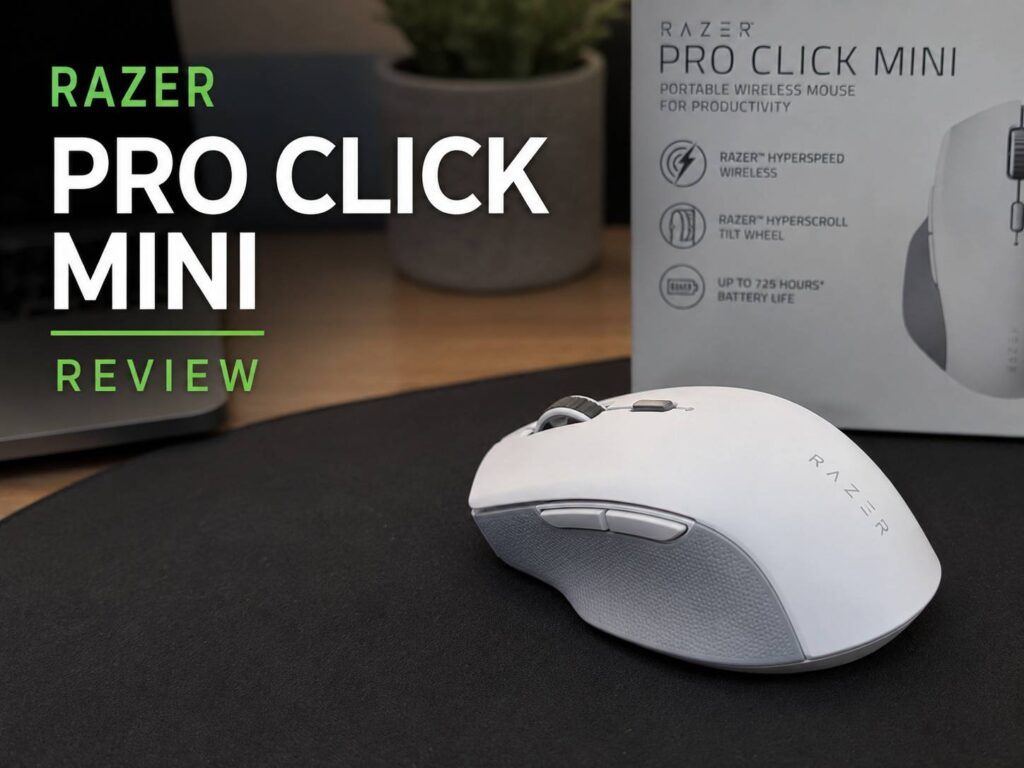
The Razer Pro Click Mini is a compact wireless mouse made for people who want a quieter desk, faster scrolling, and more control than a basic office mouse can offer. It looks simple at first, but it hides a strong feature set under that clean white shell.
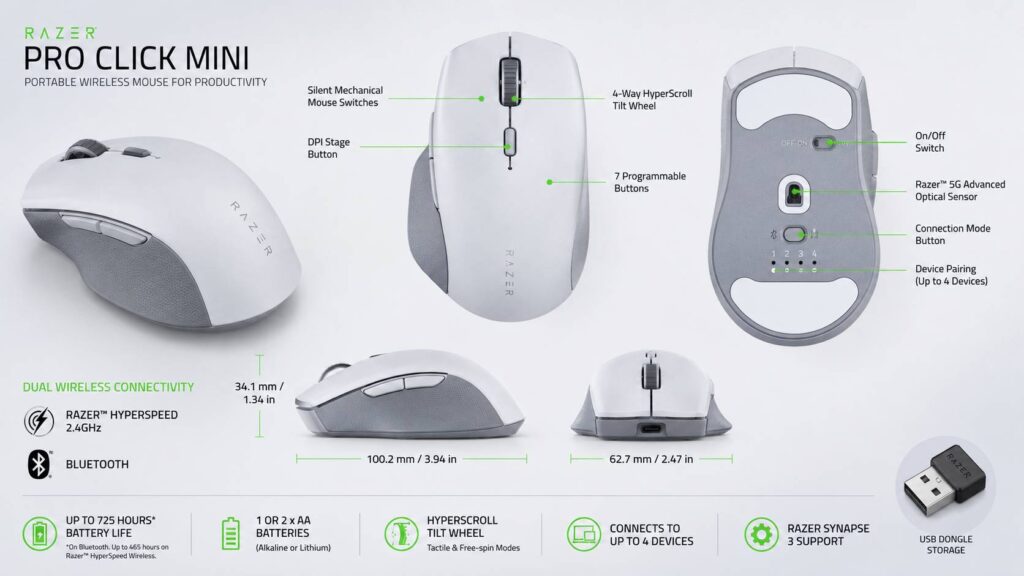
You get silent mechanical switches, a Razer 5G optical sensor, up to 12,000 DPI, 2.4 GHz wireless, Bluetooth, multi-device support, seven programmable buttons, and a 4-way HyperScroll tilt wheel. That is a lot for a small productivity mouse.
At first glance, it may look like a travel mouse with a premium name. After regular use, it feels more useful than that. The scroll wheel is the star. It lets you move through long web pages, wide spreadsheets, research documents, and shopping comparison pages with less effort. The quiet clicks help too, mainly in shared rooms, late-night work sessions, and video calls where click noise gets annoying fast.
The Razer Pro Click Mini is not perfect. The body is short and low, so larger hands can feel cramped. It uses AA batteries, not USB-C charging. Some people will love that, since they can swap batteries in seconds. Others will see it as dated. The software setup is stronger on Windows than on macOS, so Mac users should think carefully before buying it for deep button mapping.
For remote workers, writers, spreadsheet users, students, and people who switch between devices, the Razer Pro Click Mini still makes a lot of sense. It feels quiet, quick, portable, and more capable than most compact office mice.
Key Specifications
- Sensor: Razer 5G Advanced Optical Sensor
- Maximum sensitivity: true 12,000 DPI
- Tracking speed: up to 300 IPS
- Acceleration: up to 35 G
- Polling rate: up to 1000 Hz with 2.4 GHz wireless
- Buttons: 7 independently programmable buttons
- Scroll wheel: 4-way Razer HyperScroll Tilt Wheel
- Scroll modes: tactile mode and free-spin mode
- Wireless options: Razer HyperSpeed 2.4 GHz and Bluetooth
- Multi-device support: up to 4 devices
- Battery type: 1 or 2 AA batteries
- Rated battery life: up to 725 hours on Bluetooth
- Rated battery life with 2.4 GHz: up to 465 hours
- Size: about 100.2 mm x 62.7 mm x 34.1 mm
- Weight: about 88 g with 1 AA battery
- Weight with 2 batteries: about 111 g
- Software: Razer Synapse support for button mapping and settings
Design and Build Quality
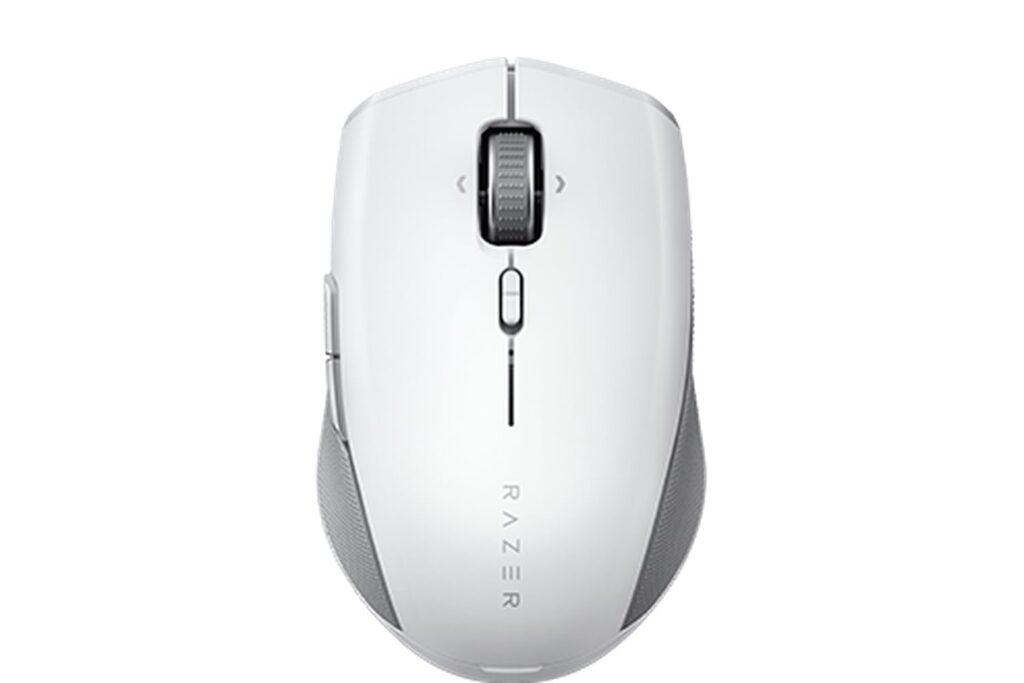
The Razer Pro Click Mini has a clean, office-friendly design. It avoids the aggressive look found on many Razer gaming mice. There is no RGB lighting, no sharp shell shape, and no loud styling. The white and gray finish looks neat on a modern desk, near a laptop, or beside a work monitor.
The mouse feels solid for its size. The top cover lifts off to reveal the battery compartment and the USB receiver storage slot. That small storage space matters more than it sounds. Travel mice often lose their dongles in bags, drawers, or laptop sleeves. Razer solves that neatly here.
Its shape is compact and low. That makes it easy to pack, but it changes the way your hand rests on it. Fingertip grip feels natural. Claw grip works fine. Palm grip feels less comfortable, mainly for medium-large or large hands.
The main buttons feel soft and quiet. They do not have the sharp snap of a gaming mouse, but that is the point. This mouse tries to keep your desk calm. In a quiet room, the clicks sound much less distracting than regular mechanical mouse switches.
The side buttons sit on the left side, so right-handed users get the best experience. Left-handed users can still use the mouse for basic control, but they lose easy thumb access to those extra buttons.
Comfort and Hand Feel
Comfort depends heavily on hand size. Small and medium hands will find the Pro Click Mini easy to control. The small body lets you move quickly across the desk, and the low weight with one AA battery makes it feel agile.
Larger hands will notice the short body right away. The back of the mouse does not fill the palm, so your fingers do more of the work. That is fine for short sessions, but it can feel tight after a full day of editing, browsing, and spreadsheet work.
The mouse feels best with one AA battery installed. At around 88 g, it moves with less effort and feels better for quick work. With two AA batteries, it feels more stable, but the extra weight is noticeable. Some people will like that planted feel. Others will prefer the lighter setup.
For long desk days, the Pro Click Mini is not as relaxing as a larger ergonomic mouse. It is more of a premium compact productivity mouse than a comfort-first mouse. That matters for anyone who already deals with wrist strain or hand fatigue.
Still, the quiet switches improve the daily experience. They make the mouse feel less harsh and less distracting, mainly during long writing sessions or meetings.
Buttons and Scroll Wheel
The scroll wheel is the strongest feature on the Razer Pro Click Mini. It supports vertical scrolling, horizontal tilt scrolling, tactile steps, and free-spin mode. That gives it a real productivity advantage over cheaper compact mice.
Tactile mode works well for normal browsing, menus, forms, and careful line-by-line movement. Free-spin mode is better for long documents, large product pages, PDFs, and spreadsheets. Once you get used to switching between the two, the mouse feels faster during real work.
The 4-way tilt wheel is helpful for wide sheets and timelines. Work in Excel, Google Sheets, Airtable, Notion databases, editing panels, or long comparison tables becomes easier with horizontal scrolling. It is not a feature everyone needs, but heavy desk users will notice the time saved.
The seven programmable buttons give you more control than a normal travel mouse. You can map commands such as copy, paste, back, forward, app switching, desktop switching, and custom shortcuts. Windows users get the best customization through Razer Synapse.
The small switch behind the wheel changes the scroll mode. It works, but it is not perfect. A larger button would feel easier to find by touch. The current switch keeps the design clean, but it takes a little more attention.
Wireless Performance and Multi-Device Use
The Razer Pro Click Mini supports both Razer HyperSpeed 2.4 GHz wireless and Bluetooth. The 2.4 GHz dongle gives the best response, and it is the better choice for a main work computer. Cursor movement feels quick and steady, and the 1000 Hz polling rate gives it a more direct feel than many standard office mice.
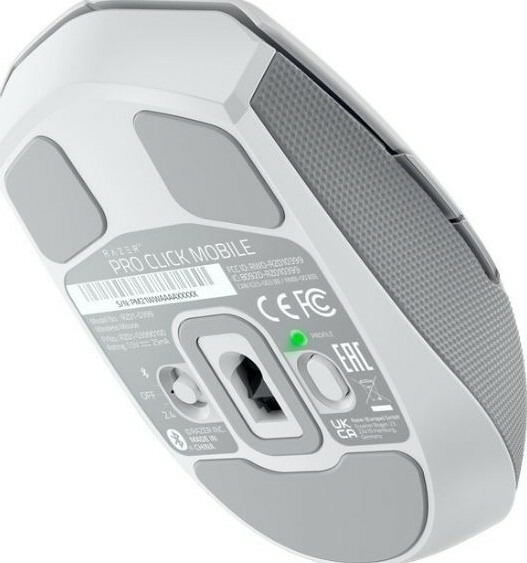
Bluetooth is better for extra devices. The mouse can pair with up to four devices, so it works well with a desktop, laptop, tablet, and secondary machine. This is useful for people who move between a work laptop and a personal PC.
Device switching uses the button on the bottom of the mouse. It works fine, but it is not as fast as a top-mounted button. Users who switch devices many times per hour may find that bottom button a bit clumsy. For a few switches per day, it should not be a problem.
The 2.4 GHz mode is the safer choice for demanding work. Bluetooth can feel slightly slower after sleep on some setups. That is common with many Bluetooth mice, but it still matters if you expect instant wake-up every time.
Battery Life and AA Battery Design
Battery life is one of the best reasons to consider the Razer Pro Click Mini. Razer rates it for up to 725 hours on Bluetooth and up to 465 hours with 2.4 GHz wireless. Real battery life will depend on settings, battery type, connection mode, and daily use, but the rated numbers are strong.
The mouse can run on one or two AA batteries. That is a smart design choice. One battery lowers the weight and makes the mouse feel easier to move. Two batteries extend runtime and give the mouse a heavier, more stable feel.
The AA battery system will split buyers. Some will prefer it since a fresh battery gets the mouse working again right away. No cable. No waiting. No sealed internal battery aging inside the mouse.
Other buyers will prefer USB-C charging. A rechargeable mouse may feel more modern if you already charge a keyboard, headphones, phone, and laptop. For a deeper look at that choice, this guide on a rechargeable mouse vs AA battery mouse explains the trade-offs in a practical way.
Software and Customization
Razer Synapse gives the Pro Click Mini more depth than a basic office mouse. You can change DPI stages, set button commands, adjust polling rate, create profiles, and map shortcuts.
Default DPI stages include 400, 800, 1600, 3200, and 6400. The sensor supports up to 12,000 DPI, but most people will not need that much sensitivity for office work. A setting around 1600 or 3200 DPI feels more natural on many modern monitors.
The programmable buttons are useful for work. Back and forward are obvious choices, but copy, paste, task view, screenshot, mute, or app-specific shortcuts can be better. A writer may map one button to paste without formatting. A spreadsheet user may map a button to a common command. A researcher may use side buttons to move through browser history.
Windows users get the best experience. Razer’s software support has centered on Windows, and that is where the mouse makes the most sense as a fully customizable productivity tool. Mac users can still use the mouse, but they should not buy it only for deep Synapse control without checking current support first.
Daily Work Experience
For normal desk work, the Razer Pro Click Mini feels fast and tidy. It is especially good for research, writing, email, product comparisons, browser-heavy work, and spreadsheet use.
The quiet clicks make a bigger difference than expected. They do not feel mushy, but they are softer than regular mouse clicks. In a quiet office or bedroom, that makes the mouse less annoying to use. During video calls, the lower click noise helps too.
The scroll wheel adds the most real value. Long pages feel less tiring. Wide sheets feel easier to manage. Product research feels smoother since you can move through specs, reviews, tables, and shopping pages with fewer repeated scrolls.
The compact size helps on small desks. A keyboard, laptop stand, monitor base, and notebook can already take up most of your space. This mouse fits in without crowding the setup.
That same compact size can hurt comfort. After long sessions, people with larger hands may want more palm support. This is not a flaw for every user, but it is the main reason to test the shape carefully before buying.
Issues You Should Know Before Buying
The first issue is size. The Razer Pro Click Mini is small. That makes it great for travel, but not ideal for every hand. People who like a mouse that fills the palm will probably find it too short.
The second issue is the battery format. AA batteries are practical, but USB-C charging is tidier. Rechargeable AA cells can solve part of the problem, but they add another purchase.
The third issue is software support. Windows users get more value from the mouse than Mac-first users. Check your setup before buying if you plan to remap buttons deeply.
The fourth issue is the scroll mode switch. It does the job, but it is small. A larger button would make the mouse easier to control without looking.
The fifth issue is weight with two batteries. At about 111 g, the mouse feels heavier than some compact competitors. One battery improves that, but it lowers runtime.
Razer Pro Click Mini for Gaming
The Pro Click Mini is built for productivity, but it can handle casual gaming better than most office mice. The 12,000 DPI sensor, 1000 Hz polling rate, and 2.4 GHz wireless mode give it solid speed and control.
It works well for slower games, strategy titles, RPGs, management games, and casual shooters. The sensor is not the weak point. The shape and weight are the limits.
Fast FPS players should look at a dedicated gaming mouse instead. The Pro Click Mini is too small and too heavy with two batteries for serious competitive play. The silent buttons feel good for work, but they lack the sharper click feel of a gaming mouse.
For people who work all day and play casually at night, it is good enough. For esports-style gaming, it is not the right tool.
Razer Pro Click Mini vs Logitech MX Anywhere 3S
The Logitech MX Anywhere 3S is one of the closest rivals. It has quiet clicks, a compact shell, MagSpeed scrolling, USB-C charging, and an 8K DPI sensor. It can track on glass, which gives it an edge for travel and mixed surfaces.
The Razer Pro Click Mini has its own strengths. It offers a 12,000 DPI sensor, 2.4 GHz HyperSpeed wireless, AA battery flexibility, seven programmable buttons, and a 4-way tilt wheel. It feels more like a compact power-user mouse.
Pick the Logitech MX Anywhere 3S if you want USB-C charging, glass tracking, and a smoother mainstream software experience.
Pick the Razer Pro Click Mini if you want AA battery swaps, stronger dongle performance, tilt-wheel control, and a compact mouse that feels closer to a work-focused gaming mouse.
Razer Pro Click Mini vs Logitech Signature M650
The Logitech Signature M650 is simpler and often cheaper. It has quiet clicks, a comfortable shape, and long battery life. It comes in different sizes too, which helps more hand types find a good fit.
The Razer Pro Click Mini feels more advanced. It gives you a stronger sensor, more programmable controls, better scrolling options, and multi-device support for up to four devices.
The M650 is better for basic office use and comfort at a lower price. The Pro Click Mini is better for people who want more control in a compact body.
Razer Pro Click Mini vs Razer Pro Click V2
The Razer Pro Click V2 is larger and more ergonomic. It has a right-handed shape, more buttons, USB-C charging, and newer sensor hardware. It is a better main desk mouse if comfort comes first.
The Pro Click Mini wins on portability. It is smaller, easier to pack, and better for travel. It also keeps the quieter, clean office look.
Choose the Pro Click V2 for a fixed desk setup. Choose the Pro Click Mini for laptop bags, shared desks, and compact workspaces.
Desk Setup Notes
A mouse can only do so much on its own. Your keyboard, monitor, chair, and desk layout all affect comfort. Long hours at a screen feel better with a balanced setup, not just a better mouse.
For example, OLED monitors can look excellent for creative work and media, but they are not the right fit for every desk or every budget. If you are building a premium setup, this guide on whether an OLED monitor is worth it in 2026 can help you compare the display side of your workspace too.
A compact mouse works best when the rest of the desk feels balanced. Keep the mouse close to the keyboard, avoid reaching too far, and use a sensitivity setting that lets your hand relax.
Pros and Cons
Pros
- Quiet clicks suit offices, calls, and shared rooms
- Compact design works well for travel
- Strong 12,000 DPI optical sensor
- 2.4 GHz wireless feels responsive
- Bluetooth support adds flexibility
- Connects with up to 4 devices
- HyperScroll wheel supports tactile and free-spin modes
- 4-way tilt wheel helps with wide pages and spreadsheets
- Seven programmable buttons
- Works with one or two AA batteries
- Long rated battery life
- Clean design with no RGB lighting
Cons
- Small body can feel cramped for large hands
- Not ideal for palm grip
- No USB-C charging
- Heavier with two AA batteries
- Scroll mode switch is small
- Best software experience is on Windows
- Bluetooth wake can feel slower than 2.4 GHz
- Left-handed users lose easy access to the side buttons
Price
Razer Pro Click Mini Portable Wireless Mouse: Silent, Tactile, Mouse Clicks - Sleek & Compact Design - HyperScroll Technology - Productivity Dongle - Connect...
Who Should Buy the Razer Pro Click Mini?
Buy the Razer Pro Click Mini if you want a quiet, compact mouse for daily productivity. It is a good fit for remote workers, office users, writers, students, researchers, and people who move between several devices.
It makes the most sense for users who care about scrolling speed, quiet clicks, programmable buttons, and portability. Spreadsheet users will like the tilt wheel. Browser-heavy workers will like the fast scroll modes. People who take calls in quiet rooms will like the softer clicks.
It is also a good pick if you prefer replaceable batteries. AA power can feel more practical than charging if you travel or dislike cable clutter.
Who Should Not Buy It?
Skip the Razer Pro Click Mini if you have large hands and want full palm support. The shape is too short for that type of grip.
Do not buy it if USB-C charging is a must-have feature. The AA system is practical, but it will not please everyone.
Mac-first users should be careful too. The mouse can work well for basic use, but the strongest customization features are tied to Razer software support.
Serious FPS gamers should choose a lighter gaming mouse. The Pro Click Mini can handle casual games, but work is its main purpose.
Final Verdict: Is the Razer Pro Click Mini Worth It?
The Razer Pro Click Mini is worth buying if you want a quiet wireless mouse that does more than the average office model. It feels compact, quick, and practical. The scroll wheel is genuinely useful, the buttons are easy to customize on Windows, and the battery life rating is strong.
Its biggest weakness is comfort for larger hands. The small shape makes it great for travel, but less ideal for long palm-grip sessions. The lack of USB-C charging will also turn away buyers who prefer built-in rechargeable batteries.
For the right person, it is a smart buy. If your work involves long pages, wide sheets, research tabs, writing tools, and frequent device switching, the Razer Pro Click Mini can make the day feel smoother. It is not a flashy mouse, and that is part of its charm. It stays quiet, moves fast, and gives you enough control to work with less friction.