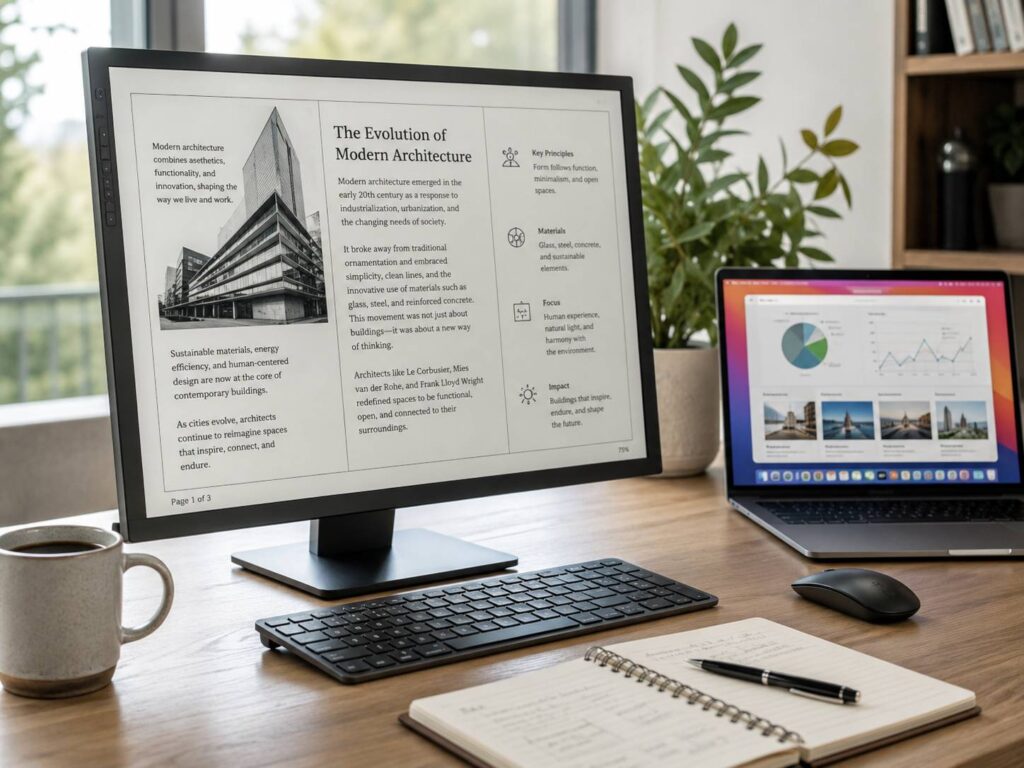
An e-paper monitor is a computer display that uses electronic paper technology instead of the LCD or OLED panels found in most desktop monitors. The main idea is pretty simple. Rather than looking like a bright digital screen, the display tries to behave more like printed paper, especially when showing text, documents, code, and other mostly static content.
E-paper monitors have also improved quite a bit over the last few years. Older models were often painfully slow for anything beyond reading. Newer versions refresh faster, some support color, and a few can even handle regular desktop work surprisingly well.
Still, they are very different from LCD monitors. An E-Ink display can be excellent for reading and focused office work, but it is not necessarily the better choice for every task.
What Is an E-Paper Monitor?
An e-paper monitor connects to a computer much like a normal external display. The big difference is the panel technology inside it.
E Ink is the most recognized name in this space, which is why people often use terms such as “E-Ink monitor” and “e-paper monitor” as if they mean exactly the same thing. Technically, E Ink is a specific brand and type of electrophoretic display technology within the broader electronic paper category.
Unlike an LCD, an electrophoretic display does not constantly shine light through its pixels.
Instead, electrically charged pigment particles move inside microscopic structures within the panel. Electrical fields reposition these particles to create black, white, gray, or colored areas on the screen.
Once the particles move into position, they can stay there without the panel continuously drawing power just to maintain the image. This behavior is known as bistability.
That is one reason e-readers can display the same page for long periods without draining much battery.
A desktop e-paper monitor is a little different, though. It still needs power for its display controller, ports, internal electronics, and optional front light. Scrolling, moving windows, or typing also forces the display to refresh repeatedly.
So, while e-paper can be very power-efficient, the advantage during active desktop use is not quite as dramatic as it is on a basic e-reader.
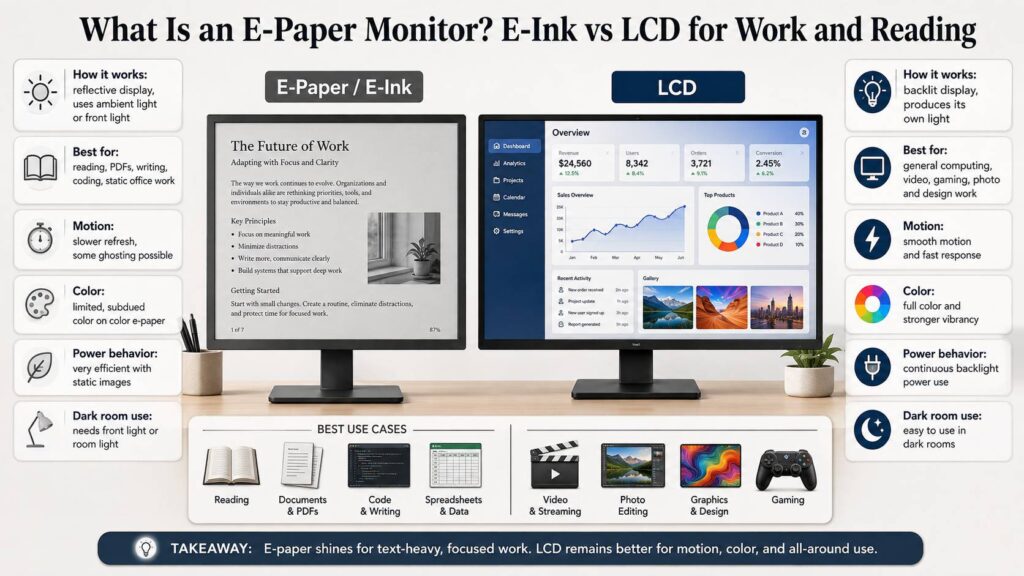
E-Ink vs LCD: What Actually Changes?
Both technologies can display the same operating system and applications, but they produce the image in very different ways.
| Feature | E-paper monitor | LCD monitor |
|---|---|---|
| Display type | Usually reflective electrophoretic | Usually transmissive liquid crystal |
| Light source | Ambient light or optional front light | LED backlight |
| Static image power | Very low at panel level | Continuous power required |
| Motion | Improving, but still limited | Very smooth |
| Ghosting | Can be noticeable | Usually minimal |
| Color | Limited on color E-Ink | Millions of colors |
| Text readability | Excellent for suitable content | Excellent on a good high-resolution display |
| Bright rooms | Often performs very well | Can struggle with glare and reflections |
| Dark rooms | Needs a front light or external lighting | Built-in backlight works well |
| Video and gaming | Limited | Much better |
| Price | Usually expensive | Available at almost every price level |
The biggest practical difference is motion.
An LCD updates quickly enough that scrolling, moving the mouse, watching video, and dragging windows around feels normal. Traditional e-paper has always struggled here because physically moving pigment particles takes time.
Newer driving systems have made e-paper much faster, but speed still comes with trade-offs.
E-Paper Refresh Rates Are Getting Much Faster
Refresh speed used to be one of the easiest reasons to rule out an e-paper monitor.
That is no longer quite as true.
By 2026, some specialized e-paper monitors are advertised with refresh figures that would have seemed unrealistic only a few years ago. Certain Dasung models are rated at 37 Hz, 50 Hz, or even 60 Hz depending on their size and configuration. Bigme also offers a 25.3-inch color E-Ink monitor advertised at up to 60 FPS.
That extra speed makes modern e-paper much more practical for everyday tasks such as:
- scrolling through websites
- writing documents
- coding
- reading email
- working with PDFs
- switching between applications
- navigating spreadsheets
Still, a 60 Hz e-paper monitor should not be confused with a 60 Hz LCD.
Electrophoretic pixels behave differently. Faster refresh modes may reduce grayscale quality, leave more visible traces from previous frames, or occasionally require a full-screen cleanup refresh.
BOOX, for example, warns that faster refresh modes can result in more ghosting.
So, the refresh-rate number only tells part of the story.
What Does Ghosting Look Like on an E-Paper Monitor?
Ghosting happens when faint parts of a previous image remain visible after the screen changes.
You might close a browser window, for example, and still see a light outline of the text or interface that was there before.
This happens because an e-paper monitor may use shorter pixel transitions to improve responsiveness. A complete refresh can clean the screen more thoroughly, but it takes longer and may cause the familiar full-screen flash seen on many e-readers.
Modern e-paper displays often include different modes that let you choose between image quality and speed.
A reading mode may prioritize sharp text and cleaner grayscale. A faster mode may make scrolling more comfortable but leave behind more visual artifacts.
For books, PDFs, and mostly static pages, ghosting usually is not a major issue. If you constantly move windows or work with fast-changing interfaces, you are more likely to notice it.
Black-and-White vs Color E-Paper Monitors
Black-and-white e-paper is still particularly good for text.
It can produce crisp lettering and strong contrast while keeping the overall appearance much closer to printed paper than a conventional illuminated screen.
Color e-paper gives you more flexibility, but expectations need to stay realistic.
E Ink Kaleido 3, for example, supports 4,096 colors. Some implementations can deliver 300 pixels per inch for black-and-white content and 150 pixels per inch when displaying color.
That sounds impressive until you compare it with a normal LCD.
A conventional 8-bit RGB LCD can display around 16.7 million color combinations. Colors can also look much richer, brighter, and more accurate.
Color E-Ink works well for things like:
- charts
- colored annotations
- calendars
- web interfaces
- diagrams
- syntax highlighting
- spreadsheets that use basic color coding
It is a much weaker fit for photo editing, video work, graphic design, or any workflow where accurate color really matters.
If your work depends on precise image quality, wide color coverage, or very high resolution, a conventional professional monitor still makes far more sense. Displays such as the ASUS ProArt Display 6K PA32QCV target that kind of productivity and creative workflow rather than the paper-like experience offered by E-Ink.
Color e-paper still has its appeal. The subdued look can feel closer to printed material, and for reading that can be a plus. It just should not be mistaken for LCD-level color performance.
Is an E-Paper Monitor Better for Your Eyes?
Eye comfort is one of the biggest reasons people start looking at e-paper monitors.
The explanation sounds straightforward. E-paper is reflective, so it uses surrounding light much like a sheet of paper. A normal LCD relies on a backlight that shines through the display.
For someone who dislikes spending hours looking at bright screens, that difference can make e-paper feel more comfortable.
Still, saying that E-Ink is always better for your eyes would be too simplistic.
Controlled studies comparing reading on E-Ink and modern LCD displays have found similar results for several measures of visual fatigue. Factors such as font size, text quality, lighting, screen size, viewing distance, and overall image quality can also make a big difference.
An e-paper monitor should therefore not be treated as a medical fix for eye strain.
What it does offer is a different viewing experience. If bright displays tend to bother you, a reflective screen may feel noticeably more pleasant during long periods of reading or writing.
Front Light vs LCD Backlight
Many newer e-paper monitors include a front light, which can be slightly confusing at first.
A front light is not the same thing as an LCD backlight.
An LCD places its light source behind the display and sends light through the panel toward your eyes. An e-paper front light spreads illumination across the surface of the screen. The light then reflects back from the electronic paper layer.
You can often reduce the front light or switch it off entirely when there is already enough light in the room.
That makes e-paper particularly useful in bright offices, near windows, or in rooms with good natural lighting.
There is a downside. Without enough ambient light or an active front light, a reflective e-paper display can become difficult to read. It does not generate a bright image by itself like an LCD does.
E-Paper Monitors for Reading
Reading is probably still the best use case for an E-Ink monitor.
Long PDFs, research papers, technical manuals, contracts, reports, books, and web articles all work well because most of the screen stays unchanged for relatively long periods.
A large e-paper monitor can also offer something a normal e-reader cannot.
You can use full desktop applications, search documents, browse websites, copy and paste text, open several files, and work directly with your existing computer setup.
High-resolution black-and-white e-paper can make small text look particularly sharp. Screen size matters too. A 25-inch model gives you far more space for full-page documents and split-screen layouts than a small 10-inch or 13-inch e-paper device.
Good lighting still matters, though. Reflective displays rely heavily on the light around you.
E-Paper Monitors for Office Work
An e-paper monitor can work surprisingly well as a productivity screen when most of your day revolves around text.
Good examples include:
- writing
- programming
- research
- document editing
- accounting
- studying
- legal work
- PDF review
- note-taking
- static dashboards
Programming is a particularly interesting use case. Code is mostly text, and rich color is not strictly necessary.
Still, developers who rely heavily on colorful syntax themes may prefer a color model or a simpler monochrome editor theme.
Spreadsheets can also work well. Problems appear when a sheet relies heavily on subtle shades or color differences to communicate information. Those distinctions can be harder to see on color e-paper.
Where LCD Still Wins Easily
LCD remains the better choice for most general-purpose computer setups.
Video is probably the clearest example. Even a fast e-paper screen may display moving content, but motion quality, grayscale transitions, ghosting, and color still fall well short of a normal LCD.
Gaming has an even larger gap.
Modern LCD monitors can offer very high refresh rates, low response times, variable refresh technology, HDR, strong color performance, and excellent motion clarity. E-paper is not really built to compete in those areas.
LCD is also a much better choice for:
- photo editing
- video editing
- graphic design
- gaming
- animation
- 3D applications
- frequent video playback
- color-sensitive work
- software with constantly changing interfaces
Even normal web browsing can feel smoother on LCD if you scroll quickly and spend a lot of time on media-heavy pages.
Connectivity Can Be Trickier Than Expected
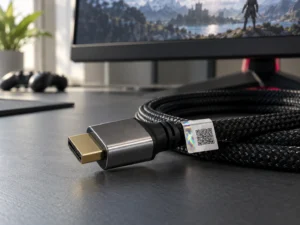
Most desktop e-paper monitors use familiar ports such as HDMI, DisplayPort, or USB-C.
That does not guarantee every setup will work perfectly.
Some high-refresh e-paper monitors have specific requirements involving resolution, refresh rate, operating systems, adapters, cables, or graphics outputs.
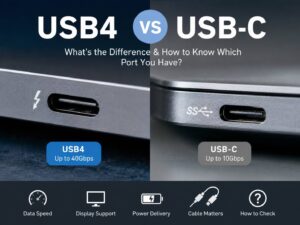
USB-C is a common source of confusion. Both the computer port and cable need to support video transmission. A USB-C connector that only handles charging or basic data will not magically provide a video signal.
Certain e-paper monitors can also have limitations with Linux, docking stations, adapters, or specific display modes.
For that reason, checking the exact manufacturer’s compatibility information before buying is a good idea. This becomes even more important if you use a KVM switch, dock, multiple monitors, or an uncommon operating system.
Are E-Paper Monitors Really Low Power?
The E-Ink panel itself has a clear advantage when showing a static image.
It does not need continuous power simply to keep that image visible.
A desktop monitor, though, contains plenty of other electronics.
Its controller, video hardware, USB interfaces, front light, and supporting components still consume electricity. Constant scrolling also forces frequent panel updates.
Because of that, the famous battery efficiency associated with an e-reader does not translate directly into the same level of savings on a desktop monitor.
E-paper can still use relatively little power, especially when displaying static content with the front light switched off. Even so, lower electricity consumption probably should not be the main reason to replace an LCD monitor with E-Ink.
E-Paper Monitors Are Still Expensive
Price remains one of the biggest barriers.
Large electrophoretic panels cost considerably more than mainstream LCD panels. Current 25-inch color e-paper monitors can easily reach four-figure pricing, while a perfectly capable office LCD costs much less.
That creates a very different value proposition.
An LCD is a versatile monitor that can do almost everything reasonably well.
An e-paper monitor is a specialized tool. You are paying a premium because you specifically want the reflective display and its paper-like characteristics.
For many users, a dual-monitor setup may actually make the most sense. The E-Ink display can handle reading, writing, email, and documents, while an LCD takes care of video calls, graphics, media, and fast-moving content.
Common E-Paper Monitor Misconceptions
A few assumptions can lead to disappointment if you buy an e-paper monitor without knowing what to expect.
E-paper does not guarantee zero eye strain. Display technology is only one part of visual comfort.
A front-lit E-Ink display is not completely light-free. Turn on the front light and the monitor still produces illumination.
60 Hz does not automatically mean LCD-like motion. E-paper pixels behave differently, and faster modes can create more ghosting.
Color E-Ink is not the same as a color LCD. The color range is much smaller, and the image looks more subdued.
Desktop e-paper does not always use almost no power. Frequent refreshes, controllers, and lighting still consume electricity.
Knowing those limitations makes it much easier to decide whether the technology will actually work for you.
Should You Choose an E-Paper Monitor or LCD?
An e-paper monitor makes the most sense if most of your day involves reading, writing, coding, reviewing documents, or working with mostly static information. It can also be worth considering if you strongly prefer reflective screens and spend hours working with text.
An LCD monitor is the safer choice if you want one screen that does everything. It remains far better for gaming, multimedia, color work, video, animation, fast scrolling, and general desktop responsiveness.
For some users, the best answer is not really E-Ink versus LCD.
Using both can give you the strengths of each technology. Keep code, documents, research, and email on the e-paper display. Use the LCD for photos, video, meetings, graphics, and anything else that benefits from smooth motion and accurate color.
Modern e-paper monitors are much more capable than their older counterparts. Faster refresh systems and color panels have turned them into realistic computer displays rather than oversized e-readers.
Their strongest use case has not really changed, though. E-paper makes the most sense for focused, text-heavy work where a paper-like display matters more than perfect color, fluid animation, or fast response times.