You do not need an Apple mouse or a model labeled “for Mac” to use macOS comfortably. Most wired, Bluetooth, and wireless USB mice handle everyday tasks without any special setup. Pointing, clicking, scrolling, and right-clicking usually work as soon as you connect the mouse.
Still, basic compatibility is only part of the story. Extra buttons, gesture controls, app-specific shortcuts, high polling rates, and advanced scrolling may depend on the manufacturer’s software. Connection type matters too, especially since many modern Macs have USB-C ports but plenty of wireless receivers still use USB-A.
So, do you need a Mac-specific mouse? For most people, the answer is no. Yet checking a few details before buying can save you from missing features or carrying another adapter.
What Does “Mac-Specific Mouse” Really Mean?
The term “Mac-specific mouse” is mostly used for two types of products.
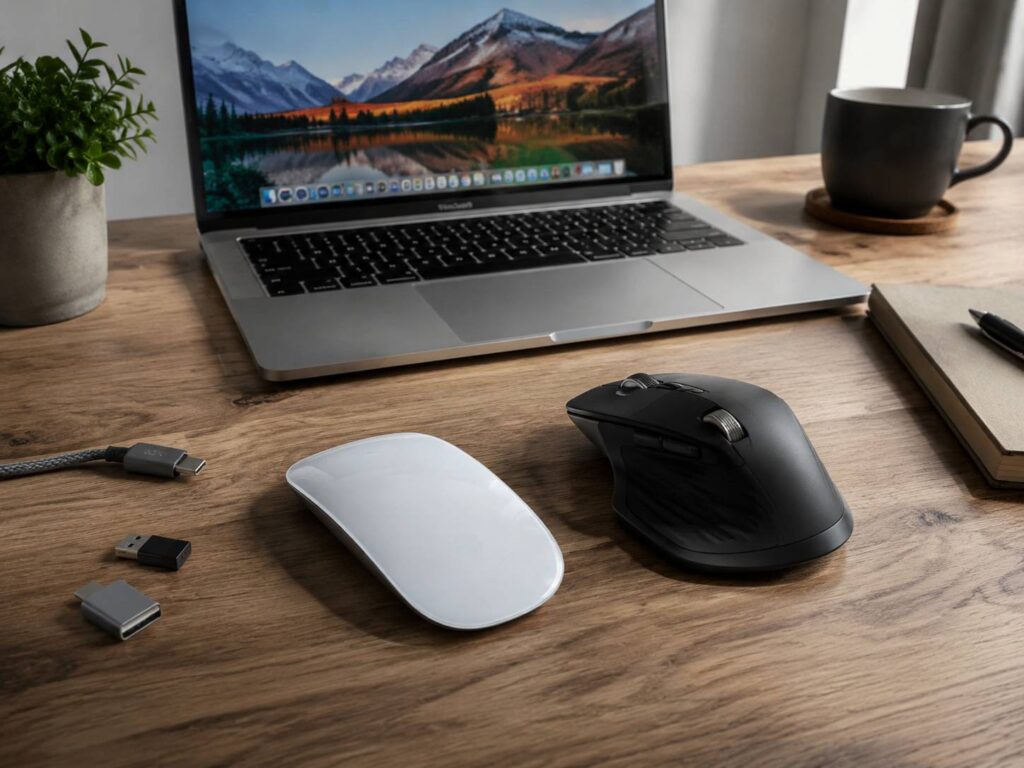
The first is hardware made by Apple, such as the Magic Mouse. Apple builds these devices around macOS, so their settings and gestures are built directly into the operating system.
The second category includes third-party mice marketed as “for Mac.” These versions may come in Mac-inspired colors, support Bluetooth, include USB-C charging, or have software designed for macOS.
However, the Mac label does not automatically mean better tracking, comfort, or build quality. In many cases, the standard and Mac editions use nearly identical hardware. The differences may come down to color, connection options, packaging, or included accessories.
In fact, a Mac edition can sometimes include fewer connection options. A manufacturer may leave out the USB receiver because it expects Mac users to connect through Bluetooth. Therefore, always check what comes in the box.
Will a Regular Mouse Work With a Mac?
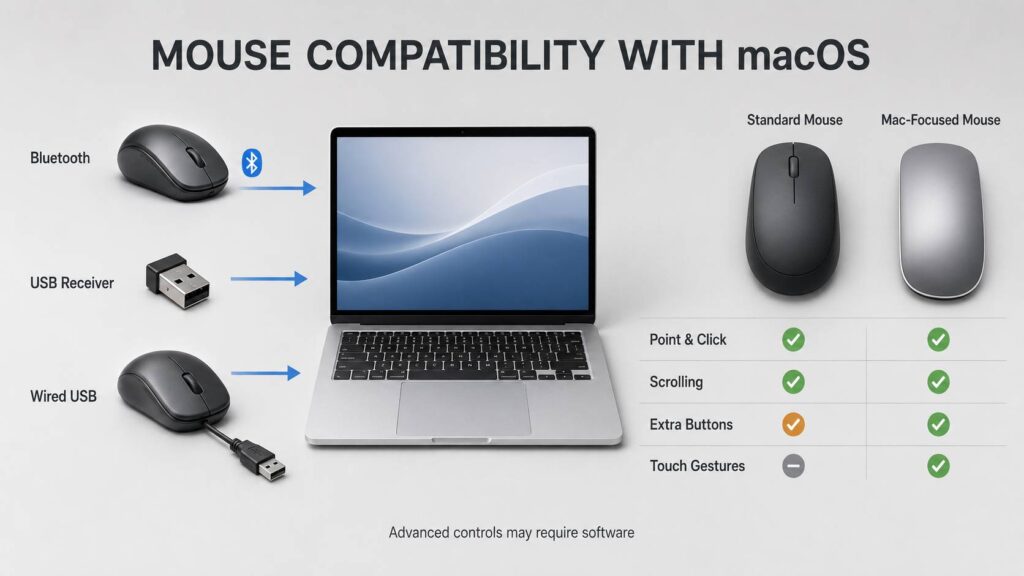
Most conventional mice work with macOS through one of three connections:
- Bluetooth
- A wireless USB receiver
- A direct USB cable
A standard two-button mouse with a scroll wheel should work without a separate driver. macOS recognizes common mouse controls and lets you adjust tracking speed, scrolling direction, secondary click, and pointer acceleration.
That sounds simple, and mostly it is. The uncertainty begins with features beyond the usual left click, right click, and scroll wheel.
For example, a mouse may have seven programmable buttons, but macOS might only recognize three of them without the manufacturer’s app. Likewise, a dedicated gesture button or profile switch may do nothing until you install compatible software.
In short, a mouse can be compatible with a Mac without every advertised feature being available.
Bluetooth, USB Receiver, or Wired Connection?
All three connection types can work well. However, each comes with a few trade-offs.
Bluetooth keeps your ports free
A Bluetooth mouse connects directly to the Mac, so you do not need a separate receiver. This makes it a convenient choice for MacBooks with a limited number of ports.
To connect one, put the mouse into pairing mode. Then open System Settings, select Bluetooth, find the mouse, and click Connect.
Many Bluetooth mice can remember two or three devices. As a result, you can switch between a MacBook, desktop computer, and tablet using a button underneath the mouse.
Bluetooth quality can vary between models, though. Battery level, wireless interference, firmware, and sleep settings can all affect how quickly a mouse reconnects.
A USB receiver may offer extra performance
Some wireless mice use a dedicated 2.4 GHz receiver. Although both are wireless, this type of connection is separate from Bluetooth.
A receiver may support lower-latency modes, higher polling rates, or features unavailable over Bluetooth. Gaming mice often rely on their receiver for their best advertised performance. Still, the exact difference depends on the model.
The main issue for Mac users is the connector. Many receivers use USB-A, while recent MacBooks mainly provide USB-C ports. Therefore, you may need an adapter, dock, or hub.
Apple silicon Mac laptops may also ask you to approve a newly connected USB accessory. If you deny access, the receiver might receive power but still fail to communicate with macOS.
Wired mice remove charging worries
A wired mouse avoids batteries, charging, and wireless pairing. It can work well at a permanent desk or in a gaming setup.
Once again, check the connector before buying. A USB-A mouse needs an adapter if your Mac only has USB-C ports. Also, make sure any USB-C cable you use supports data. Some cables are designed only for charging.
Yes, macOS Supports Right-Click
New Mac users sometimes assume that macOS does not support right-clicking. It does. Apple simply calls it “secondary click.”
A regular two-button mouse normally performs this action without special software. If it does not, open System Settings, select Mouse, and enable Secondary Click.
You can also hold the Control key while clicking. This produces the same secondary-click action, even if you use a single-button mouse.
The terminology may feel unfamiliar at first, but the feature works much like right-click on Windows.
Mouse Gestures Depend on the Hardware
macOS supports mouse gestures, but a normal mouse cannot detect finger swipes across its surface. For that, you need compatible touch-sensitive hardware.
Apple’s Magic Mouse has a Multi-Touch surface instead of a traditional scroll wheel. Depending on your settings, it supports the following actions:
| Action | Magic Mouse gesture |
|---|---|
| Scroll | Slide one finger vertically |
| Move between pages | Swipe left or right with one finger |
| Smart zoom | Double-tap with one finger |
| Open Mission Control | Double-tap with two fingers |
| Switch between full-screen apps | Swipe left or right with two fingers |
You can enable or disable these gestures from the Mouse section in System Settings.
One compatibility detail is easy to overlook. USB-C Magic Mouse models require macOS Sequoia 15.1 or later for their supported Multi-Touch gestures. Therefore, check the newest macOS version available for an older Mac before buying.
A conventional mouse cannot copy these touch gestures on its own. Still, supported configuration software can assign similar macOS actions to physical buttons. A thumb button might open Mission Control, for example, while another switches between desktops.
Magic Mouse Gestures Are Not the Same as Trackpad Gestures
The Magic Mouse supports several useful swipes and taps, but it does not offer every gesture found on a MacBook trackpad or Magic Trackpad.
A compatible trackpad can also provide:
- Pinch-to-zoom controls
- Image rotation
- Notification Center access
- App Exposé
- Desktop view
- Multi-finger dragging
- Force Click on supported models
- More ways to switch between apps and spaces
Therefore, buying a Magic Mouse does not give you the complete macOS gesture experience.
If touch gestures matter more than a traditional mouse shape, a trackpad may be the better choice. Another good setup combines an ergonomic mouse with a separate trackpad. You can use the mouse for precise work and reach for the trackpad when a gesture feels quicker.
If you are considering Apple’s touch-sensitive option, this closer look at the Apple Magic Mouse USB-C covers the design and features you should weigh before deciding.
What Happens to Extra Mouse Buttons?
Extra buttons are where compatibility can become a little messy.
Standard back and forward buttons may work immediately in web browsers. Some applications also recognize a middle click or horizontal scrolling. However, behavior varies between mice and software.
A button that works in Safari may not perform a useful action in a video editor. Likewise, an unusual thumb control might not register at all without the manufacturer’s app.
macOS does not provide comprehensive built-in remapping for every third-party mouse. For deeper customization, you may need dedicated software that can:
- Reassign side buttons
- Change DPI or pointer sensitivity
- Adjust scrolling behavior
- Create app-specific profiles
- Configure a horizontal scroll wheel
- Open Mission Control
- Switch between desktops
- Run keyboard shortcuts
- Control several computers
Without that software, an expensive multi-button mouse may behave like a basic three-button model. So, pay attention to the number of usable buttons, not just the number shown in product photos.
Why Software Support Matters More Than the Mac Label
Physical compatibility and full feature support are not always the same thing.
Before buying, check whether the manufacturer offers a current macOS configuration app. Then verify that it supports your macOS version and Mac processor.
This matters because major macOS updates can affect older mouse utilities. A company that actively maintains its software is less likely to leave you with broken shortcuts after an operating system upgrade.
Mouse configuration apps may request Accessibility and Input Monitoring permissions. They need these permissions to detect button presses and trigger system actions. Depending on the features, the app may also request Bluetooth, USB accessory, login item, or screen-recording access.
Only grant these permissions to software you recognize and trust. Also, download the app directly from the manufacturer.
Company-managed Macs introduce another possible problem. Your employer may block software installations, background processes, or privacy permissions. In that situation, choose a mouse whose essential buttons work without extra software.
Is a Mac-Specific Mouse Better for Work?
A Mac-specific mouse can be convenient, but the label alone does not make it better for productivity.
For everyday work, the following features usually matter more:
- A comfortable shape
- Reliable vertical scrolling
- Horizontal scrolling
- Quiet buttons
- Back and forward controls
- Multi-device switching
- App-specific shortcuts
- Good battery life
- USB-C charging
- The ability to work while charging
For spreadsheets, editing, design, and long web sessions, a thumb wheel or several programmable buttons can be genuinely useful. In those cases, a third-party productivity mouse may offer more control than Apple’s Magic Mouse.
The Magic Mouse has its own strengths. It offers native touch gestures, a simple design, and direct integration with macOS. Still, its low-profile shape may not suit people who prefer more palm support.
Its charging arrangement also deserves a mention. The Magic Mouse cannot be used while connected to its charging cable. By contrast, many rechargeable mice place the charging port at the front, so they can continue working as wired devices.
Do Gaming Mice Work on Mac?
Most gaming mice can handle their basic functions on macOS. The pointer, primary buttons, scroll wheel, and preset DPI stages often work without a dedicated driver.
Advanced features are less certain. Before buying a gaming mouse for a Mac, check support for:
- Button remapping
- DPI adjustment
- Polling-rate controls
- RGB lighting
- Firmware updates
- Macros
- Game-specific profiles
- Onboard memory
Onboard memory can be especially useful. Some mice store DPI levels and button assignments inside the hardware, reducing the need for software running in the background.
Still, not every macro or setting transfers between operating systems. Confirm exactly what the mouse can save instead of assuming that every profile will follow the device.
Also, check which connection supports the highest polling rate. Some mice reach their full specification only through a particular receiver or wired connection.
Useful macOS Mouse Settings to Change
After connecting the mouse, open System Settings and select Mouse. The exact options depend on your device, but common controls include:
- Tracking speed: Changes how quickly the pointer moves.
- Natural scrolling: Controls the direction in which page content follows the wheel.
- Secondary click: Selects how right-click works.
- Pointer acceleration: Changes how pointer distance responds to faster physical movement.
- Gesture controls: Appears for compatible hardware such as the Magic Mouse.
Windows users often notice the scrolling direction first. If the wheel seems reversed, turn off Natural Scrolling before installing another utility.
Pointer acceleration also changes the overall feel of the mouse. With acceleration enabled, fast movements carry the pointer farther. Slow movements remain more precise. That can help on large displays, while turning it off gives more consistent movement.
Mac Mouse Compatibility Checklist
Before placing an order, check these ten points:
- Connection type: Bluetooth, USB receiver, wired USB, or several options.
- Connector: USB-A or USB-C.
- macOS support: Confirm the supported operating system versions.
- Configuration software: Check whether a maintained macOS app exists.
- Basic operation: Find out what works without software.
- Extra buttons: Confirm that macOS can recognize or remap them.
- Package contents: Do not assume a receiver comes with the Mac edition.
- Charging design: Check whether the mouse works while charging.
- Multi-device switching: Confirm how many devices it can remember.
- Shape and size: A Mac label tells you nothing about comfort.
Product listings can stay online long after their technical information becomes outdated. Therefore, check the manufacturer’s current support details when software compatibility matters.
Frequently Asked Questions
Can you use a Windows mouse on a Mac?
Yes. Most standard mice marketed for Windows also work with macOS. Basic pointing, clicking, right-clicking, and scrolling should function normally. Advanced features may require compatible Mac software.
Do you need an Apple mouse for macOS gestures?
You need a Magic Mouse for Apple’s touch-based mouse gestures. However, a programmable third-party mouse can trigger similar actions through physical buttons.
For the broadest gesture selection, use a MacBook trackpad or Magic Trackpad.
Does macOS support right-click?
Yes. macOS calls it Secondary Click. You can enable it in Mouse settings or hold Control while clicking.
Can one mouse control a Mac and an iPad?
Yes, a compatible setup can use Universal Control to move the pointer between nearby Macs and iPads. You do not need an Apple-branded mouse, but the devices must meet Apple’s system requirements.
Is Bluetooth better than a USB receiver?
Bluetooth saves a port and works well for general use. A dedicated receiver may support different performance modes or extra features. The better choice depends on the particular mouse and how you plan to use it.
Do You Really Need a Mac-Specific Mouse?
Most people do not need a Mac-specific mouse. A good standard mouse should cover everyday macOS navigation without trouble.
Still, official Mac support becomes valuable if you rely on programmable buttons, custom profiles, advanced scrolling, or desktop gestures. In that situation, compatible software matters more than the logo or color.
Choose the Magic Mouse if native touch gestures and Apple integration matter most. Pick a third-party productivity mouse if comfort, extra buttons, and faster scrolling are higher priorities. For gaming, check polling-rate support, software compatibility, connection mode, and onboard memory.
The best Mac mouse is not necessarily the one that looks most at home beside a MacBook. It is the one that feels comfortable and keeps all the features you plan to use.