Finding the best mouse for work from home can make your desk feel better fast. A good mouse gives your hand more support, keeps your pointer steady, and makes long workdays less tiring. It also helps with small daily tasks that add up, from scrolling through emails to moving across a large monitor.
A basic mouse can handle simple browsing. Still, remote work asks more from your setup. You may use spreadsheets, project boards, video calls, documents, dashboards, design apps, and chat tools during the same day. For that reason, your mouse should feel comfortable after 6 or 8 hours, not just during a quick test.
This guide explains what to look for, which features matter, and which mouse I suggest for most home office desks. The goal is simple: help you buy a mouse that feels good, works well, and fits real remote work.
What Makes a Mouse Good for Working From Home?
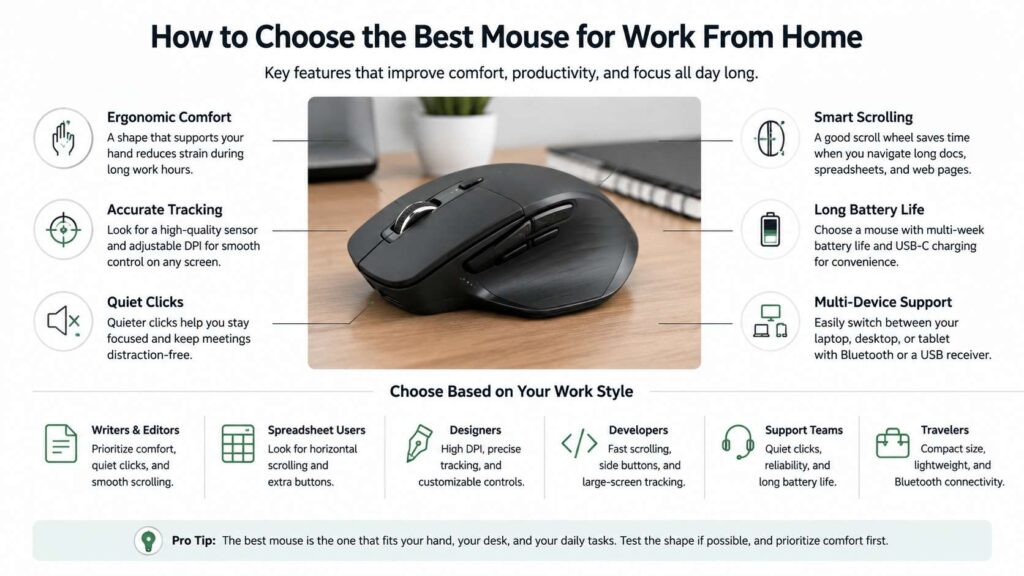
A strong home office mouse should do three things well. It should feel comfortable, track accurately, and save time. You do not need a gaming mouse with extreme specs for normal office work. Still, you need more than the cheapest wireless mouse you can find.
A good work from home mouse should offer:
- A shape that supports your hand
- Smooth tracking on common desk surfaces
- A stable wireless connection
- Quiet clicks for calls and shared rooms
- A scroll wheel that moves well through long pages
- Long battery life
- Easy setup on Windows or macOS
- Extra buttons for daily shortcuts
Comfort comes first. Your hand repeats the same small movements all day. A poor shape can feel fine at 9 a.m., then feel annoying by lunch. For that reason, a better mouse gives your palm and fingers more support.
Tracking matters too. A mouse that skips or drags slows you down. This feels worse on 4K monitors, ultrawide screens, and dual-monitor desks. So, look for a strong sensor, adjustable pointer speed, and a stable connection.
Wired or Wireless Mouse for Home Office Work?
A wireless mouse fits most work from home setups better. It keeps your desk cleaner, and it gives your hand more freedom. Modern wireless mice work well for office tasks, mainly from trusted brands.
A wired mouse still has a place. It costs less, never needs charging, and works well on a fixed desk. The cable can get in the way, though, mainly on a small desk or a setup with many accessories.
For most remote workers, wireless is the better choice. Pick a model with USB-C charging or long battery life. Then you will not worry about power during meetings, writing sessions, or spreadsheet work.
Comfort Matters More Than Extra Buttons
It is tempting to focus on DPI, button count, or brand first. A better starting point is shape. The best ergonomic mouse for work from home should match your hand size and grip style.
Most people use one of these grip styles:
- Palm grip: your whole hand rests on the mouse
- Claw grip: your palm lifts a little, and your fingers bend
- Fingertip grip: only your fingertips touch the mouse
For long office days, palm grip often feels best. A larger mouse supports more of your hand. Plus, it can reduce finger tension during long scrolling sessions.
A vertical mouse can help if you feel wrist strain. It turns the hand into a handshake-like position. That can feel more natural for the forearm. Still, vertical mice take time to learn, so they are not the safest first pick for every user.
A sculpted productivity mouse gives most people a better balance. It feels familiar, but it still adds support. For a closer comparison, read this guide on productivity mouse vs gaming mouse.
Quiet Clicks Help During Calls
Remote work often means Zoom, Google Meet, Teams, or Slack calls. Loud clicks can distract people, mainly if your microphone sits close to the keyboard and mouse.
A quiet mouse does not remove every sound. It softens the click and makes it less sharp. That helps if you work near family, share a room, record audio, or join many calls each day.
Quiet buttons matter most for:
- Customer support work
- Data entry
- Writing and editing
- Remote meetings
- Shared home offices
- Late-night work
The desk feels calmer with quieter clicks. Your calls sound cleaner too. That small change makes the workday feel more polished.
DPI and Tracking: What Remote Workers Need
DPI means dots per inch. It controls how far your pointer moves on screen for each inch of mouse movement. A higher DPI setting moves the pointer faster.
For office work, you do not need the highest DPI number. You need control. Between 800 and 1600 DPI is a comfortable range on a regular monitor. A higher setting can help on 4K monitors, ultrawide monitors, or multi-screen setups.
Look for a mouse that lets you change pointer speed. This helps you match the mouse to your screen size and desk space. For example, a small desk and a 32-inch monitor often need a faster pointer than a laptop screen.
Good tracking helps with:
- Selecting spreadsheet cells
- Editing long documents
- Moving across large screens
- Dragging files
- Working in design tools
- Switching between monitors
A strong sensor also helps if your desk surface is not perfect. Some premium mice track on glass, though performance can vary by surface.
Scroll Wheel Quality Saves Time
The scroll wheel matters too. A cheap scroll wheel can feel stiff, noisy, or imprecise. A better one makes long pages easier to handle.
Remote workers scroll through email threads, reports, dashboards, chats, PDFs, and websites. Fast scrolling helps you move through long content. Precise scrolling helps with sheets, forms, timelines, and code.
Some premium mice include two scroll wheels. One handles vertical movement. The other handles horizontal movement. The side wheel helps with wide spreadsheets, design canvases, and video timelines.
If your work includes Excel, Google Sheets, Figma, Adobe apps, or long reports, do not ignore scroll quality. A smoother wheel can save many small movements each day.
Battery Life and Charging
Battery life affects daily use. A good wireless mouse should last weeks, not days. USB-C charging is now the better choice for many home office desks, as it matches many laptops, tablets, keyboards, and headphones.
Some mice use AA or AAA batteries. These can last a long time, and they work well for budget models. Still, rechargeable mice feel easier to manage for daily desk use.
Look for these battery features:
- Multi-week battery life
- Fast charging
- USB-C charging
- Clear battery status in the app
- Use during charging
A mouse that charges fast can recover enough power during a short break. That small detail matters if your desk tools need to stay ready all day.
Bluetooth, USB Receiver, and Multi-Device Support
Many remote workers use more than one device. You may switch between a work laptop, personal laptop, tablet, or desktop PC. A multi-device mouse can make that routine easier.
Bluetooth keeps ports free. A USB receiver often gives a steadier connection. The best setup gives you both choices.
Multi-device support lets you pair the mouse with two or three devices, then switch between them. This helps if you use a Windows laptop for work and a MacBook at home. It also helps if your dock setup changes during the week.
For a cleaner desk, pair the mouse with a matching keyboard from the same brand. Some brands let one receiver connect both devices. That reduces USB clutter. For more desk setup help, see this guide on gaming keyboard vs office keyboard.
Best Mouse Type by Work Style
Different jobs need different mouse features. Here is a simple way to match the mouse to your work.
- Writers and editors need quiet clicks, smooth scrolling, and comfort.
- Spreadsheet users need horizontal scroll, extra buttons, and accurate tracking.
- Designers need high DPI, a strong sensor, and programmable controls.
- Developers need fast scrolling, side buttons, and large-screen tracking.
- Support teams need quiet clicks, long battery life, and reliable wireless.
- Travel workers need compact size, Bluetooth, and low weight.
- Wrist strain users need an ergonomic or vertical shape.
A tiny travel mouse works well in a bag. It can feel cramped at a full desk, though. A large ergonomic mouse feels better for long sessions, but it takes more space. Choose the mouse for your main workday, not the rare use case.
One Mouse to Consider: Logitech MX Master 3S
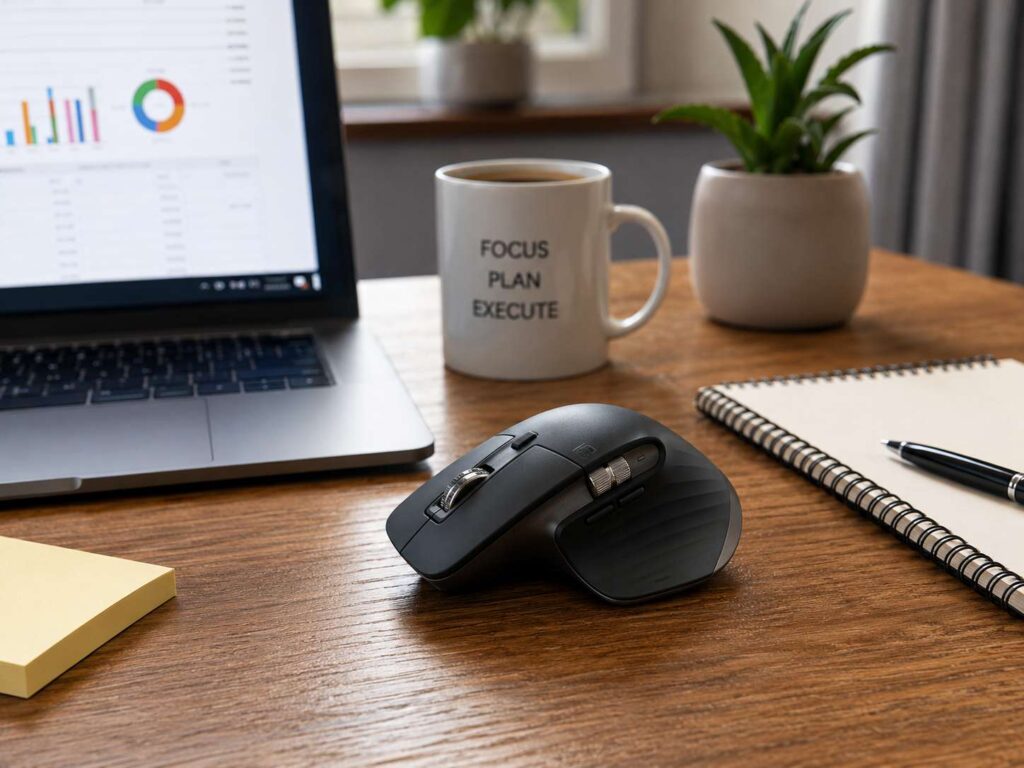
For most remote workers, the Logitech MX Master 3S is the best single mouse to consider. It is listed on Amazon.com, and Logitech lists it with Quiet Clicks, an 8000 DPI optical sensor, MagSpeed scrolling, USB-C charging, Bluetooth, and a sculpted shape. Logitech also lists the mouse at 141 g, with a height of 124.9 mm, width of 84.3 mm, and depth of 51 mm.
The MX Master 3S works well for home office use because it solves the problems that matter most. It feels comfortable during long sessions. It scrolls fast through long pages. Plus, it has quiet clicks for calls and shared rooms.
The side scroll wheel helps in wide sheets and creative tools. The extra buttons can handle common actions, such as back, forward, copy, paste, or app controls. The shape supports the palm, so it feels more relaxed than a flat travel mouse.
This mouse fits best for:
- Remote workers who spend 6 or more hours at a desk
- People who use large monitors or dual screens
- Writers, editors, developers, analysts, and project managers
- Users who want quiet clicks
- Workers who switch between devices
- Anyone who wants one premium mouse for several years
It is not the best choice for small hands or travel-first use. It is larger than many compact mice. It also favors right-handed users. Still, for a fixed home office desk, it offers a strong mix of comfort, features, and daily speed.

What to Check Before Buying
Before you buy a work from home mouse, check your hand size, desk space, and device setup. A mouse can look perfect in photos and still feel wrong in your hand.
Use this quick checklist:
- Do you prefer a full-size mouse or a compact one?
- Do you use Windows, macOS, Linux, or ChromeOS?
- Do you need Bluetooth, a USB receiver, or both?
- Do you join calls often and need quiet clicks?
- Do you use spreadsheets or wide timelines?
- Do you work on a 4K or ultrawide monitor?
- Do you need left-handed support?
- Do you want rechargeable USB-C charging?
- Do you need programmable buttons?
Comfort is personal. A mouse that scores well in every spec still needs to fit your hand. If possible, buy from a seller with easy returns. Then test the shape during real work, not just for a few minutes.
Common Mistakes to Avoid
Picking a mouse only by price can work for light use, but it often fails for full-time remote work. A cheap mouse can feel small, loud, or unstable.
Another mistake is buying a gaming mouse for office work without checking comfort. Gaming mice can track very well, but some have sharp shapes, loud clicks, or software that feels too heavy for normal work.
People also forget about scroll quality. If you read long documents or scan spreadsheets, the wheel can affect your day more than the sensor number.
Size matters too. A compact mouse can look clean in product photos, but it may force your fingers into a cramped position. For desk work, comfort beats portability.
Final Buying Advice
The best mouse for work from home should make your day easier without asking for attention. It should feel natural in your hand, move smoothly across your screen, and stay quiet during calls. It should scroll well, charge fast, and connect without fuss.
For most people, the Logitech MX Master 3S stands out as the best all-around choice. It brings comfort, quiet clicks, premium scrolling, strong tracking, and multi-device support into one mouse. It costs more than entry-level options, but it fits the way many remote workers use a mouse every day.
If your budget is tight, choose a basic wireless mouse from a trusted brand with good battery life and a comfortable shape. If wrist strain is your main concern, test a vertical mouse. If you travel often, pick a compact Bluetooth model. For a main home office desk, focus on comfort first, then scrolling, then connection type.
A better mouse will not change your whole setup by itself. Still, it can make each click, scroll, and screen movement feel smoother. That matters during a long workday.