Quick verdict
The Logitech MX Master 3S is one of the strongest wireless mice for office work, home desks, coding, spreadsheets, browsing, research, and creative tasks. It feels built for people who use a mouse all day and want more comfort, less noise, better scrolling, and stronger control.
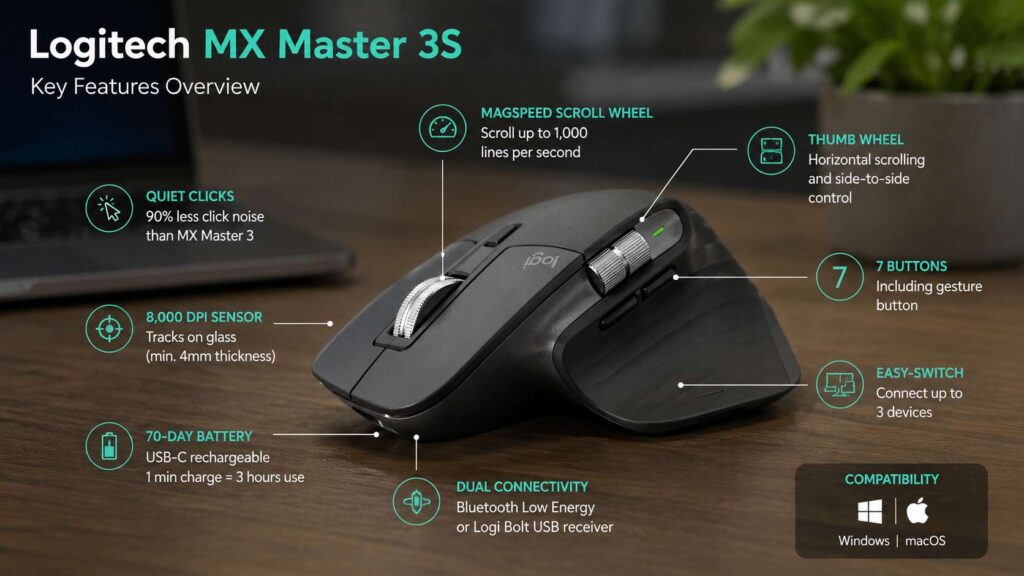
This mouse does not try to act like a gaming mouse. It has a large right-handed shape, a 141 g body, quiet main clicks, a fast MagSpeed scroll wheel, and an 8,000 DPI sensor. So, it suits work much better than fast competitive play.
The best part is the daily feel. The clicks sound soft. The scroll wheel moves through long pages fast. The side wheel helps with wide spreadsheets and timelines. Plus, the shape supports your hand better than a basic office mouse.
Next to cheap wireless mice, the MX Master 3S is a serious upgrade. It costs more, but it gives you real gains in comfort, control, and workflow. Users comparing premium mice with basic models can start with this related guide on MX Master 4 vs cheap office mice, then use this review to see why the MX Master 3S still makes sense.
Overall rating: 4.5/5
Main specifications
- Sensor: 8,000 DPI optical sensor
- Tracking: Works on many surfaces, including glass with at least 4 mm thickness
- Scroll wheel: MagSpeed electromagnetic scrolling
- Scroll speed: Up to 1,000 lines per second
- Battery: USB-C rechargeable 500 mAh Li-Po battery
- Battery life: Up to 70 days on a full charge
- Fast charge: 1 minute gives up to 3 hours of use
- Weight: 141 g
- Dimensions: 124.9 mm x 84.3 mm x 51 mm
- Shape: Right-handed
- Multi-device support: Up to 3 paired devices on the business model
- Software: Logi Options+ for Windows and macOS
- Wireless support: Bluetooth Low Energy, plus Logi Bolt on the business model
These specs make the Logitech MX Master 3S a productivity mouse first. It works best on a desk, next to a laptop, monitor, keyboard, and work setup.
Design and comfort
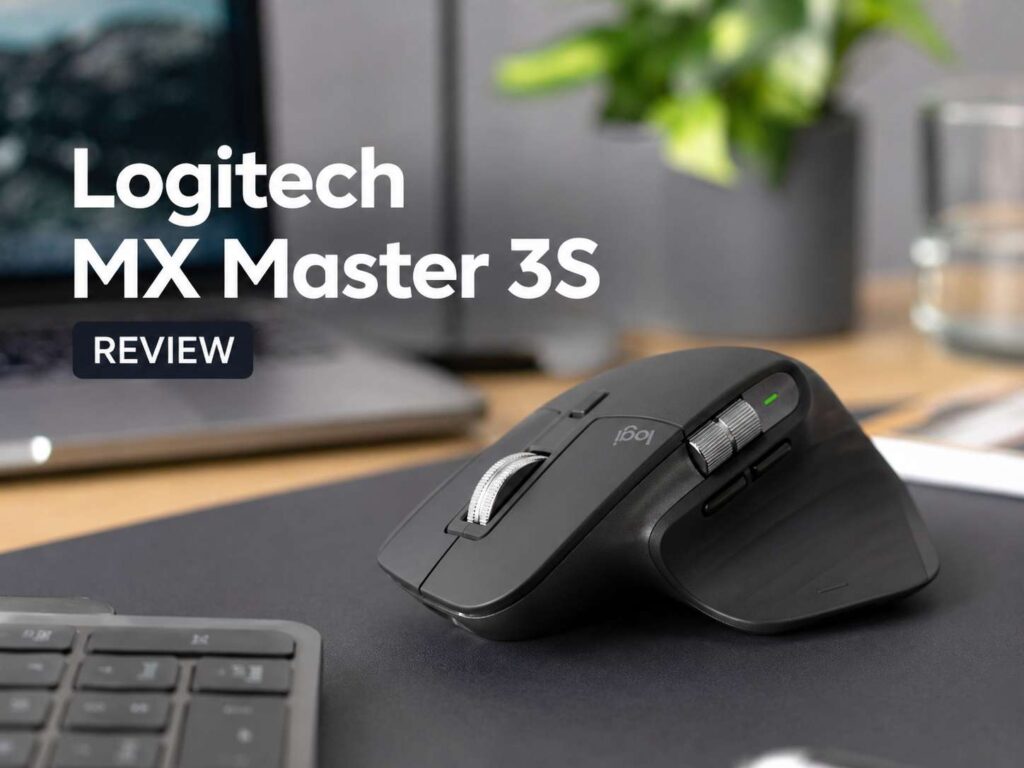
The MX Master 3S has a large sculpted shape made for the right hand. Your palm rests on the tall back section, your thumb sits on the side rest, and your fingers fall over the main buttons with little effort.
That shape feels natural during long sessions. A small flat mouse can work fine for short tasks, but it often feels cramped after hours of editing, browsing, or spreadsheet work. The MX Master 3S gives your hand more support, so it feels better for full workdays.
The mouse suits medium and large hands best. Small-hand users can still use it, but the side buttons may feel a bit far away at first. After a few days, the button layout becomes familiar enough to reach each control without looking.
The thumb rest gives the mouse a stable feel. It also keeps your thumb near the side wheel, back button, forward button, and gesture button. That layout helps the mouse feel like a control hub, not just a pointer.
The trade-off is size. This is not a small travel mouse. It takes space in a laptop bag, and it feels too large for tight tables. For a fixed desk, though, the size works in its favor.
Build quality and desk feel
The MX Master 3S feels solid. The scroll wheel has a premium feel, the main buttons press cleanly, and the body feels stable during daily use. At 141 g, it has more weight than many modern mice, but that weight gives it a planted desk feel.
For office work, the heavier body can feel pleasant. It does not slide around too easily, and it gives fine pointer movement a controlled feel. For fast gaming, the weight becomes a weakness. For work, it helps the mouse feel steady.
The outer coating feels smooth and grippy. Still, long-term wear can depend on hand oils, cleaning habits, and daily use. A quick wipe with a soft cloth helps keep the surface clean.
The mouse looks professional on most desks. It fits well next to a laptop, monitor, and low-profile keyboard. Users building a full work setup may want to compare keyboard ecosystems too. This guide on Keychron vs Logitech keyboards pairs well with this mouse review.
Click feel and noise
Quiet clicks are one of the biggest reasons to choose the Logitech MX Master 3S. The main buttons feel clear, but they make much less noise than regular mouse buttons.
That matters in shared offices, bedrooms, meeting rooms, and home offices. If you work during calls or late at night, the softer click sound feels like a real upgrade. People nearby hear less tapping, and your desk feels calmer.
The click feel still has enough feedback. It does not feel empty or vague. Each press feels controlled, so text selection, browser tabs, file management, and email work feel natural.
The quiet click design gives this mouse one of its strongest daily benefits. You notice it every time you work, not just during the first day.
Scrolling performance
The MagSpeed scroll wheel is the highlight of the MX Master 3S. It can scroll line by line for careful movement, then spin fast through long pages. Logitech lists the wheel at up to 1,000 lines per second.
That makes a real difference in large documents, long product pages, research tabs, code files, and spreadsheets. You can move fast, stop near the right section, then make small adjustments with control.
The wheel can shift between precise and fast scrolling. You can let it change automatically, or press the wheel mode button. This gives the mouse a flexible feel during mixed tasks.
The metal wheel feels stable and smooth. It has enough weight to feel premium, but it does not feel tiring. The scroll action is one of the main reasons people stay with the MX Master line for years.
The side thumbwheel adds another layer of control. It helps in Excel, Google Sheets, video timelines, design apps, and wide web pages. At first, it may feel like a bonus. After a week, it can become part of your normal workflow.
Tracking and sensor accuracy
The MX Master 3S uses an 8,000 DPI optical sensor. That high DPI ceiling helps users with 4K monitors, ultrawide screens, and multi-monitor setups.
The full 8,000 DPI setting is not the point. The real value comes from having enough range to tune pointer speed to your screen size. A large display needs more pointer travel, and this sensor gives you enough room to adjust.
Tracking feels accurate for office tasks. It works well for selecting text, editing images, dragging files, moving through timelines, using CMS tools, browsing large pages, and managing windows.
The sensor can track on glass with a minimum thickness of 4 mm. That helps users who work on glass desks or varied surfaces. A mouse pad still gives the best feel, but the MX Master 3S does not demand one.
For precision work, the sensor feels smooth and predictable. Graphic designers and photo editors can use it for light creative work. For high-speed esports, a lighter gaming mouse still makes more sense.
Buttons and controls
The Logitech MX Master 3S gives you more controls than a normal office mouse. You get left click, right click, middle click, back, forward, wheel mode shift, a gesture button, a main scroll wheel, and a thumbwheel.
The back and forward buttons help with browsers, folders, and project tools. The thumbwheel helps with horizontal scrolling. The gesture button can trigger actions through Logi Options+.
At first, the button layout may feel busy. After a few work sessions, it starts to feel natural. The controls sit close to where your fingers already rest, so you do not need to move your hand much.
The gesture button gives the mouse extra value. You can press it and move the mouse in different directions to control desktops, windows, media, or app actions. That saves time once you set it up.
Some users may prefer larger side buttons. The back and forward buttons sit close together, so they can feel cramped during the first few days. Still, the layout works well after muscle memory builds.
Logi Options+ software
Logi Options+ turns the MX Master 3S from a good mouse into a much better work tool. The software lets you change button actions, pointer speed, scroll settings, and app-specific controls.
App-specific settings are one of the best features. For example, you can set the thumbwheel for horizontal scrolling in spreadsheets, timeline movement in video apps, or brush size changes in creative software.
Smart Actions can group tasks into shortcuts. For office users, this can help with repeated steps like opening apps, pasting text, controlling windows, or launching a work routine.
The software runs on Windows and macOS. Linux users can still use the mouse, but full Logi Options+ features are not the same. For the best experience, Windows and macOS users get the most value.
The mouse works out of the box for basic pointing, clicking, and scrolling. Yet the real reason to buy it is customization. The more you tune it, the more useful it becomes.
Multi-device use
The MX Master 3S fits well in a multi-device setup. The business version supports Easy-Switch with 3 channels, so you can pair it with up to 3 devices.
This helps people who use a desktop and laptop, a work machine and personal machine, or a Windows PC and Mac. You can move between devices without pairing the mouse again each time.
The Easy-Switch button sits under the mouse. That keeps the top clean, but it makes switching less convenient than a top button. If you switch devices many times per hour, this placement can annoy you.
Logitech Flow can help users move across supported computers through software. For desk setups with two machines side by side, this can make file movement and pointer control feel smoother.
For most hybrid workers, the 3-device support is enough. It gives the mouse strong value in a modern desk setup.
Battery life and charging
Battery life is excellent. Logitech rates the MX Master 3S at up to 70 days on a full charge. The mouse uses a USB-C rechargeable 500 mAh Li-Po battery.
Charging is easy. A 1-minute charge can give up to 3 hours of use. A full charge takes longer, but at up to 70 days per charge, that rarely matters.
The USB-C port sits at the front of the mouse. That means you can charge and keep working at the same time. This is a much better design than a bottom charging port.
The battery is not user-replaceable. That is a downside for buyers who keep a mouse for many years. Still, the long charge rating makes the mouse easy to live with day to day.
Productivity use
The Logitech MX Master 3S shines during real work. It saves time through many small gains.
For spreadsheets, the thumbwheel helps with wide sheets. The main scroll wheel moves fast through rows. The side buttons help with navigation across files and browser tabs.
For coding, the fast scroll wheel helps with long files. The side buttons can map to common actions. The sensor works well across large screens.
For writers and editors, quiet clicks and strong scrolling make long sessions feel smoother. Moving through drafts, CMS pages, documents, and browser tabs feels faster.
For design work, the 8,000 DPI sensor and app profiles help with control. The mouse is not a dedicated design tablet or gaming mouse, but it works well for light and moderate creative tasks.
For everyday office users, the biggest gain is comfort. The mouse reduces small friction points that appear during a full day.
Gaming use
The MX Master 3S can handle casual gaming, strategy games, simulation games, and slower single-player titles. The sensor is accurate, and the buttons feel good.
Fast competitive gaming is different. This mouse is heavy, tall, and shaped for palm comfort. It does not suit quick flicks or rapid lift movements.
A dedicated gaming mouse will feel better for shooters and esports. It will weigh less, move faster, and offer gaming-focused software. The MX Master 3S should stay in the productivity lane.
That is not a flaw. It simply shows what the mouse is made for. It is a premium work mouse, not a gaming-first device.
Portability
The MX Master 3S is best used at a fixed desk. It can travel, but it is not ideal for daily travel.
The body is large. The weight is noticeable in a bag. The shape does not fit small laptop sleeves or compact pouches as easily as smaller mice.
For hybrid workers, it can still make sense to carry it between home and office. For frequent travelers, a smaller wireless mouse will feel easier.
At a desk, the size becomes a strength. The larger body supports the hand, and the scroll tools feel better for long work sessions.
Pros
- Very comfortable right-handed shape
- Quiet main clicks
- Excellent MagSpeed scroll wheel
- Useful horizontal thumbwheel
- Accurate 8,000 DPI sensor
- Works on glass with at least 4 mm thickness
- Strong battery life
- USB-C charging at the front
- Fast charging support
- Great for office work, coding, browsing, and spreadsheets
- Strong app-specific controls through Logi Options+
- Multi-device support on the business model
- Premium desk feel
Cons
- Not made for left-handed users
- Too heavy for competitive gaming
- Large body is not ideal for travel
- Side buttons can feel tight at first
- Device switch button sits under the mouse
- Battery is not user-replaceable
- Full customization works best on Windows and macOS
- Costs more than basic office mice
Price

Who should buy the Logitech MX Master 3S?
Buy the Logitech MX Master 3S if you spend many hours at a desk and want a better mouse for work. It suits office workers, programmers, writers, editors, analysts, designers, students, and remote workers.
It is a strong pick for users with 4K monitors, ultrawide displays, or dual-monitor setups. The 8,000 DPI sensor gives enough range for large screens, and the scroll wheel helps you move through long pages fast.
Quiet workspaces are another good fit. The softer clicks make it easier to work near other people, record audio, join calls, or work late without loud clicking.
People who work in spreadsheets, web tools, documents, dashboards, and creative apps will get the most value. The mouse pays off through comfort and repeated small time savings.
Who should skip it?
Skip the MX Master 3S if you need a left-handed mouse. The shape is built for the right hand.
Gamers who play competitive shooters should pick a lighter gaming mouse. The MX Master 3S is accurate, but it is too heavy for fast flicks.
Frequent travelers should look at a smaller mouse. The MX Master 3S works best on a full desk, not in cramped spaces.
Budget buyers should think about how they work. If you only need basic clicking and scrolling, a cheaper mouse will do the job. If your mouse is in your hand all day, the MX Master 3S makes far more sense.
Final verdict
The Logitech MX Master 3S remains one of the best wireless productivity mice for serious desk work. It combines quiet clicks, fast scrolling, strong comfort, high DPI tracking, long battery life, and useful software.
Its value comes from daily use. The mouse makes long pages easier to scan, wide sheets easier to move through, and long work sessions more comfortable. The quiet buttons make the desk feel calmer too.
It is not perfect. The size, weight, right-handed shape, bottom device-switch button, and fixed internal battery limit its appeal. Still, for productivity, the strengths matter far more than the drawbacks.
For office work, coding, spreadsheets, browsing, research, and creative tasks, the Logitech MX Master 3S earns its premium price. It feels like a work tool made for long days.