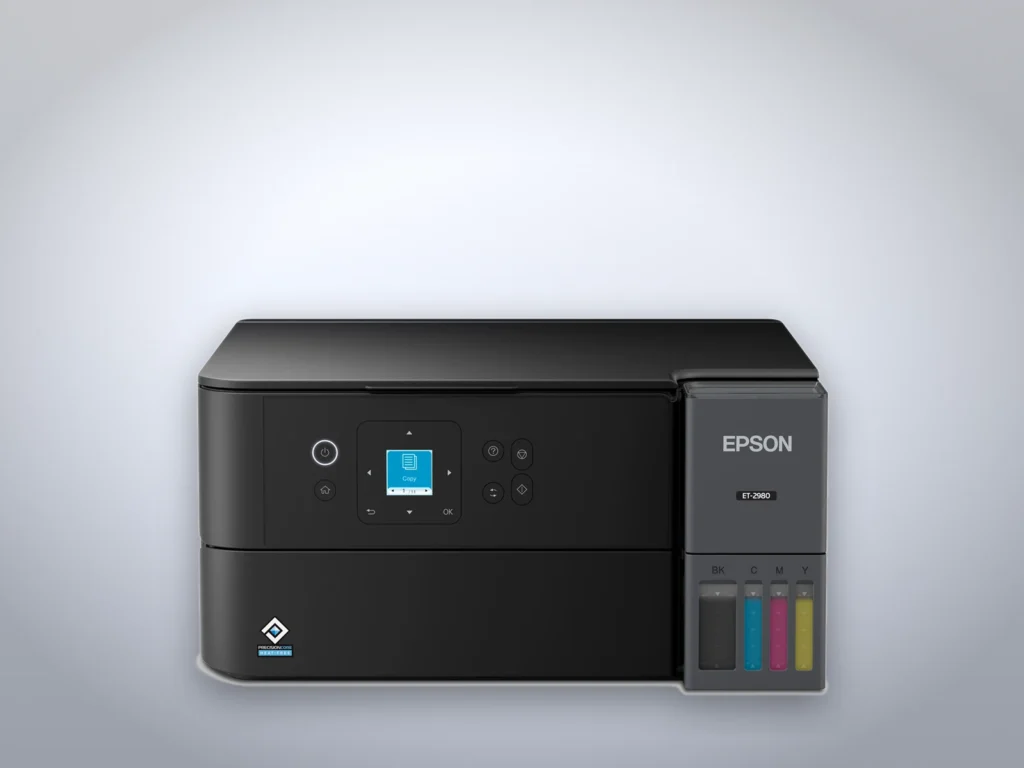
If your Epson EcoTank is printing lines, faint bands or pages with a color missing, the fix starts with a nozzle check and goes only as far as the pattern says. Epson’s user guides for the ET-2400 and ET-2800 and for the newer ET-2900, ET-2980, ET-3950 and ET-4950 share the first steps and end on different last resorts. A check and one cleaning take a few minutes and a few sheets of plain paper. A stubborn clog can take a day, because Epson asks for a rest of at least 12 hours before the deeper steps. The guides allow three ordinary cleanings before that rest, and each one spends ink and adds to the printer’s waste ink.
Before you start
- A few sheets of plain letter-size paper in the feeder, and the output tray pulled out.
- No error on the screen, or no error light on the ET-2400.
- Ink above the lower line in every tank. A cleaning may refuse to run once a tank is down to that line, and the deepest cleaning on each model needs every tank at least a third full.
- On the ET-2400, a Windows or Mac computer with Epson’s printer software, because its buttons cannot start a Power Cleaning or align the head.
- For a stubborn clog, a night when the printer can stay switched off.
Where the flushed ink goes
Every cleaning pushes ink through the print head and into a waste reservoir inside the printer. The two groups of EcoTanks use different reservoirs, one that only a service provider can replace and one you change yourself.
On the ET-2400 and ET-2800 the reservoir is a set of ink pads, which Epson’s guides call “not a user-replaceable part”. When a pad nears the end of its life, the ET-2800 shows warning W-11 and the ET-2400 flashes its ink and paper lights together, and both let you carry on printing with a button press. Once a pad is full, printing stops until it is replaced, though the ET-2800 still scans. Epson covers the replacement under the standard warranty, and after that any Epson authorized service provider can do it. Both guides warn that Power Cleaning “may cause the ink pads to reach their capacity sooner.”
The ET-2980, ET-3950 and ET-4950 send that ink to a T04D100 maintenance box, which Epson’s store listed at $10.99 on October 10, 2026. The ET-2900 takes a C9398 box, listed at $18.99 the same day. You swap the box yourself when the screen asks for it. These models still have a pad that collects a little ink during borderless printing, and only an Epson service provider replaces it.
On the two older models, then, every unneeded cleaning moves a service visit closer. Check the pattern before each cleaning, and take the 12-hour rest when Epson asks for it.
Print a nozzle check
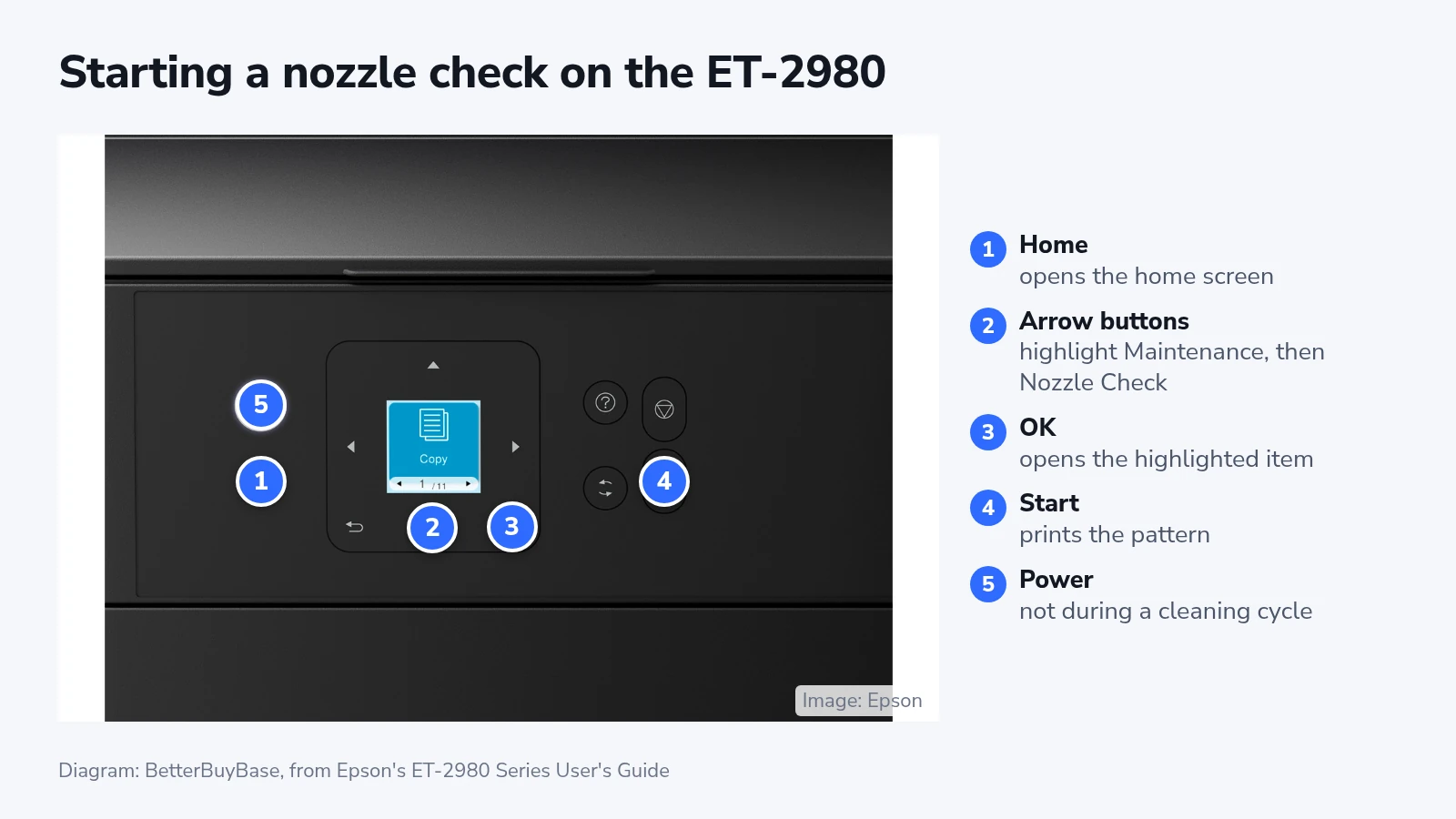
On the models with a screen, the route runs through the “Maintenance” menu. The ET-2980 takes four steps once paper is loaded:
- Press the home button.
- Use the arrow buttons to highlight “Maintenance”.
- Press “OK”, highlight “Nozzle Check” and press “OK” again.
- Press the start button. The printer prints the nozzle check pattern.
The other models print the same pattern by other routes:
- ET-2800: press home, select “Maintenance” and press “OK”, press “OK” again to choose “Nozzle Check”, then press start.
- ET-2900: select “More” on the control panel, then “Maintenance” > “Nozzle Check”, and follow the screen to load paper and print.
- ET-3950 and ET-4950: press home and select “Maintenance” > “Print Head Nozzle Check”, then press “OK” on the ET-3950 or tap “Print” on the ET-4950’s touchscreen.
- ET-2400, which has no screen: turn the printer off, hold down the stop button and press the power button, then let go of both when it comes on. The pattern can take a few seconds to start.
- From a computer: on Windows, right-click the printer’s icon at the right end of the taskbar (click the up arrow first if it is hidden) and choose “Nozzle Check” or “Print Head Nozzle Check”. The ET-2900 guide goes through the printer driver instead. Open its “Maintenance” tab, click “Maintenance” and choose “Print Head Nozzle Check”. On a Mac, open “System Settings” (“System Preferences” on older macOS) > “Printers & Scanners”, select the printer, then “Options & Supplies” > “Utility” > “Open Printer Utility”, and choose the same nozzle check item.
Read the pattern
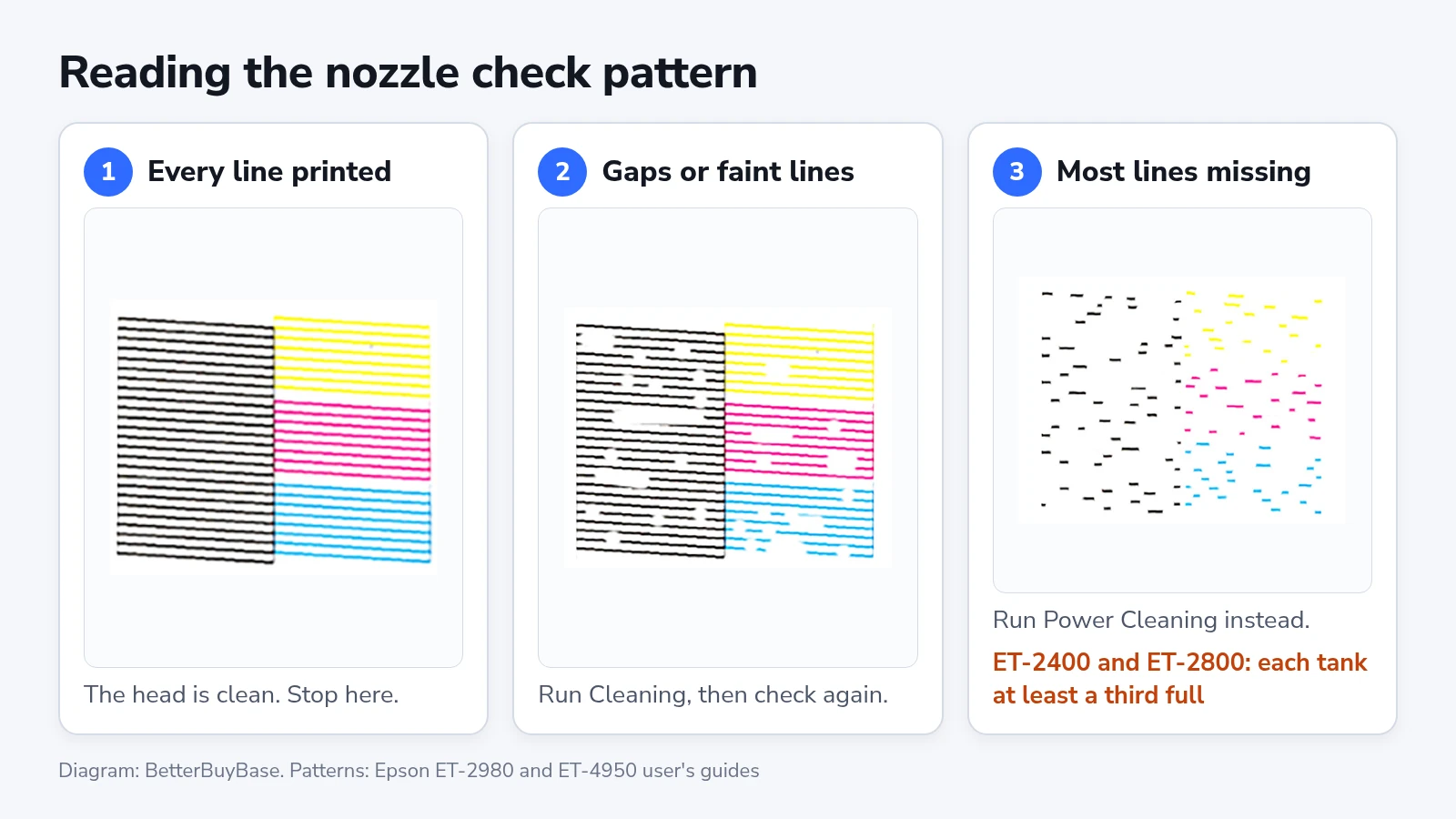
Hold the printed sheet next to Epson’s examples and look at each colored block. If every line is there, the head is clean and a cleaning would only spend ink. Answer “No” on the ET-2800, ET-2900 and ET-2980, or choose “O” on the ET-3950 and ET-4950.
Gaps or faint lines call for an ordinary cleaning. Choose “Yes” and follow the screen on the ET-2800. Choose “Yes” and then “Cleaning” on the ET-2900 and ET-2980, or “X” and then “Cleaning” on the ET-3950 and ET-4950.
Where all or most of the lines are missing, or the sheet comes out blank, Epson points to Power Cleaning, a deeper cycle that uses more ink. Choose “Yes” and then “Power Cleaning” on the ET-2900 and ET-2980, or “X” and then “Power Cleaning” on the ET-3950 and ET-4950. The ET-2800 asks you to answer “No” and start “Power Cleaning” from the “Maintenance” menu, after checking that every tank is at least a third full. The ET-2400 runs it only from a computer.
A clean pattern on a page that still shows lines points away from the head, toward the paper and alignment checks further down.
Run a cleaning and check again
On the models with a screen, a cleaning starts from the pattern prompt or from “Maintenance” > “Head Cleaning” (“Print Head Cleaning” on the ET-3950 and ET-4950). On the ET-2400, check that no light shows an error and hold the stop button for five seconds.
The power light on the ET-2400 and ET-2800 flashes for the whole cycle and stays on when it ends. Leave the power button alone and keep the printer closed until the cycle finishes, because Epson warns that switching off or opening the printer mid-cycle can damage it or leave it unable to print. The ET-2900 prints a fresh pattern on its own when a cleaning ends. On the other models, print a new pattern the same way as before and compare it with the last one.
Repeat the cleaning and the check until every line prints, up to the limit Epson sets for your model.
The order Epson sets for a stubborn clog
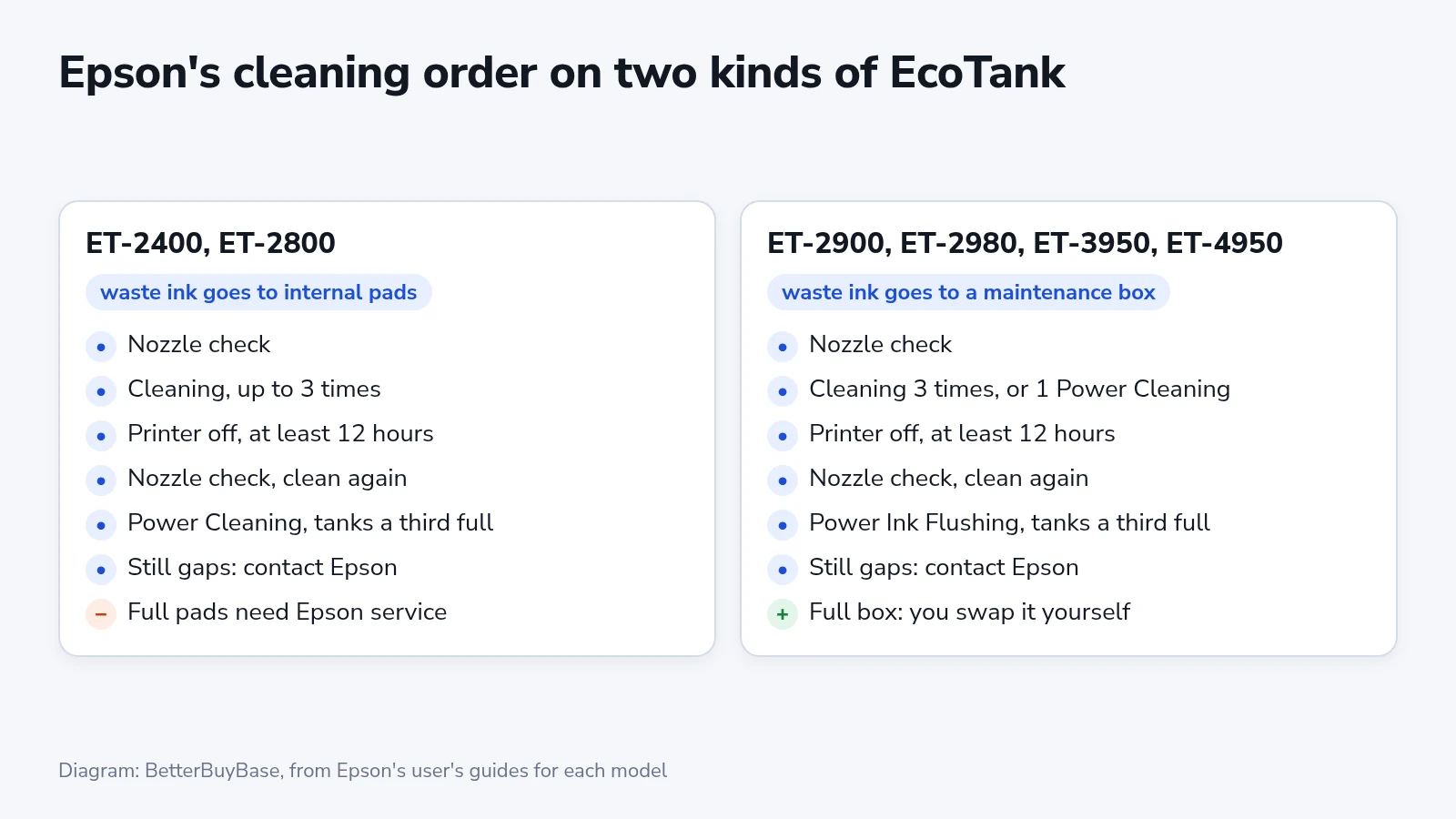
The ET-2400 and ET-2800 guides set six steps:
- Run up to three cleanings, with a nozzle check after each.
- If gaps remain, turn the printer off and leave it for at least 12 hours.
- Print a nozzle check and clean again if it still shows gaps.
- If that fails, check that every tank is at least a third full and run Power Cleaning.
- Print a nozzle check. Before a second Power Cleaning, give the printer another full rest with the power off.
- If repeated Power Cleanings leave gaps, contact Epson.
The ET-2800 keeps Power Cleaning under “Maintenance” > “Power Cleaning”. The ET-2400 needs a computer. On Windows, right-click the taskbar icon, choose “Printer Settings”, open the “Maintenance” tab and click “Power Cleaning”. On a Mac, open the Printer Utility as above and choose “Power Cleaning”. Epson warns that running it with low tanks “may damage the product.”
On the newer models the order ends in Power Ink Flushing:
- Run up to three rounds of Cleaning and nozzle check, or one Power Cleaning if most lines were missing.
- Turn the printer off and leave it for at least 12 hours.
- Print a nozzle check and run one more Cleaning if it needs it.
- If gaps remain, check that every tank is at least a third full and run “Power Ink Flushing” from the “Maintenance” menu.
- Print a nozzle check. If the gaps are still there, contact Epson support.
The ET-2980 keeps Power Cleaning under “Maintenance” > “Head Cleaning” > “Power Cleaning”, and the ET-3950 and ET-4950 under “Print Head Cleaning”. The ET-2900 asks whether to run a nozzle check when you open “Head Cleaning”, and answering “No” leads to “Power Cleaning”.
Power Ink Flushing replaces all the ink inside the ink tubes. It uses more ink than either cleaning, empties it into the maintenance box, and will not start when the tanks or the box lack room for it. Epson also lists it as the fix after printing or cleaning with the ink too low to see in the tank windows. The ET-2800 guide’s answer to the same slip is to refill to the upper lines and run Power Cleaning.
Epson Europe’s general FAQ on the subject treats Power Cleaning and Power Ink Flushing as one feature and asks for the 12-hour rest before it. The US guides for these models keep the two apart, and the guide for your model is the one to follow.
Printing during the 12-hour rest
A clogged black channel does not have to block an urgent page. On Windows, the drivers for every model here can build black from the color inks. Right-click the taskbar icon, choose “Printer Settings”, open the “Maintenance” tab, click “Extended Settings” and tick “Use a Mixture of Color Inks to Create Black”. It works at Standard quality on plain paper and envelopes, and the setting applies to every job until you clear it. Epson notes that it does not fix the clog.
If the lines will not go
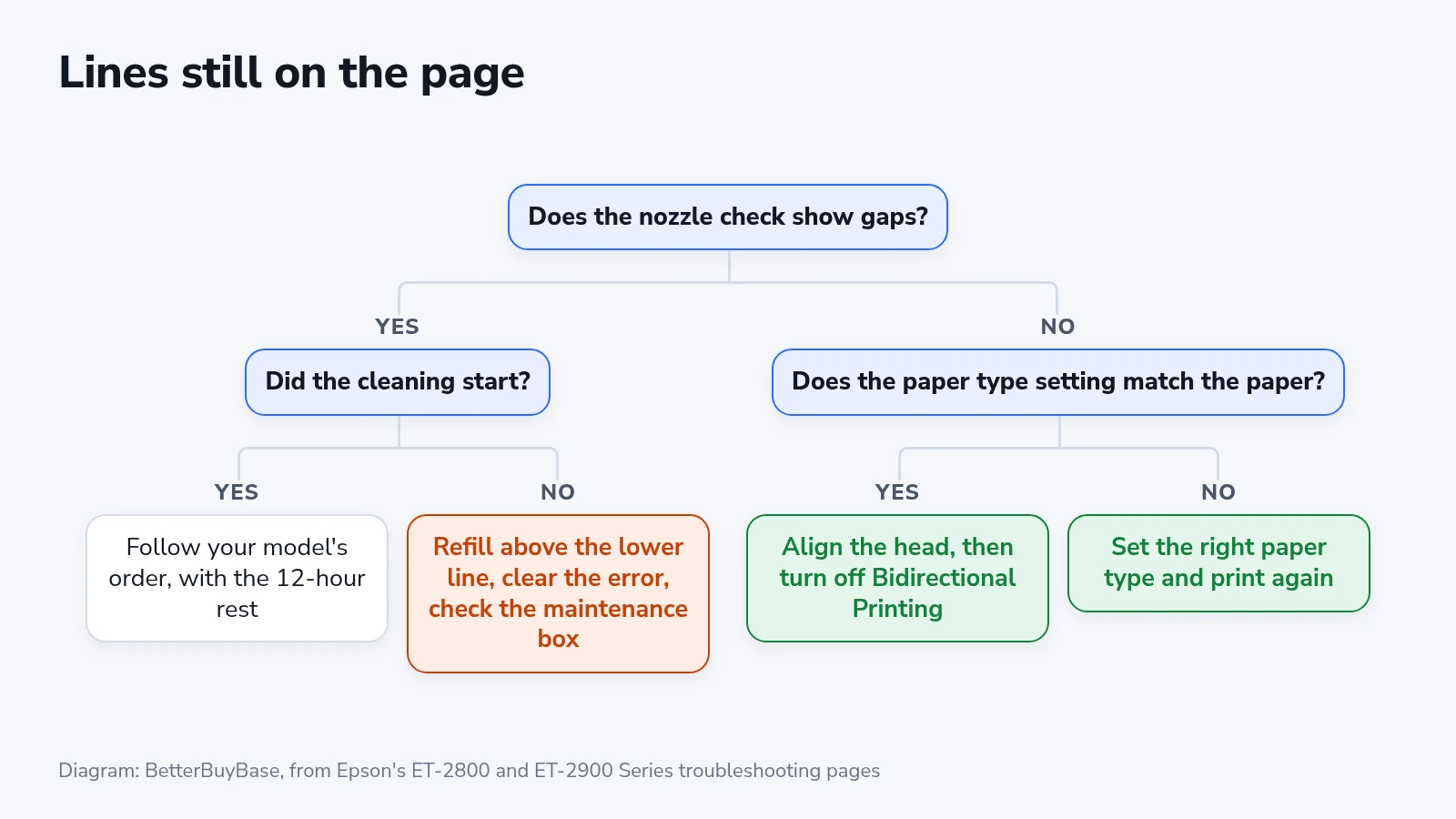
When a cleaning will not start at all, refill any tank at or below its lower line and clear any error on the screen. On the newer models, also look for a message asking for a new maintenance box.
With a clean pattern and streaky pages, start with the paper type setting, which should match the paper in the feeder, with the printable side loaded the way the guide shows. Epson’s ET-2900 guide ties colored bands about an inch apart to a wrong paper type or a low quality setting. Choose “High” under “Quality” on the Windows driver’s “Main” tab, or “Fine” in the Mac print dialog.
Head alignment comes next, and on the ET-2800 it sits under “Maintenance” > “Print Head Alignment”. Choose “Vertical Alignment” or “Horizontal Alignment”, press start, and pick the number of the most solid pattern in each set. The ET-2400 does it from the computer utility under “Print Head Alignment”. The newer models use “Print Quality Adjustment” in the “Maintenance” menu. It prints a sheet that you lay on the scanner glass, and with the document cover closed the printer adjusts itself from the scan.
If lines still look misaligned after that, turn off “Bidirectional Printing”. On Windows it is on the driver’s “More Options” tab, and on a Mac under “Options & Supplies” > “Options” (or “Driver”). The head then prints in one direction only, which Epson says slows printing and can straighten vertical lines that printing in both directions throws out of line.
After the fix
Print one more nozzle check, then the page that showed the lines. Every line in the pattern should be solid, and the page should come out clean.
Epson’s ET-2900 guide names one cause of clogs that you control, a print head left uncapped when the plug is pulled or the power fails while the printer is on. Switch off with the power button and wait for the power light to go out before unplugging. After a power cut, turn the printer on and off again as soon as you can, so it caps the head.
Epson sets no cleaning schedule, and its guides say to clean only when print quality declines, so the next nozzle check is due when a page comes out banded. Between cleanings, watch for the waste ink warning. On the ET-2400 and ET-2800 it means a call to Epson, and on the newer models it means a new maintenance box.