Quick Answer
The all-in-one printer vs printer-only model choice sounds simple at first. Still, the wrong pick is easy to regret later.
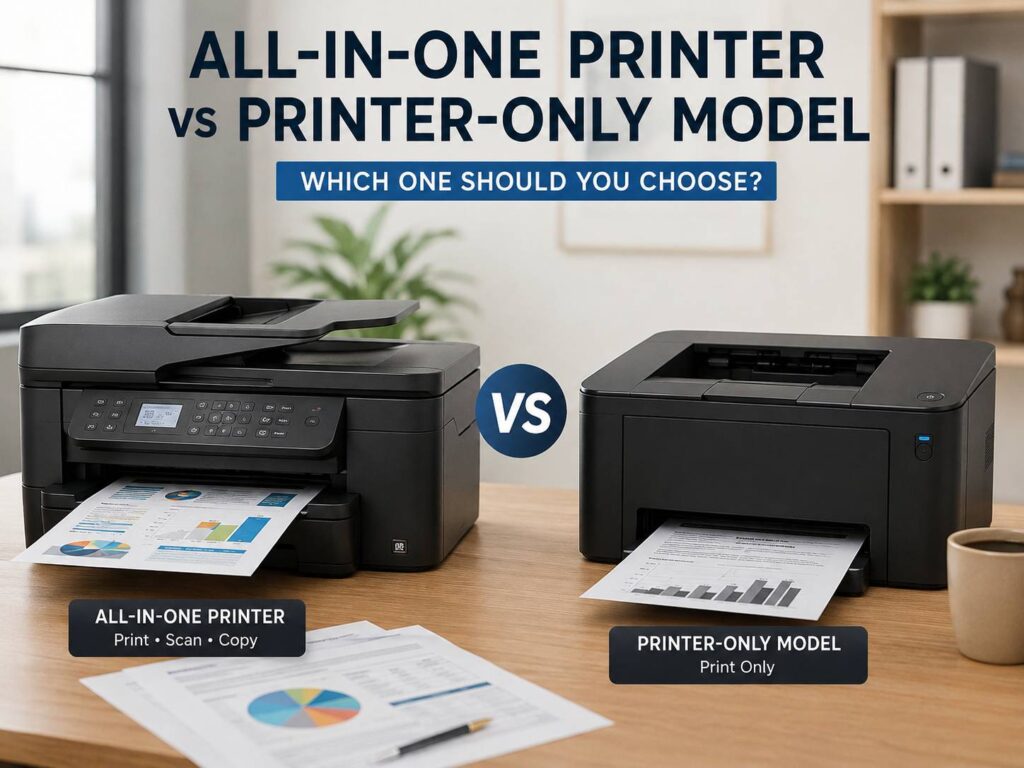
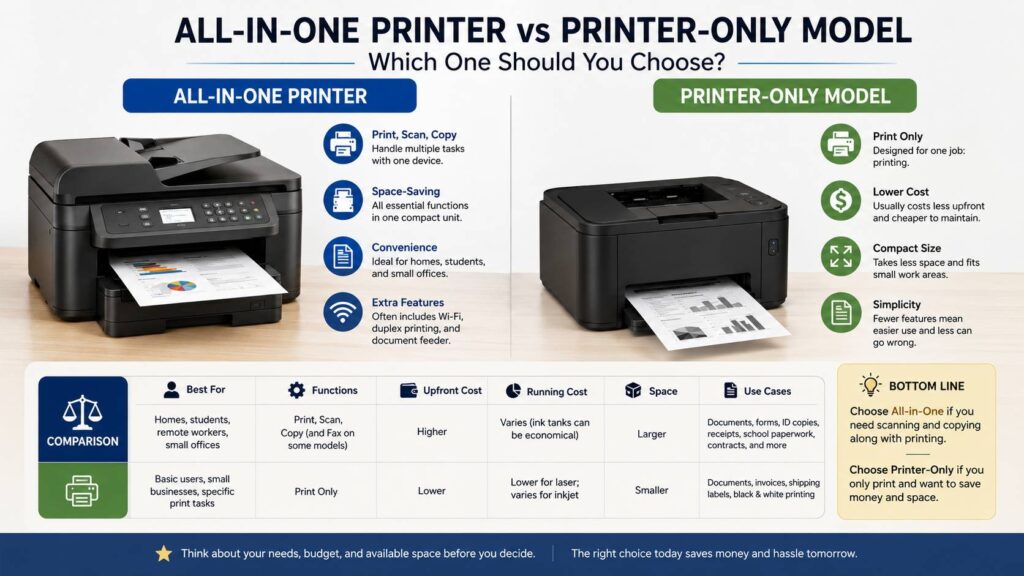
An all-in-one printer prints, scans, and copies. Some models fax too, but most home users no longer care about fax. A printer-only model prints and does nothing else. That sounds basic, but basic can be the right choice for the right person.
So, here is the easy way to decide. Buy an all-in-one printer if you scan forms, copy documents, save receipts, send signed papers, or handle school paperwork. Buy a printer-only model if you only print labels, invoices, recipes, homework, or black text documents.
If you print at home, the all-in-one printer is the safer pick. You may not scan every week. Still, the day you need it, the feature feels worth having.
What an All-in-One Printer Gives You
An all-in-one printer combines several office tools in one device. Most models include a printer, scanner, and copier. Some business models add fax, but that feature matters less for normal home use.
This type of printer works well for families, students, freelancers, and home offices. For example, you can print a school form, sign it, scan it, then email it back without leaving your desk. That feels small until you need to do it fast.
Plus, many all-in-one printers now include Wi-Fi, mobile printing, two-sided printing, and app control. Some models also include an automatic document feeder. That part matters if you scan or copy several pages at once. Instead of lifting the scanner lid for every sheet, you place the pages in the feeder and let the printer pull them through.
In practice, an all-in-one printer saves time. It also cuts down clutter. You do not need a separate scanner on your desk, and you do not need to visit a print shop for basic copies.
What a Printer-Only Model Does Better
A printer-only model does one job. It prints. That makes it easier to use and easier to place in a small room.
For many people, that is enough. A printer-only model suits users who print shipping labels, invoices, black-and-white documents, drafts, worksheets, and basic pages. It can also work well in a small business that already has a scanner or handles all paperwork online.
Next, printer-only models often cost less upfront. They can be smaller too, since they do not need a scanner bed on top. A simple laser printer-only model can sit on a shelf and print sharp text for years.
That said, the lower price can hide one problem. If you need to scan or copy later, you will need another device or a phone app. Phone scanning works for quick jobs, but it does not always give clean results for IDs, contracts, old photos, or stamped documents.
Cost: The Cheap Printer Is Not Always the Best Deal
Looking at the printer price first makes sense, but it is not enough.
To compare an all-in-one printer vs printer-only model, check the full cost:
- Printer price
- Ink or toner price
- Page yield
- High-yield cartridge support
- Ink bottle cost on tank models
- Warranty length
- Replacement parts
- Paper tray size
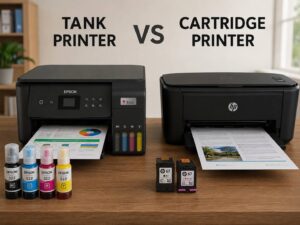
For example, a cheap inkjet printer may cost less on day one. After that, small cartridges can raise the total cost fast. A tank printer costs more upfront, but it can lower the cost per page for people who print often.
A laser printer-only model can be a smart buy for black text. Toner costs more than ink at checkout, but one cartridge can last much longer. For this reason, many home offices still prefer monochrome laser printers for invoices, forms, and long documents.
Before you choose ink or toner, read this simple inkjet vs laser printer guide. It helps explain which print type fits your real usage.
Space: Measure Before You Buy
Printer size matters too.
An all-in-one printer needs room for the scanner lid. Models with an automatic document feeder need extra height too. Some printers have rear paper feeds, pull-out trays, or output arms that extend during printing.
A printer-only model takes less space in most cases. It works better on shelves, narrow desks, side tables, and small cabinets.
So, before you buy, measure the space. Check the width, depth, and height. Then add room for the lid, paper tray, power cable, and paper output.
This step prevents a common mistake. People buy an all-in-one printer, place it under a shelf, then cannot open the scanner lid properly. The printer works, but scanning becomes annoying every time.
Scanning and Copying: The Feature People Miss Later
Scanning does not sound exciting. Still, it becomes very useful during real life.
You may need to scan an ID, medical paper, rental contract, tax form, warranty claim, signed school document, or bank request. A printer-only model cannot do that.
Yes, a phone scanning app can help. It works for simple pages. Still, a flatbed scanner gives cleaner results for cards, receipts, books, and older papers. It also keeps the page flat, which helps with sharp text.
Copying matters too. Parents often need quick copies of forms. Small businesses copy receipts, delivery notes, and customer papers. Students copy notes or worksheets.
For this reason, an all-in-one printer makes sense even if you only scan once or twice a month. It keeps the tool ready.
Inkjet All-in-One vs Laser Printer-Only
The printer type matters just as much as the feature list.
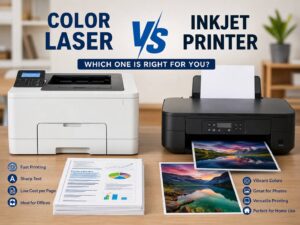
Inkjet all-in-one printers suit color pages, school projects, casual photos, forms, and mixed home tasks. They usually cost less upfront than laser all-in-one models. They also handle photo paper better.
Still, inkjet printers have one common issue. If they sit unused for a long time, ink can dry in the print head or cartridge. That can lead to cleaning cycles, wasted ink, and weak prints.
Laser printer-only models suit people who print mostly black text. They are fast, sharp, and reliable for documents. Toner does not dry like ink, so a laser printer handles long breaks better.
At the same time, color laser printers cost more. They work well for charts and office pages, but they are not the best option for glossy family photos.
As a rule, pick inkjet for color and photos. Pick laser for text and speed.
Best Pick for Home Users
Most homes should choose an all-in-one printer. The reason is simple. Homes deal with mixed tasks.
One week you print a return label. Next, you scan a signed form. After that, you copy a document for school or work. A printer-only model can handle the first job, but not the next two.
A good home all-in-one printer should include:
- Wireless printing
- Mobile printing
- A flatbed scanner
- Automatic two-sided printing
- Simple ink replacement
- Good Windows and Mac support
- Good iPhone and Android support
- A clear screen or simple buttons
For a broader buying list, check this guide to the best printers for home use in 2026. It can help you compare home-friendly models by use case.
Best Pick for Students
Students often benefit from an all-in-one printer too. They print essays, forms, labels, notes, and study sheets. They also scan IDs, signed papers, and school documents.
A small inkjet all-in-one printer usually fits student life well. It does not take much space, and it handles both color and black text.
Still, students should watch ink cost. A cheap cartridge printer can become expensive during exam periods. A refillable tank printer costs more at first, but it can save money for students who print often.
A printer-only model works for students who only print text. Yet that choice feels limited once scanning enters the picture.
Best Pick for Small Offices
Small offices need to think about volume.
If the office prints contracts, scans forms, copies IDs, and handles customer paperwork, an all-in-one printer makes more sense. A business laser all-in-one model is often the stronger pick for shared use.
Look for an automatic document feeder, Ethernet, Wi-Fi, duplex printing, and high-yield toner. These features save time during normal workdays.
Still, a printer-only model can work well for a narrow task. For example, a small shop may only need to print receipts, invoices, or packing slips. In that case, a compact laser printer-only model can be faster and less fussy.
For teams, avoid tiny home printers. They can work for light use, but they slow down once several people share them.
Best Pick for Photos
Photo printing changes the answer.
A printer-only photo printer can beat many all-in-one models for image quality. These printers often use more ink colors and handle photo paper better.
An all-in-one photo printer still works for family photos, crafts, and occasional color prints. It gives you scan and copy features too. That makes it more flexible for home use.
So, pick based on your main job. If you print photos often, print quality comes first. If you print photos sometimes and handle documents too, an all-in-one inkjet printer makes more sense.
Common Problems to Expect
Printers can be annoying, no matter which type you buy. Still, most problems fall into a few groups.
Common issues include:
- Wi-Fi drops after router changes
- Apps ask for sign-ins too often
- Ink dries after long gaps
- Paper jams with thin paper
- Duplex settings hide inside menus
- Scanner software feels slow
- Replacement ink costs more than expected
- Firmware updates affect third-party cartridges
All-in-one printers add scanner issues to the list. Printer-only models avoid that extra part, but they leave you without scan and copy tools.
My honest opinion: choose a printer with real buttons or a clear screen. App-only controls look modern, but they become frustrating during Wi-Fi problems.
Simple Buying Checklist
Use this checklist before you buy:
- Do you scan documents at least a few times per year?
- Do you copy forms, IDs, or receipts?
- Do you print mostly black text?
- Do you need color pages?
- Do you print photos?
- How many pages do you print each month?
- How much do replacement cartridges or toner cost?
- Does the printer support automatic two-sided printing?
- Does the scanner include an automatic document feeder?
- Does it fit your desk with the lid open?
- Does it work with your phone and computer?
- Can you connect by USB if Wi-Fi fails?
This list keeps the choice practical. It also helps you avoid buying more printer than you need.
Final Verdict
The all-in-one printer vs printer-only model choice comes down to real use.
Choose an all-in-one printer if you want one machine for printing, scanning, and copying. It suits homes, students, parents, freelancers, and small offices. It takes more space, but it gives you more tools.
Choose a printer-only model if you only print. It suits users who print black text, labels, invoices, drafts, or basic documents. It is simpler, often cheaper, and easier to fit in tight spaces.
If you are unsure, the all-in-one printer is the better long-term choice. Paperwork still appears at home, at school, and at work. A scanner may sit unused for days, but it earns its place when you need a clean copy fast.
The printer-only model wins for simple print tasks. The all-in-one printer wins for real-life flexibility.