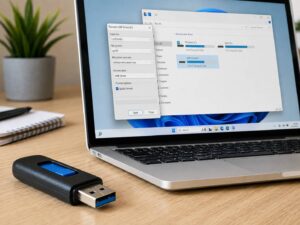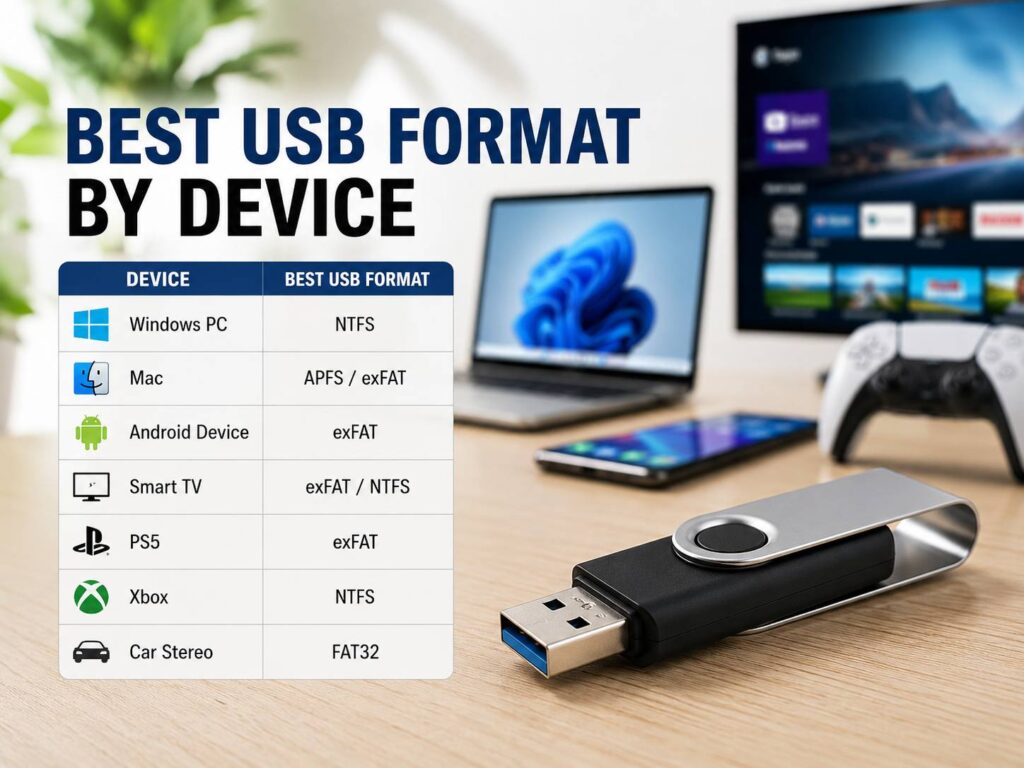
Choosing the best USB format by device can save you from a lot of annoying compatibility problems. A flash drive can work perfectly on a Windows PC, then appear as read-only on a Mac. The same USB stick can work on both computers but fail to appear on an older television or car stereo.
For most modern devices, exFAT is the best starting point. It supports large files and works across Windows and macOS. Many newer TVs, phones, tablets, and other devices can read it too.
Still, there is no single USB format that works best in every situation. NTFS makes more sense for Windows-only storage. APFS fits Mac-only drives. Meanwhile, FAT32 remains useful for older electronics and some bootable USB drives.
Game consoles add another layer. A PS5 or Xbox can use a normal USB drive for media, but game storage often needs to be formatted directly by the console.
So, the best format depends on the device and what you plan to store.
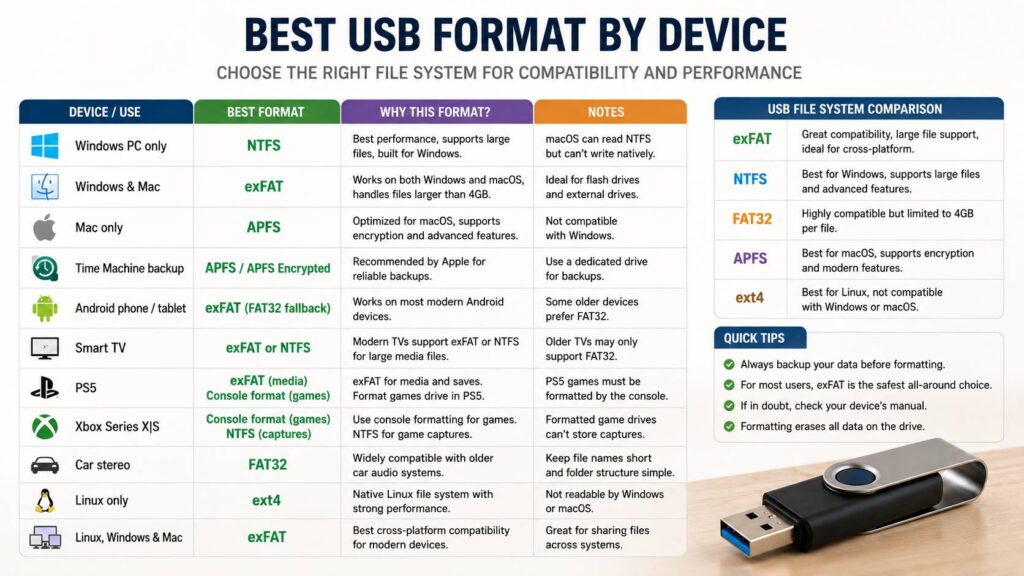
Best USB Format by Device: Quick Guide
Here is the format I would choose for the most common devices and uses:
| Device or use | Recommended USB format |
|---|---|
| Windows PC only | NTFS |
| Windows and Mac | exFAT |
| Mac only | APFS |
| Time Machine backup | APFS or APFS Encrypted |
| Android phone or tablet | exFAT, with FAT32 as a fallback |
| Modern Samsung TV | exFAT or NTFS |
| LG TV | NTFS or FAT32 |
| Older smart TV | FAT32 |
| PS5 media files | exFAT |
| PS5 backup USB | exFAT |
| PS5 game storage | Format through the PS5 |
| Xbox game storage | Format through the Xbox |
| Xbox game captures | NTFS |
| Older car stereo | FAT32 |
| Bootable or recovery USB | Usually FAT32, depending on the tool |
| Linux-only storage | ext4 |
| Linux, Windows and Mac sharing | exFAT |
This table is a good starting point. Still, TVs, Android devices, car stereos, and consoles can have model-specific requirements.
Understanding exFAT, FAT32, NTFS and APFS
Before choosing a format, it helps to know what each file system is good at.
exFAT
exFAT is usually the easiest choice for a portable USB drive that moves between modern devices.
It supports files larger than 4 GB, so large videos, ISO files, backups, and other big files are not a problem. Windows supports exFAT, and Macs can read and write it without extra software.
For example, imagine you have a 128 GB flash drive that you use with both a Windows desktop and a MacBook. exFAT is usually the most practical format.
I use exFAT as the default choice for general-purpose USB drives unless a specific device requires something else.
FAT32
FAT32 is much older, but it still has one big advantage: compatibility.
Older televisions, car stereos, media players, game devices, cameras, and other electronics often recognize FAT32 more reliably than newer file systems.
The drawback is the 4 GB individual file limit.
So, a 64 GB USB drive formatted as FAT32 can have plenty of free storage but still reject a single 6 GB movie file. That limitation makes FAT32 frustrating for modern video files and backups.
Still, FAT32 remains useful when compatibility matters more than file size.
NTFS
NTFS is a strong choice for USB drives and external disks that stay mostly within Windows.
It supports very large files and includes features designed around Windows storage. As a result, it works well for backups, disk images, work files, and large video collections.
The main problem appears when you connect the drive to a Mac. macOS can normally read NTFS drives, but native write support is limited.
So, NTFS is excellent for Windows-only storage but less convenient for sharing files between Windows and Mac.
APFS
APFS is Apple’s current file system for Macs.
It makes sense for external SSDs and storage devices used only with macOS. It is particularly useful for Time Machine and Mac-focused storage.
Still, APFS is not a good choice for a USB stick that needs to work with Windows computers, TVs, consoles, or car stereos.
For cross-platform use, exFAT is far easier.
Best USB Format for Windows 11
For a USB drive used only with Windows 11, NTFS is usually the best choice.
It handles large files without the restrictions found on FAT32. It is also a natural fit for backups, large media files, disk images, and regular Windows storage.
Meanwhile, exFAT is better when the USB drive also needs to work with Macs or other modern devices.
A simple rule works well:
- Windows only: NTFS
- Windows and Mac: exFAT
- Windows and older hardware: FAT32 can be worth trying
- Large files: NTFS or exFAT
One issue I see quite often is a user buying a large USB stick, formatting it as FAT32, then getting a “file too large” error when copying a movie.
The free space is not the problem. FAT32 itself cannot store an individual file larger than about 4 GB.
For a step-by-step walkthrough, see our guide on how to format a USB drive on Windows 11. It covers the main formatting options and helps you pick the correct file system before erasing the drive.
Best USB Format for Mac
For a USB drive that stays with Macs, APFS is the better choice.
This is particularly true for external SSDs connected to modern versions of macOS.
Still, exFAT makes more sense for a normal flash drive that moves between a Mac and a Windows computer.
For example, NTFS may look fine at first when connected to a Mac. You can often open the files. The problem becomes obvious once you try to save new files back to the drive.
So, for everyday Windows and Mac file transfers, exFAT keeps things much simpler.
Use this rule:
- Mac only: APFS
- Mac and Windows: exFAT
- Older Mac compatibility: Mac OS Extended can still matter in some cases
- Time Machine: APFS
Best USB Format for Time Machine Backups
For a new Time Machine backup drive, use APFS or APFS Encrypted.
A Time Machine drive has a different purpose from a normal portable USB stick. It exists mainly for Mac backups, so cross-platform compatibility matters less.
APFS Encrypted is a good pick if the backup contains personal or work files that you want protected.
You can also keep regular files on another volume if you configure the external drive that way.
Still, I prefer keeping an important backup drive dedicated to backups. It reduces clutter and makes it less likely that someone accidentally deletes backup data to free storage.
Best USB Format for Android Phones and Tablets
Android USB support varies between manufacturers and models.
For a recent Android phone or tablet, exFAT is the format I would try first. It works well with large files and avoids FAT32’s 4 GB limit.
That matters if you copy 4K videos, offline movies, large ZIP archives, or other big files from a phone.
If the phone does not recognize an exFAT drive, FAT32 is the next format to test.
A practical order is:
- Try exFAT.
- Reconnect the drive.
- Check whether the phone detects it.
- If it does not, back up the files and test FAT32.
NTFS is not my first pick for Android. Support can vary too much from one device to another.
Another common issue is power. Some portable hard drives and SSDs draw more power than a phone can comfortably provide through USB-C. In that case, the format may be fine, but the drive still fails to mount.
Best USB Format for Samsung Galaxy Phones
Recent Samsung Galaxy devices tend to work well with exFAT storage.
For that reason, exFAT is a sensible choice for a large USB-C flash drive used with a Galaxy phone or tablet.
FAT32 remains useful for smaller drives or older devices.
So, I would use:
- Large USB-C flash drive: exFAT
- Older Galaxy phone: FAT32 if exFAT fails
- Files larger than 4 GB: exFAT
- Small music or document drive: either can work
The biggest advantage of exFAT here is simple. Large video files copy without the FAT32 size restriction.
Best USB Format for a Smart TV
TV compatibility is less predictable.
There is no universal file system that every television supports. Support changes by brand, model, and year.
For a recent television, NTFS or exFAT is often the best choice for large media files.
For an older television, FAT32 is still the safest format to try first.
A good starting point is:
- Modern Samsung TV: exFAT or NTFS
- LG TV: NTFS or FAT32
- Older TV: FAT32
- Large 4K movies: NTFS or exFAT
- Small photos and music files: FAT32 works well
Still, the file system is only one part of USB playback.
You can have a correctly formatted drive and still get an “unsupported file” message.
For example, a television may recognize the USB stick but reject the video codec, audio codec, bitrate, resolution, or container format.
So, do not reformat the USB immediately if a movie refuses to play. Test another video file first.
Best USB Format for 4K Movies
For large movie files, avoid FAT32.
A high-quality 4K movie can easily exceed 4 GB. In fact, large remux files can reach tens of gigabytes.
For that reason, use:
- exFAT for broad compatibility
- NTFS if the TV supports it and the drive mostly stays with Windows
I usually prefer exFAT for a portable movie drive. It is easier to move between Windows and Mac computers.
Still, check your television manual before formatting a large collection. Some models support NTFS but not exFAT.
Best USB Format for PS5
PS5 USB storage depends on how you plan to use the drive.
For normal media files, screenshots, videos, and compatible backup tasks, exFAT is the most practical choice.
FAT can work for some uses too, but exFAT makes more sense with large files.
Game storage is different.
For PS5 USB extended storage, connect the drive to the console and format it through the PS5 settings. The console then prepares the drive for game storage.
Once formatted as PS5 extended storage, the drive is no longer a normal general-purpose USB drive.
PS4 games can run directly from compatible USB extended storage. PS5 games can be stored there, but they need to be copied back to internal SSD or compatible M.2 storage before playing.
So, use:
- PS5 media drive: exFAT
- PS5 screenshots and videos: exFAT
- PS5 extended game storage: format through the console
Best USB Format for Xbox Series X and Series S
Xbox follows a similar pattern.
If the drive is for games and apps, let the Xbox format it.
Do not manually choose exFAT or NTFS on a computer first and assume the console will use it for games.
For external game captures, NTFS is the better choice on supported setups.
So, the practical setup looks like this:
- Xbox game storage: format through Xbox
- Xbox external capture drive: NTFS
- Normal PC file storage: NTFS or exFAT
One annoying limitation is that a drive configured for Xbox game storage is not simply a normal portable file drive anymore.
For that reason, I prefer using separate drives for console storage and personal files.
Best USB Format for Car Stereos
For an older car stereo, FAT32 is still the safest first choice.
Many older factory radios and aftermarket head units were designed long before exFAT became common.
Music files rarely exceed 4 GB, so FAT32’s largest weakness does not matter much here.
Other limits can matter more.
Some car stereos struggle with:
- Very large USB drives
- Thousands of songs
- Deep folder structures
- Long filenames
- Unusual characters
- Unsupported audio formats
- Large numbers of folders
For a basic music stick, I would keep things simple. Use FAT32, create a few folders by artist or album, then copy MP3 or another format supported by the stereo.
If your car manual lists exFAT support, then exFAT is fine too.
Best USB Format for Bootable Windows Drives
Bootable USB drives deserve special treatment.
Do not pick a format only from habit. Use the format expected by the installer, recovery tool, or boot environment.
FAT32 remains common with UEFI systems and recovery media.
Still, modern Windows installation tools often prepare the USB automatically. In that case, there is little reason to manually format it first.
If a bootable USB does not appear in your boot menu, check:
- File system
- Partition scheme
- UEFI settings
- Secure Boot settings
- USB port
- How the bootable drive was created
Sometimes people keep changing between FAT32 and NTFS even though the real problem is the partition scheme or boot configuration.
Best USB Format for Linux
For a USB drive used only with Linux, ext4 is a strong choice.
It is a native Linux file system and works well for Linux-focused storage.
Still, ext4 is inconvenient if the drive regularly moves to Windows or macOS.
For cross-platform storage, use exFAT instead.
A simple rule works well:
- Linux only: ext4
- Linux and Windows: exFAT
- Linux, Windows and Mac: exFAT
- Older electronics: FAT32
For a general flash drive that moves between several computers, I would pick exFAT rather than ext4.
exFAT vs FAT32: Which Should You Pick?
For most modern USB drives, exFAT is the better choice.
Use exFAT if you:
- Transfer files between Windows and Mac
- Store files larger than 4 GB
- Carry 4K videos
- Use a 64 GB, 128 GB, 256 GB, or larger flash drive
- Want one drive for several modern devices
FAT32 still makes sense if you:
- Use older hardware
- Need maximum compatibility with older electronics
- Have an older car stereo
- Use an older TV
- Create recovery media that requires FAT32
- Never store files larger than 4 GB
So, exFAT is better for modern everyday use. FAT32 is still useful for older equipment.
exFAT vs NTFS: Which Is Better?
The answer depends mainly on where the drive will be used.
Choose NTFS for a Windows-only drive.
Choose exFAT for a drive shared between Windows and Mac.
For example, an external SSD connected permanently to a Windows desktop is a good candidate for NTFS.
A USB stick carried between a Windows PC, MacBook, Android tablet, and modern TV is better suited to exFAT.
That simple distinction prevents many compatibility headaches.
Why Does My USB Say the File Is Too Large?
If Windows reports that a file is too large for the destination file system, check whether the USB drive uses FAT32.
FAT32 cannot store a single file larger than about 4 GB.
This can feel confusing. You may have 50 GB of free space, but a 6 GB file still refuses to copy.
The fix is normally to reformat the USB as exFAT or NTFS.
Back up the files first. Formatting erases the data stored on the drive.
Why Is My USB Drive Not Showing on My TV?
The file system is one possible cause, but it is not the only one.
Start with these checks:
- Test FAT32 if the television is old
- Try NTFS or exFAT on a newer model
- Test another USB port
- Check the TV manual for supported drive sizes
- Try a smaller flash drive
- Test a simple MP4 video
- Remove unusual characters from filenames
- Avoid complex folder structures
Another issue can be partitioning. Some older TVs expect a simple partition layout and can struggle with drives prepared in unusual ways.
So, formatting alone does not always fix the problem.
Why Is My USB Read-Only on Mac?
NTFS is a common reason.
A Mac can often read files stored on an NTFS drive but cannot normally write new files to it with standard macOS support.
For a drive shared between Windows and Mac, reformatting it as exFAT is usually the cleanest fix.
Back up the files first, since formatting removes the existing contents.
After that, both operating systems can read and write the drive.
What Allocation Unit Size Should You Use?
For most users, leave allocation unit size at the default setting.
Windows and macOS select sensible defaults based on the file system and drive size.
Changing allocation size only makes sense for a very specific use case.
For example, a drive storing thousands of tiny files has different needs from one storing huge video files.
For a normal USB stick containing photos, videos, documents, and backups, the default setting is the safest choice.
Should You Quick Format a USB Drive?
For a healthy USB drive that you simply want to erase and reuse, Quick Format is usually enough.
A full format takes much longer and performs more extensive checking.
If you suspect the drive has problems, a full format can make more sense.
Still, formatting cannot repair failing flash memory.
If a USB drive repeatedly disconnects, corrupts files, becomes read-only, or reports strange capacity errors, replace it rather than trusting it with important data.
What Is the Best USB Format Overall?
For a normal flash drive used with several modern devices, exFAT is the best all-round choice in 2026.
It supports large files, works with Windows and macOS, and has broad support across current consumer hardware.
Still, use NTFS for Windows-only storage. Pick APFS for Mac-only drives and Time Machine. Keep FAT32 in mind for older televisions, car stereos, recovery drives, and other legacy equipment.
Console storage needs its own treatment. Let the PS5 or Xbox format a drive intended for games.
The safest rule is simple. Choose the format based on the device that has the strictest compatibility requirements. For a modern cross-platform USB stick, start with exFAT.