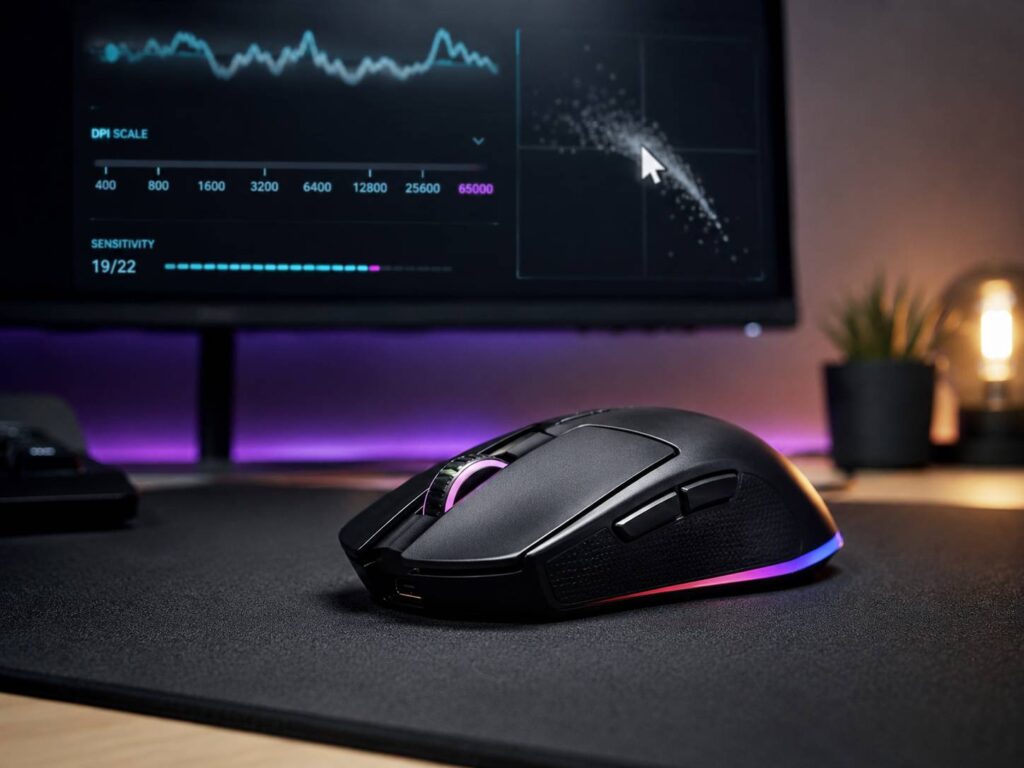
Gaming mouse DPI numbers have become almost ridiculous. Not long ago, 16,000 DPI sounded extreme. Now, high-end gaming mice advertise 30K, 40K, 50K, and even 65K DPI sensors.
That naturally raises a question. Does anyone actually need 65,000 DPI?
For most gamers, the answer is no.
A high maximum DPI can indicate that a mouse uses a modern and capable sensor. However, the maximum number printed on the box doesn’t tell you what sensitivity you should actually use. In practice, sensor consistency, mouse shape, polling rate, weight, latency, and your in-game settings matter far more.
This guide explains what gaming mouse DPI really means, how it affects aiming, why manufacturers keep pushing the numbers higher, and which DPI settings make the most sense for everyday and competitive gaming.
What Does DPI Mean on a Gaming Mouse?
DPI stands for dots per inch. For mouse sensors, CPI, or counts per inch, is technically a more accurate term, although DPI has become the standard wording used by manufacturers and gamers.
The idea is fairly simple.
At 800 DPI, moving your mouse one inch produces roughly 800 counts of movement. Increase the setting to 1,600 DPI and the sensor produces about 1,600 counts across the same physical distance.
As a result, higher DPI makes the cursor or camera react more strongly to small physical movements unless you compensate elsewhere.
At an extreme setting such as 65,000 DPI, even tiny movements generate a huge number of sensor counts. Moving the mouse only a few millimeters can send the pointer a considerable distance.
However, mouse movement isn’t determined by DPI alone.
Windows pointer settings, in-game sensitivity, raw mouse input, acceleration, scaling, and application behavior can all affect what ultimately happens on screen.
That’s why comparing two mice purely by their maximum DPI is rarely useful.
Does Higher DPI Mean Better Accuracy?
Not necessarily.
A mouse capable of 65K DPI isn’t automatically more accurate than one that tops out at 26K or 30K DPI.
Modern gaming sensors are already extremely precise at normal sensitivity levels. Once you’re comfortably above the resolution required for smooth tracking, increasing DPI dramatically offers diminishing practical returns.
Several other characteristics matter just as much, and often more:
- Sensor consistency
- Resolution accuracy
- Tracking speed
- Maximum acceleration
- Lift-off distance
- Polling stability
- Firmware processing
- Surface compatibility
- Mouse weight
- Mouse shape
- In-game sensitivity
So, while maximum DPI is easy to advertise, it’s only one part of the overall sensor package.
A well-implemented sensor running at 1,600 DPI can deliver excellent competitive performance even if its maximum specification is far below 65K.
Is 65K DPI Actually Useful for Gaming?
For normal gaming, 65,000 DPI is excessive.
Try using 65K DPI while leaving your current in-game sensitivity unchanged and the result will probably feel uncontrollable. A tiny wrist movement could rotate your character far more than intended.
Technically, you could compensate by reducing your in-game sensitivity to an extremely low value. That approach lets the mouse send more sensor counts while the game scales the movement down.
Still, there’s a practical limit to how much benefit that provides.
Once you’re already using a sensible DPI setting with a good modern sensor, adding tens of thousands more counts doesn’t magically improve your aim.
When very high DPI can still make sense
Extreme DPI settings aren’t completely useless. They can be handy in a few unusual situations:
- Specialized software that benefits from very fine input resolution
- Very large multi-monitor desktops
- Specific sensitivity experiments
- Unusual accessibility setups
- Extremely low software sensitivity configurations
For gaming, though, these situations are uncommon.
You will rarely need anything close to the maximum DPI your mouse supports.
Gaming Mouse DPI vs In-Game Sensitivity
Mouse DPI and game sensitivity work together.
DPI determines how much movement data the mouse sends. Your game then applies its own sensitivity multiplier.
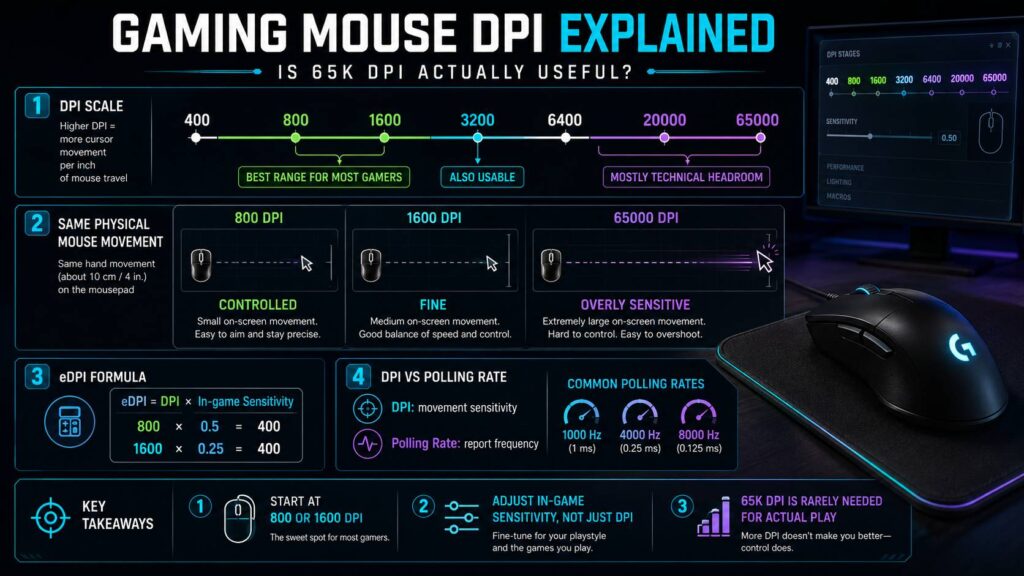
This leads to a useful measurement called eDPI.
The basic calculation is:
DPI × in-game sensitivity = eDPI
For example:
- 800 DPI × 0.5 sensitivity = 400 eDPI
- 1,600 DPI × 0.25 sensitivity = 400 eDPI
- 3,200 DPI × 0.125 sensitivity = 400 eDPI
All three can create roughly similar overall sensitivity within the same game.
That doesn’t mean they’ll always feel perfectly identical, but the example shows why DPI alone isn’t enough to describe someone’s setup.
Also, avoid comparing eDPI between completely different games. A sensitivity value of 1.0 can behave very differently depending on the game’s input system.
If you want to match sensitivity between games, centimeters per 360-degree turn is usually more useful.
What DPI Should You Use for Gaming?
There isn’t one ideal setting for everyone.
However, some ranges make more sense than others.
| DPI | Typical use |
|---|---|
| 400 DPI | Traditional low-sensitivity FPS setups |
| 800 DPI | Excellent starting point for competitive gaming |
| 1,600 DPI | Balanced option with plenty of sensor resolution |
| 3,200 DPI | Useful with lower in-game sensitivity |
| 6,400+ DPI | Usually unnecessary for normal gaming |
| 20K to 65K DPI | Mostly technical headroom |
For most players, 800 to 1,600 DPI is a sensible starting range.
You can certainly use 3,200 DPI if you prefer it. Just reduce your in-game sensitivity to maintain the same overall movement speed.
The key is finding a combination that gives you enough room for large movements while still allowing small corrections.
Is 400 DPI Still Good?
Yes. There’s nothing inherently wrong with using 400 DPI.
It suits competitive shooters in particular, where large arm movements are common.
However, you can achieve a similar overall sensitivity using a higher DPI and lower game sensitivity.
For example:
400 DPI × 2.0 sensitivity
can produce a similar effective sensitivity to:
800 DPI × 1.0 sensitivity
or:
1,600 DPI × 0.5 sensitivity
Higher DPI provides more sensor counts across the same physical movement. In theory, that gives the game finer input resolution.
In practice, though, the difference may feel very small.
If 400 DPI already feels comfortable and predictable, there’s no reason to abandon it simply because newer mice support much higher numbers.
Should You Use 800 DPI or 1,600 DPI?
Both are excellent choices.
For someone setting up a new gaming mouse today, 1,600 DPI is a particularly practical option. It provides plenty of input resolution while remaining manageable on the Windows desktop.
Meanwhile, 800 DPI continues to work extremely well and is easy to configure across almost any game.
If you move from 800 to 1,600 DPI, you can usually halve your in-game sensitivity to keep approximately the same effective sensitivity.
For example:
800 DPI × 1.0 sensitivity
becomes:
1,600 DPI × 0.5 sensitivity.
There’s no need to overthink the difference. Pick the option that feels comfortable and allows you to use sensible game sensitivity values.
DPI and Polling Rate Are Not the Same Thing
DPI and polling rate often get mixed together, but they describe completely different parts of mouse performance.
DPI controls movement resolution.
Polling rate controls how frequently the mouse reports information to the computer.
Common polling rates include:
- 125 Hz
- 500 Hz
- 1,000 Hz
- 2,000 Hz
- 4,000 Hz
- 8,000 Hz
At 1,000 Hz, the mouse can report information roughly once every millisecond.
At 8,000 Hz, that interval can drop to around 0.125 milliseconds.
Higher polling rates can therefore improve how frequently fresh mouse data reaches your computer.
However, there are trade-offs.
Very high polling rates can increase CPU workload. On wireless mice, they can also reduce battery life considerably.
Certain games and older systems may also behave poorly at 4,000 or 8,000 Hz.
1,000 Hz remains a reliable baseline. Competitive players with powerful systems and high-refresh-rate monitors can experiment with 2,000, 4,000, or 8,000 Hz.
Does Higher DPI Reduce Input Lag?
Not in the simple way marketing sometimes suggests.
Increasing DPI doesn’t automatically make your mouse dramatically faster.
Polling rate, sensor processing, click latency, USB behavior, game engine processing, frame rate, and display latency all contribute to the overall delay you feel.
There can be small technical differences between sensitivity configurations, but moving from 1,600 DPI to 65,000 DPI isn’t going to transform the responsiveness of your gaming setup.
If latency matters to you, focus on the complete input chain instead of maximum DPI.
A stable 1,000 or 2,000 Hz polling rate, high frame rate, sensible game settings, and a low-latency display usually matter much more.
Does a 4K Monitor Need Higher DPI?
No.
You don’t need a 20K, 30K, or 65K DPI mouse because you own a 4K monitor.
A higher-resolution desktop does contain more pixels, so a slightly higher DPI may make desktop navigation more comfortable. For example, someone moving from a 1080p monitor to a large 4K screen might prefer 1,600 DPI instead of 800 DPI.
Gaming works differently.
Many modern games use raw mouse input for camera movement. In-game sensitivity then determines how physical movement translates into aiming or turning.
Therefore, monitor resolution alone shouldn’t determine your gaming DPI.
For more detail on how sensitivity behaves outside gaming, this guide to whether DPI matters on office mice explains how DPI affects everyday desktop use and productivity.
How to Find the Best Gaming Mouse DPI
Instead of copying a professional player’s exact configuration, build a setup that suits your hand movement, mousepad, and game.
1. Start at 800 or 1,600 DPI
Either value works well.
If you’re unsure, try 1,600 DPI first and adjust your game sensitivity downward as needed.
2. Remove unused DPI stages
Many gaming mice let you cycle through several DPI presets using a button near the scroll wheel.
That sounds useful until you accidentally press it halfway through a match.
Open your mouse software and disable unnecessary stages. Keeping one or two values makes accidental changes much easier to identify.
3. Check Windows mouse settings
In Windows 11, open:
Settings > Bluetooth & devices > Mouse
Check your pointer speed and make sure you haven’t accidentally set an extreme value.
If you play competitive games, you may also prefer consistent pointer movement without additional acceleration.
4. Tune sensitivity inside your game
After choosing your mouse DPI, adjust your game sensitivity.
You should be able to:
- Track moving targets smoothly
- Make small aim corrections
- Turn quickly when necessary
- Avoid constantly running out of mousepad
- Keep your hand relaxed
There’s no mathematically perfect setting that works for everyone.
5. Test it for more than a few minutes
Sensitivity can feel strange immediately after you change it.
Give yourself several gaming sessions before making another adjustment unless the setting is obviously unusable.
Constantly switching between sensitivities can make it harder to develop consistent control.
What About Mouse Acceleration?
Mouse acceleration changes how far your cursor or camera moves depending on how quickly you move the mouse.
Without acceleration, moving the mouse 10 cm should produce roughly the same rotation regardless of whether the movement is slow or fast.
With acceleration enabled, a faster 10 cm movement might move farther than a slower one.
Some people like that behavior. Others don’t.
Competitive FPS players often prefer predictable, consistent movement, which is why raw input and disabled pointer acceleration remain popular.
However, acceleration isn’t automatically bad. Properly configured acceleration curves can work well for certain users.
The important point is consistency.
If your aim feels unpredictable, make sure you understand whether Windows, the game, or mouse software is applying acceleration somewhere in the input chain.
Why Do Gaming Mouse Companies Keep Increasing DPI?
There are two main reasons.
First, sensor technology keeps improving.
Modern gaming sensors offer impressive tracking capabilities, power efficiency, high-speed movement detection, and increasingly sophisticated calibration features.
Second, maximum DPI is an easy number to market.
It’s much simpler to put “65,000 DPI” on a product page than explain resolution accuracy, tracking behavior, firmware processing, motion synchronization, or sensor efficiency.
Fortunately, a higher maximum DPI doesn’t mean the entire specification is meaningless.
Newer sensors may also improve:
- Tracking consistency
- Maximum tracking speed
- Power consumption
- Lift-off adjustment
- Surface calibration
- Motion synchronization
- Resolution accuracy
- Wireless efficiency
Those features can genuinely improve a gaming mouse.
The mistake is assuming the 65K setting itself is the reason to buy it.
Common Gaming Mouse DPI Mistakes
Choosing the highest possible setting
Maximum DPI isn’t a performance mode.
Running your mouse at 65,000 DPI simply because the sensor supports it will probably make configuration harder.
Assuming higher DPI means better aim
Your aim depends heavily on physical control, sensitivity, game mechanics, mouse shape, and consistency.
A giant DPI number can’t compensate for an uncomfortable mouse.
Changing DPI every few days
Constant experimentation makes it difficult to become comfortable with one configuration.
Once you find something reasonable, stick with it for a while.
Ignoring in-game sensitivity
A DPI number means very little without knowing the game’s sensitivity setting.
Always consider both.
Confusing polling rate with DPI
A 65,000 DPI mouse running at 1,000 Hz doesn’t send 65,000 updates per second.
DPI measures movement resolution. Polling rate measures reporting frequency.
Buying a mouse based only on sensor specifications
Shape matters enormously.
So do weight, button placement, coating, switches, feet, wireless performance, and grip comfort.
A mouse with a slightly older sensor that fits your hand well may be a much better choice.
Troubleshooting Mouse Sensitivity That Feels Wrong
If a new mouse suddenly feels too fast, too slow, or inconsistent, don’t immediately blame the sensor.
Work through the settings one at a time.
First, open the manufacturer’s mouse software and confirm your DPI.
Then check whether you accidentally enabled another DPI stage.
Next, look at Windows pointer settings.
After that, inspect your game configuration for settings such as:
- Mouse sensitivity
- Raw input
- Mouse acceleration
- ADS sensitivity
- Scope sensitivity
- Horizontal sensitivity
- Vertical sensitivity
- Sensitivity multipliers
If the problem occurs in only one game, there’s a good chance the game’s input configuration is responsible.
Polling rate is another possible culprit.
If you’re using 4,000 or 8,000 Hz and notice stuttering, strange frame-time spikes, or inconsistent movement, temporarily switch to 1,000 Hz.
Should the problem disappear, high polling rate compatibility was likely involved.
What Matters More Than 65K DPI?
Once a gaming mouse has a good modern sensor, several other characteristics become more important than its maximum DPI.
Pay attention to:
- Mouse shape
- Grip comfort
- Sensor consistency
- Click latency
- Wireless stability
- Weight
- Mouse feet
- Polling rate
- Battery life
- Button placement
- Build quality
- Software reliability
Mouse shape deserves particular attention.
An excellent sensor won’t help much if your hand feels cramped after an hour or you can’t comfortably reach the side buttons.
The same applies to weight.
Some gamers prefer extremely lightweight mice for fast movements, while others like a slightly heavier design that feels more planted.
Neither preference has anything to do with maximum DPI.
Is 65K DPI Mostly Marketing?
Partly, but calling it completely meaningless would be unfair.
A 65K-capable sensor represents impressive engineering and gives manufacturers considerable configuration headroom.
The sensor may also include improvements that genuinely affect tracking, efficiency, and responsiveness.
However, 65K DPI as an actual gaming sensitivity setting has very limited practical value.
That’s the distinction worth making.
A mouse can have an excellent 65K DPI sensor without 65,000 DPI being a useful setting in a game.
In other words, don’t avoid a mouse because its maximum DPI seems excessive. Just don’t buy it solely because the number is bigger.
What Gaming Mouse DPI Should You Use in 2026?
For gaming, 800 to 1,600 DPI remains the sweet spot.
If you’re building a new setup, 1,600 DPI is an excellent place to begin.
Prefer slightly finer sensor resolution? Try 3,200 DPI and reduce your in-game sensitivity.
Already comfortable at 400 or 800 DPI? There’s no urgent reason to change.
More importantly, pair your chosen DPI with a sensible polling rate and consistent game settings.
In practice, that means:
- 800 to 1,600 DPI
- 1,000 Hz polling
- Low or moderate in-game sensitivity
- Raw mouse input where appropriate
- Minimal unnecessary sensitivity scaling
High-end systems can experiment with higher polling rates, while different DPI values can be tested to find the most comfortable balance.
What you probably don’t need is 65,000 DPI.
Maximum sensor resolution has become an impressive technical specification, but it shouldn’t dictate how you configure your mouse.
The best gaming mouse DPI is simply the setting that gives you predictable movement, comfortable control, and enough precision to aim without fighting your hardware.
Frequently Asked Questions
Is higher DPI better for gaming?
Not automatically. Higher DPI increases movement resolution, but overall gaming performance depends on sensor quality, sensitivity, polling rate, mouse control, and several other factors.
Is 65,000 DPI too high?
For normal gaming, yes. 65K DPI needs extremely low in-game sensitivity to be manageable.
Is 800 DPI good for gaming?
Yes. 800 DPI remains a popular and practical option, especially for competitive shooters.
Is 1,600 DPI better than 800 DPI?
It can provide more sensor counts across the same physical movement. However, both settings can deliver excellent results when paired with suitable in-game sensitivity.
Is 3,200 DPI too high?
No. 3,200 DPI is completely usable if you lower your game’s sensitivity accordingly.
Does higher DPI lower input lag?
Not necessarily. Maximum DPI isn’t the same thing as latency. Polling rate, firmware, USB reporting, frame rate, game processing, and display latency all affect responsiveness.
Does high DPI reduce FPS?
DPI itself generally doesn’t have a meaningful effect on frame rate. Extremely high polling rates are more likely to increase CPU workload.
Do I need high DPI for a 4K monitor?
Not for gaming. You may prefer somewhat higher DPI for desktop navigation on a large 4K display, but game camera sensitivity works differently.
Should I use 8,000 Hz polling?
You can experiment with it if you have a powerful system and high-refresh-rate monitor. However, 1,000 Hz remains perfectly suitable for gaming and usually consumes less power.
Is maximum DPI important when buying a gaming mouse?
Only up to a point. Once a mouse has a good modern sensor with sufficient resolution, shape, weight, latency, switches, wireless performance, and polling stability become more meaningful buying considerations.