What DPI Means on an Office Mouse
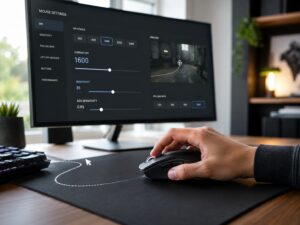
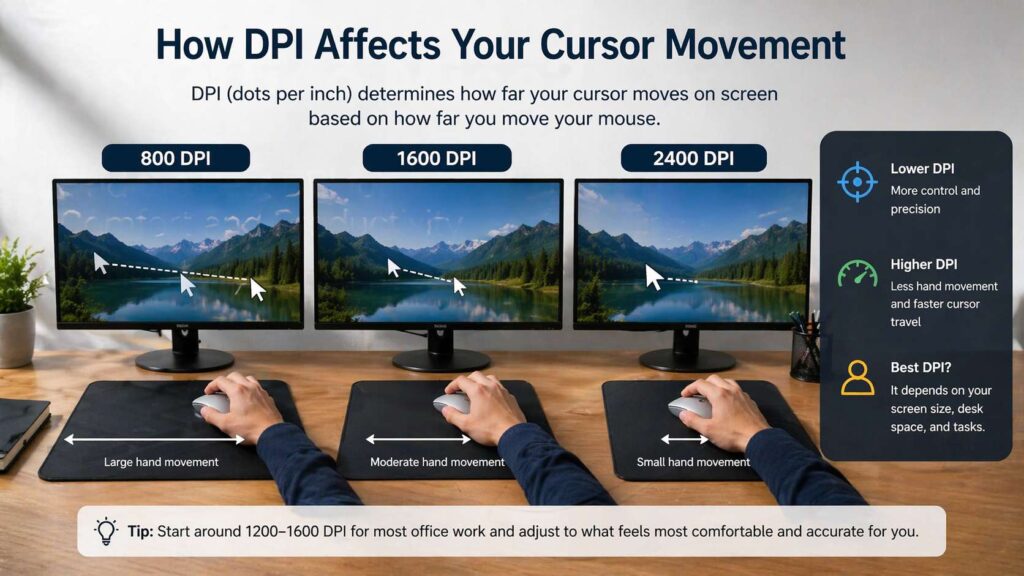
DPI stands for dots per inch. On a mouse, it describes how far the cursor moves on screen for each inch of hand movement.
A lower DPI setting makes the cursor move less. A higher DPI setting makes it move farther. So, at 800 DPI, your hand needs more travel to move the pointer across the screen. At 1600 DPI, the pointer covers more space with less hand movement.
That sounds simple, but DPI is only one part of mouse feel. Your operating system adds its own pointer speed setting. Apps can react differently too. Your desk space, screen size, monitor resolution, hand size, and grip style all change how the mouse feels.
For office work, DPI matters, but not in the same way it matters for gaming. You do not need a 20,000 DPI sensor to write emails, edit spreadsheets, browse the web, or work in Google Docs. You need a pointer that feels calm, easy to control, and fast enough for your screen setup.
Does DPI Matter for Office Work?
Yes, DPI matters on office mice, but only up to a point.
For most office users, comfort matters more than extreme DPI numbers. A mouse with a stable sensor, a good shape, quiet buttons, a smooth scroll wheel, and a DPI range from about 800 to 2400 DPI will cover normal work very well.
Higher DPI helps if you use a large monitor, a 4K display, or a dual-screen setup. You can move from one side of the screen to the other with less wrist movement. So, the mouse can feel faster and less tiring.
Still, very high DPI can make the pointer feel jumpy. Small hand movements can send the cursor too far. That makes it harder to click small buttons, resize windows, select text, or edit cells in Excel.
The real question is not, “What is the highest DPI?” A better question is: “What DPI feels accurate and comfortable for my daily work?”
For many office setups, the answer sits between 1000 and 1600 DPI.
Best DPI Range for Office Mice
Most office users do well with these DPI ranges:
600 to 800 DPI: Better for precision work, small screens, and users who prefer slower cursor movement.
1000 to 1200 DPI: A good middle range for laptops, 1080p monitors, web browsing, email, and document work.
1200 to 1600 DPI: A strong range for 1440p monitors, larger screens, and users who want less hand travel.
1600 to 2400 DPI: Useful for 4K monitors, wide screens, dual monitors, or small desk setups.
Above 2400 DPI: Usually too fast for normal office work, though some users like it on very large displays.
There is no perfect number for every person. A compact mouse on a small desk feels different from a full-size ergonomic mouse on a wide desk mat. Your monitor matters too. A 13-inch laptop screen does not need the same pointer speed as a 32-inch 4K monitor.
Start at 1200 DPI if your mouse software gives exact control. Then test it for one workday. Raise it to 1400 or 1600 DPI if your wrist moves too much. Lower it to 1000 DPI if you miss small buttons or overshoot text.
DPI vs Pointer Speed: What Is the Difference?
DPI comes from the mouse sensor. Pointer speed comes from your operating system.
Windows lets you change mouse pointer speed in Settings. macOS uses tracking speed. Mouse apps can change pointer behavior too.
So, there are two layers:
DPI controls how much movement the mouse sends.
Pointer speed controls how the system turns that movement into cursor travel.
For office work, use both with care. A very low DPI paired with very high pointer speed can feel less natural. A very high DPI paired with very low pointer speed can feel odd too.
A balanced setup works better. For example, use a normal DPI like 1200 or 1600, then adjust pointer speed one or two steps if needed. This gives you more predictable control.
On Windows, many users stay near the default pointer speed area, then adjust DPI through the mouse software. On macOS, the tracking speed slider works well for many office mice, so exact DPI control matters less if the mouse already feels smooth.
Does High DPI Make an Office Mouse Better?
High DPI does not make an office mouse better by itself.
Brands often promote high DPI numbers, but office users rarely need those top values. A mouse with 8000 DPI sounds better than one with 1600 DPI. Still, the higher number means little if the shape feels poor or the scroll wheel skips.
A good office mouse needs:
A comfortable shape for long work sessions.
A sensor that tracks cleanly on your desk or mouse pad.
A scroll wheel that handles documents and web pages well.
Buttons that do not feel stiff after hours of use.
Stable wireless connection if it uses Bluetooth or 2.4 GHz.
Battery life that fits your work habits.
DPI belongs on this list, but it does not sit at the top. A cheap mouse with high DPI can still feel bad. A well-shaped office mouse with 1000 to 4000 DPI can feel far better all day.
If comfort matters more than speed, you should also understand what a vertical mouse is, since that shape can reduce wrist twist for some desk users.
How DPI Affects Comfort
DPI changes how much your wrist, hand, and arm move.
Low DPI needs more physical movement. That can feel accurate, but it can tire your wrist if you cross large screens all day.
High DPI needs less physical movement. That can reduce hand travel, but it can also make you grip the mouse harder to control the pointer.
The best setting lets you move the cursor across your main screen without lifting the mouse all the time. It should also let you click small interface items without stress.
Try this simple test:
Place your mouse in the center of your normal work area.
Move it left and right in a relaxed way.
Watch how far the cursor travels.
Raise the DPI a little if you need to lift the mouse often. Lower it if the cursor flies past your target.
Comfort improves when the pointer matches your natural hand movement.
DPI for Large Monitors and Dual Screens
DPI matters more on large screens.
A 1080p monitor has fewer pixels than a 1440p or 4K monitor. So, the cursor needs to cross more pixels on higher-resolution screens. That makes low DPI feel slow.
For a single 1080p monitor, 800 to 1200 DPI often feels fine.
For a 1440p monitor, 1200 to 1600 DPI often feels better.
For a 4K monitor, 1600 to 2400 DPI can feel more practical.
A dual-monitor setup works well around 1600 DPI as a starting point.
Ultrawide monitors often feel better between 1600 and 2400 DPI, since the pointer has more screen width to cover.
These numbers are not rules. They are starting points. Some people prefer slower settings for precision. Others prefer faster settings for speed. The right choice feels natural after a few hours, not just a few seconds.
DPI for Spreadsheets, Design, and Document Work
Office work is not one task. DPI needs change by task.
Spreadsheets need steady control. You often click small cells, drag columns, select rows, and move around large sheets. A medium DPI works best here, so try 1000 to 1600 DPI.
Writing, email, and browsing can use a bit more speed. Try 1200 to 1800 DPI if you switch between tabs, documents, and apps all day.
Image editing, slide design, and layout work need more accuracy. In that case, 800 to 1200 DPI often feels better.
Data dashboards, wide monitors, and multiple browser windows benefit from higher cursor speed. Try 1600 to 2400 DPI if you work across large screen space.
Some mice include a DPI button. That sounds useful, but it can annoy office users if they press it by accident. If your cursor suddenly feels too fast or too slow, check that button first. Many people think the mouse broke, then find the DPI setting changed.
Fixed DPI vs Adjustable DPI
Many basic office mice use a fixed DPI. That means you cannot change the sensor setting through software. The mouse still works fine if the default speed feels right.
Adjustable DPI gives more control. It helps if you use different screens, switch between laptop and desktop, or share one mouse across devices.
A mouse with adjustable DPI helps in several cases:
Dual-monitor setups.
4K screens.
Small desks.
Large desk mats.
Light creative work.
Work setups with more than one computer.
You do not need many DPI steps. A few clear settings work better than a long list. For office use, 800, 1200, 1600, and 2400 DPI cover most needs.
How to Choose the Right Office Mouse DPI
Use a practical setup, not a spec sheet.
Start with your screen. A laptop or 1080p monitor works well at 1000 to 1200 DPI. A 1440p monitor often feels better at 1200 to 1600 DPI. A 4K screen or dual-screen desk often needs 1600 DPI or more.
Next, check your desk space. A small desk favors higher DPI since your hand has less room. A large mouse pad lets you use lower DPI with more arm movement.
Your daily tasks matter too. Spreadsheet and design work need more control. Web work and email can use more speed.
Then test the setting for a full workday. Do not judge it in one minute. Your hand adapts, and a setting that feels strange at first can feel natural later.
A good office DPI setting should pass three checks:
You can click small buttons without missing.
You can cross the screen without lifting the mouse often.
Your wrist feels relaxed after long work sessions.
Common DPI Mistakes
Many users set DPI too high after seeing large numbers on a product page. Then they fight the cursor all day.
Another common mistake is using pointer speed to fix everything. Pointer speed helps, but it should not hide a bad DPI setting. Start with a sensible DPI, then adjust system speed.
Some people use the same DPI on every screen. That rarely feels right. A laptop, 24-inch monitor, 32-inch monitor, and ultrawide display all need different cursor travel.
Many users ignore the mouse surface too. Some sensors track poorly on glass, shiny desks, or uneven surfaces. DPI will not fix bad tracking. Use a mouse pad if the pointer skips or drifts.
Mouse shape matters just as much. A bad shape causes more fatigue than a poor DPI number. If your hand hurts, do not blame DPI first. Check size, grip, weight, wrist angle, and button force. For a deeper comparison, read this guide on ergonomic mouse vs gaming mouse.
Is 800 DPI Good for Office Work?
800 DPI works well for users who prefer accuracy over speed. It suits small screens, compact workspaces with a mouse pad, and tasks that need careful clicks.
The downside is speed. On large monitors, 800 DPI can feel slow. You may lift the mouse often or move your wrist more than needed. Try 1200 DPI if that happens.
For many people, 800 DPI feels calm. For others, it feels sluggish. Test it with your normal workload before you decide.
Is 1600 DPI Good for Office Work?
1600 DPI is one of the best all-around settings for modern office work.
It gives enough speed for large screens but still keeps good control. It works well for 1440p monitors, dual screens, and wide browser layouts. It also suits small desks since your hand needs less travel.
Lower system pointer speed one step if 1600 DPI feels too fast. Try 1200 DPI if you still overshoot small buttons. For a 4K screen, test 2000 or 2400 DPI if 1600 DPI feels slow.
Is 2400 DPI Too High for Office Work?
2400 DPI can work well for large monitors, 4K displays, ultrawide screens, and users who like fast cursor movement.
Still, it can feel too quick for detailed tasks. You may overshoot cells, buttons, and text selections. Lower the DPI or reduce pointer speed if that happens.
For normal laptop and 1080p office work, 2400 DPI is often more than needed. For a 32-inch 4K monitor, it can feel practical.
What to Look for in an Office Mouse Besides DPI
DPI gets attention, but the full mouse matters more.
Look for a shape that supports your hand. A full-size mouse often feels better for long workdays. A compact travel mouse saves space, but it can create more finger tension.
Check the scroll wheel too. Office users scroll through pages, documents, sheets, and feeds all day. A good wheel matters more than a huge DPI number.
Button noise matters if you work near others. Quiet-click mice help in shared offices, calls, and late-night work.
Connection type matters too. Bluetooth saves a USB port. A 2.4 GHz receiver often feels more stable. Some office mice support both.
Battery life should fit your work habits. Rechargeable mice feel clean and simple. Replaceable batteries can last months. Both can work well if the mouse fits your routine.
Software support can help too. Good software lets you set pointer speed, button actions, scroll behavior, and device switching.
Best DPI Settings by User Type
For laptop users: 1000 to 1200 DPI.
For 1080p monitor users: 1000 to 1400 DPI.
For 1440p monitor users: 1200 to 1600 DPI.
For 4K monitor users: 1600 to 2400 DPI.
For dual-monitor users: 1600 to 2400 DPI.
For spreadsheet-heavy work: 1000 to 1600 DPI.
For design and slide work: 800 to 1200 DPI.
For small desks: 1600 DPI or higher.
For users with wrist fatigue: try 1400 to 2000 DPI, then reduce grip pressure.
These ranges give you a clean starting point. Your final setting should match your hand, your screen, and your workday.
Final Verdict: Does DPI Matter on Office Mice?
DPI matters on office mice, but it should not drive the whole buying decision. For daily work, the best mouse is not the one with the highest DPI. It is the one that lets you work for hours with steady control and low strain.
A good office mouse should offer a comfortable shape, smooth tracking, a reliable scroll wheel, and enough DPI control for your screen. For most users, 1000 to 1600 DPI feels right. For large monitors, dual screens, and 4K setups, 1600 to 2400 DPI can work better.
Do not chase extreme numbers. Set a DPI that lets you move across your screen with ease, click small items without stress, and keep your wrist relaxed. That is the DPI that matters.