
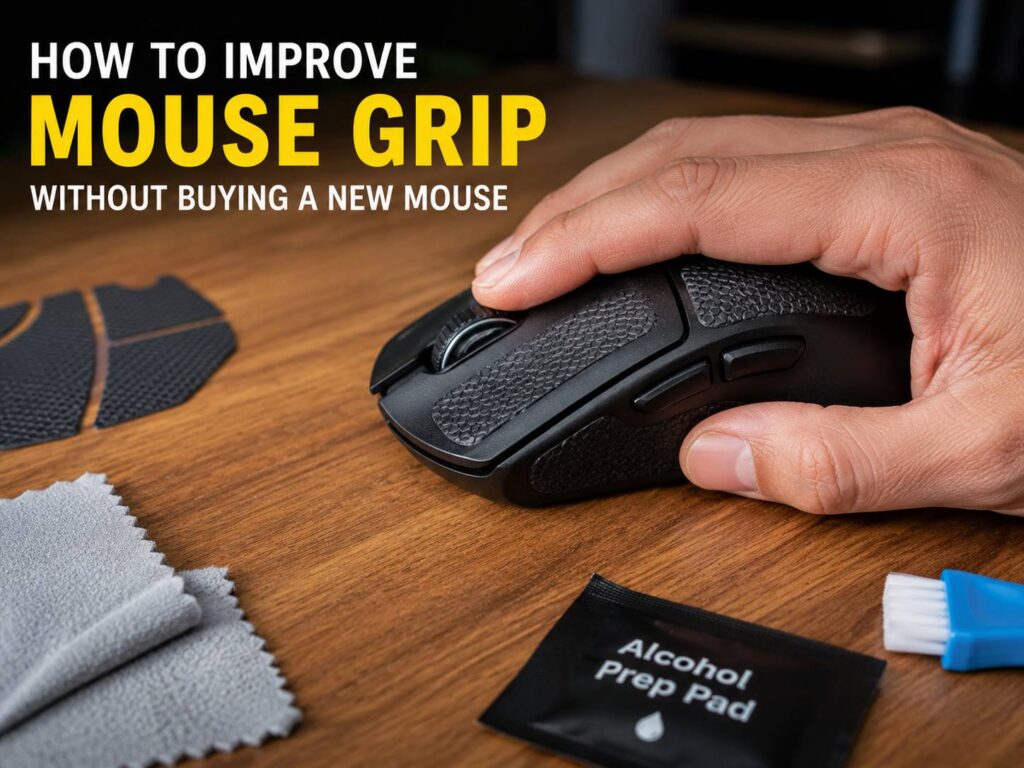
A slippery mouse can ruin your comfort fast. Your fingers slide. Your palm feels tense. Small cursor moves feel harder than they should. For gaming, this can hurt aim. For work, it can make long sessions feel tiring.
The good news is simple. You can improve mouse grip without buying a new mouse. In many cases, the mouse does not have a bad shape. It just needs cleaning, better contact points, grip tape, a lower sensitivity setting, or a cleaner desk setup.
This guide covers practical fixes that work for office mice, gaming mice, travel mice, and older wireless models. Most of them cost very little. Some cost nothing at all.
Clean the Mouse Before You Change Anything
Start with cleaning. It sounds basic, but it fixes more grip problems than people expect.
Over time, skin oil, dust, sweat, and tiny food marks build up on the mouse shell. The buttons start to feel glossy. The side panels lose texture. Then your fingers slide, so you grip harder.
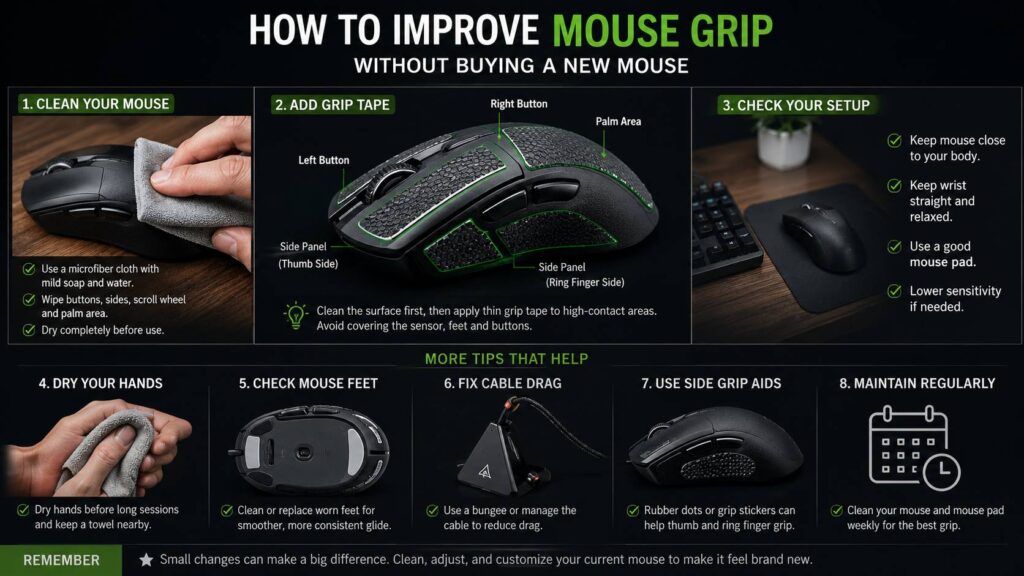
Turn off the mouse first. Unplug it or remove the batteries. Next, use a soft microfiber cloth with a small amount of water. The cloth should feel damp, not wet. Wipe the left button, right button, palm area, side panels, and scroll wheel.
For tighter areas, use a cotton swab. Clean around the side buttons and the gaps near the main clicks. Then wipe the mouse with a dry cloth and let it sit for a few minutes.
Avoid spraying cleaner straight onto the mouse. Liquid can get inside the buttons or scroll wheel. Strong cleaners can damage rubber, coating, or painted finishes.
In practice, a clean mouse often feels more secure right away. So, clean first and add grip tape later only if the surface still feels slick.
Fix Sweaty Hands During Long Sessions
Sweaty hands can make any mouse feel slippery. This happens more during gaming, warm weather, long editing sessions, or long workdays.
Before you blame the mouse, try a simple hand routine. Wash your hands with mild soap. Dry them well. Then keep a small towel near the desk. Wipe your fingers and palm during longer sessions.
A small desk fan can help too. It keeps your hand cooler and reduces moisture on the mouse shell. Plus, it can make your desk feel more comfortable in summer.
Try these quick fixes:
- Wash and dry hands before long sessions
- Keep a clean towel near the desk
- Avoid hand cream before using the mouse
- Wipe the mouse once every hour
- Keep the room cooler when possible
- Use a cloth mouse pad with a controlled surface
Some gamers use grip powder or chalk. For daily use, that can get messy. Dust can collect near the sensor and mouse feet. A towel, clean hands, and good grip tape work better for most users.
Add Grip Tape to the Right Spots
Grip tape gives the fastest physical improvement. It adds texture where your fingers and palm touch the mouse. It helps with smooth plastic, worn coating, sweaty hands, and light gaming mice that feel hard to control.
You can buy pre-cut mouse grip tape for popular models. You can also buy universal grip sheets and cut them yourself. Pre-cut tape looks cleaner. Universal sheets cost less and work well for older or less common mice.
Place grip tape only where you need it:
- Left mouse button
- Right mouse button
- Thumb side panel
- Ring finger side panel
- Palm rest area
- Smooth thumb groove
Clean the mouse before you apply tape. Then dry it fully. Place each piece slowly and press from one edge to the other. This helps push out air bubbles.
Do not cover the sensor, bottom skates, charging pins, side buttons, or button gaps. Tape placed too close to moving parts can make clicks feel sticky.
Thin tape usually feels better than thick tape. A thin sheet adds grip without changing the mouse shape too much. Thick foam can make the mouse feel strange, and it can trap heat under your palm.
Make Your Own Grip Tape
DIY grip tape works well if you have an older mouse or no pre-cut kit exists for your model. The best materials are thin, flexible, and slightly textured.
Good options include:
- Universal mouse grip sheets
- Thin camera grip tape
- Thin racket overgrip sheets
- Small adhesive rubber pads
Avoid rough tape that feels like sandpaper. It can irritate your fingers during long sessions. Avoid thick foam too. It can change how the buttons feel.
Here is an easy way to cut DIY grip tape:
- Place a small piece of paper over the mouse side
- Trace the area with a pencil
- Cut the paper shape
- Test the paper on the mouse
- Trace the shape onto the grip sheet
- Cut the final piece
- Clean the mouse surface
- Apply the tape slowly
This method gives a cleaner result than guessing. It also keeps tape away from side buttons and seams.
After a few weeks, check the edges. Grip tape can lift near curved panels. If an edge starts to peel, press it down after cleaning. Replace the tape once the surface feels smooth or sticky.
Adjust Your Grip Style
Grip style matters more than many people think. A mouse can feel slippery if your hand sits too far forward, too far back, or too tight around the shell.
Most users use one of three grip styles:
- Palm grip: your palm rests on the mouse
- Claw grip: your palm touches the back, and your fingers arch
- Fingertip grip: your palm stays off the mouse, and your fingers control it
A palm grip feels relaxed, but it can create more sweat under the hand. A claw grip gives fast control, but it can strain the fingers. A fingertip grip feels quick, but it needs more finger strength.
Small changes help. Move your hand a little back on the mouse. Then try a slightly forward position. Loosen your thumb. Relax your ring finger. Your hand should guide the mouse, not crush it.
If your grip never feels natural, the mouse shape may not match your hand. This guide on the best mouse shape for your hand can help you understand why some shapes feel stable and others feel awkward.
Still, do not rush to replace the mouse. Try cleaning, grip tape, and desk changes first. Many grip issues come from surface feel, not shape.
Lower Your Mouse Sensitivity
High sensitivity can make grip problems worse. Tiny finger slips turn into big cursor jumps. Then you hold the mouse harder, and your hand gets tired faster.
Lower the pointer speed in Windows, macOS, or your mouse software. For gaming, drop DPI in small steps. A 10 to 15 percent change is enough at first.
Test the new setting for one full day. At first, it may feel slower. After a short adjustment, the mouse should feel calmer and easier to control.
For office work, the cursor should cross the screen without sharp wrist flicks. For gaming, you should track targets without squeezing the mouse. If your grip feels tense, your sensitivity is probably too high.
A lower setting works best with a larger mouse pad. You get more room for smooth movements, so your fingers do less emergency correction.
Improve the Mouse Pad Surface
A worn mouse pad can make the mouse feel harder to grip. The shell may not be the main issue. The surface under the mouse can cause uneven movement.
Check your mouse pad for shiny areas, dust, loose fabric, curled edges, or sticky spots. A dirty cloth pad can feel slow in one area and fast in another. This forces your hand to grip harder.
Wash a cloth pad with mild soap and water. Rinse it well. Then let it dry flat. Do not use it while it is damp.
For better control, choose a medium-control cloth pad. Fast hard pads can make a slippery mouse feel worse. Rough pads can feel tiring during long work sessions.
A larger pad helps too. It gives you space to lower sensitivity and move from the arm. Then your fingers can stay relaxed.
Check the Mouse Feet
Mouse feet, often called skates, affect control. Worn skates make the mouse drag or scratch. Then your hand starts to fight the movement.
Turn the mouse over and check the feet. Look for scratches, flat edges, peeling corners, or dirt buildup. Clean around the feet with a dry cotton swab. Remove dust and hair near the sensor area.
If the feet look worn, replace them. PTFE skates are easy to find for many gaming mice. They help the mouse glide more evenly.
This fix does not add texture to the mouse shell. Still, it improves control. A mouse that glides evenly needs less grip pressure.
Bring the Mouse Closer to Your Body
Desk position can change how secure the mouse feels. If the mouse sits too far away, your shoulder reaches forward. Then your wrist bends, your fingers tighten, and grip feels worse.
Place the mouse close to the keyboard. Keep your elbow near your body. Your wrist should stay straight. Your shoulder should feel relaxed.
Try this setup:
- Move the keyboard slightly left
- Keep the mouse near elbow height
- Keep the wrist straight
- Move more from the forearm
- Avoid stretching across the desk
- Keep the mouse pad within easy reach
A smaller keyboard can help too. Large full-size keyboards push the mouse farther to the right. A tenkeyless or compact keyboard gives the mouse more room.
Desk feel matters as a whole. If your keyboard feels loud, harsh, or distracting, this guide on how to make a keyboard sound better pairs well with these mouse fixes.
Fix Cable Drag on Wired Mice
A wired mouse can feel slippery if the cable pulls against the desk. The hand senses resistance, so it grips harder.
Give the cable some slack. Leave about 20 to 30 cm of loose cable near the mouse. Route the rest behind the monitor or along the back of the desk.
A mouse bungee can help for gaming. It lifts part of the cable and reduces drag. You can also tape the cable lightly to the back edge of the desk. Keep the tape away from the area where the mouse moves.
This change feels small, but it can make a wired mouse feel much easier to control.
Try Small Rubber Dots for Extra Side Grip
Some office mice have very smooth side panels. The thumb slides during fast moves. The ring finger may slide too.
Small adhesive rubber dots can help. Place one or two dots where your thumb naturally rests. Add another small piece where your ring finger touches the side.
Start small. Test the mouse for one day. Then add more only where your fingers still slip.
Too much texture can feel crowded. It can also make the mouse harder to clean. A few small contact points usually work better than covering the whole side.
Avoid Fixes That Damage the Mouse
Some quick fixes create new problems. Avoid super glue on grip tape. It can damage the shell and leave hard spots. Do not use thick foam on the main buttons. It can change click feel and make the mouse harder to use.
Skip oily cleaners. They make plastic slick. Strong solvents can damage rubber and coatings. Paper tape can leave residue and peel fast.
Do not cover side buttons or button gaps. Do not wrap tape around the bottom edge where it can touch the pad. Any material that rubs the pad will ruin glide and collect dust.
If a fix makes your hand hurt, remove it. Grip should feel stable and relaxed, not forced.
Build a Simple Weekly Mouse Grip Routine
A short routine keeps the mouse feeling better for longer. It takes only a few minutes.
Use this routine once per week:
- Wipe the mouse shell
- Clean the side panels
- Wipe the main buttons
- Clean the scroll wheel area
- Check grip tape edges
- Remove dust near the sensor
- Clean the mouse pad
- Check cable drag
For heavy daily use, clean the mouse every two or three days. Sweat and skin oil build up fast, mainly on smooth plastic.
Over time, this routine keeps the shell from turning glossy. It also helps grip tape last longer.
Best Fixes for Common Mouse Grip Problems
Use the exact problem to choose the fix.
Slippery mouse buttons:
- Clean the buttons
- Add thin grip tape
- Dry your fingers before long sessions
Thumb slips on the side:
- Add side grip tape
- Use small rubber dots
- Loosen thumb pressure
Palm feels sweaty:
- Wipe hands often
- Use a small desk fan
- Add palm grip tape
- Clean the mouse more often
Mouse feels hard to control:
- Lower sensitivity
- Use a larger mouse pad
- Replace worn skates
- Bring the mouse closer
Hand gets tired:
- Relax your grip
- Move more from the forearm
- Keep your wrist straight
- Check mouse height
Mouse feels sticky:
- Wash the mouse pad
- Clean the mouse feet
- Remove old tape residue
- Replace worn grip tape
Final Thoughts
You do not need a new mouse every time grip feels bad. Most grip issues come from oil, sweat, worn texture, high sensitivity, poor desk position, or uneven glide.
Start with cleaning. Then fix sweat and hand position. After that, add grip tape only where your fingers slip. For better control, lower sensitivity and use a clean mouse pad.
In my view, the best low-cost setup is simple: clean shell, thin side grip tape, relaxed hand pressure, medium-control pad, and a mouse placed close to the keyboard. That mix makes most mice feel steadier and more comfortable.
Small fixes can change the feel a lot. A few pieces of tape, a cleaner pad, and a better grip position can make an old mouse feel secure again.