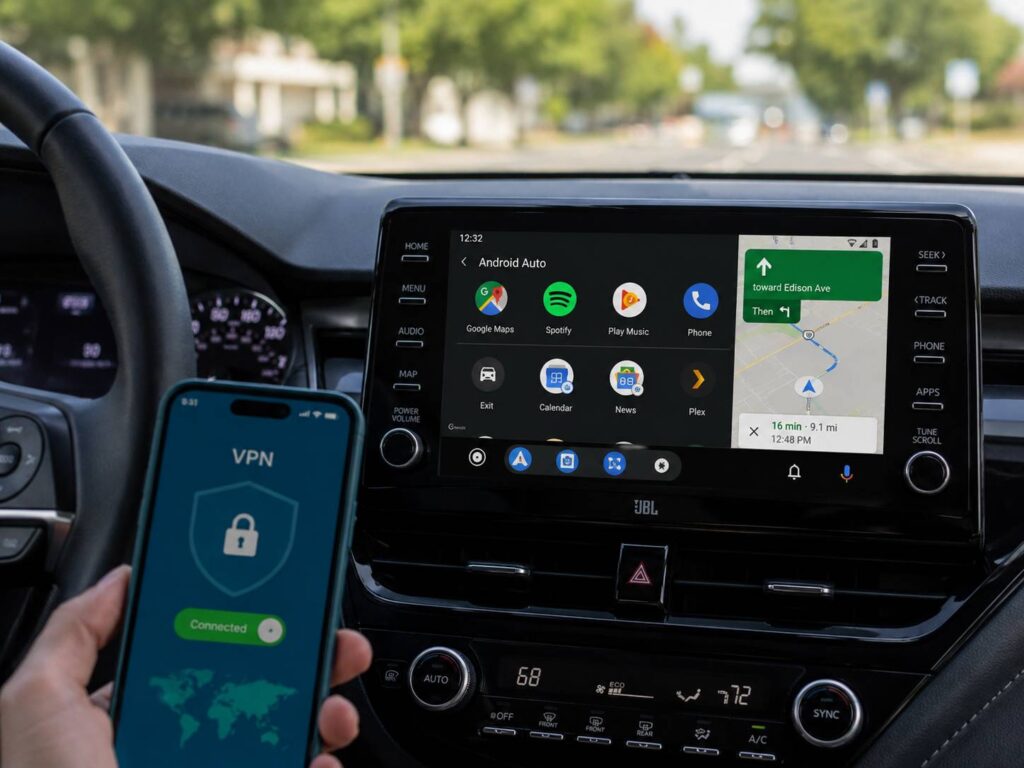
Android Auto and a VPN can work together, but the setup is not always trouble-free. Some drivers connect their phones and never notice a problem. Others deal with blank screens, endless loading, VPN warnings, broken voice commands, or wireless connections that drop every few minutes.
Most of these problems come from the way Android Auto handles network traffic. Wireless Android Auto uses Bluetooth, Wi-Fi, mobile data, location services, and several Google services at the same time. A strict VPN can block one of those connections, even though normal browsing still works on the phone.
The good news is that you usually do not need to uninstall the VPN. A setting such as split tunneling, local network access, or an adjusted kill switch can fix the connection. This guide covers the full setup, the most common problems, and the fixes that tend to work in real cars.
Can You Use Android Auto With a VPN?
Yes, Android Auto can run with a VPN active. There is no general rule that prevents the two services from working together.
Still, results vary between phones, cars, Android versions, and VPN apps. A setup that works well on one Samsung phone may behave differently on a Google Pixel or Motorola device. The car’s infotainment system can make a difference too.
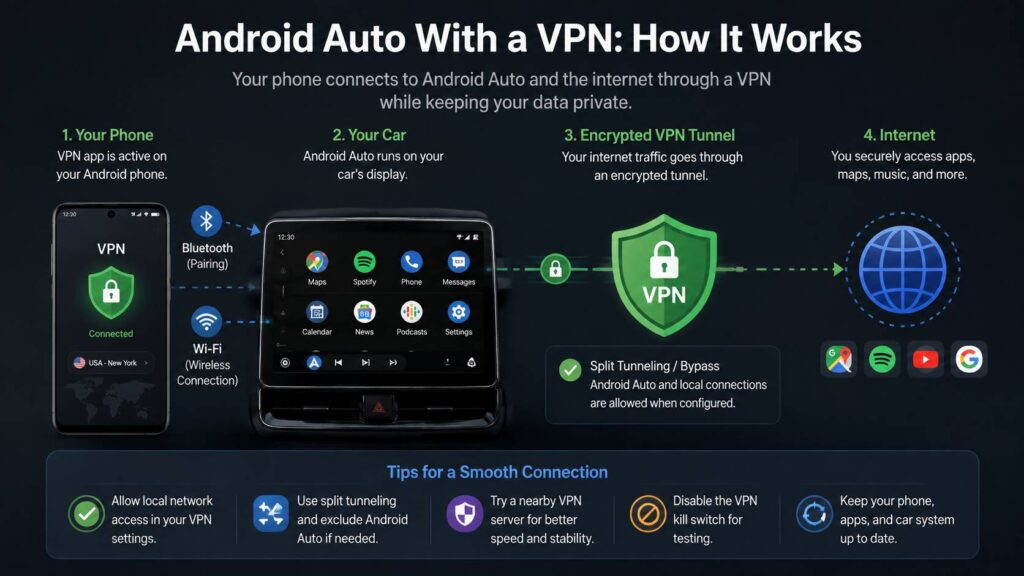
Wired Android Auto uses a USB cable for the main connection between the phone and the car. Wireless Android Auto works differently. Bluetooth starts the pairing process, then Wi-Fi carries most of the connection between the phone and the dashboard.
Mobile data remains active for services such as:
- Google Maps traffic information
- Waze alerts
- Music streaming
- Podcast downloads
- Voice searches
- Messaging apps
- Weather data
- Destination searches
A VPN routes internet traffic through an encrypted tunnel. Some VPN apps leave local connections alone. Others try to control every connection made by the phone.
Problems start when the VPN blocks the private Wi-Fi link between the phone and the car. Android Auto may open for a moment, display an error, or refuse to launch at all.
Why a VPN Can Break Wireless Android Auto
Wireless Android Auto relies on several connections at once. That makes it more sensitive to strict network settings than a normal phone app.
Bluetooth handles the initial pairing. Wi-Fi carries the Android Auto interface. Mobile data connects online apps. GPS provides the phone’s physical location. Google Play services help manage device communication and app features.
A VPN can interfere in several ways.
It may block local network traffic. It may try to send the car’s private Wi-Fi connection through the VPN tunnel. A kill switch may reject traffic that does not pass through the tunnel. The VPN server may add enough delay to make voice commands or music streaming unstable.
The situation can feel confusing since the phone may still show full mobile signal. Websites can load normally, yet Android Auto refuses to connect.
Modern devices often hide complicated settings behind simple menus. Similar interactions appear in other areas of consumer technology. For example, this guide to local dimming on monitors explained shows how one feature can improve an experience but introduce unexpected side effects under certain conditions.
Android Auto and VPN conflicts follow the same pattern. Both tools work as designed, but their network rules can clash.
Set Up Android Auto Before Turning On the VPN
The first pairing usually works best with the VPN switched off. This gives Android Auto a clean chance to create the connection between the phone and the car.
Park the vehicle before starting. Then follow these steps:
- Turn off the VPN.
- Turn on Bluetooth, Wi-Fi, mobile data, and location.
- Open the phone connection menu on the car’s display.
- Pair the phone through Bluetooth.
- Accept the Android Auto permissions on the phone.
- Wait for Android Auto to appear on the dashboard.
- Test navigation, calls, music, and voice controls.
- Disconnect the phone.
- Turn the VPN back on.
- Reconnect Android Auto and test the same features again.
This test tells you whether the VPN causes the problem. Android Auto itself is probably working correctly when everything runs normally with the VPN turned off.
Do not skip the first connection test. If you change several settings at once, you lose track of which change helped. A simple test gives you a clear starting point.
Use Split Tunneling With Android Auto
Split tunneling is often the best fix for Android Auto VPN problems. It lets selected apps connect outside the VPN tunnel.
The rest of the phone can stay protected by the VPN. Android Auto and selected driving apps use the regular mobile connection.
Open the VPN app and search for a menu with a name such as:
- Split tunneling
- App bypass
- Excluded apps
- Bypass VPN
- Per-app VPN
- Apps outside VPN
- Selected apps
- Direct connection
Add Android Auto to the excluded list when it appears.
Android Auto may not appear in every VPN app. Recent Android versions treat it as part of the system, so some VPN services do not show it in the normal app list.
In that case, exclude the apps that fail during your drive. Test them one at a time in this order:
- Google Maps or Waze
- Spotify, YouTube Music, or another media app
- The Google app
- Android Auto, when available
- Google Play services as a final test
Start with the smallest possible exclusion. For example, exclude Spotify when Android Auto connects but music refuses to load. Exclude Google Maps when traffic data or destination searches stop working.
Google Play services should not be the first choice. Excluding it can send more background Google traffic outside the VPN. Use that step only to confirm the cause of a stubborn problem.
Allow Local Network Access in the VPN App
Many VPN apps include a local network setting. It may use one of these names:
- Allow LAN traffic
- Local network access
- Device discovery
- Access nearby devices
- Bypass local addresses
- Private network access
- Local device sharing
Turn this option on and reconnect Android Auto.
This setting often fixes wireless Android Auto without requiring app exclusions. Internet traffic still travels through the VPN, but the phone can communicate directly with the car.
For many drivers, this is the cleanest setup. It keeps the VPN active and leaves the local Android Auto connection untouched.
The setting can appear under advanced options, connection settings, or security preferences. VPN apps arrange their menus differently, so check more than one section.
Check the Kill Switch
A VPN kill switch blocks internet traffic when the encrypted tunnel drops. It protects your real IP address, but it can cause trouble with wireless Android Auto.
The phone may treat the car’s Wi-Fi connection as traffic outside the VPN. The kill switch then blocks it.
Turn off the kill switch for a short test. Reconnect the phone and see whether Android Auto starts normally.
A successful connection points to the kill switch as the cause. You can then turn it back on and search for a local network exception inside the VPN app.
Android includes its own VPN controls too. Depending on the phone, you may find settings such as:
- Always-on VPN
- Block connections without VPN
- Lockdown mode
- VPN protection
- Secure all connections
The menu often appears under Settings > Network and internet > VPN. Samsung and other manufacturers may place it under Connections or More connection settings.
Turn off Block connections without VPN for testing. Then reconnect Android Auto.
A managed work phone may lock these settings. Company security rules can prevent local connections outside the approved VPN. In that situation, the company administrator controls the available options.
Try a Wired Android Auto Connection
A USB cable is one of the easiest ways to separate a wireless problem from a broader VPN problem.
Connect the phone to the supported USB port in the car. Use a short, high-quality data cable. Some cheap cables support charging but do not carry data reliably.
A wired connection removes the main wireless projection link from the setup. Navigation, streaming, and voice services still use mobile data, but the Android Auto interface travels through USB.
The result tells you a lot.
A stable wired connection paired with a failed wireless connection points to Wi-Fi routing, local traffic blocking, or kill switch rules. Problems that continue through USB may involve the VPN server, a specific app, mobile data, or phone permissions.
Wired Android Auto can serve as a practical long-term option too. It charges the phone during the drive and often offers a more stable connection in older cars.
Android Auto Will Not Start With the VPN Active
Start by turning off the VPN. Then reconnect the phone.
Android Auto is working correctly when it starts with the VPN disabled. The next step is to allow local network access.
Turn the VPN back on and test again. Add Android Auto to split tunneling when the connection still fails.
Restart the phone after changing these settings. Some VPN apps keep old routing rules active until the device reconnects to the network.
Remove the phone from the car’s saved device list as a final step. Delete the car from the phone’s Bluetooth settings too. Then complete a fresh pairing with the VPN turned off.
Android Auto Shows a VPN Error or Warning
Some phones display a warning during wireless startup. Others show an error screen and return to the normal car menu.
This usually means the VPN has blocked a required connection. It can happen after an Android update, a VPN update, or a change to the kill switch.
Try these fixes:
- Restart the phone.
- Restart the car’s infotainment system.
- Allow local network traffic.
- Turn off the kill switch for testing.
- Add Android Auto to split tunneling.
- Forget the car and pair it again.
- Try another VPN protocol.
- Connect to a nearby VPN server.
Do not change all settings at once. Test after each change so you know what fixed the problem.
Android Auto Keeps Disconnecting
Repeated disconnections are one of the most annoying VPN-related problems. The system starts normally, then freezes or returns to the car’s home screen.
A distant VPN server can add delay. Select a server close to your physical location. The closest available server usually gives better speed and lower latency.
Next, change the VPN protocol. Most apps offer an automatic option and one or more manual choices. Start with the automatic or recommended setting.
Battery management can cause problems too. Some Android phones restrict apps that run in the background. Remove battery restrictions from:
- Android Auto
- The VPN app
- Google Maps or Waze
- The Google app
- Your media app
Check the infotainment system for firmware updates. Car manufacturers and aftermarket receiver brands sometimes release fixes for wireless stability.
Heat can play a part too. Wireless Android Auto, GPS, mobile data, streaming, and VPN encryption put a heavy load on the phone. A phone left in direct sunlight may slow down or stop background tasks.
Place the phone away from the windscreen and use an air vent mount during hot weather.
Maps Works, but Music Does Not Play
This usually points to the media app rather than Android Auto itself.
Some streaming services dislike certain VPN servers. Others change their available catalog based on the selected country.
Connect to a VPN server in your real country. Then test the music app directly on the phone.
Add only the media app to split tunneling when the problem continues. This keeps the rest of the phone inside the VPN tunnel.
Offline playlists are useful for long trips. They reduce mobile data use and remove VPN performance from the playback process.
Music Works, but Voice Commands Fail
Voice commands rely on Google services and a stable internet connection. The Android Auto screen may work perfectly, yet spoken requests can fail or take too long.
Check the microphone permission for Android Auto and the Google app. Make sure mobile data access is active for both apps.
Then exclude the Google app from the VPN as a test. Restart the phone and try a simple command, such as asking for directions home.
Battery restrictions can stop voice services from running in the background. Set the Google app and Android Auto to unrestricted battery use during testing.
A nearby VPN server can help here too. Voice requests feel much worse when the connection has high latency.
The VPN Changes Search Results or Streaming Content
A VPN changes the public internet location reported by the phone. It does not replace the GPS location used for turn-by-turn navigation.
Still, the selected VPN country can affect:
- Search suggestions
- Streaming catalogs
- Advertising
- Local news
- Language defaults
- Website versions
- Some map search results
Choose a server close to your real location for normal driving. This reduces strange regional results and keeps the connection faster.
Do not rely on the VPN location to change Android Auto navigation. The phone still uses GPS for your actual position.
Does a VPN Protect Everything in Android Auto?
A VPN protects supported internet traffic between the phone and the VPN server. It does not replace app permissions or privacy settings.
Navigation apps still receive your location after you grant permission. The car display can still show call details, contact names, and message notifications during an active session.
A VPN does not stop apps from collecting data that you have allowed them to collect. It does not hide information already stored in your Google account or media account.
Review Android permissions separately. Remove apps you no longer use in Android Auto. Limit notification access and location access where practical.
The VPN remains useful, but it is only one part of mobile privacy.
The Best Android Auto VPN Setup
For most drivers, a reliable setup looks like this:
- Pair Android Auto with the VPN turned off.
- Turn on local network access in the VPN app.
- Add Android Auto to split tunneling.
- Exclude only the apps that fail.
- Connect to a nearby VPN server.
- Test the kill switch.
- Remove battery restrictions.
- Keep a USB cable in the car.
This setup keeps most internet traffic inside the VPN tunnel. It gives Android Auto the direct local connection it needs.
Test every change before driving. Do not adjust phone or VPN settings on the road.
Final Thoughts
Android Auto can work well with a VPN. Most problems come from blocked local traffic, strict kill switch rules, missing split tunneling, or a slow VPN server.
Start with a clean Android Auto pairing. Then allow local network access and test app exclusions one at a time. Use a USB connection to confirm whether the problem affects only wireless Android Auto.
The best setup keeps exclusions limited. Let Android Auto and any problem apps use the regular connection, then keep the rest of the phone protected by the VPN.