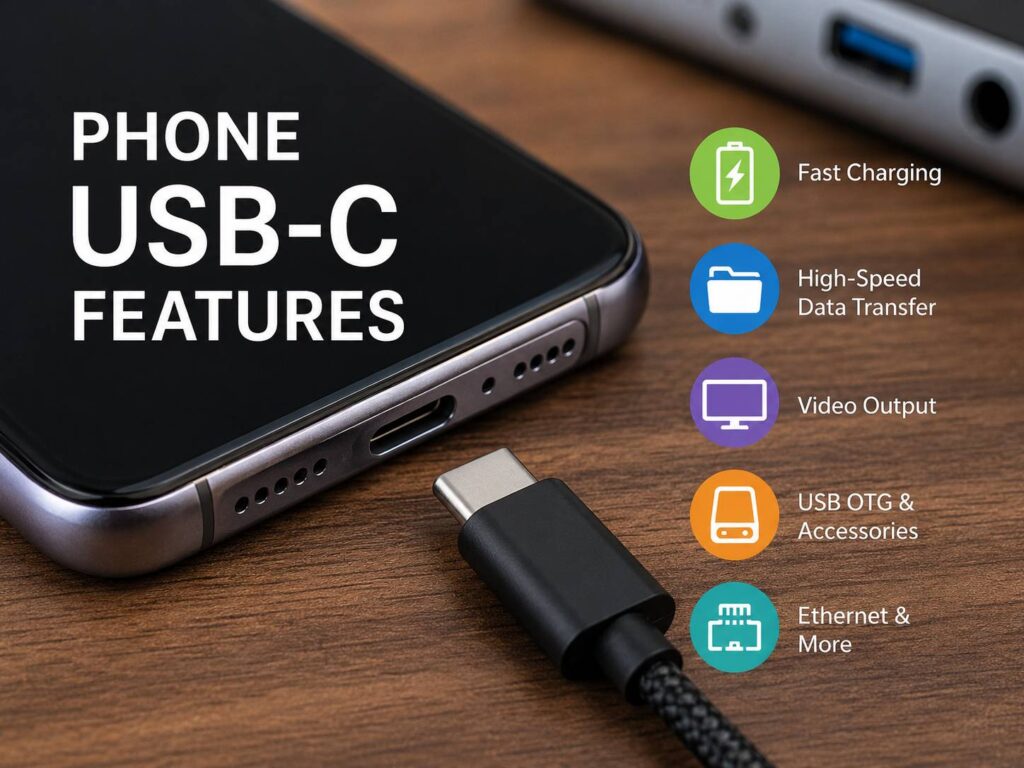
USB-C looks simple from the outside. One small reversible connector handles charging on most modern smartphones. Yet the features behind that connector can vary a lot from one phone to another.
Some phones use USB-C mainly for charging and basic file transfers. Others can connect to monitors, external SSDs, Ethernet adapters, microphones, keyboards, game controllers, and full USB-C hubs.
That difference matters more than the identical connector suggests.
For example, two phones can have ports that look identical, but one may transfer files at USB 2 speeds. The other may support much faster USB data, wired video output, and external storage.
So, checking that a phone has USB-C is only the starting point.
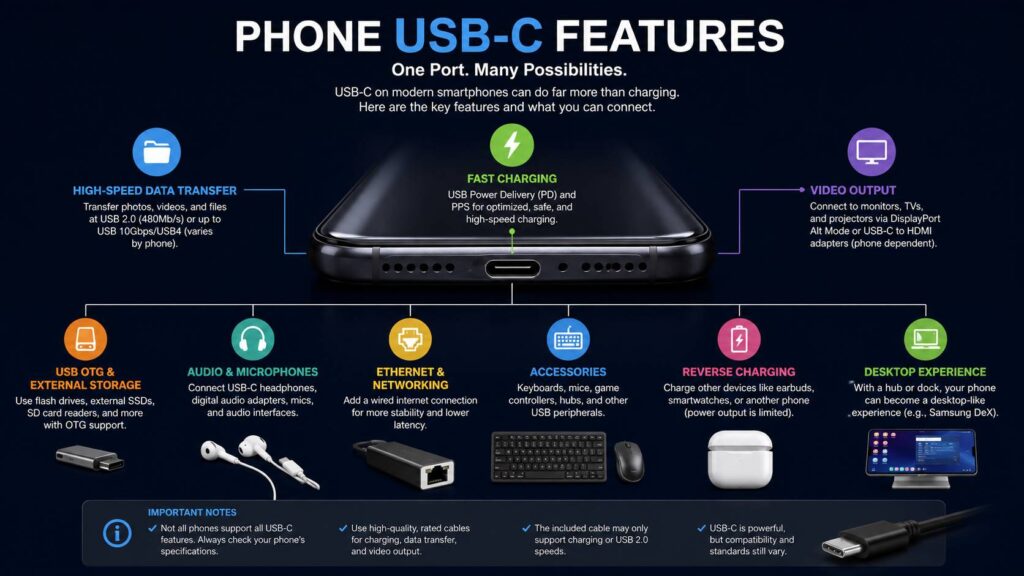
A proper look at phone USB-C features should cover charging protocols, data speeds, display output, USB OTG, accessory support, external storage, audio, reverse charging, and cable compatibility.
USB-C Is the Connector, Not the Speed
One of the biggest USB-C misunderstandings comes from the name itself.
USB-C describes the physical connector. It does not tell you how fast the connection is.
For instance, a phone with USB-C can still use USB 2 speeds. Another phone with the same connector can support USB 3 at several gigabits per second.
The same rule applies to other features.
USB-C does not automatically mean the phone supports:
- Fast USB data transfers
- USB Power Delivery
- PPS charging
- DisplayPort video
- HDMI output
- USB OTG
- External SSDs
- Desktop mode
- Reverse wired charging
As a result, the full specification matters far more than the shape of the port.
Look for terms such as USB 2, USB 5Gbps, USB 10Gbps, USB4, DisplayPort, USB Power Delivery, PPS, USB Host, and OTG.
Those details tell you what the USB-C port can really do.
USB-C Fast Charging Explained
Charging is still the main job of USB-C on a phone.
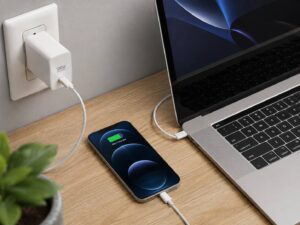
USB Power Delivery, usually called USB PD, lets compatible phones and chargers communicate before charging begins. The phone requests a supported voltage and current level, then the charger supplies it.
That communication is useful for safety and compatibility.
For example, plugging a phone into a 100W USB-C laptop charger does not mean the phone receives 100W. A phone designed to accept 30W will request a suitable charging level instead.
So, one good USB-C charger can often power several devices.
You might use the same charger for:
- A smartphone
- A tablet
- Wireless earbuds
- A handheld gaming device
- A laptop
- A power bank
This is one of the biggest practical benefits of USB-C.
Still, wattage is only part of the story.
What USB PD PPS Means
PPS stands for Programmable Power Supply.
It works with USB Power Delivery and lets compatible chargers adjust voltage and current in smaller steps.
In practice, this helps some phones reach their fastest supported charging rates.
For example, certain Samsung and Google phones rely on USB PD PPS for their best wired charging performance.
That means a 65W charger with proper PPS support can sometimes work better with a phone than an older 100W USB-C charger that lacks the required charging profiles.
So, do not judge a charger by its maximum wattage alone.
Check these details instead:
- USB Power Delivery support
- PPS support
- Maximum output per USB-C port
- Supported voltage profiles
- Cable power rating
- Your phone’s maximum charging rate
A good charger should match the charging technology used by your phone.
Your USB-C Cable Can Limit Charging
Chargers get most of the attention, but cables matter too.
Some USB-C cables are built mainly for charging. Others support fast charging and high-speed data.
That creates an odd situation.
A cable can handle high charging power but offer slow USB 2 data transfers. Another cable can support fast data, video output, and high charging power.
For normal overnight charging, this difference may never become obvious.
The problem shows up when you connect a phone to an external SSD, monitor, dock, or high-powered charger.
For that reason, check the specifications when buying an extra cable.
Useful labels include:
- 60W
- 100W
- 240W
- 5Gbps
- 10Gbps
- 20Gbps
- 40Gbps
If the packaging only says “USB-C cable,” you still do not know much about what it supports.
USB 2 vs USB 3 on Phones
USB data speed becomes far more important once you start moving large files.
USB 2 offers a theoretical signaling rate of 480 Mb/s. Real file transfers run below that figure.
Faster USB versions can cut transfer times by a huge amount.
This matters for users who regularly move:
- 4K videos
- RAW photos
- Large offline movie libraries
- Phone backups
- Project files
- Game files
For small documents and a few photos, USB 2 can still feel fine.
Once file sizes reach tens or hundreds of gigabytes, though, faster USB becomes much easier to appreciate.
So, creators and heavy storage users should check the phone’s USB data specification before buying.
The Cable Included With Your Phone Can Still Be Slow
Here is another common surprise.
A premium phone can support fast USB data yet ship with a basic charging cable.
That cable may work perfectly for charging but restrict file transfers to USB 2 speeds.
The result can be confusing.
You connect a fast external SSD, start copying a large video folder, and wonder why the transfer feels slow.
At that point, it is easy to blame the SSD or phone.
In reality, the cable can be the bottleneck.
So, test with a known high-speed USB-C cable before assuming something is wrong with your storage device.
Can You Connect a Phone to a Monitor Through USB-C?
Some smartphones can send video directly through their USB-C ports.
A supported phone can connect to:
- USB-C monitors
- DisplayPort monitors
- HDMI monitors through an adapter
- TVs
- USB-C docks with HDMI
- USB-C docks with DisplayPort
This feature can be very useful.
For example, you can show photos on a TV, give a presentation, watch video on a larger screen, or turn a compatible phone into a basic desktop workstation.
Samsung DeX is one of the best-known examples.
Supported Galaxy phones can connect to an external display and show a desktop-style interface. Add a keyboard and mouse, and the phone starts to feel much closer to a compact computer.
Still, not every USB-C phone supports wired video.
That is why checking DisplayPort or external display support matters.
Why USB-C to HDMI Sometimes Does Not Work
A USB-C to HDMI cable looks simple, so it is easy to assume it works with every USB-C phone.
That is not the case.
The phone needs to support video output through USB-C.
Then the cable or adapter needs to support the required video signal.
A basic charging cable will not suddenly carry DisplayPort video just because both ends fit.
This explains a common problem:
- The phone charges
- File transfer works
- The monitor says “No Signal”
In that case, the issue can be the phone’s capabilities, the cable, the adapter, or the monitor input.
Start by checking whether the phone supports wired display output.
Then check the adapter.
That order saves a lot of unnecessary troubleshooting.
USB OTG and USB Host Support
USB OTG has been useful on Android phones for years.
In simple terms, it lets a phone act as the host for another USB device.
That can turn the USB-C port into a surprisingly flexible connection point.
A supported phone can work with accessories such as:
- USB flash drives
- External SSDs
- Keyboards
- Mice
- Game controllers
- USB microphones
- Audio interfaces
- MIDI devices
- SD card readers
- Cameras
- Ethernet adapters
- USB hubs
For many people, external storage is the most useful part.
A small USB-C flash drive can quickly move photos or documents between a phone and computer.
If you are wondering whether flash drives still have a place in a cloud-heavy world, our guide on whether USB flash drives are obsolete in 2026 looks at where they still make sense.
USB OTG can be useful far beyond storage, though.
A keyboard and mouse can make remote desktop work easier. A card reader can import photos from a camera. An Ethernet adapter can give the phone a wired network connection.
That is a lot of flexibility from one small port.
Using External SSDs With a Phone
External SSD support is one of the most useful phone USB-C features for power users.
Connect a compatible SSD and you can move large files without uploading anything to cloud storage.
This works well for:
- Backing up photos during travel
- Moving large videos
- Carrying offline movies
- Freeing internal storage
- Moving files between phone and PC
- Editing media from external storage
Fast USB matters here.
A high-performance SSD gains little from its speed if the phone only supports USB 2.
The cable matters too.
For a fast setup, the phone, cable, and SSD all need to support a suitable data rate.
Power can create another issue.
Some SSDs use more power than a phone comfortably supplies. In that case, a powered USB-C hub can help.
The hub receives power from a charger, then supplies the SSD and other accessories.
Recording Video Directly to External Storage
Some premium smartphones can record high-quality video directly to external storage.
This can be very useful for creators.
High-resolution video files can fill internal phone storage quickly. Recording to an external SSD gives you much more room and makes file transfer easier later.
For example, you can finish recording, disconnect the SSD, and connect it directly to your editing computer.
That saves one large transfer step.
Still, the setup needs the right hardware.
A slow USB cable can become a problem with high-bitrate recording.
So, creators should pay close attention to the phone’s USB data rate and the cable specification.
USB-C Headphones and Audio Adapters
USB-C can handle digital audio too.
Compatible phones can work with:
- USB-C headphones
- USB DACs
- USB microphones
- Audio interfaces
- USB-C to 3.5mm adapters
This sounds straightforward, but compatibility can be messy.
Some USB-C to 3.5mm adapters contain their own digital-to-analog converter, or DAC.
Others rely on the phone to provide analog audio through USB-C.
A phone that does not support that analog method may produce no sound through a cheap passive adapter.
So, a digital USB-C audio adapter with its own DAC is usually the safer choice.
This is one of those USB-C quirks that often feels confusing at first. Two adapters can look almost identical but work very differently.
USB-C Ethernet on a Phone
Many modern smartphones can connect to wired Ethernet through USB-C.
You just need a compatible adapter or hub.
A wired connection can be useful in several situations:
- Hotel Wi-Fi is poor
- You need a stable local network connection
- You are troubleshooting a router
- You transfer large files over a LAN
- Wireless interference is heavy
- You use cloud gaming
Wi-Fi is easier for everyday use, of course.
Still, Ethernet support is handy when reliability matters more than convenience.
It can be particularly useful for a phone used as a temporary workstation.
Can a Phone Charge Another Device?
Some phones can send power out through USB-C.
This is sometimes called reverse wired charging.
For example, you may be able to connect:
- Wireless earbuds
- A smartwatch
- Another phone
- A small USB accessory
The output is often fairly low, so this is not a replacement for a proper power bank.
Still, it can be useful in an emergency.
A nearly empty pair of earbuds may only need a short charge to get through a trip home.
That makes reverse charging one of those features you may ignore for months and then suddenly find very useful.
USB-C Hubs Can Turn a Phone Into a Mini Workstation
A capable USB-C phone becomes much more flexible once you add a hub.
One compact hub can include:
- HDMI
- DisplayPort
- Ethernet
- USB-A
- USB-C
- SD card reader
- microSD reader
- Charging passthrough
- Extra storage connections
A typical setup can look like this:
Phone → USB-C hub → monitor + keyboard + mouse + Ethernet + charger
That arrangement works well for remote desktop access, presentations, basic office tasks, travel, and emergency computer use.
Still, the hub cannot create features the phone does not have.
For example, an HDMI port on the hub does not give video output to a phone that lacks USB-C display support.
So, check the phone first and the hub second.
Do Phones Need USB4?
USB4 offers much higher bandwidth than older USB versions.
For smartphones, though, the fastest possible USB specification is not always the most useful feature.
Most people gain more practical value from a solid USB 5Gbps or 10Gbps connection.
That is already fast enough for:
- External SSDs
- Large backups
- High-resolution video workflows
- Display output
- USB-C docks
USB4 becomes more interesting as phones take on more laptop-like jobs.
For now, though, a good USB 3 implementation can provide plenty of speed for everyday phone use.
So, do not buy a phone based only on the biggest USB number.
Look at what you actually plan to connect.
Why the Same USB-C Charger Can Give Different Speeds
The arrival of USB-C has made charger sharing easier, but charging speeds still vary.
Two phones connected to the same 65W charger can charge at very different rates.
Several factors affect the result:
- Phone charging limit
- Charger wattage
- USB PD support
- PPS support
- Cable rating
- Battery level
- Battery temperature
- Charging settings
Heat has a large effect too.
Fast charging usually slows as the battery gets fuller or warmer.
So, a phone advertised with a certain peak charging speed will not maintain that maximum rate from 0% to 100%.
That is normal.
Common Phone USB-C Problems
USB-C can do a lot, but its flexibility creates several common problems.
The Phone Charges Slowly
Check the charger first.
It may lack USB Power Delivery or PPS support.
Then check the cable.
A weak or poorly rated cable can limit charging performance too.
Phone temperature and battery level can reduce charging speed as well.
The External SSD Feels Slow
Check the phone’s USB data standard.
Then test a high-speed cable.
A fast SSD connected through USB 2 will still behave like a slow USB 2 device.
The Monitor Shows No Signal
Confirm that the phone supports video output.
Then check whether the USB-C cable or adapter carries video.
After that, verify the monitor input.
USB-C Headphones Produce No Sound
The adapter may depend on analog USB-C audio.
Try a digital USB-C adapter with a built-in DAC instead.
A USB Hub Keeps Disconnecting
Power is often the issue.
Several accessories connected at once can draw more power than the phone supplies.
A powered USB-C hub with charging passthrough can fix this type of problem.
A Fast Charger Does Not Reach Full Speed
Check whether the charger supports the protocol used by your phone.
High wattage alone is not enough.
PPS support can make a big difference on certain Android phones.
What USB-C Features Should You Check Before Buying a Phone?
If USB-C matters to you, read past the basic specifications.
Check for:
- USB version
- Maximum data speed
- Maximum charging speed
- USB Power Delivery
- PPS support
- DisplayPort output
- HDMI compatibility
- USB OTG
- External storage support
- USB audio
- Ethernet support
- Desktop mode
- Reverse wired charging
- External video recording support
- Included cable specifications
Your priorities depend on how you use the phone.
For example, a content creator should care about USB data speed and SSD support.
A business user may care more about video output, hubs, Ethernet, and desktop mode.
An everyday user can focus on fast charging, dependable cables, and basic accessory compatibility.
Phone USB-C Features Are More Useful Than They First Appear
USB-C is much more than a modern charging port.
The same connector can charge your phone in the morning, read an SD card later, connect to an SSD, power headphones, and drive a monitor at your desk.
Yet all USB-C ports are not equal.
Some remain basic. Others turn a smartphone into a flexible portable computer.
So, before buying a phone, check the USB version, charging protocol, display support, OTG features, external storage support, and cable requirements.
Those details tell you far more than the words “USB-C” on a specification sheet.