What Is DisplayHDR?
DisplayHDR is a monitor certification created by VESA, the Video Electronics Standards Association. It helps buyers understand how well a monitor handles HDR content.
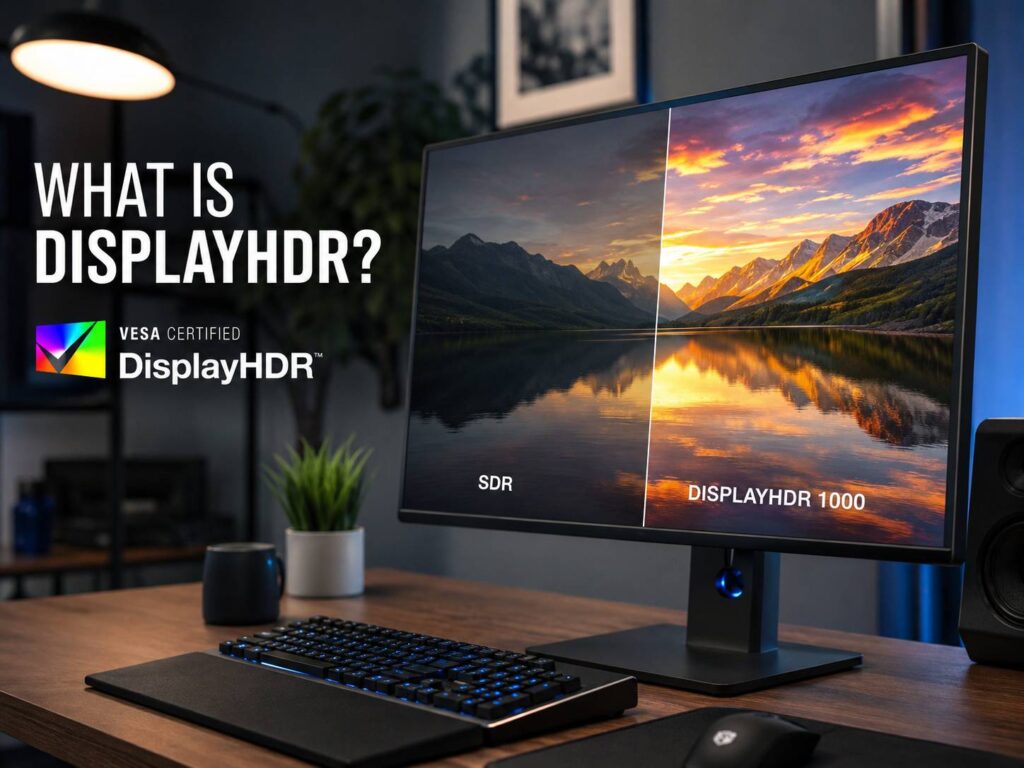
HDR stands for High Dynamic Range. A good HDR screen shows brighter highlights, deeper blacks, and richer colors than a standard SDR screen. Bright sunlight in a game can look sharper. A dark movie scene can show more shadow detail. Colors can look fuller, mainly in scenes with fire, neon lights, reflections, or sunsets.
The problem is that many monitors use the word HDR too loosely. Some screens accept an HDR signal but do very little with it. They switch into HDR mode, but the picture still looks flat, dim, or gray. In some cases, SDR looks better.
DisplayHDR gives buyers a clearer label. A certified screen must pass set tests for brightness, black levels, contrast, color, and bit depth. The badge does not make a monitor perfect, but it gives you a better starting point than a plain “HDR ready” claim.
Why DisplayHDR Matters
HDR specs can get messy fast. Brands often use big brightness numbers, wide color claims, and marketing terms that sound better than the real result. DisplayHDR cuts through part of that noise.
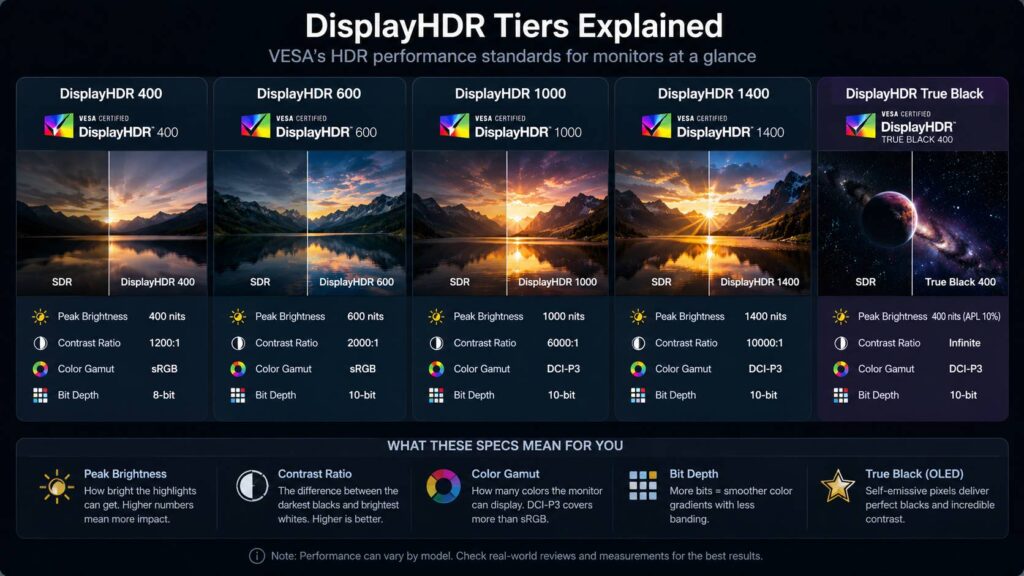
The number in the badge tells you the tier. DisplayHDR 400 sits at the entry level. DisplayHDR 600 gives a stronger HDR base. DisplayHDR 1000 and 1400 target brighter, more capable LCD monitors. True Black tiers focus on OLED and other self-lit panels.
This matters for buyers. A DisplayHDR 400 monitor does not deliver the same experience as a DisplayHDR 1000 monitor. They both support HDR, but the stronger model can show brighter highlights and better contrast.
Still, the badge is only one part of the story. Panel type, local dimming, firmware, tone mapping, and factory settings shape the final image. A certified monitor can still have flaws. A cheap HDR screen can pass a basic tier and still disappoint in movies or games.
DisplayHDR Tiers Explained
The main DisplayHDR tiers for LCD monitors are DisplayHDR 400, 500, 600, 1000, and 1400. The number points to a brightness target in cd/m², often called nits.
DisplayHDR 400 is the basic tier. It tells you the screen can hit a 400-nit brightness target and meet entry HDR requirements. It is better than no certification, but it is not a strong reason to buy a monitor on its own. Many DisplayHDR 400 monitors lack proper local dimming, so dark scenes can still look washed out.
DisplayHDR 500 and DisplayHDR 600 make more sense for many shoppers. These tiers raise brightness targets and set stronger demands for HDR behavior. A DisplayHDR 600 monitor has a better chance of giving games and movies a clear HDR lift.
DisplayHDR 1000 sits in a much stronger class. Highlights can look brighter and more realistic. Explosions, sunlight, reflections, and bright skies can stand out more. This tier works best with a good local dimming system.
DisplayHDR 1400 targets high-end displays. It suits users who want strong HDR brightness, better contrast, and more serious image performance. It often appears on premium monitors aimed at gamers, creators, or users who watch a lot of HDR video.
What Is DisplayHDR True Black?
DisplayHDR True Black is a separate certification for OLED, QD-OLED, microLED, and other self-lit display types. These panels control light at the pixel level. A black pixel can turn off or get very close to black.
That changes the HDR experience. OLED screens do not always reach the same full-screen brightness as strong mini-LED LCD monitors, but their black levels can look much better. A star field, dark room, or night city scene can look clean and deep without gray haze.
The True Black tiers include True Black 400, True Black 500, True Black 600, and True Black 1000. As of October 2026, the VESA criteria page also lists a True Black 1400 tier. A True Black screen can look more impressive than its brightness number suggests, mainly in dark scenes.
For movie watching, OLED with True Black certification often looks excellent in a dim room. For bright-room use, a strong LCD or mini-LED monitor can still make more sense. Mini-LED monitors use many small backlight zones to control bright and dark areas. This helps HDR a lot, and you can learn more in this guide to mini-LED monitors explained.
DisplayHDR vs HDR10
DisplayHDR and HDR10 describe different things.
HDR10 is a content format. Movies, games, consoles, and PCs use it to send HDR information to a screen. A monitor can support HDR10 input and still have weak HDR performance.
DisplayHDR is a performance certification. It tests what the screen can actually produce. It looks at brightness, color, contrast, and other display behavior.
This difference matters. A monitor with HDR10 support can process HDR content, but that does not mean the picture will look good. A DisplayHDR-certified monitor gives you more proof that the panel meets a real performance tier.
The safest choice is to check both. Look for HDR10 support, then check the DisplayHDR tier. After that, read real monitor measurements from reviewers who test brightness, color, contrast, and dimming.
What Makes HDR Look Good?
Peak brightness gets most of the attention, but HDR needs more than raw brightness.
Black level plays a huge role. Dark scenes lose depth on a screen with weak black levels. Shadows turn gray, and the image loses punch.
Contrast matters just as much. HDR works best with bright highlights and deep blacks in the same scene. A monitor needs strong contrast control to show that range.
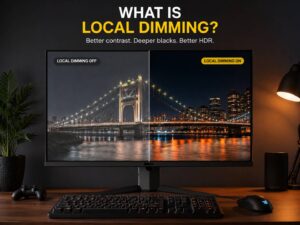
Local dimming helps LCD monitors. It lets the backlight brighten one area and dim another. More dimming zones often help, but zone count alone does not tell the full story. Poor dimming can create halos around bright objects.
Color gamut affects how rich HDR content looks. Better color coverage can make fire, grass, water, and neon lights look more natural. Bad HDR color can look either dull or overdone.
Bit depth helps with smooth gradients. A low-quality HDR display can show banding in skies, smoke, shadows, or light beams. Better bit depth makes these fades look cleaner.
Tone mapping controls how the monitor handles HDR content that goes beyond its own limits. Good tone mapping keeps highlight detail. Bad tone mapping can crush bright areas or make the whole image too dark.
Is DisplayHDR 400 Good Enough?
DisplayHDR 400 is fine for basic HDR support, but it is not enough for a rich HDR experience.
For office use, browsing, school work, and casual viewing, DisplayHDR 400 can work well. It can give you a brighter screen and basic HDR compatibility. You may notice a small improvement in supported content.
For HDR gaming and movies, this tier often falls short. Many DisplayHDR 400 monitors do not have strong local dimming. Bright highlights lack punch, and dark scenes can look gray. Windows HDR mode can make the image look worse on some screens too.
My honest view: do not buy a monitor mainly for HDR if it only has DisplayHDR 400. Buy it for the panel, resolution, refresh rate, ergonomics, and price. Treat HDR as a small bonus.
Which DisplayHDR Tier Should You Choose?
For daily office use, DisplayHDR 400 is acceptable. Text clarity, comfort, stand quality, and screen size matter more for spreadsheets, documents, and web browsing.
For gaming, DisplayHDR 600 is a better starting point. It gives you a stronger chance of seeing real HDR benefits. A higher tier, such as DisplayHDR 1000, can look much better in games with bright highlights and dark scenes.
For movies, contrast matters more than the logo alone. OLED with a True Black badge can look fantastic in a dark room. A bright mini-LED monitor with DisplayHDR 1000 can work better in a sunny room.
For creative work, look beyond the badge. Color accuracy, calibration controls, uniformity, and sustained brightness matter. DisplayHDR 1000, DisplayHDR 1400, and True Black 1000 make sense for serious HDR work, but only on well-tested models.
For laptop buyers, DisplayHDR 500 or True Black 500 can be a strong sign. Laptop displays vary a lot, so check real brightness numbers and panel type before buying.
Monitor Brightness and HDR
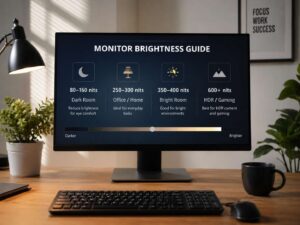
Brightness affects HDR, but it affects everyday use too. A dim monitor can feel dull in a bright room. A very bright screen can feel harsh at night.
For normal indoor use, around 120 to 200 nits is usually comfortable. A brighter room often needs more. HDR content needs much higher peak brightness to show highlights with impact.
That is why brightness specs matter. Still, peak brightness does not tell the full story. A monitor can hit a high number in a small test window, then drop brightness across the full screen. OLED monitors do this often. Some LCD monitors do it too.
Sustained brightness matters for real use. A white webpage, spreadsheet, or bright game scene can look different from a small HDR highlight. For more help with this topic, read this guide on the best monitor brightness for different rooms and uses.
Common DisplayHDR Problems
HDR on PC can still feel rough. Windows HDR mode can make SDR content look washed out. The fix often requires monitor settings, Windows calibration, and the SDR brightness slider.
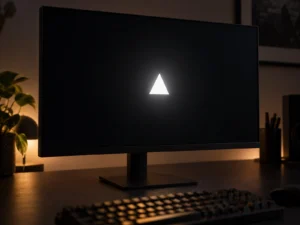
Blooming is another common issue. It appears on LCD monitors with local dimming. A white cursor, subtitle, or lamp can create a glow around itself in a dark scene. More dimming zones reduce this, but poor tuning can still ruin dark scenes.
OLED has its own trade-offs. It gives deep blacks and strong contrast, but full-screen brightness can drop. Static desktop elements can raise burn-in concerns. Many OLED monitors include protection features, but the risk still matters for heavy office use.
Some monitors ship with bad HDR presets. The vivid mode can push color too far. The accurate mode can look less exciting at first, but it often keeps more detail in shadows and highlights.
Cheap HDR monitors cause the most frustration. They carry an HDR badge, yet the picture barely changes. In the worst cases, HDR mode looks darker and flatter than SDR.
How to Check a DisplayHDR Monitor Before Buying
Start with the exact model name. Monitor names can look almost identical, but small letters and numbers can point to different panels or regions.
Check the DisplayHDR tier next. A real badge should list the exact level, such as DisplayHDR 600 or DisplayHDR True Black 400. A vague “HDR compatible” label is not the same thing.
Then read measured reviews. Look for peak brightness, sustained brightness, contrast, local dimming behavior, color coverage, HDR accuracy, and input lag. These numbers tell you more than the product page.
Owner reviews help too. Users often mention problems that spec sheets hide. Look for complaints about washed-out HDR, flicker, brightness shifts, bad firmware, blooming, or weak Windows HDR behavior.
Final Verdict
DisplayHDR helps you compare HDR monitors with less guesswork. It gives you a tested tier instead of a vague HDR claim. That makes it useful, mainly on crowded product pages where many screens sound the same.
The tier still matters. DisplayHDR 400 is basic. DisplayHDR 600 is a better target for gaming. DisplayHDR 1000 and 1400 offer stronger HDR impact on LCD monitors. True Black tiers suit OLED and other self-lit panels that can produce very deep blacks.
For most buyers, the best move is simple: pick the right panel first, then check the DisplayHDR tier. A good HDR monitor needs brightness, contrast, clean dimming, strong color, and smart tone mapping. The badge helps you narrow the list, but real tests tell you which monitor is truly worth buying.