Buying a monitor gets confusing fast. Brands talk about resolution, refresh rate, HDR, panel type, contrast, and color. Then they add another number: brightness. So, what brightness is enough for a monitor?
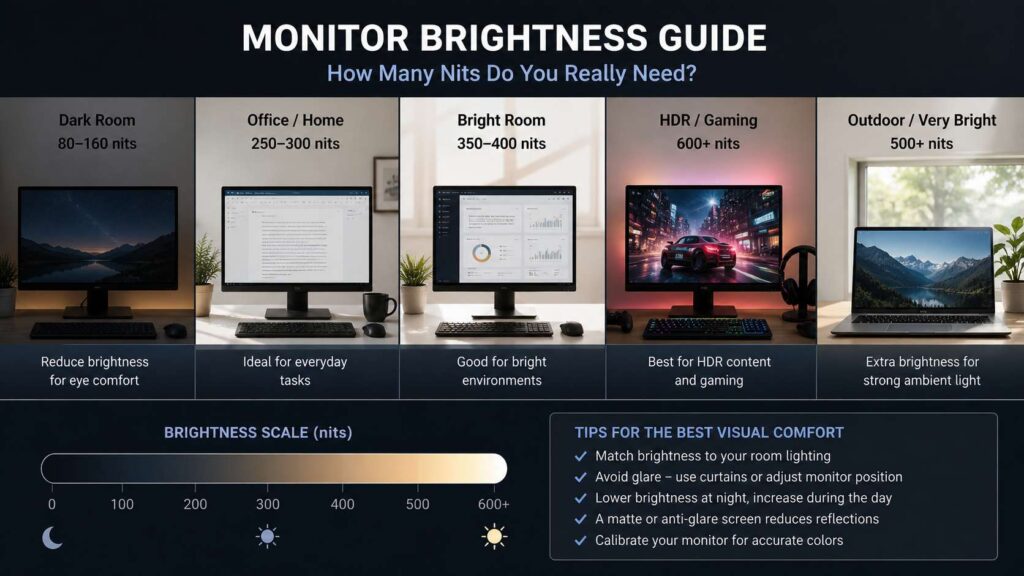
For most people, the best monitor brightness sits between 250 and 350 nits. A 300-nit monitor works well for normal office work, web browsing, school tasks, coding, writing, and casual gaming. Still, your room matters. A screen that feels bright at night can look weak near a sunny window.
So the short answer is simple. 300 nits is enough for most indoor desks. If your room gets bright, pick 350 to 400 nits. If you care about HDR, gaming visuals, or creative work, look at 400 to 600 nits or more.
What Monitor Brightness Means
Monitor brightness is measured in nits. You may also see the same measurement written as cd/m². One nit equals one candela per square meter. In plain English, a higher nit number means the monitor can produce a brighter image.
For example, a 300-nit monitor can get brighter than a 250-nit monitor. That does not mean you should use full brightness all day. In fact, 40% to 70% brightness is usually enough for normal work.
Still, the maximum brightness matters. It gives you more room to adjust the screen during the day. Then, at night, you can lower it for comfort.
Is 250 Nits Enough for a Monitor?
A 250-nit monitor is enough for a dim room. It works fine for basic office tasks, emails, spreadsheets, school work, and light browsing. If your desk sits away from windows, this level can feel perfectly usable.
That said, 250 nits starts to struggle in brighter rooms. For example, a monitor near a window can look dull at noon. White pages may look gray. Text may lose some punch. Then you turn brightness to 100%, but the screen still feels flat.
For this reason, 250 nits works best for:
- Budget office monitors
- Secondary screens
- Rooms with curtains or blinds
- Evening work
- Simple document and browser use
If you work in a bright home office, skip 250 nits. Spend a little more and aim for 300 nits or higher.
Is 300 Nits Enough for a Monitor?
Yes, 300 nits is enough for most people. It gives you a better comfort range than 250 nits, and it still fits normal indoor use. For daily work, this is the safest brightness target.
A 300-nit monitor works well in a home office, bedroom, student desk, or shared workspace. It gives you enough brightness for white pages, dark text, video calls, browser tabs, and light media use.
Plus, 300 nits leaves some room for daytime changes. You can lower brightness at night, then raise it during the day. That makes the monitor feel more natural across a full workday.
Choose a 300-nit monitor if you mostly use your screen for:
- Writing
- Coding
- Web browsing
- Emails
- Office apps
- School tasks
- Casual gaming
- Streaming videos
This is the best balance between price, comfort, and practical use.
Is 400 Nits Good for a Monitor?
A 400-nit monitor gives you more flexibility. It looks better in bright rooms, open offices, and setups near windows. It also gives games and videos more punch.
For example, a 400-nit monitor can make highlights look cleaner in bright scenes. It can also help dark game areas stay easier to see during the day. Still, brightness alone does not make a monitor great.
Panel type, contrast, screen coating, and color quality matter too. A bright monitor with weak contrast can still look washed out. At the same time, a lower-brightness OLED screen can look rich due to deep black levels.
If you compare display types, this guide on Mini LED vs OLED monitor can help you understand why brightness does not tell the whole story.
Pick 400 nits if your room has daylight, you play games, or you want a screen that feels stronger than a basic office monitor.
Best Monitor Brightness for Office Work
For office work, aim for 250 to 350 nits. This range fits long work sessions, emails, spreadsheets, browser tabs, documents, and video calls.
Still, more brightness does not always mean more comfort. A very bright screen can feel harsh in a dark room. So, the goal is not to max out the brightness slider. The goal is to match the monitor to your room.
A simple test works well:
- Open a blank white document.
- Place a white sheet of paper beside the monitor.
- Adjust the screen until both look close in brightness.
- Lower brightness at night.
- Raise brightness during bright daytime hours.
This gives you a better result than copying someone else’s brightness setting. Every room is different, and every monitor handles brightness in its own way.
For a normal office desk, 300 nits is enough. For a bright office with large windows, 350 nits or more feels better.
Best Monitor Brightness for Gaming
For gaming, aim for 300 to 450 nits for standard SDR games. This range works well for most PC games and console games.
A brighter monitor helps with visibility. For example, it can make outdoor scenes, explosions, menus, and bright highlights easier to see. Still, too much brightness can wash out shadows. Then dark scenes lose depth.
Use your game’s brightness setup screen. Set black levels so you can see dark details, but do not raise brightness so high that black areas turn gray.
For competitive games, 300 to 350 nits is usually enough. For story games, racing games, open-world games, and console play, 400 nits feels better.
For HDR gaming, look beyond the brightness number. A good HDR monitor needs strong contrast, wide color, and proper dimming. A 400-nit HDR label sounds good, but it often gives only basic HDR.
Best Monitor Brightness for HDR
HDR needs more brightness than normal desktop work. Entry-level HDR starts around 400 nits, but stronger HDR needs more.
For a better HDR experience, look for 600 nits or higher. Premium HDR monitors can go much brighter, mainly for small highlights like sunlight, fire, reflections, and bright skies.
Use this guide:
- 400 nits: basic HDR support
- 500 to 600 nits: better highlights
- 800 to 1000 nits: strong HDR impact
- OLED: lower peak brightness can still look rich due to deep blacks
- Mini LED: high brightness and local dimming can look excellent in HDR
At the same time, do not buy an HDR monitor from brightness alone. A 600-nit monitor with poor dimming can show gray blacks. A lower-brightness OLED can look better in dark scenes.
For this reason, HDR buyers should check real reviews, contrast, dimming zones, panel type, and color coverage.
Best Brightness for Photo Editing and Video Work
For photo editing, you need control more than raw brightness. Many editors work with the screen set lower than the monitor’s maximum brightness. This helps photos look more accurate, mainly for print work.
A monitor rated at 300 to 400 nits gives enough room for most light photo edits, web graphics, product photos, and video work. Then you can calibrate it lower for editing.
Creative work also needs:
- Good color coverage
- Accurate factory calibration
- Stable brightness across the screen
- Good viewing angles
- Matte or low-glare coating
- Sharp resolution
So, do not buy a monitor only for the nit rating. A bright screen with poor color accuracy will not help your work. Pick brightness and color quality together.
Brightness for Bright Rooms and Window Desks
If your desk sits near a window, aim for 350 to 500 nits. This range gives the screen enough power to fight daylight and room glare.
Still, brightness should not do all the work. First, fix the desk setup. Move the monitor away from direct sunlight. Place it at a right angle to the window. Use curtains or blinds during the brightest hours.
A matte screen helps too. It softens reflections from windows, lamps, and white walls. As a result, a 400-nit matte monitor can feel easier to read than a brighter glossy screen in a bad spot.
If your work desk uses a large monitor or ultrawide display, brightness and placement matter even more. This guide on whether an ultrawide monitor is worth it for work can help you decide if a wider screen fits your desk and room.
Brightness for Dark Rooms and Night Use
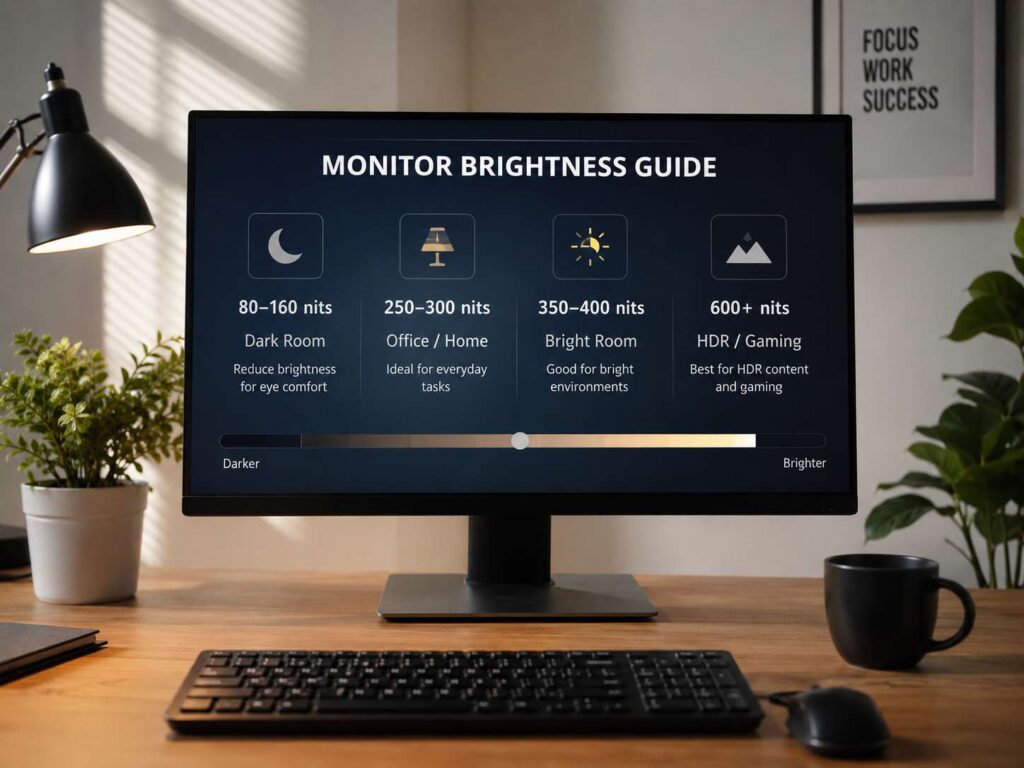
Dark rooms need less brightness. A monitor set too high at night can feel sharp, cold, and tiring. For night work, aim for around 80 to 160 nits.
A small desk lamp can help. Place it beside or behind the monitor. Then your eyes do not switch between a bright screen and a dark room. This makes reading feel easier.
Night modes can help too. Windows Night Light, macOS Night Shift, and built-in monitor low-blue-light modes make the screen look warmer. Use them for reading and late work. Turn them off for photo edits or color work.
Matte vs Glossy Screens
Screen coating changes how brightness feels. A glossy screen can look sharp and rich in a dark room. It can also reflect windows, lamps, and bright walls.
A matte screen spreads reflections, so it often works better for office use. It may look a little less punchy, but it stays easier to read during the day.
For most work desks, matte or anti-glare is the better pick. For a media setup in a controlled room, glossy can look better.
Before you buy, check the product page for these terms:
- Matte
- Anti-glare
- Glossy
- Semi-gloss
- Low reflection
For mixed work and gaming, anti-glare gives the safest result.
Laptop Brightness vs Desktop Monitor Brightness
Laptop screens often need more brightness than desktop monitors. You move laptops between rooms, cafes, offices, classrooms, and travel spots. For this reason, 400 nits feels useful on a laptop.
Desktop monitors stay in one place. You can control the lighting around them. So, 300 nits is enough for many desktop setups.
Use this simple split:
- Desktop monitor in a normal room: 300 nits
- Desktop monitor in a bright room: 350 to 500 nits
- Laptop for indoor use: 300 to 400 nits
- Laptop near windows: 400 to 500 nits
- Laptop for outdoor use: 500 nits or more
If you use a laptop as your main screen, brightness matters more. If you use an external monitor at a fixed desk, room control matters more.
Common Monitor Brightness Mistakes
Chasing big brightness numbers while ignoring the room can lead to eye strain, poor contrast, or wasted money.
Avoid these mistakes:
- Buying 250 nits for a sunny room
- Buying HDR only for a 400-nit label
- Using 100% brightness all day
- Keeping the same setting at noon and midnight
- Placing a glossy screen near a window
- Ignoring glare from lamps
- Editing photos on a screen that is too bright
- Picking brightness before panel quality
Instead, match the monitor to your space. Then adjust brightness during the day.
Quick Buying Guide by Use Case
Use this simple guide before you buy:
- Basic office work: 250 to 300 nits
- Home office with normal daylight: 300 to 350 nits
- Bright room: 350 to 500 nits
- Window desk: 400 to 500 nits
- Casual gaming: 300 to 350 nits
- Better gaming visuals: 350 to 450 nits
- Entry HDR: 400 nits
- Good HDR: 600 nits or higher
- Serious HDR gaming: 800 to 1000 nits or a strong OLED screen
- Photo editing: 300 to 400 nits rating, calibrated lower
- Laptop near windows: 400 to 500 nits
For most desktop buyers, the best monitor brightness sits between 300 and 400 nits. This range gives comfort, room for daylight, and better value than very bright premium screens.
Final Verdict: How Many Nits Do You Need?
For normal indoor rooms, 300 nits is enough for a monitor. It works well for office tasks, browsing, streaming, writing, coding, and casual gaming.
If your room gets bright, choose 350 to 400 nits. If your desk sits near a window, aim for 400 to 500 nits. If you want real HDR impact, look for 600 nits or more, then check contrast, dimming, and panel type too.
The best monitor brightness is not always the highest number. A good monitor should fit your room, your work, and your eyes. Pick the right brightness range, control glare, then adjust the screen as your light changes through the day.