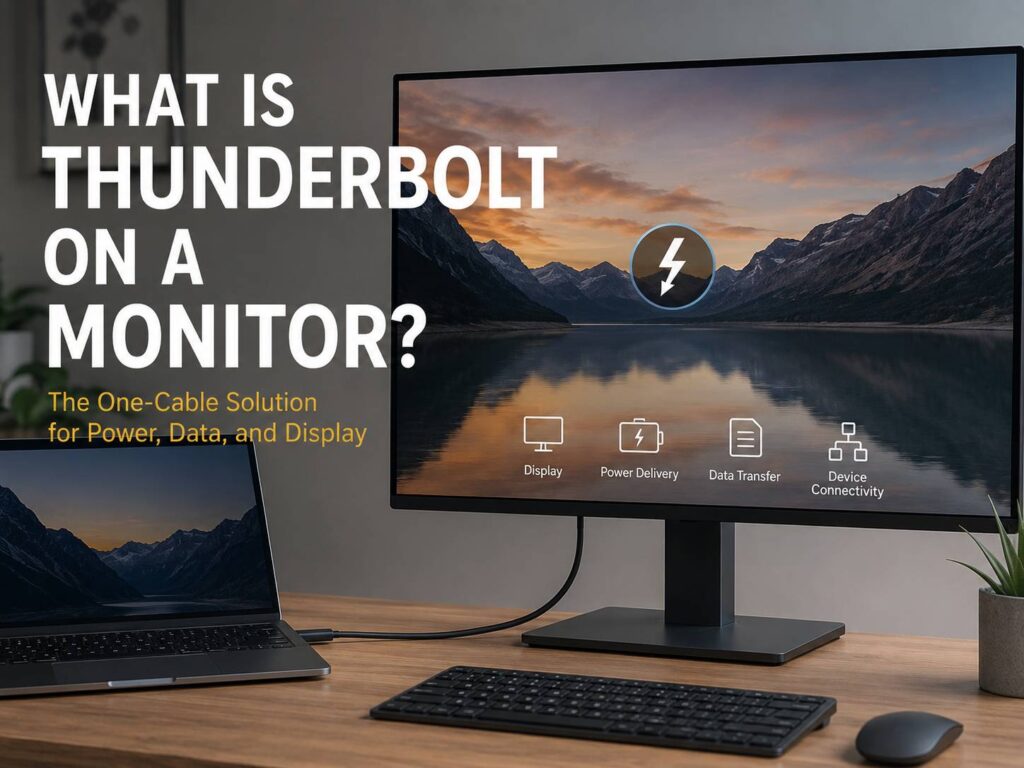
What is Thunderbolt on a monitor?
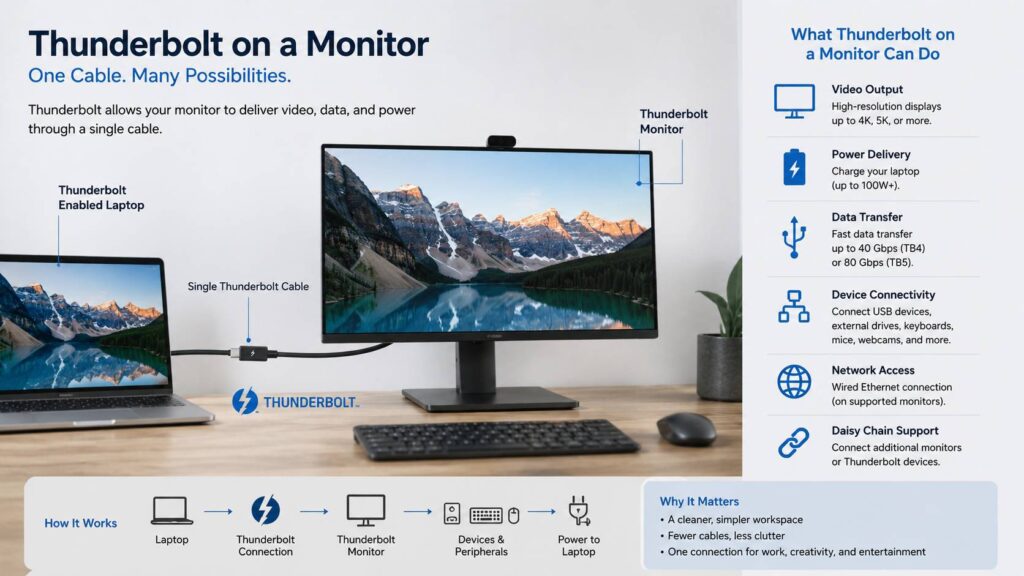
Thunderbolt on a monitor is a high-speed connection that uses the same small port shape as USB-C. It can carry video, data, and power through one cable.
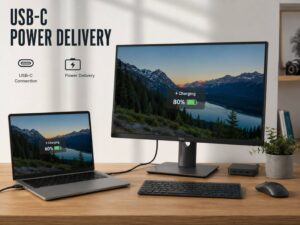
That sounds simple, but it changes how a desk feels in daily use. Instead of plugging in HDMI, a charger, a USB hub, and separate accessories, you connect one cable from your laptop to the monitor. The screen turns on, the laptop charges, and your keyboard, mouse, webcam, external drive, or Ethernet adapter can work through the monitor.
That is the real appeal. Thunderbolt is not just about speed on a spec sheet. It is about making a laptop act like a full desktop setup without a mess of cables.
Most Thunderbolt monitor ports look like USB-C ports. The difference is inside the port. A regular USB-C monitor can be good, but a Thunderbolt monitor usually gives stronger bandwidth, better docking features, and more predictable support for fast devices.
Why Thunderbolt matters on a monitor
A standard monitor mainly shows an image. A Thunderbolt monitor can do much more. It can become the main connection point for your desk.
For example, you can leave your keyboard, mouse, webcam, speakers, and external SSD connected to the monitor. Then, each time you sit down, your laptop needs only one cable. That cable can send the image to the screen, charge the laptop, and connect all those accessories.
This is useful for home offices, small desks, shared workspaces, and hybrid work setups. It is very handy for people who carry a laptop between rooms, offices, or coworking spaces.
The comfort is easy to underestimate. A basic monitor and a cheap hub are enough in many cases. What one cable changes is the daily routine: no separate laptop charger to plug in, no loose adapter, and fewer cables behind the desk.
Thunderbolt vs USB-C on a monitor
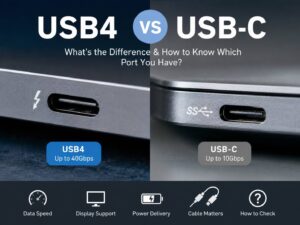
Thunderbolt and USB-C often get mixed up. That makes sense, since many Thunderbolt ports use the same oval connector as USB-C. Still, they are not the same thing.
USB-C is the connector shape. Thunderbolt is the technology that can run through that connector. A USB-C monitor may support video, charging, and data, but the exact features can vary from one model to another.
Thunderbolt gives stricter performance standards. Thunderbolt 4 supports up to 40 Gbps bandwidth. Thunderbolt 5 goes further, with up to 80 Gbps in normal use and up to 120 Gbps in display-heavy modes on supported hardware.
Here is the simple version:
- USB-C is the port shape
- Thunderbolt is a faster connection standard
- A USB-C cable may not support Thunderbolt
- A Thunderbolt cable usually works with many USB-C devices too
- Thunderbolt monitors often work better as laptop docking displays
This is why reading the monitor spec sheet matters. A monitor can have a USB-C port and still not support Thunderbolt. Some USB-C monitors charge laptops and show video just fine, but they may offer slower data speeds or fewer dock features.
Before choosing a model, a detailed USB-C monitor buying guide can help you understand charging power, display support, ports, and cable limits.
Thunderbolt 3, Thunderbolt 4, and Thunderbolt 5 explained
Thunderbolt 3 made the modern USB-C style Thunderbolt port popular. It supports up to 40 Gbps and works with many older premium laptops, especially MacBooks and creator-focused Windows laptops.
Thunderbolt 4 keeps the same 40 Gbps top speed, but it sets clearer minimum requirements. This makes it easier to trust. A Thunderbolt 4 laptop or monitor should support stronger display output, docking, charging, and accessory use than many basic USB-C products.
Thunderbolt 5 is the newer version. It is built for heavier display needs, fast external storage, high-refresh monitors, 5K screens, 6K screens, and more advanced workstations. It gives more room for demanding setups.
For most people, Thunderbolt 4 is still the sweet spot. It works well for office work, writing, coding, browsing, video calls, and photo editing. Thunderbolt 5 makes more sense for users who handle large video projects, high-resolution multi-monitor setups, or newer premium laptops.
What can a Thunderbolt monitor do?
A Thunderbolt monitor can do several jobs at the same time. The exact list depends on the model, but many Thunderbolt monitors can handle:
- Video from your laptop
- Laptop charging through the same cable
- USB accessories connected through the monitor
- External SSDs and fast storage devices
- Ethernet, on models with a network port
- Audio devices, webcams, and card readers
- A second monitor through daisy chaining, on supported setups
The charging part matters a lot. Many Thunderbolt monitors can charge thin laptops without a separate power brick. Some deliver 60W, some deliver 90W, and premium models may offer more.
That said, not every laptop will charge at full speed through a monitor. Large gaming laptops and mobile workstations often need more power than a display can provide. In that case, you may still need the original charger.
The dock feature is just as useful. If the monitor has enough ports, it can replace a basic docking station. That saves space and keeps your desk cleaner.
Thunderbolt monitor benefits in real life
The main benefit is less clutter. One cable connects your laptop to your screen, charger, and accessories. This gives the desk a cleaner look and makes the setup easier to use.
Another benefit is speed. Thunderbolt has enough bandwidth for display output and fast data at the same time. That helps if you use an external SSD, transfer large files, or connect several devices through the monitor.
A third benefit is fewer cheap adapters. Low-cost USB-C hubs can cause random issues. The monitor may flicker. The mouse may freeze. The laptop may stop charging after sleep. A good Thunderbolt monitor is not immune to problems, but it usually feels more stable than a low-end hub setup.
My real opinion: Thunderbolt is not exciting in the way a brighter panel or higher refresh rate is exciting. You do not stare at Thunderbolt. You feel it in the daily routine. The best part is sitting down, plugging in one cable, and getting to work without touching anything else.
Common problems with Thunderbolt monitors
Thunderbolt monitors are useful, but they are not perfect.
Price is the first issue. Thunderbolt monitors often cost more than similar displays with HDMI, DisplayPort, or standard USB-C. You are paying for the extra controller, power delivery, docking features, and stricter compatibility.
Cable confusion is another common problem. A cable may fit into the port and still not support full Thunderbolt speed. This is annoying, but it happens often. Use the cable that comes with the monitor, or buy a certified Thunderbolt cable from a trusted brand.
Laptop support can cause trouble too. A laptop with USB-C does not always have Thunderbolt. Many budget laptops have USB-C ports for charging or data, but they do not support full Thunderbolt features. Always check your laptop specs before buying the monitor.
Sleep and wake issues can appear as well. The screen can stay black after sleep, USB devices can reconnect slowly, or the laptop may not charge right away. Firmware updates, better cables, and direct laptop connections often fix these problems, but not every case is simple.
Display limits can surprise MacBook and Windows users too. Some laptops support only one external display. Others can run two or more. The chip inside the laptop matters, not just the Thunderbolt port.
Thunderbolt monitor vs standard monitor
A standard monitor is still a good choice. If you use a desktop PC, a games console, or a simple laptop setup, HDMI or DisplayPort may be enough.
Thunderbolt makes more sense for laptop users who want one-cable docking. It gives the monitor a second role. The display becomes a hub for power, data, and accessories.
A standard monitor may be cheaper. It may also offer a better panel for the same money. For example, you might find a higher refresh rate, better HDR, or a larger screen in a non-Thunderbolt model at the same price.
The choice comes down to how you work. If you only need a screen, a standard monitor can be the smarter buy. If you want a cleaner desk and fewer cables, Thunderbolt feels much better.
For a clearer comparison, this guide on USB-C monitor vs standard monitor explains the practical differences between modern one-cable displays and traditional monitor setups.
Is Thunderbolt good for gaming monitors?
Thunderbolt can work for gaming, but it is not always the best choice for pure gaming. Desktop gaming PCs usually connect through DisplayPort or HDMI from the graphics card. That direct connection often gives the best refresh rate and lowest hassle.
For laptop gaming, Thunderbolt can be useful. It can carry video, connect peripherals, and keep the desk clean. Still, the final performance depends on your laptop, graphics chip, monitor resolution, refresh rate, cable, and Thunderbolt version.
If you want 4K at high refresh rates, read the monitor specs carefully. Do not assume every Thunderbolt port will support every refresh rate. Some setups work perfectly. Others need DisplayPort, HDMI 2.1, or a different cable.
For mixed use, Thunderbolt is more attractive. A laptop that handles work during the day and gaming at night can benefit from a one-cable monitor setup. For competitive gaming only, direct DisplayPort still feels safer.
Who should buy a Thunderbolt monitor?
A Thunderbolt monitor is a strong fit for:
- MacBook users
- Premium Windows laptop users
- Remote workers
- Developers
- Designers
- Video editors
- Students with one main laptop
- People who hate cable clutter
- Users who want charging and display through one cable
It is less useful for:
- Desktop PC users with a dedicated graphics card
- Console gamers
- Budget buyers
- Users with laptops that do not support Thunderbolt
- People who already own a good docking station
- Anyone who only needs a basic second screen
A Thunderbolt monitor is not a must-have for every desk. It is a comfort upgrade. For the right person, though, it can make a laptop setup feel much more polished.
What to check before buying a Thunderbolt monitor
Start with your laptop. Check whether it supports Thunderbolt 3, Thunderbolt 4, or Thunderbolt 5. Do not rely on the port shape alone.
Next, check the monitor’s charging power. A compact laptop may work well with 60W. A larger laptop may need 90W or more. Some powerful machines still need their own charger during heavy work.
Then review the ports. A good Thunderbolt monitor should have the connections you use every day. Look for USB-A, USB-C, Ethernet, audio, and extra Thunderbolt ports if you need them.
Screen quality still matters too. Do not buy a Thunderbolt monitor only for the port. Check resolution, panel type, brightness, color coverage, refresh rate, stand adjustment, and warranty.
The cable in the box matters more than people think. A certified Thunderbolt cable can prevent many random issues. If the monitor does not include one, add that cost to your budget.
Is Thunderbolt on a monitor worth it?
Thunderbolt on a monitor is worth it for people who use a laptop as their main computer. It is especially useful if you want charging, display output, and accessories through one cable.
For office work, Thunderbolt 4 is more than enough in most cases. It gives strong speed, good display support, and reliable docking features. Thunderbolt 5 is better for high-end users who need more bandwidth for demanding displays and fast storage.
The price can be hard to accept at first. A Thunderbolt monitor often costs more than a normal monitor with similar screen specs. Still, the value becomes clear after a few weeks of daily use. The setup feels cleaner. The laptop is easier to dock. The desk looks less messy. Small annoyances disappear.
My view is simple: do not buy Thunderbolt just to have a fancy port. Buy it if the whole desk will benefit from it. If one cable can replace your charger, hub, and display cable, then the upgrade makes sense.
Final verdict
Thunderbolt on a monitor means one cable can handle video, charging, and data. It turns the monitor into a display and a dock at the same time.
Thunderbolt 4 is the best balance of price, support, and real-world value. Thunderbolt 5 is better for newer premium setups, high-resolution displays, and heavy creative work.
A Thunderbolt monitor is not the cheapest choice. It is the cleaner and more convenient choice. Check your laptop, charging needs, ports, cable, and display limits before buying. If everything matches, Thunderbolt can make your monitor setup feel faster, tidier, and much easier to live with.