What This Comparison Really Means
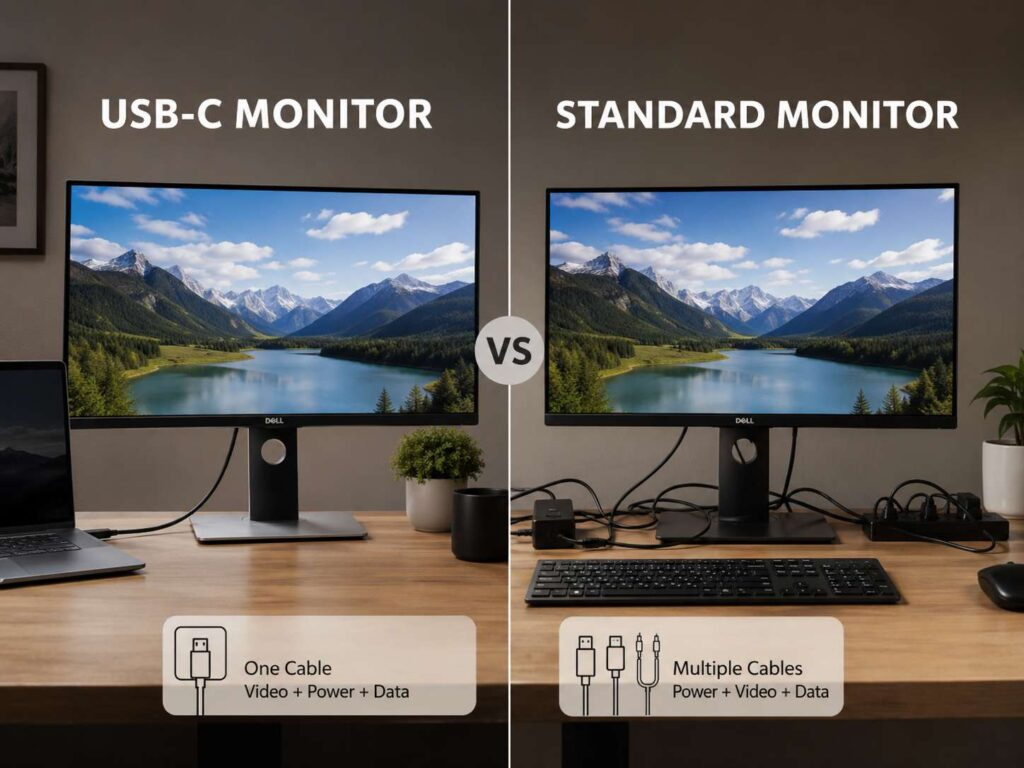
USB-C monitor vs standard monitor sounds like a port choice, but it affects your whole desk setup. A USB-C monitor can send video, power, and data through one cable. A standard monitor usually sends only video through HDMI or DisplayPort.
That one difference can change how your desk feels every day.
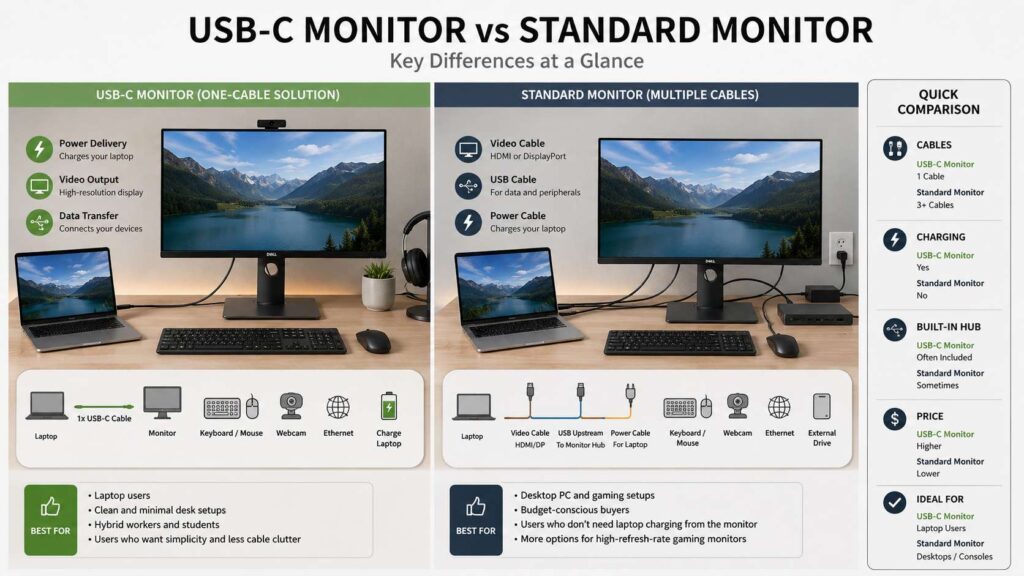
A USB-C monitor works best for laptops. You plug one cable into your laptop, then the monitor can show the image, charge the laptop, and connect your keyboard, mouse, webcam, or external drive. So, it can replace a basic docking station in many home office setups.
A standard monitor still makes sense for many people. It often costs less, works well with desktop PCs, and gives gamers more choices. Plus, HDMI and DisplayPort feel simpler. You plug in the cable, pick the input, and the screen works.
The better choice depends on your computer, your desk, and how often you unplug your laptop. Still, most laptop users will find USB-C more convenient. Desktop users will often get better value from a standard monitor.
What Is a USB-C Monitor?
A USB-C monitor has a USB-C input that can receive a video signal from a laptop, tablet, mini PC, or supported phone. Many models do more than show an image. They can charge your laptop, connect USB accessories, and act like a small desk hub.
That makes them popular with MacBook users, Windows ultrabook users, students, and remote workers.
For example, you can leave your keyboard, mouse, webcam, and Ethernet adapter plugged into the monitor. Then, each time you sit down, you connect one USB-C cable to your laptop. The monitor wakes up, your laptop charges, and your accessories work.
Still, the USB-C port must support video. Not every USB-C port does. Some USB-C ports only charge. Some only transfer data. So, before you buy a USB-C monitor, check your laptop specs for terms like DisplayPort Alt Mode, Thunderbolt, or USB4.
Power matters too. Some USB-C monitors offer 15W or 30W charging. That works for phones, tablets, or light devices. Many work laptops need 65W. Larger laptops may need 90W or 100W. Gaming laptops often need their original charger for full power.
What Is a Standard Monitor?
A standard monitor usually uses HDMI, DisplayPort, or both. Some older models use VGA or DVI, but most new monitors rely on HDMI and DisplayPort.
A standard monitor focuses on display output. It shows the picture from your laptop, desktop PC, console, or media box. It usually does not charge your laptop. It may include USB ports, but you often need a separate USB upstream cable for those ports to work.
That means more cables. You may need:
- One HDMI or DisplayPort cable for video
- One laptop charger
- One USB cable for the monitor hub
- Extra cables for speakers, webcam, Ethernet, or storage
For a desktop PC, this setup works fine. The computer stays on the desk or under it, so you do not unplug cables each day. For a laptop, it can feel messy fast.
USB-C Monitor vs Standard Monitor: The Main Difference
The main difference is simple: a USB-C monitor can reduce cables. A standard monitor usually cannot.
A USB-C monitor can handle video, charging, and USB devices through one cable. That makes it easier to dock and undock a laptop. It also keeps the desk cleaner.
A standard monitor keeps things separate. Video goes through HDMI or DisplayPort. Power comes from the laptop charger. USB accessories connect through the laptop, a dock, or a separate hub.
So, a USB-C monitor is more than a screen in many setups. It can work like a display and a light docking station. A standard monitor is usually just the display.
This matters most for people who use the same laptop at home, work, and on the go. If you unplug your laptop often, one cable saves time. If your computer stays in one place, the benefit feels smaller.
Display Quality Still Matters Most
Do not buy a monitor only for the USB-C port. The panel still matters more.
A great standard monitor can look better than a weak USB-C monitor. The opposite is true too. A high-quality USB-C monitor can give you sharp text, good color, strong brightness, and clean cable management.
Pay attention to these specs:
- Resolution: 1080p, 1440p, 4K, or ultrawide
- Screen size: 24, 27, 32, or 34 inches
- Refresh rate: 60Hz, 75Hz, 120Hz, 144Hz, or higher
- Panel type: IPS, VA, OLED, or Mini-LED
- Brightness: listed in nits
- Color coverage: sRGB, DCI-P3, or Adobe RGB
- Stand adjustment: height, tilt, swivel, and pivot
For office work, a 27-inch 1440p monitor is a strong middle ground. Text looks sharper than 1080p, and the price stays reasonable. For sharper text and more workspace, a 27-inch 4K screen feels better. You can compare screen sizes and pixel density in this guide to the best monitor resolution for your desk.
For gaming, refresh rate matters more. A 144Hz or 165Hz monitor feels smoother than a 60Hz screen. For photo and video work, color accuracy matters more than speed.
Check DisplayPort Alt Mode Before Buying
This detail is easy to miss. USB-C is only the port shape. It does not promise video output by itself.
Your laptop must support video over USB-C. Look for these terms in the laptop specs:
- DisplayPort Alt Mode
- DP Alt Mode
- USB-C with display output
- USB4
- Thunderbolt 3
- Thunderbolt 4
- Thunderbolt 5
If your laptop has one of those, it should work with a USB-C monitor. If it only lists USB-C charging or USB-C data transfer, the monitor may not receive a video signal.
The cable matters too. A cheap USB-C charging cable may not carry video. Some cables support power but not display. Others support display but limit refresh rate or data speed.
Start with the cable included in the monitor box. Then, if you need a longer cable, buy one that clearly lists video support, power rating, and data speed.
Power Delivery Makes a Big Difference
Power Delivery, often called PD, shows how much power the monitor can send to your laptop. This number can make or break the setup.
Here is a practical guide:
- 15W to 30W: good for phones, tablets, and small devices
- 45W: works for light laptops
- 60W to 65W: good for many office laptops
- 90W to 100W: better for larger laptops and creator laptops
- Over 100W: useful for high-power laptops, but still less common on monitors
Check your laptop charger. If the charger says 65W, buy a USB-C monitor with 65W or more. If it says 96W or 100W, choose a monitor near that range. If your laptop uses a 180W or 240W charger, the monitor may charge it during light work, but not during heavy use.
So, a USB-C monitor with 65W charging suits many office users. A monitor with only 15W charging may disappoint laptop owners.
This same rule applies to portable power gear. A charger or battery must match your device’s power needs. For a broader look at wattage, charging speed, and USB-C PD labels, read this fast charging power bank buying guide for 2026.
USB-C Monitor Benefits
A USB-C monitor works well for people who want a clean, simple desk.
The biggest benefits include:
- One cable for video, charging, and data
- Less desk clutter
- Fast laptop docking
- Built-in USB hub on many models
- Better setup for hybrid work
- Fewer adapters for MacBooks and thin laptops
- Easier use with keyboard, mouse, webcam, and Ethernet
- Cleaner cable routing behind the screen
For remote workers, this can make the desk feel calmer. You sit down, plug in one cable, and start work. Then, at the end of the day, you unplug one cable and take the laptop with you.
For students, a USB-C monitor can turn a laptop into a more comfortable study station. A bigger screen helps with research, writing, notes, and video calls.
For MacBook users, USB-C often feels natural. Many MacBooks rely on USB-C or Thunderbolt ports, so a USB-C monitor can reduce dongles.
USB-C Monitor Drawbacks
USB-C monitors cost more than similar standard monitors in many cases. You pay for the USB-C controller, charging support, hub features, and extra hardware.
They can also confuse buyers. A USB-C port on a laptop does not always send video. A USB-C port on a monitor does not always charge at useful power levels. A USB-C cable does not always support full display output.
Bandwidth can create limits too. Some monitors share USB-C bandwidth between display output and USB data. For normal office work, this rarely matters. For fast external SSDs, capture cards, or high-end webcams, it can matter more.
There is another point: gaming options can be weaker. Many of the best gaming monitors still focus on HDMI 2.1 and DisplayPort. USB-C gaming monitors exist, but you often pay more.
Standard Monitor Benefits
A standard monitor gives strong value. It often costs less than a USB-C model with similar screen specs. That makes it a smart choice for budget buyers.
It also works with more devices. HDMI connects to laptops, desktop PCs, game consoles, streaming boxes, and many cameras. DisplayPort works well with gaming PCs and workstations.
The main benefits include:
- Lower cost
- Simple video setup
- Strong gaming support
- Better console support
- More models at every price
- More high-refresh options
- Easy use with desktop PCs
For a desktop PC, a standard monitor often makes the most sense. The PC already has its own power cable and plenty of ports. You do not need the monitor to charge anything.
For console gaming, HDMI matters more than USB-C. PlayStation 5, Xbox Series X, and streaming devices use HDMI, so a standard monitor fits better.
Standard Monitor Drawbacks
The biggest drawback is cable clutter. You need separate cables for video, charging, and accessories. That can make a laptop desk feel messy.
A standard monitor also does less for people who dock a laptop each day. You may need a separate USB-C hub or docking station. That adds cost, and it adds another device to your desk.
So, the cheaper monitor is not always cheaper in the final setup. If you buy a standard monitor, a dock, extra cables, and a charger, the total price can pass the cost of a good USB-C monitor.
Still, this depends on your desk. If your laptop stays plugged in most of the time, extra cables may not bother you. If you move the laptop often, the one-cable setup feels much better.
USB-C vs HDMI Monitor
USB-C vs HDMI monitor choices depend on your device.
HDMI is great for simple video. It works with consoles, TVs, laptops, desktops, and many media devices. It is easy to understand and widely supported.
USB-C is better for laptop docking. It can send video, charge the laptop, and connect USB devices through one cable.
Pick HDMI if you use a console, streaming box, or desktop PC. Pick USB-C if you use a laptop and want a cleaner desk.
For many people, the best monitor has both. USB-C handles the laptop. HDMI handles a console or second device.
USB-C vs DisplayPort Monitor
DisplayPort remains a strong choice for desktop PCs, gaming systems, and high-refresh monitors. Many graphics cards use DisplayPort for high resolutions and high refresh rates.
USB-C often carries DisplayPort signals inside the USB-C cable through DisplayPort Alt Mode. So, many USB-C monitors use DisplayPort technology under the hood.
The difference comes from the extra features. DisplayPort sends video. USB-C can send video, power, and data.
For a gaming desktop, native DisplayPort often works best. For a laptop desk, USB-C feels cleaner.
Thunderbolt and USB4 Monitors
Thunderbolt and USB4 monitors use the USB-C connector, but they sit above basic USB-C monitors in capability.
Thunderbolt monitors can support fast data, display output, charging, and daisy chaining on compatible laptops. They suit creators, developers, engineers, and users with fast external drives or multiple displays.
USB4 can also support fast data and display features, but the exact support depends on the device. So, check the specs before buying.
Most office users do not need Thunderbolt. A good USB-C monitor with 65W or 90W charging works well. Still, Thunderbolt makes sense if you run a high-end laptop and want a more powerful dock-like monitor.
Best Choice for Work
For work, a USB-C monitor is often the better buy. It gives you a cleaner desk and faster setup.
Look for these specs:
- 27-inch screen size
- 1440p or 4K resolution
- 65W or higher Power Delivery
- USB hub
- Height-adjustable stand
- HDMI or DisplayPort backup input
- Good text clarity
- Flicker-free backlight
A 27-inch 1440p USB-C monitor suits spreadsheets, email, web research, writing, coding, and video calls. A 27-inch 4K model gives sharper text and more detail, but it costs more.
For dual-monitor setups, check whether the USB-C monitor supports daisy chaining. Some models can connect a second screen through DisplayPort out. Others cannot.
Best Choice for Gaming
For gaming, a standard monitor often wins. It gives more refresh-rate options, better console support, and lower prices.
Look for:
- 144Hz or higher refresh rate
- Low response time
- HDMI 2.1 for consoles
- DisplayPort for PC gaming
- Adaptive sync support
- Good motion handling
- Low input lag
USB-C gaming monitors can work well with gaming laptops. Still, many gaming laptops need their original charger for full power. So, USB-C charging may not replace the power brick during intense play.
If you use a desktop gaming PC, buy based on panel quality, refresh rate, and input support. USB-C should be a bonus, not the main reason to buy.
Best Choice for MacBook Users
MacBook users often benefit from USB-C or Thunderbolt monitors. Many MacBooks rely on USB-C shaped ports, so a USB-C monitor reduces adapters.
For the best experience, check these details:
- Charging wattage
- 4K or higher resolution
- Good text scaling
- Strong brightness
- Wide color coverage
- Built-in USB hub
- Thunderbolt support, if needed
A 4K USB-C monitor often feels better than a 1440p monitor for text on macOS. A 5K monitor looks even sharper, but it costs much more.
If you connect external drives, audio gear, or a webcam, a monitor with a good hub can simplify your desk.
Best Choice for Desktop PC Users
Desktop PC users usually get better value from a standard monitor. A desktop already has power, USB ports, Ethernet, and a graphics card. The monitor does not need to act like a dock.
Spend the money on the screen itself. Get better resolution, higher refresh rate, better color, stronger brightness, or a better stand.
USB-C can still help if your desktop has a USB-C video output or you connect a work laptop to the same screen. Some monitors include USB-C plus HDMI and DisplayPort. That gives you more flexibility.
For a fixed desktop setup, though, HDMI and DisplayPort remain simple and reliable.
Buying Checklist
Before buying a USB-C monitor, check:
- Does your laptop support DisplayPort Alt Mode, USB4, or Thunderbolt?
- Does the monitor provide enough Power Delivery for your laptop?
- Does the included cable support video, power, and data?
- Does the monitor support your target resolution over USB-C?
- Does it support your target refresh rate over USB-C?
- Does it include enough USB ports?
- Does it have HDMI or DisplayPort as backup?
- Does the stand adjust to your eye level?
Before buying a standard monitor, check:
- Does your device support the monitor’s HDMI or DisplayPort version?
- Does the monitor run at full resolution and refresh rate with your device?
- Do you need a separate dock for your laptop?
- Do you need USB ports on the monitor?
- Does the screen size fit your desk?
- Does the resolution match your work style?
- Does the monitor include height adjustment?
Common Mistakes to Avoid
Do not assume every USB-C port supports video. Check the laptop specs first.
Do not assume every USB-C monitor charges a laptop well. Check the wattage.
Do not use a random USB-C cable from a phone charger. Use the monitor cable or buy a cable rated for video and power.
Do not buy a USB-C monitor with a poor panel just for one-cable docking. Image quality still matters.
Do not buy a standard monitor for a laptop desk without adding the cost of a dock, charger, and extra cables.
Do not choose 1080p on a large 32-inch screen for office work. Text can look soft. Pick 1440p or 4K for sharper results.
Final Verdict: Which One Should You Buy?
Buy a USB-C monitor if you use a laptop every day and want a clean desk. It works best for remote work, office work, MacBooks, ultrabooks, students, and shared desks. The one-cable setup saves time and removes clutter.
Buy a standard monitor if you use a desktop PC, game console, or fixed setup. It usually costs less and gives you more choices for gaming, HDMI, DisplayPort, and high refresh rates.
For most laptop users in 2026, a USB-C monitor is the smarter long-term buy. For most desktop and console users, a standard monitor still gives better value.
The best monitor is the one that fits your real setup. If one cable makes your day easier, USB-C is worth paying for. If you only need a strong screen at a fair price, a standard monitor still does the job well.