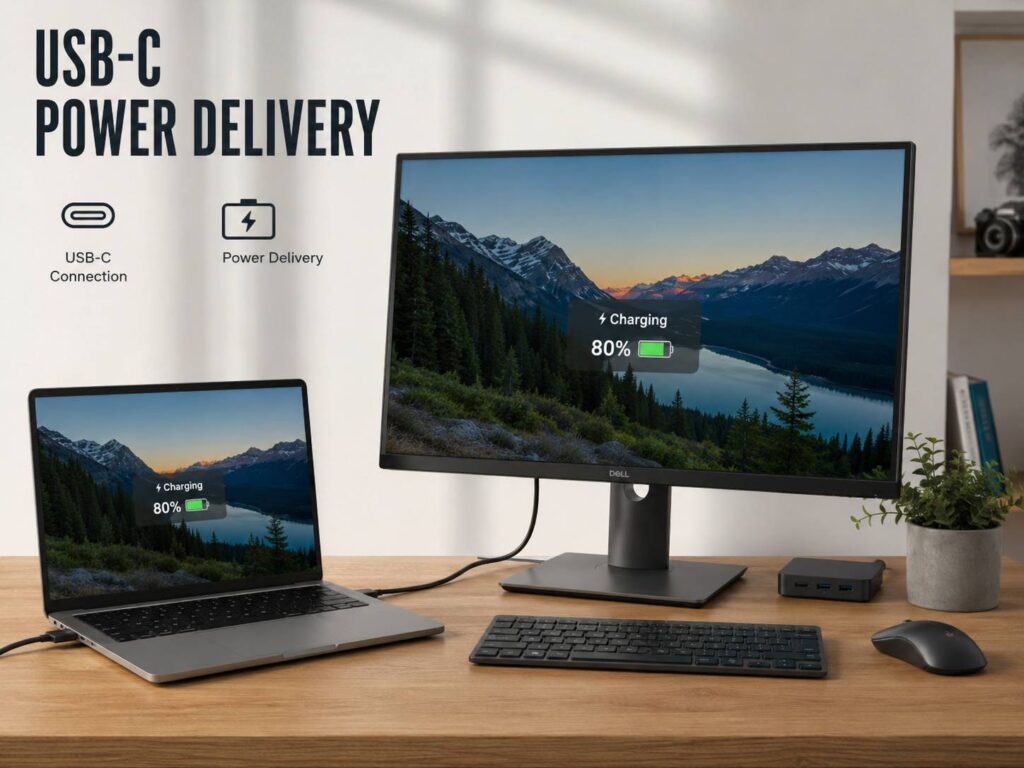
What USB-C Power Delivery Means on a Monitor
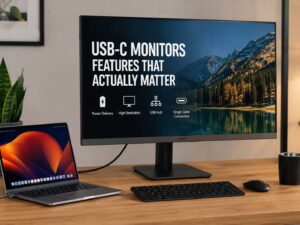
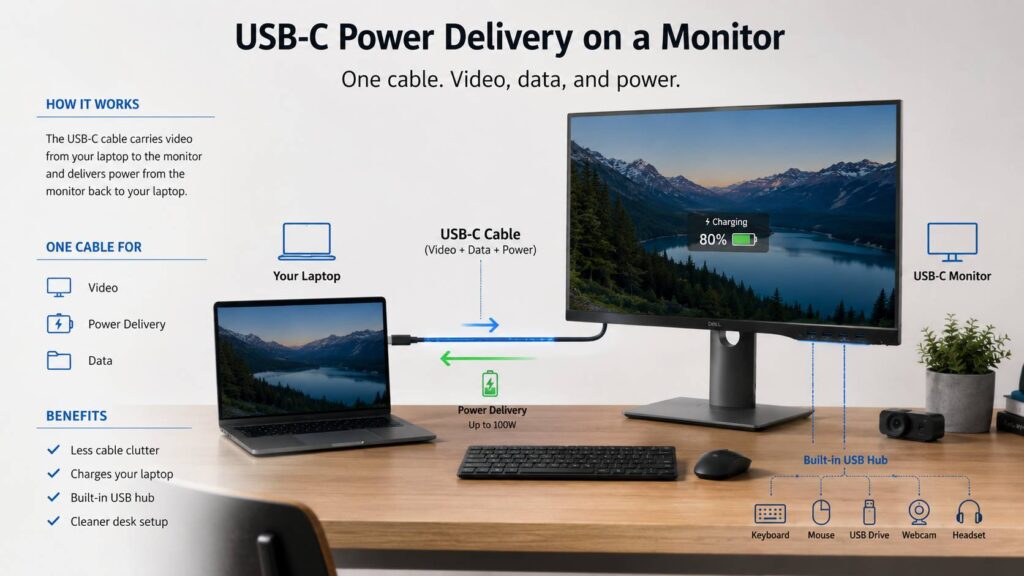
USB-C Power Delivery on a monitor means the monitor can send charging power to your laptop, tablet, phone, or another supported device through a USB-C cable. At the same time, that cable can often carry video, audio, and data.
That is the main reason this feature has become so popular. It helps reduce cable clutter, and it makes a laptop desk setup much easier to use. Instead of connecting a charger, HDMI cable, USB hub, and several accessories, you can often plug in one USB-C cable and start working.
A USB-C monitor with Power Delivery is most useful for laptop users. You connect the laptop to the monitor, and the laptop sends the image to the screen. Then the monitor sends power back to the laptop. In many setups, your keyboard, mouse, webcam, headset, or external drive can stay connected to the monitor as well.
So, the monitor starts to feel like a simple docking station. Still, not every USB-C monitor works the same way. The charging wattage, video support, USB speed, and built-in ports all matter.
Why USB-C Power Delivery Matters
USB-C Power Delivery matters because many modern laptops now have fewer ports. Some slim laptops only give you USB-C, Thunderbolt, or USB4 connections. That makes a monitor with USB-C charging much more useful than a basic display.
The biggest benefit is convenience. You can sit at your desk, connect one cable, and use a larger screen while the laptop charges. Then, when you need to leave, you unplug one cable and take the laptop with you.
This feature helps with:
- Cleaner cable management
- Faster laptop docking
- Fewer chargers on the desk
- Better work-from-home setups
- Easier switching between desk and travel use
- Less need for a separate USB-C hub
For daily office work, USB-C Power Delivery is one of the most practical monitor features. It does not make the image sharper by itself. Still, it can make the full setup feel much better.
If you are planning a new display setup, this USB-C monitor buying guide can help you understand what to check before buying.
USB-C Is Not the Same as USB-C Power Delivery
This is the catch. A monitor can have a USB-C port and still offer weak charging, no laptop charging, or no video input through that port.
USB-C is only the connector shape. Power Delivery is the charging feature. DisplayPort Alt Mode is the feature that usually lets a USB-C port carry video from your laptop to the monitor.
So, do not buy a monitor just because the product page says USB-C. Check what that port can actually do.
Look for clear details such as:
- USB-C Power Delivery 65W
- USB-C Power Delivery 90W
- USB-C Power Delivery 96W
- USB-C Power Delivery 100W
- USB-C with DisplayPort Alt Mode
- USB-C upstream port
- Built-in USB hub
- KVM switch support
- Daisy chain support
A USB-C port rated at 15W can charge a phone or small accessory. It is not enough for most laptops. For laptop charging, a monitor with 65W or more makes much more sense.
How Much USB-C Power Delivery Do You Need?
The right wattage depends on your laptop. Many thin laptops work well with 45W to 65W. Larger work laptops often need 90W or 100W for a better experience. High-performance laptops and gaming laptops may still need their original power brick.
Here is a simple guide:
- 15W: good for phones, earbuds, and small accessories
- 30W: good for tablets and some very light laptops
- 45W: usable for smaller laptops
- 60W to 65W: good for many everyday laptops
- 90W to 100W: better for larger work laptops
- 140W or higher: useful for some powerful laptops, but less common on monitors
For most people, 65W is the lowest rating worth considering. It works well for many laptops used for browsing, writing, spreadsheets, email, video calls, and light creative work.
For a MacBook Pro, Dell XPS, Lenovo ThinkPad, HP EliteBook, or similar work laptop, I would look for 90W or more. That extra headroom helps during long video calls, large file transfers, editing work, and heavy multitasking.
A lower-wattage monitor can still work. Still, the laptop may charge slowly. During heavy use, the battery may even drop while plugged in.
What Happens If the Monitor Gives Less Power Than the Laptop Needs?
The laptop and monitor talk to each other before power delivery starts. The laptop will not normally pull more power than the monitor can provide. That makes USB-C Power Delivery safer and smarter than older charging methods.
Still, low wattage can create small problems.
You may see a warning that says the charger is slow. The laptop may charge only during light use. Battery percentage may stay flat for a long time. During gaming, editing, or heavy multitasking, the battery can slowly drain.
This does not mean the monitor is faulty. It usually means the Power Delivery rating is too low for that laptop and workload.
For example, a laptop that ships with a 100W charger may run from a 65W monitor. Yet, it may not charge well under heavy load. A laptop that ships with a 140W or 180W charger will usually need its original charger for full performance.
USB-C Power Delivery and Video Over One Cable
The best USB-C monitors do more than charge. They also accept video through the same USB-C cable.
For this to work, your laptop must support video output over USB-C. This is often called DisplayPort Alt Mode. Some laptops support it through USB-C, Thunderbolt, or USB4 ports.
Once everything matches, the setup feels very clean. One cable sends the image to the monitor. The same cable charges the laptop. It can pass data to your USB accessories too.
The cable matters a lot here. Some USB-C cables are charge-only. Some handle data but not video. Others support video but not high charging power. A cheap cable can turn a good monitor into a frustrating setup.
For best results, use the USB-C cable included with the monitor. If you buy a replacement, choose a full-featured USB-C cable that supports video, data, and the wattage you need.
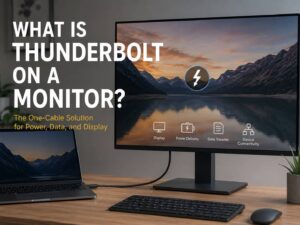
USB-C Power Delivery vs Thunderbolt Monitor
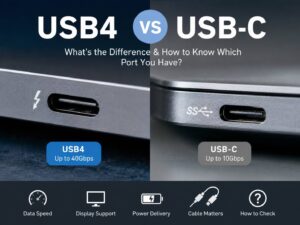
USB-C and Thunderbolt use the same connector shape, but they are not the same thing.
A regular USB-C monitor can support charging, video, and data. A Thunderbolt monitor usually gives more bandwidth, faster data transfer, stronger docking features, and better support for demanding multi-display setups.
For most home office users, a normal USB-C Power Delivery monitor is enough. It can charge the laptop, run one external screen, and connect basic accessories without much fuss.
For video editors, developers, photographers, and people with fast external drives, Thunderbolt can be worth the extra cost. It makes more sense when you use several devices that need high bandwidth.
My honest opinion is simple: do not overpay for Thunderbolt if you only need one monitor, a keyboard, a mouse, and laptop charging. A good USB-C monitor with 90W Power Delivery can feel just as clean for everyday work.
USB-C Power Delivery vs a Standard Monitor
A standard monitor usually needs a separate video cable and does not charge your laptop. That means you still need your laptop charger on the desk. You may also need a separate USB hub for accessories.
A USB-C Power Delivery monitor can replace some of that extra gear. It can act as a display, charger, and basic hub at the same time.
That said, a standard monitor can still be a better choice for some users. Desktop PC users often do not need USB-C charging. Gamers may prefer DisplayPort or HDMI for high refresh rates. Budget buyers may get better panel quality for less money by skipping USB-C charging.
For laptop users, though, USB-C Power Delivery is a real upgrade. The setup feels simpler, and the desk looks cleaner. This comparison of a USB-C monitor vs standard monitor explains the difference in more detail.
USB-C Power Delivery vs a Docking Station
A USB-C monitor can replace a simple dock in many setups. It will not always replace a proper docking station, though.
A USB-C monitor is usually enough if you connect:
- One laptop
- One external display
- A keyboard
- A mouse
- A webcam
- A headset or small USB accessory
A docking station is better if you need:
- Multiple external monitors
- Many USB devices
- Fast external SSDs
- Stable Ethernet
- Higher refresh rate output
- More charging power
- Card readers or audio gear
A USB-C monitor keeps things cleaner. A docking station gives you more room to expand. For a simple desk, the monitor is often the better choice. For a heavier work setup, a dock still makes sense.
Common Problems With USB-C Monitor Charging
USB-C monitor charging is useful, but it is not perfect. Most issues come from weak wattage, the wrong cable, or unclear port support.
The laptop does not charge
Start with the monitor’s Power Delivery rating. Some monitors have USB-C for video only. Others offer only 15W or 20W output. That is not enough for most laptops.
Next, check the laptop port. Some USB-C ports support charging, video, and data. Others only support data.
The monitor shows no signal
The laptop may not support video through USB-C. The cable may not support video either. You may also be using the wrong USB-C port on the monitor.
Many monitors have one USB-C upstream port for the laptop and another USB-C port for accessories. Use the upstream port for video and charging.
The laptop charges slowly
The monitor wattage may be too low. A 45W monitor can work with a small laptop, but it can struggle with a larger one. A poor cable can cause the same problem.
USB devices disconnect
This can happen with weak cables, sleep mode issues, limited USB bandwidth, or a basic monitor hub. Webcams and external drives are more likely to show this problem than a simple mouse or keyboard.
High refresh rate does not work
Some monitors limit refresh rate over USB-C. Resolution, refresh rate, DisplayPort version, and USB mode all affect bandwidth. A 4K 144Hz monitor needs much more bandwidth than a 1080p office monitor.
What to Check Before Buying a USB-C Power Delivery Monitor
A good USB-C monitor should clearly list its charging wattage. If the product page hides that number, be careful.
Check these details before buying:
- USB-C Power Delivery wattage
- DisplayPort Alt Mode support
- Maximum resolution over USB-C
- Maximum refresh rate over USB-C
- USB hub speed
- Number of USB-A and USB-C ports
- Ethernet port, if needed
- KVM switch support
- Daisy chain support
- Included USB-C cable
- Mac and Windows compatibility notes
For most people, a strong all-round monitor has at least 65W Power Delivery, USB-C video input, several USB ports, and a stand with height adjustment.
For a better long-term setup, I would choose 90W Power Delivery or more. A good stand, clear USB-C support, and reliable charging matter more than flashy marketing claims.
Is 65W USB-C Power Delivery Enough?
For many laptops, yes. A 65W USB-C monitor is enough for daily office work, web browsing, spreadsheets, writing, email, streaming, and video calls.
For larger laptops, 65W can feel limited. If your laptop came with a 90W, 100W, 140W, or larger charger, a 65W monitor may charge slowly.
You can still use it in many cases. Still, expect slower charging during heavier tasks. The battery may stay at the same level for hours, or it may drop under load.
That is why 90W is the safer choice for serious work setups. It gives more room for heavier tasks and reduces slow-charger warnings.
Is USB-C Power Delivery Safe for Your Laptop?
Yes, USB-C Power Delivery is designed to negotiate power between devices. The monitor and laptop agree on the voltage and current before higher power starts flowing.
That means a 90W USB-C monitor will not force 90W into a laptop that only needs 45W. The laptop draws what it can accept.
The bigger risk is not too much power. The more common issue is too little power, a poor cable, or a monitor that does not support laptop charging at all.
For best results, use a proper cable from a known brand. Keep the cable reasonably short. Avoid mystery cables with big wattage claims and unclear specs.
Who Should Buy a USB-C Power Delivery Monitor?
A USB-C Power Delivery monitor makes the most sense for laptop-first setups.
It is a good fit for:
- Remote workers
- Students
- MacBook users
- Business laptop users
- People with small desks
- Anyone who wants fewer cables
- Users who move their laptop often
- People who want a monitor and basic dock in one device
It is less useful for desktop PCs. Most desktop graphics cards use HDMI or DisplayPort, and they do not need charging from a monitor. Gaming laptops may also need their own large power adapter for full performance.
If your laptop is your main computer, USB-C Power Delivery can make your desk feel much easier to use every day.
Is USB-C Power Delivery on a Monitor Worth It?
Yes, USB-C Power Delivery is worth it for most laptop users. It sounds like a small feature at first, but it changes how the desk feels in daily use.
The biggest win is the one-cable setup. Your laptop connects to the monitor and charges at the same time. Your desk accessories can stay plugged into the monitor. Your desk looks cleaner, and setup takes less time.
Still, do not buy the cheapest USB-C monitor just for the port. A 15W or 20W USB-C port will not give you the laptop charging experience you might expect.
My practical advice is simple. Choose at least 65W for light laptops. Choose 90W or more for work laptops. Check video support over USB-C. Check the cable. Check the hub features.
Those details decide whether the setup feels smooth or turns into a mess of warnings, slow charging, and missing display signals.
Final Verdict
USB-C Power Delivery on a monitor lets the monitor charge your laptop through USB-C. In many cases, the same cable also carries video, audio, and data. That makes it one of the most useful monitor features for modern laptop users.
A good USB-C Power Delivery monitor can clean up your desk, reduce the need for a separate charger, and make laptop docking much easier. For the best experience, look for at least 65W charging, USB-C video support, and a proper full-featured cable.
If you use your laptop at a desk every day, this feature is worth paying for. Just check the wattage before you buy.