What Is a KVM Monitor?
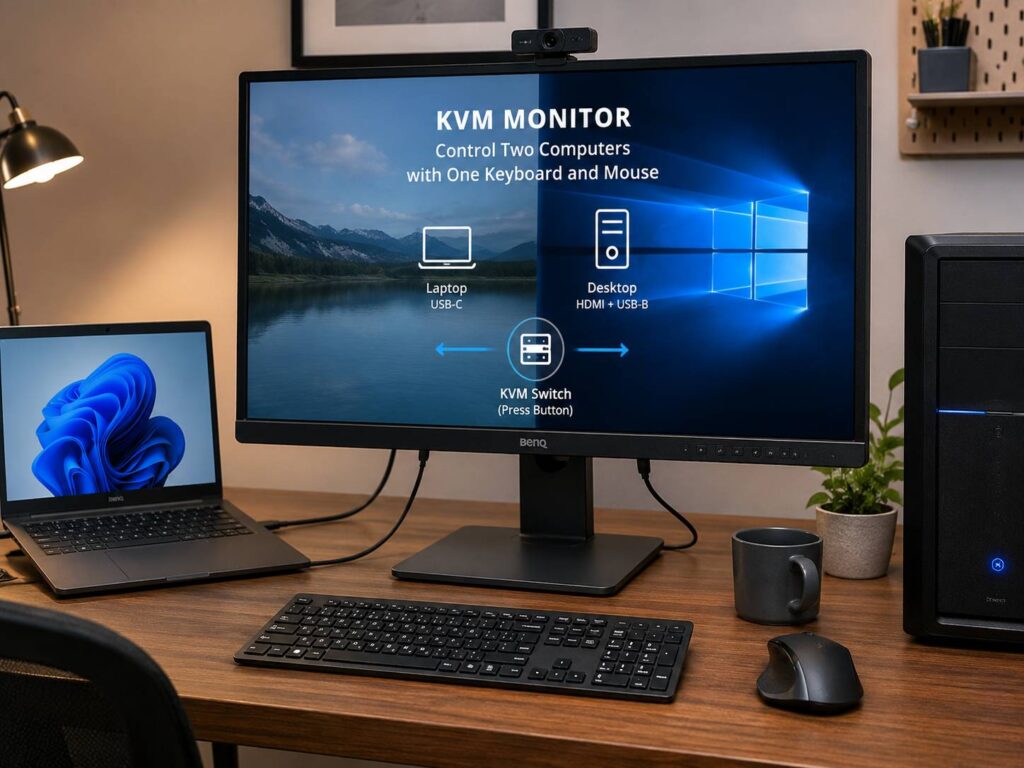
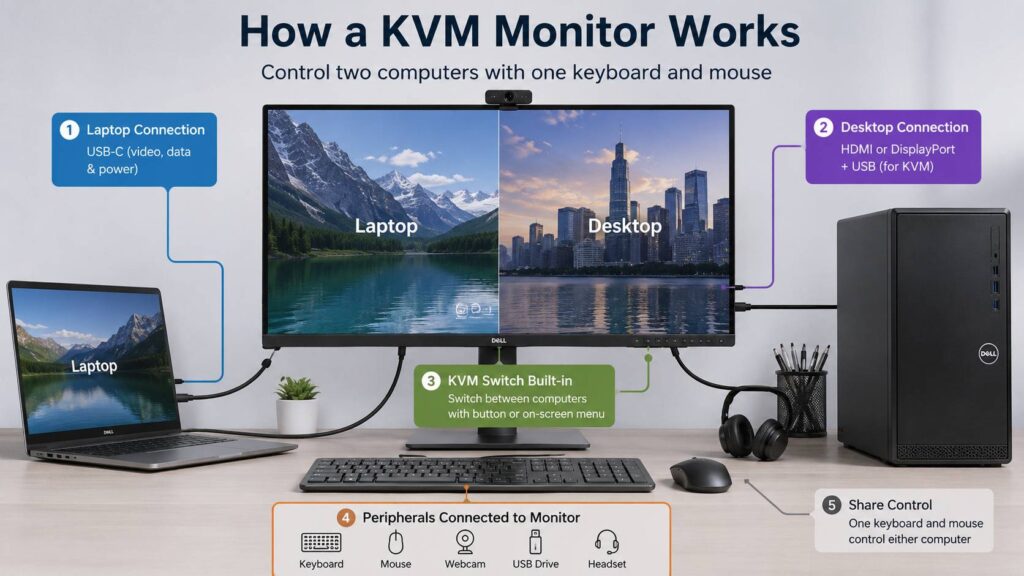
A KVM monitor is a monitor with a built-in KVM switch. KVM stands for keyboard, video, and mouse. That means one monitor can help you control two computers with the same keyboard and mouse.
For example, you can connect a work laptop and a personal desktop to one screen. Then, instead of moving cables around or keeping two keyboards on your desk, you switch from one computer to the other through the monitor.
It sounds like a small feature at first. Still, once you use it every day, it feels like a proper desk upgrade. Your setup looks cleaner, your cables make more sense, and switching between computers feels much less annoying.
A normal monitor only shows the picture from your computer. A KVM monitor does more. It can pass your keyboard, mouse, webcam, headset, USB drive, and other USB accessories to the computer you are using at that moment.
That is the real value. It does not just save space. It saves little bits of time all day.
How Does a KVM Monitor Work?
A KVM monitor works by handling both the video signal and the USB control signal.
The video cable sends the image to the screen. The USB connection sends your keyboard and mouse input back to the computer. Once both computers are connected the right way, the monitor can switch control between them.
A common setup looks like this:
- A laptop connects through USB-C
- A desktop connects through HDMI or DisplayPort
- The desktop connects to the monitor with a USB upstream cable
- The keyboard and mouse plug into the monitor
- The monitor sends keyboard and mouse control to the selected computer
The USB upstream cable matters a lot. This part is easy to miss. Connect only HDMI or DisplayPort, and the keyboard will not switch. Video alone is not enough. The second computer needs a USB connection too.
With many newer monitors, USB-C makes things cleaner. One USB-C cable can send video, data, and charging power. That makes a KVM monitor a good match for a laptop. It turns the monitor into a screen, USB hub, and basic docking station.
Why a KVM Monitor Makes Sense for Modern Desks
You may not use only one computer. A work laptop handles meetings, documents, and emails. A personal PC handles games, browsing, editing, or side projects. Some people use a MacBook and a Windows desktop on the same desk.
Without KVM, that setup gets messy fast.
You may end up with two keyboards, two mice, extra docks, more cables, and a desk that always feels halfway organized. A KVM monitor cuts down that clutter.
It is especially useful if you work from home. During the day, you can use your company laptop. After work, you can switch to your own PC without rebuilding your desk. The monitor stays the same. The keyboard stays the same. The mouse stays the same.
I think this is one of those features that looks boring on a spec sheet but feels great in real life. It will not make your screen sharper or brighter. It will not make your computer faster. But it can make your desk feel calmer, and that matters more than people expect.
KVM Monitor vs Regular Monitor
A regular monitor shows the image from one or more devices, but it does not manage your keyboard and mouse. You can switch video inputs, but your USB devices stay connected to one computer.
A KVM monitor can switch both the display and the USB devices.
That difference is easy to miss during shopping. Many monitors have multiple inputs. That alone does not mean they have KVM. For true KVM support, the monitor must let you share keyboard and mouse control between connected computers.
Here is the simple version:
- A regular monitor switches video only
- A KVM monitor switches video and USB control
- A USB-C monitor may charge a laptop, but it does not always include KVM
- A docking monitor may include USB ports and Ethernet, but it still needs KVM support to switch between computers properly
So, if you want to use one keyboard and mouse with two systems, look for the KVM feature clearly listed in the monitor specs.
KVM Monitor vs External KVM Switch
A KVM monitor has the switch built into the display. An external KVM switch is a separate box that sits on the desk.
Both can work well, but they suit different people.
A built-in KVM monitor is cleaner. You plug your computers and accessories into the monitor, then use the monitor as the control center. This is great for home offices, shared desks, and laptop plus desktop setups.
An external KVM switch gives you more control. Some models support more computers, special USB devices, high refresh rates, or advanced display setups. That can matter for IT teams, streamers, or users with a more complex workstation.
For most people buying a new monitor, built-in KVM feels easier. For people who already own a good monitor, an external KVM switch may be cheaper than replacing the display.
Who Should Buy a KVM Monitor?
A KVM monitor is worth considering if you use two computers on the same desk.
It is a strong fit for:
- Remote workers with a company laptop and personal computer
- People who use both Mac and Windows
- Developers who test across systems
- Designers and editors who use more than one machine
- Students with a laptop and desktop PC
- Small offices with shared workstations
- Users who want fewer cables on the desk
- Anyone tired of unplugging USB devices all the time
A KVM monitor is less useful if you only use one computer. In that case, a normal USB-C monitor or a simple docking setup may be enough.
Still, if you switch devices daily, KVM can save a surprising amount of frustration.
What Ports Should a Good KVM Monitor Have?
Ports are one of the most important things to check before buying a KVM monitor. A model can claim to have KVM, yet still feel awkward if the ports are limited.
Look for these connections:
- USB-C with video support
- USB-C charging for laptops
- HDMI for consoles or desktops
- DisplayPort for desktop PCs
- USB upstream port for the second computer
- USB-A ports for keyboard, mouse, and accessories
- USB-C downstream port for newer accessories
- Ethernet if you want wired internet through the monitor
- Audio output if you use speakers or headphones
USB-C charging is especially useful. A monitor with 65W, 90W, or higher power delivery can charge many laptops through one cable. Still, check your laptop’s charger rating before buying. Some gaming laptops and workstation laptops need more power than a monitor can deliver.
The USB upstream port is another key detail. If your desktop uses HDMI or DisplayPort, it still needs USB upstream for keyboard and mouse control.
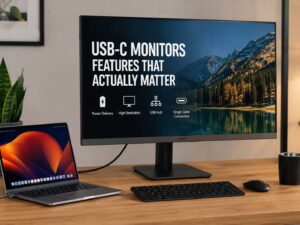
If you are shopping for a USB-C display and want a better idea of what to check before buying, this USB-C monitor buying guide is a useful next read.
Picture-by-Picture and Picture-in-Picture
Some KVM monitors include Picture-by-Picture, often called PbP. This feature shows two computers on the same screen at the same time.
For example, your work laptop can appear on the left side of the monitor, and your personal desktop can appear on the right side. That works best on large screens, especially ultrawide monitors.
Picture-in-Picture, often called PiP, places one computer in a smaller window over the main screen.
These features are not must-haves for everyone. Still, they can be useful if you monitor one computer while working on another. For example, you can keep a chat app or dashboard visible on one side and work on your main system on the other.
On a 24-inch screen, PbP can feel cramped. On a 34-inch ultrawide or 49-inch super ultrawide, it makes far more sense.
Common Problems With KVM Monitors
KVM monitors are useful, but they are not perfect.
The first common issue is confusion during setup. If you connect only the display cable, the keyboard and mouse will not switch. The monitor needs a USB path back to each computer.
The second issue is USB-C compatibility. Not every USB-C port supports video. Some USB-C ports only handle charging or data. For a clean one-cable laptop setup, your laptop must support video over USB-C.
The third issue is sleep and wake behavior. Some setups take a few seconds to reconnect after the laptop wakes up. The keyboard, mouse, webcam, or headset may lag for a moment. That can come from the monitor, cable, operating system, laptop port, or USB accessory.
The fourth issue is refresh rate. Some office KVM monitors are built for productivity, not gaming. They may support 4K at 60Hz but not 144Hz or higher. If you want a gaming setup, check the refresh rate, HDMI version, DisplayPort version, and USB behavior before buying.
The fifth issue is cable quality. Cheap USB-C cables can cause flicker, random disconnects, slow charging, or no display signal. Use the cable that comes with the monitor if possible. If you buy a separate cable, make sure it supports video, data, and the charging power you need.
Is a KVM Monitor Good for Gaming?
A KVM monitor can be good for gaming, but the model matters.
Some gaming monitors include KVM support, high refresh rates, and strong port options. These can work well if you use a gaming PC and a work laptop on the same desk. You work during the day, then switch to your gaming PC later without changing your keyboard and mouse.
Still, do not assume every KVM monitor is good for games. Many KVM models focus on office use. They may have great USB-C support and sharp text, but basic refresh rates.
For gaming, check these details:
- Refresh rate
- Response time
- Input lag
- HDMI version
- DisplayPort version
- Variable refresh rate support
- Console support
- Resolution at the refresh rate you want
- USB switching speed
For casual gaming, many KVM monitors are fine. For competitive gaming, choose a gaming monitor with KVM, not a basic office monitor with KVM added in.
Is a KVM Monitor Good for Mac and Windows?
Yes, a KVM monitor can work well with Mac and Windows. In fact, this is one of the best reasons to buy one.
A common setup is simple:
- MacBook connected through USB-C
- Windows desktop connected through DisplayPort
- Keyboard and mouse plugged into the monitor
- Monitor switches control between both systems
This setup keeps the desk clean and saves time.
The main thing to watch is display scaling. Macs often look better on high-resolution screens. A 27-inch 4K monitor usually gives sharper text than a 27-inch 1440p monitor. If you read or write for hours each day, text clarity matters.
Keyboard layout can feel strange at first too. A Windows keyboard works on a Mac, but the Command, Option, and Control keys do not feel the same. Remapping keys in macOS can make the setup feel more natural.
Keyboard and Mouse Tips for KVM Setups
Your keyboard and mouse matter more than you may think.
A wired keyboard and wired mouse usually give the most reliable KVM experience. They reconnect quickly and avoid pairing issues.
Wireless USB devices can work well too, especially if they use a small USB receiver. Plug the receiver into the monitor, then the KVM function can switch it between computers.
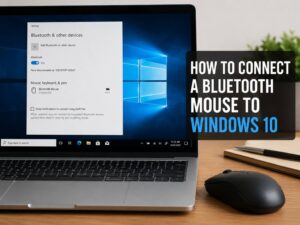
Bluetooth devices can be more awkward. A Bluetooth mouse pairs directly with one computer at a time, unless it supports multi-device pairing. If your mouse is acting up, or you are setting it up on a Windows PC for the first time, this guide on how to connect a Bluetooth mouse to Windows 10 without the usual headaches can help.
For the smoothest setup, I prefer a keyboard and mouse with a USB receiver. It keeps pairing simple, and the monitor handles the switching.
What To Look For Before Buying a KVM Monitor
Before buying, check the full spec sheet. Do not rely only on the product title.
Look for:
- Number of computers supported
- USB-C video support
- USB-C charging wattage
- HDMI and DisplayPort versions
- USB upstream ports
- Number of USB-A ports
- USB-C downstream port
- Ethernet support
- Picture-by-Picture support
- Picture-in-Picture support
- Refresh rate
- Resolution
- Included cables
- Mac support
- Warranty
- Firmware update options
For most home offices, a 27-inch 4K USB-C KVM monitor is a strong choice. It gives sharp text, good workspace, and a clean laptop connection.
For multitasking, a 34-inch ultrawide KVM monitor can feel better. It gives more room for side-by-side windows and makes Picture-by-Picture more usable.
For gaming and work, pick a gaming monitor with KVM. That way, you do not trade away refresh rate for desk convenience.
Real-World Buying Advice
Do not buy a KVM monitor only because the box says KVM. Check how the feature works in daily use.
A dedicated KVM button is a big plus. Some monitors hide switching inside the on-screen menu. That gets annoying fast if you switch many times each day.
Port placement matters too. Rear USB ports look clean, but they are not great for flash drives or temporary accessories. Side ports or easy-to-reach bottom ports feel better in real life.
Think about your main computer. If your laptop is the main device, USB-C charging matters most. If your desktop is the main device, refresh rate and DisplayPort support may matter more.
My honest view: the best KVM monitor is not always the most expensive one. It is the one that matches your desk. A simple switch button, enough USB ports, reliable USB-C, and the right screen size matter more than a long list of features you will never touch.
Is a KVM Monitor Worth It?
A KVM monitor is worth it if you use two computers at the same desk. It saves space, reduces cable clutter, and makes switching between systems much easier.
It is not a must-have for everyone. If you use one laptop and rarely connect anything else, a normal monitor may be fine.
But for remote work, hybrid work, coding, design, gaming plus work, and Mac plus Windows setups, KVM is one of the most practical monitor features you can buy.
It does not sound exciting at first. Still, after a few days of using one keyboard and mouse across two computers, it starts to feel obvious. The desk looks cleaner. The workflow feels calmer. And you stop wasting time on tiny cable problems that should not be part of your day.