Why USB-C monitors get confusing fast
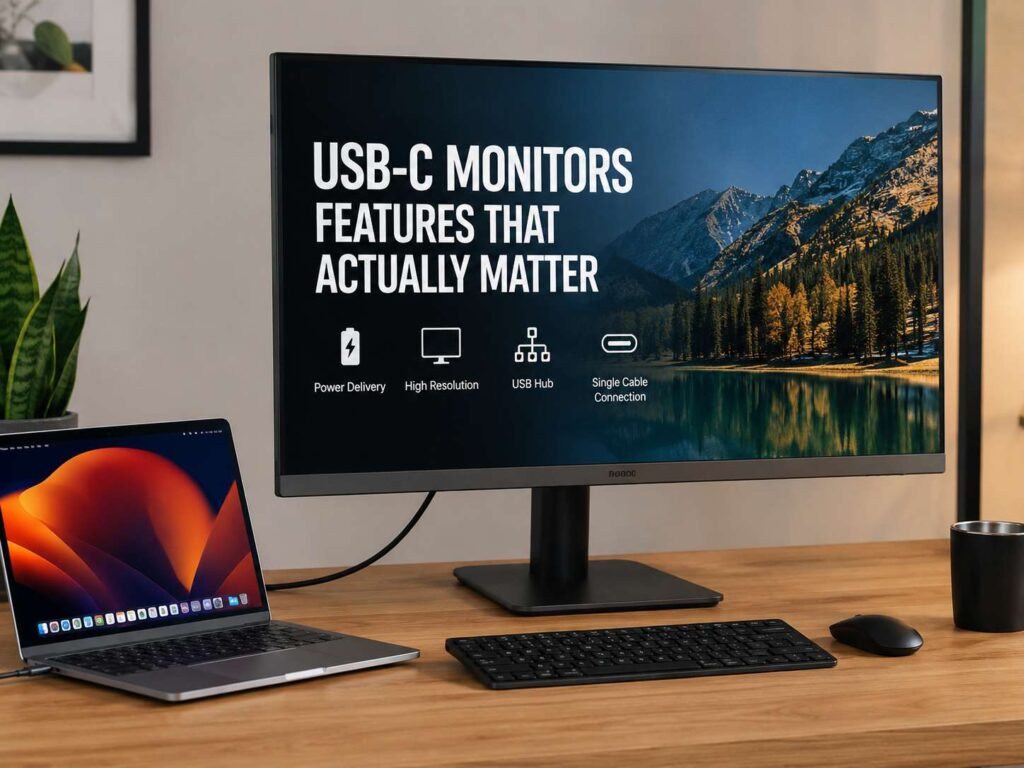
A USB-C monitor sounds simple at first. You plug in one cable, and your laptop gets a bigger screen, charging, and access to desk accessories.
That is the dream setup. One cable handles power, video, keyboard, mouse, webcam, storage, and sometimes wired internet too. Your desk looks cleaner, your laptop stays charged, and you waste less time plugging things in every morning.
Still, not every USB-C monitor works the same way.
Some models charge a laptop at 65W. Others reach 90W or 100W. A few go higher. Some USB-C ports carry video, power, and data. Others only handle basic data. Product pages do not always explain this clearly, so buyers often find out after the box arrives.
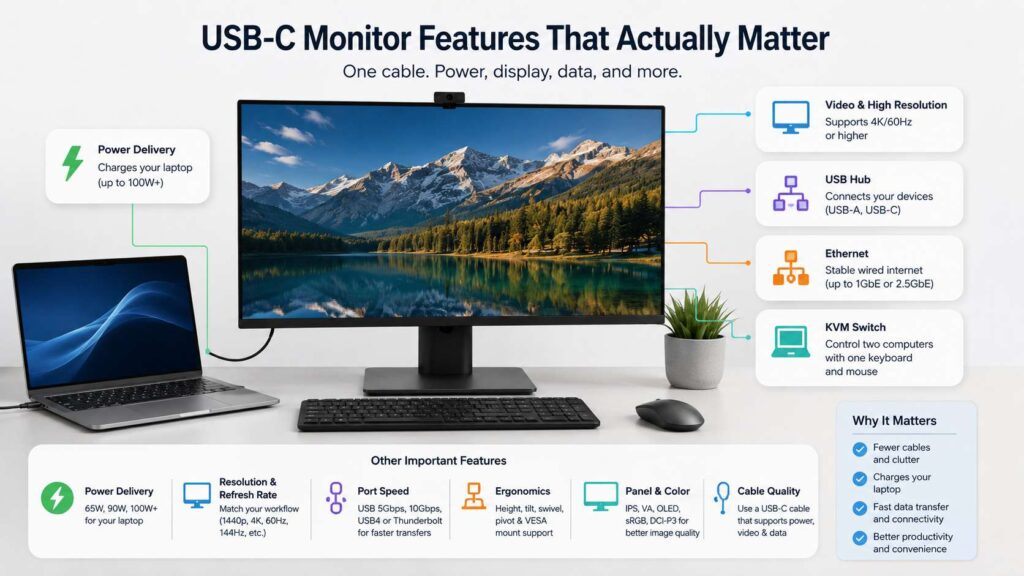
For that reason, you need to look past the USB-C label. The features that matter most are power delivery, video support, display quality, hub speed, port selection, ergonomics, and compatibility with your laptop.
A good USB-C monitor should make your setup easier. A weak one can add more confusion than a standard monitor.
Start with USB-C Power Delivery
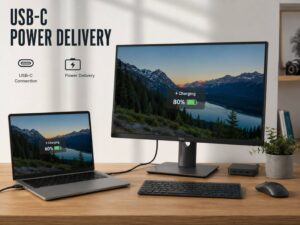
USB-C Power Delivery, often called USB-C PD, tells you how much power the monitor can send back to your laptop.
This feature matters a lot. A monitor with low charging power can still show a picture, but your laptop battery may drain during long work sessions. Then you need the original charger too, which defeats the point of a one-cable setup.
For most buyers, these power levels make sense:
- 45W: works for small laptops, Chromebooks, and light office tasks
- 60W to 65W: fits many 13-inch and 14-inch laptops
- 90W to 100W: better for larger business laptops and many creator laptops
- 140W or higher: fits high-power laptops that support stronger USB-C charging
A 13-inch office laptop often runs fine on 65W. A larger laptop with a stronger CPU can need more. Under heavy load, 65W may charge slowly or hold the battery in place instead of filling it.
For a safer purchase, choose 90W or 100W charging if your budget allows it. That gives more headroom for video calls, many browser tabs, spreadsheets, coding tools, and creative apps.
Laptop charging is not only about the monitor. Your laptop must support charging through USB-C too. Most modern work laptops do, but some gaming laptops still need their larger barrel charger or magnetic charger for full performance.
Check video support before anything else
A USB-C shape does not guarantee video support.
The monitor needs a USB-C input that accepts video. Your laptop needs a USB-C port that sends video. Many laptops do this through DisplayPort Alt Mode. Premium devices may use USB4 or Thunderbolt.
Look for clear phrases on the spec sheet:
- USB-C with DisplayPort Alt Mode
- USB-C video input
- DP Alt Mode
- USB-C upstream
- Thunderbolt input
- USB4 input
The monitor should list the full resolution and refresh rate over USB-C. For example, a 4K monitor should support 3840 x 2160 at 60Hz through USB-C. A high-refresh monitor should list whether USB-C can reach 120Hz, 144Hz, or more.
Some screens reach their best refresh rate only through DisplayPort or HDMI. That detail matters for gaming laptops, desktops, and high-refresh work displays.
This is the catch. A USB-C label does not mean the cable handles everything. A closer read can save a return.
For a broader comparison, this guide on USB-C monitor vs standard monitor helps explain what changes when you move from a regular display to a USB-C desk setup.
Choose the right screen size and resolution
The display still matters more than the ports.
For most desks, 27 inches hits the best balance. It gives enough space for two windows side by side, yet it does not overwhelm a small desk.
At 27 inches, 1440p looks good for office work, writing, browsing, and coding. It costs less than 4K, and many laptops handle it with ease.
A 27-inch 4K USB-C monitor gives sharper text. It suits long reading sessions, design work, spreadsheets, and macOS users who care about clean scaling.
At 32 inches, 4K makes more sense. A 32-inch 1440p panel can look soft from a normal desk distance. Some people still like it for larger text, but it does not look as crisp.
For smaller desks, a 24-inch 1080p or 1440p monitor can still work well. Yet most USB-C buyers will get more value from 27 inches.
A simple rule works here:
- Choose 24-inch 1080p for tight budgets and small desks
- Choose 27-inch 1440p for value and comfort
- Choose 27-inch 4K for sharper text
- Choose 32-inch 4K for more space and larger work areas
The right choice depends on your desk depth, laptop, eyesight, and daily work. Still, 27-inch 4K and 27-inch 1440p remain the safest picks for most people.
Refresh rate affects daily comfort too
Refresh rate is not only for gamers.
A 60Hz USB-C monitor works fine for office tasks. Many business monitors still use 60Hz, and they handle email, documents, web apps, and video calls without trouble.
Yet 75Hz, 100Hz, or 120Hz can feel smoother. Scrolling looks cleaner. Mouse movement feels more direct. Long workdays can feel a bit easier on the eyes.
For gaming, refresh rate matters much more. A 144Hz or higher monitor gives smoother motion, but only if your laptop or desktop can drive it. You also need to check whether USB-C supports that full refresh rate.
A 4K 144Hz USB-C monitor can need more bandwidth than a basic USB-C connection provides. Some models use compression. Others need DisplayPort or HDMI for full performance.
For office use, a 4K 60Hz monitor still makes sense. For mixed work and gaming, 1440p at 120Hz or 144Hz often gives a better balance.
Pay attention to the USB hub
Many USB-C monitors act like a basic dock. They let you connect a keyboard, mouse, webcam, headset, external drive, or card reader to the monitor. Then one USB-C cable connects everything to the laptop.
That setup feels great when it works.
Still, hub speed varies. Some monitors offer slow USB ports that work fine for a keyboard and mouse but feel poor with external SSDs. Other monitors include faster USB 10Gbps ports, which help with file transfers.
Look for these labels:
- USB 5Gbps
- USB 10Gbps
- USB 20Gbps
- USB4
- Thunderbolt 4
- Thunderbolt 5
For normal office use, USB 5Gbps is enough. For large files, photos, video clips, and external SSDs, 10Gbps or faster feels better.
Port count matters too, but speed matters just as much. Four slow ports do not beat two useful fast ports if you move large files often.
Ethernet can be a real upgrade
Built-in Ethernet sounds plain, but it can make a work setup much better.
Wi-Fi is fine for light use. Wired internet gives steadier performance for video calls, cloud backups, large uploads, remote desktop tools, and online meetings.
A USB-C monitor with Ethernet lets your laptop use wired internet through the same cable that handles power and video. You plug the network cable into the monitor, then connect your laptop with USB-C.
That is useful for people who work from home, deal with large files, or sit in crowded apartment buildings with busy Wi-Fi networks.
Gigabit Ethernet is the normal target. Some newer monitors offer 2.5Gb Ethernet, but most homes still use Gigabit routers and switches.
Ethernet is not required for every buyer. Yet it is one of those features you appreciate after the first bad video call on weak Wi-Fi.
KVM helps if you use two computers
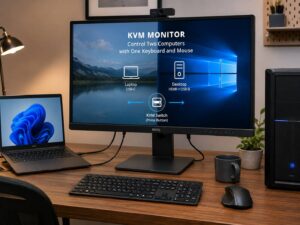
A KVM switch lets one keyboard, mouse, and monitor control two computers.
This is a great feature for people who use a work laptop and a personal desktop on the same desk. It also helps users who switch between a Mac and a Windows PC.
A monitor with KVM can move your keyboard and mouse to the active device. You change the video input, and the USB devices follow.
Check the setup before buying. Some monitors use USB-C for one computer and USB-B for the other. Others support two USB-C devices. A few models make switching easier with a dedicated button or software control.
For one-computer users, KVM does not matter. For two-computer desks, it can remove a lot of cable mess.
Daisy chaining suits dual-monitor desks
Daisy chaining lets you connect one monitor to a second monitor. Then your laptop connects to the first screen with one cable.
This can work well for dual-monitor office setups. It can reduce cable clutter and make the desk easier to manage.
Look for DisplayPort out, DisplayPort MST, or Thunderbolt daisy chain support. Your laptop must support the same feature too.
Mac users need to check compatibility with extra care. Some Mac setups handle multiple displays better through Thunderbolt than through standard DisplayPort MST.
Daisy chaining is useful, but not required. You may prefer one large 32-inch screen or one ultrawide monitor instead. For classic dual 27-inch desks, it can be a clean choice.
Treat HDR claims with care
HDR can look great on the right screen. On many office monitors, it adds little value.
A monitor can accept an HDR signal and still lack the brightness, contrast, and local dimming needed for strong HDR image quality. That is why vague HDR wording does not tell you enough.
For work use, place HDR lower on your list. Text clarity, brightness, color accuracy, viewing angles, and ergonomics matter more.
For movies, console gaming, and HDR PC games, check brightness, contrast, local dimming, OLED or mini-LED panel type, and recognized HDR certification.
A basic HDR label should not raise the price much in your mind. Real HDR needs strong hardware behind it.
Color quality matters for creative work
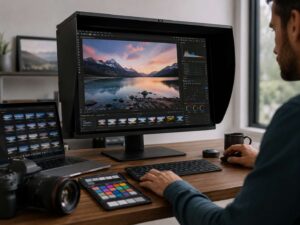
Color quality matters if you edit photos, make videos, design graphics, or create product images.
For basic office work, full sRGB coverage is a good target. For video and modern content work, DCI-P3 coverage matters more. For print-focused work, Adobe RGB coverage can matter too.
Look for specs such as:
- sRGB coverage
- DCI-P3 coverage
- Factory calibration
- Delta E under 2
- 10-bit color support or 8-bit plus FRC
- Uniform brightness across the screen
Do not buy only from a big color percentage claim. Factory tuning, panel quality, brightness, and uniformity shape the real result.
For serious creative work, reviews with measurement data help a lot. For casual editing, a good IPS 4K USB-C monitor with strong sRGB coverage will serve you well.
Ergonomics matter every day
A monitor stand can make or break the daily experience.
Height adjustment matters most. You should place the screen so the top edge sits close to eye level. That helps reduce neck strain during long work sessions.
Tilt matters too. Swivel helps if you share the screen with another person. Pivot helps if you read long documents or code in portrait mode.
VESA mount support gives you more freedom. A monitor arm clears desk space and lets you place the display at a better height.
Many attractive budget monitors use basic stands. They look clean, but they may only tilt. That is not enough for a comfortable work desk.
Before buying, check the stand specs:
- Height adjustment
- Tilt
- Swivel
- Pivot
- VESA 100 x 100 mm support
- Stable base size
A sharper screen feels better, but a screen placed at the wrong height still causes discomfort.
The cable can cause strange problems
The included USB-C cable matters more than it seems.
Some cables only charge. Some support data but not video. Others carry video but limit bandwidth. High-power charging can need a cable rated for the correct wattage.
Use the cable that comes with the monitor first. It should match the monitor’s features. For a replacement, buy a cable that clearly supports video, power, and data speed.
Cable issues can look like monitor problems. Flickering, slow charging, dropped USB devices, and missing refresh rate options often come from the cable.
For high-end setups, use a certified USB-C, USB4, or Thunderbolt cable that matches your monitor and laptop. Do not rely on a random cable from an old charger.
The same logic applies to portable charging gear. Cable quality and power ratings matter there too, as this fast-charging power bank buying guide for 2026 explains in practical terms.
Thunderbolt and USB4 are useful, but not required for everyone
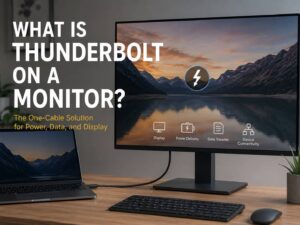
Thunderbolt and USB4 monitors can offer more bandwidth, stronger docking features, and better support for fast storage or multiple displays.
That sounds appealing, but you may not need it.
For office work, a regular USB-C monitor with 65W to 100W charging works well. It can handle a laptop, keyboard, mouse, webcam, and external display needs without the higher price.
Thunderbolt makes more sense for MacBook Pro users, creators, engineers, video editors, and people with fast external SSDs. It can also simplify setups with multiple high-resolution displays.
USB4 can bring strong speed and compatibility too, but read the spec sheet. USB4 devices can vary in supported features and bandwidth.
For a basic desk, save the money. For a heavy workstation setup, Thunderbolt or USB4 can justify the cost.
Built-in speakers, webcam, and mic are bonus features
Built-in speakers are fine for system sounds, short videos, and quick calls. Most monitor speakers sound thin, so they should not lead your buying decision.
A built-in webcam can reduce clutter. It can help if your laptop sits closed on the desk. Still, camera quality varies from model to model.
A built-in microphone can work for simple meetings. A headset or dedicated mic often sounds better.
These extras can be useful, but they come after the core features. Power, video, display quality, hub speed, and ergonomics matter more for daily use.
Best USB-C monitor features by user type
Office workers should look for 65W or higher charging, a 27-inch screen, a height-adjustable stand, and enough USB ports for daily accessories. Ethernet is a nice bonus.
Programmers should focus on text clarity. A 27-inch 4K monitor works well for sharp code and long reading sessions. A 1440p monitor can still be a better value choice.
MacBook users should check charging wattage, 4K or higher resolution, USB-C video support, and color quality. macOS scaling looks cleaner on high-density displays.
Students should aim for value. A 27-inch 1440p USB-C monitor with 65W charging can turn a laptop into a comfortable desk setup without a huge cost.
Creators should care about color coverage, calibration, brightness, panel type, and fast ports. USB4 or Thunderbolt can help with fast external drives.
Gamers should check refresh rate over USB-C, response time, adaptive sync support, and the ports their laptop or GPU supports best. Many gaming setups still work best through DisplayPort or HDMI.
Features that matter less than the marketing suggests
Some features sound better than they feel in daily use.
A long port list looks great, but slow ports limit fast drives. A vague HDR badge sounds premium, but weak brightness reduces the effect. Built-in speakers sound convenient, but headphones or small desktop speakers are the better option.
Touch controls look modern, but a joystick or real buttons can feel faster. Ultra-thin designs look nice in photos, but the ports can sit in awkward places.
Do not chase every feature. Choose the ones that match your desk and your laptop.
Quick buying checklist
Before you buy, check these details:
- Charging power: 65W minimum, 90W or 100W preferred for larger laptops
- USB-C video: full resolution and refresh rate through USB-C
- Laptop support: USB-C video output and USB-C charging
- Screen size: 27 inches for most desks, 32 inches for more room
- Resolution: 1440p for value, 4K for sharper text
- Hub speed: USB 5Gbps for basics, 10Gbps or higher for file transfers
- Ethernet: useful for stable calls and uploads
- KVM: valuable for two-computer setups
- Daisy chain: useful for dual-monitor desks
- Stand: height adjustment and VESA support
- Cable: rated for power, video, and data
- HDR: check real brightness and panel tech, not only the badge
This list keeps the buying process simple. It also helps you avoid paying for features that will not improve your daily setup.
Final buying advice
A USB-C monitor should make your desk cleaner and your workday easier.
For most people in 2026, the best pick is a 27-inch or 32-inch monitor with USB-C video, 90W Power Delivery, sharp resolution, height adjustment, fast enough USB ports, and Ethernet. Add KVM if you use two computers. Choose Thunderbolt or USB4 if your workflow uses fast drives or multiple high-resolution displays.
A cheaper USB-C monitor can still be a smart buy, but read the spec sheet closely. Weak charging, missing video support, slow hub ports, and a basic stand can create daily frustration.
The best USB-C monitor is not the one with the most features. It is the one that fits your laptop, your desk, and your work without extra adapters or cable clutter.