Choosing between a 5K2K vs 4K monitor mostly comes down to how much horizontal space you need and what kind of hardware you have.
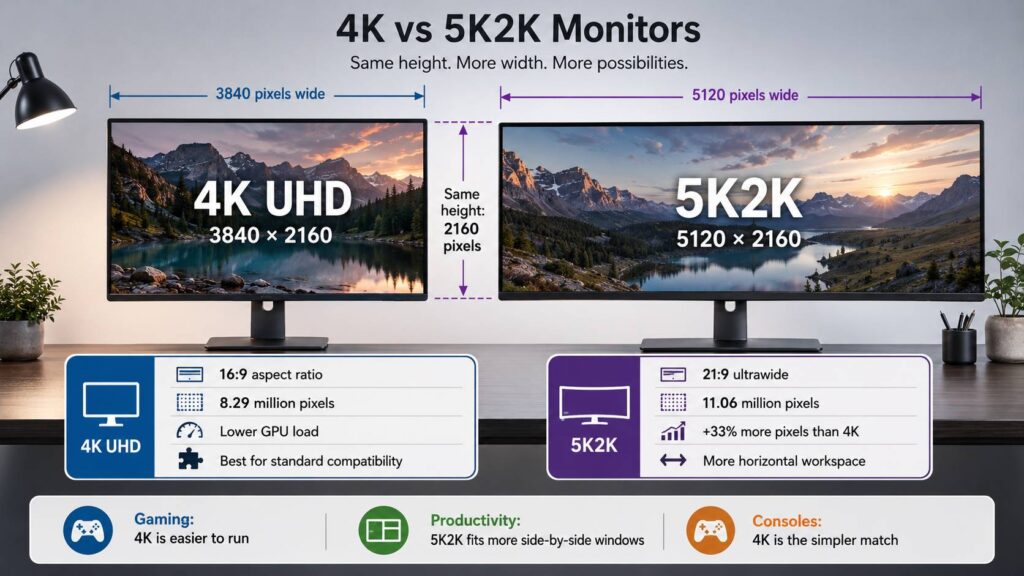
A standard 4K UHD monitor uses a resolution of 3840 × 2160, while a typical 5K2K monitor runs at 5120 × 2160. Both have the same 2,160 vertical pixels, but 5K2K adds a lot more room across the screen.
That extra width can be genuinely useful for productivity, video editing, programming, large spreadsheets, racing games, and other tasks where horizontal space matters. At the same time, 5K2K places a heavier load on your graphics card and may require more attention to display connections, refresh rates, and ultrawide compatibility.
For most people, 4K is still the simpler and safer option. If you want one large monitor that can replace a dual-screen setup, though, 5K2K starts to look very appealing.
5K2K vs 4K Resolution Explained
The easiest way to understand the difference is to compare the numbers directly.
| Specification | 4K UHD | 5K2K |
|---|---|---|
| Typical resolution | 3840 × 2160 | 5120 × 2160 |
| Total pixels | 8,294,400 | 11,059,200 |
| Typical aspect ratio | 16:9 | 21:9 ultrawide |
| Horizontal pixels | 3,840 | 5,120 |
| Vertical pixels | 2,160 | 2,160 |
| Extra pixels vs 4K | None | About 33.3% |
| Common monitor sizes | 27 to 32 inches | Roughly 34 to 45 inches |
A 5K2K display contains about 11.06 million pixels, while 4K UHD has roughly 8.29 million.
That works out to around 33.3% more pixels on the 5K2K monitor.
The important part is where those pixels go. You don’t gain extra vertical space. Instead, all 1,280 additional pixels are added horizontally.
So, if you open a long webpage or Word document, you won’t see more content vertically than on 4K. What you do get is a wider desktop that makes it easier to place several windows side by side.
That’s really the core difference between these two resolutions.
5K2K Isn’t the Same as Standard 5K
One confusing part of monitor terminology is that 5K2K and 5K aren’t the same resolution.
Traditional 5K normally refers to:
5120 × 2880
A typical 5K2K monitor uses:
5120 × 2160
Standard 5K is usually 16:9, while 5K2K is typically an ultrawide format.
The pixel count also differs quite a bit. A 5120 × 2880 display has roughly 14.75 million pixels. A 5120 × 2160 screen has about 11.06 million.
You may also see manufacturers describe 5120 × 2160 as WUHD, UltraWide UHD, 5K ultrawide, or simply 5K2K.
Because naming can vary, always check the actual resolution before buying a monitor.
How Much More Workspace Does 5K2K Give You?
Workspace is probably the strongest reason to choose 5K2K.
Compared with standard 4K, you gain:
5120 – 3840 = 1280 additional horizontal pixels
That’s one-third more horizontal resolution.
The difference becomes obvious once you start multitasking. You can comfortably place a browser beside a document, keep code next to documentation, or give an editing timeline far more room.
A 5K2K screen works particularly well for:
- Large spreadsheets
- Programming
- Research
- Video editing
- Photo editing
- Audio production
- Financial applications
- CAD work
- Remote work
- Multi-window workflows
There’s another useful detail here.
A 5120 × 2160 monitor can display a full 3840 × 2160 image at native resolution while still leaving 1,280 horizontal pixels available. If the image is centered, that’s 640 pixels on each side.
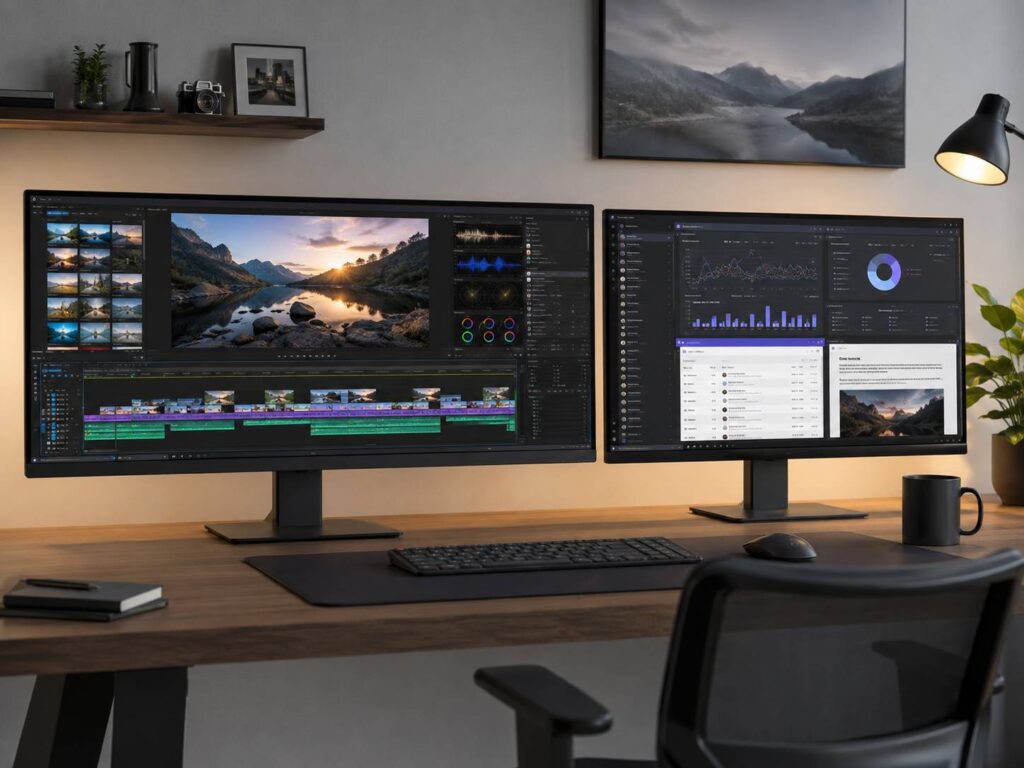
For video editors and other creative users, that extra area can hold tools, panels, or controls without covering the main image.
Screen Size Changes How Sharp the Monitor Looks
Resolution isn’t the only thing that determines image sharpness.
Screen size matters just as much because it affects pixel density, measured in pixels per inch, or PPI.
For example, a 32-inch 4K monitor has a pixel density of roughly 138 PPI.
A 40-inch 5120 × 2160 ultrawide can sit around 140 PPI, depending on its exact panel dimensions.
That means a large 5K2K monitor can provide roughly the same perceived sharpness as a 32-inch 4K display while giving you much more horizontal space.
Move up to a larger 45-inch 5K2K model, though, and pixel density drops closer to the 125 PPI range.
Meanwhile, a 27-inch 4K monitor sits at roughly 163 PPI and can look noticeably sharper at normal desktop distances.
So don’t assume that 5K2K automatically gives you a sharper picture than 4K. Compare the screen size and PPI as well as the resolution.
5K2K vs 4K for Productivity
For multitasking, 5K2K has an obvious advantage.
A large ultrawide can feel like two monitors merged into one continuous screen. You can keep your primary application in the middle while placing secondary windows on either side.
There isn’t a bezel breaking up the workspace, either.
That makes 5K2K particularly attractive for people who constantly move between multiple applications.
Programmers, for example, can keep an editor open alongside documentation and a browser. Video editors get more timeline space. Spreadsheet users can view far more columns without constantly scrolling left and right.
Still, there are trade-offs.
A 40-inch or 45-inch 5K2K monitor takes up a lot of physical space. You’ll need a fairly deep desk, and the monitor may feel overwhelming if you sit too close.
Curved panels make more sense at these sizes because the edges of the screen remain closer to your natural viewing angle.
If you mainly browse the web, write documents, check email, or work in one application at a time, a good 27-inch or 32-inch 4K monitor may already be plenty.
5K2K vs 4K for Gaming
Gaming is where the choice gets more complicated.
A 5K2K monitor can create a much wider field of view in games that properly support ultrawide resolutions. Racing games, flight simulators, RPGs, strategy titles, and cinematic single-player games can look fantastic across a wide 21:9 screen.
The downside is performance.
At 4K, your GPU must render:
8.29 million pixels per frame
At 5K2K, it needs to render:
11.06 million pixels per frame
That’s about 33.3% more pixels every frame.
As a result, 5K2K is more demanding than standard 4K.
How Much FPS Do You Lose at 5K2K?
There isn’t one fixed answer.
GPU performance doesn’t scale perfectly with pixel count. The result changes depending on the game, graphics engine, CPU, ray tracing settings, GPU architecture, memory bandwidth, and whether you’re using upscaling.
Still, a rough theoretical example can help.
Imagine a game running at 120 FPS at native 4K. If performance scaled directly with pixel count:
120 ÷ 1.333 ≈ 90 FPS
Real games may show a smaller or larger difference.
The main point is simple. If your GPU already struggles at 4K, moving to native 5K2K won’t make things easier.
5K2K Gaming Isn’t Limited to 60 Hz Anymore
Early 5K2K monitors were mostly productivity displays, so many were limited to around 60 Hz.
That’s no longer true across the board.
Modern 5120 × 2160 monitors can offer refresh rates of 120 Hz, 144 Hz, 165 Hz, and potentially higher depending on the model and operating mode.
That makes 5K2K far more attractive for gaming than it used to be.
Of course, having a 165 Hz monitor doesn’t mean your GPU will automatically produce 165 FPS at 5120 × 2160.
Modern upscaling technologies can help.
Features such as DLSS, FSR, and XeSS allow supported games to render internally at a lower resolution, then reconstruct the final image at a higher output resolution.
For demanding games, upscaling can make 5K2K much more practical.
Gaming performance also isn’t determined by the monitor alone. Your mouse, keyboard, and other peripherals affect comfort and control too. If you’re tuning a gaming setup, it’s worth considering seemingly small choices, such as whether you actually need more than two side buttons on a mouse, instead of focusing only on screen specifications.
Ultrawide Game Compatibility Still Isn’t Perfect
Not every PC game handles ultrawide resolutions properly.
Most modern titles support 21:9 fairly well, but exceptions still exist.
You might encounter:
- Black bars during gameplay
- 16:9 cutscenes
- Menus that remain centered in a 16:9 area
- HUD elements placed in awkward positions
- Stretched interface elements
- Competitive games that intentionally limit ultrawide views
- Older games that don’t offer 5120 × 2160
Sometimes community fixes solve these problems. Other times, you’ll have to play in 16:9 with black bars on each side.
This is one area where 4K remains easier.
Since 3840 × 2160 uses the standard 16:9 aspect ratio, compatibility is rarely an issue.
4K Makes More Sense for Console Gaming
If you mainly play on a PlayStation or Xbox, standard 4K is usually the better fit.
Modern consoles are designed around traditional television aspect ratios. That means 16:9 is the expected format.
You can connect a console to an ultrawide monitor, but you generally won’t get true 21:9 gameplay. Instead, the monitor may display the 16:9 image in the center with unused areas on the sides.
Some monitors can stretch the image to fill the entire screen, but that distorts the picture and isn’t usually worth using.
For a PC-first gaming setup, 5K2K makes more sense.
For a console-first setup, 4K is much simpler.
What GPU Do You Need for 5K2K?
There’s a big difference between running a desktop at 5120 × 2160 and gaming at that resolution.
Normal desktop use isn’t especially demanding for a modern GPU. Even integrated graphics may support 5K2K output, provided the system has a suitable display connection.
Gaming is another matter.
Modern AAA games at native 5120 × 2160 can put serious pressure on the GPU, especially with ray tracing enabled.
Before buying a 5K2K monitor, check:
- Your GPU’s maximum supported resolution
- Maximum refresh rate at 5120 × 2160
- DisplayPort capabilities
- HDMI capabilities
- Display Stream Compression support
- USB-C or Thunderbolt display support on laptops
Don’t assume that having a USB-C port automatically means your laptop can drive a 5K2K monitor at its full refresh rate.
USB-C only describes the connector. The actual video capabilities behind it vary between devices.
DisplayPort, HDMI, and USB-C Can Become a Bottleneck
High-resolution ultrawide monitors send a huge amount of display data through the cable.
This becomes even more demanding as refresh rate and color depth increase.
DisplayPort 1.4 with HBR3 provides up to 32.4 Gbps of raw link bandwidth. Display Stream Compression, usually called DSC, allows supported devices to handle display modes that would otherwise exceed the connection’s uncompressed bandwidth.
Newer DisplayPort 2.1 implementations provide much more bandwidth, depending on the supported UHBR mode.
HDMI has improved as well. HDMI 2.1-class connections offer much higher bandwidth than HDMI 2.0, while newer HDMI specifications raise the theoretical limits further.
Still, don’t judge compatibility based only on version numbers.
The safer approach is to check whether your graphics card, laptop, monitor, and cable explicitly support 5120 × 2160 at the refresh rate you intend to use.
For example, a computer may support 5120 × 2160 at 60 Hz but not at 120 Hz or 165 Hz.
Does DSC Reduce Image Quality?
If you’re shopping for a high-refresh 5K2K monitor, you’ll probably come across Display Stream Compression.
DSC compresses the video signal so more data can travel through the available display connection.
It’s designed to be visually lossless and extremely low latency.
That means DSC isn’t comparable to heavily compressed streaming video or a low-quality video file.
The monitor can still run at its native 5120 × 2160 resolution.
In most supported setups, DSC works automatically. You generally don’t need to enable or manage it manually.
Scaling on 5K2K and 4K Monitors
High-resolution screens often need operating-system scaling to keep text and interface elements comfortable to read.
Running everything at 100% scaling may make text too small, especially on compact 4K screens.
Common starting points include:
- 27-inch 4K: around 150%
- 32-inch 4K: around 125% to 150%
- 40-inch 5K2K: around 125% to 150%
- 45-inch 5K2K: around 100% to 125%
These are only starting points.
Your viewing distance, eyesight, operating system, and personal preference matter more than any fixed recommendation.
Modern versions of Windows handle fractional scaling quite well. Older desktop applications can still appear blurry or display incorrectly at unusual scaling values.
Mac users should also check the external display limits of their exact model. Different Apple chips and device generations support different combinations of external resolution and refresh rate.
5K2K vs Dual 4K Monitors
A single 5K2K monitor can replace a two-monitor arrangement for some people, but it doesn’t provide as much total desktop space as two 4K screens.
Two 4K monitors offer a combined resolution of:
7680 × 2160
One 5K2K screen offers:
5120 × 2160
So dual 4K gives you 2,560 more horizontal pixels.
Still, a single ultrawide has some practical advantages.
You get:
- No bezel in the middle
- Simpler cable management
- One display to configure
- A continuous workspace
- Better ultrawide gaming
- Easier window movement across the screen
Dual monitors still work better if you like physically separating tasks.
For example, you can keep a game, video, or full-screen application on one monitor while using the second display independently.
A 5K2K monitor is better suited to people who prefer one large, uninterrupted workspace.
5K2K vs 4K for Video Editing
Video editing is one of the areas where 5K2K can be especially useful.
Both resolutions provide 2,160 vertical pixels, so there’s plenty of room for high-resolution previews.
The extra width gives you more space for:
- Long timelines
- Media bins
- Effects panels
- Audio controls
- Scopes
- Toolbars
- Preview windows
You can often keep more controls visible without constantly resizing panels.
Still, resolution isn’t the only consideration for editing.
A high-quality 4K monitor with excellent color accuracy can be a much better editing display than a mediocre 5K2K model.
If color work matters, compare:
- Color gamut
- Factory calibration
- Bit depth
- Panel uniformity
- Contrast
- HDR performance
- Calibration support
- Panel technology
The wider resolution is useful, but image quality should still come first.
OLED or LCD for 5K2K and 4K?
Both resolutions are available across different panel technologies.
OLED has several advantages for gaming and media. It offers extremely fast pixel response, near-perfect blacks, and excellent contrast.
LCD, particularly IPS, remains attractive for productivity work because it doesn’t carry the same permanent burn-in concerns associated with prolonged static content on OLED panels.
For someone working eight hours a day with spreadsheets, browser tabs, and static application interfaces, LCD may still be the more comfortable long-term choice.
For a gaming and entertainment-focused setup, OLED can be much more appealing.
The key point is that resolution and panel type should be considered separately.
Common Mistakes When Buying a 5K2K Monitor
A few common mistakes can make an otherwise impressive monitor frustrating to use.
Assuming every PC supports 5120 × 2160
Check the maximum resolution and refresh rate supported by your exact GPU or laptop.
Looking only at the port name
A DisplayPort or USB-C connector doesn’t guarantee full 5K2K support at the monitor’s highest refresh rate.
Forgetting about GPU performance
Displaying the Windows desktop at 5K2K is easy compared with rendering a modern game at more than 11 million pixels per frame.
Expecting every game to support ultrawide
Most modern games do, but compatibility is still inconsistent.
Assuming 5K2K is always sharper than 4K
Screen size affects pixel density. A smaller 4K monitor may actually look sharper than a much larger 5K2K model.
Ignoring desk size
Large ultrawide displays are really wide.
Before ordering one, measure your desk and consider how far you’ll sit from the screen. A massive monitor pushed too close to your face isn’t particularly comfortable.
5K2K vs 4K: Which Should You Choose?
For most users, the decision becomes fairly simple once you think about what you actually do at the computer.
Choose 4K if you want:
- Better device compatibility
- Lower GPU requirements
- More monitor choices
- A compact 27-inch or 32-inch setup
- Easier console gaming
- Standard 16:9 media playback
- High refresh rates with less GPU load
- A simpler overall setup
Choose 5K2K if you want:
- More horizontal workspace
- One large monitor instead of two smaller displays
- Ultrawide PC gaming
- More space for editing timelines
- Better side-by-side multitasking
- A large desktop workspace
- 2160 vertical pixels without dropping back to a 1440p ultrawide
For productivity, the biggest advantage of 5K2K is obvious. You gain about one-third more horizontal space while keeping the same 2,160-pixel vertical resolution as 4K.
Gaming is a closer call.
The wider image can feel much more immersive, but you’ll need stronger graphics hardware and proper ultrawide game support.
Frequently Asked Questions
Is 5K2K better than 4K?
5K2K offers more horizontal workspace and about 33.3% more pixels than standard 4K UHD. That doesn’t automatically make it better. 4K is easier to run, widely supported, and available in many more monitor sizes and price ranges.
Is 5K2K harder to run than 4K?
Yes.
A 5120 × 2160 image contains about 11.06 million pixels, while 3840 × 2160 contains about 8.29 million. Your GPU has roughly one-third more pixels to process at native 5K2K resolution.
Is 5K2K really 5K?
It has 5,120 horizontal pixels, which explains the name.
Standard 16:9 5K usually means 5120 × 2880, though. A 5K2K display is typically 5120 × 2160.
Is 5K2K good for gaming?
Yes, especially for PC games with proper ultrawide support.
The wider view works particularly well in racing games, simulators, RPGs, strategy games, and cinematic titles. Just keep in mind that the resolution is demanding and some games may still display parts of the experience in 16:9.
Is 5K2K good for work?
Yes. It’s one of the most practical resolutions for heavy multitasking because it combines 2,160 vertical pixels with substantially more horizontal space than standard 4K.
Can you watch 4K content on a 5K2K monitor?
Yes.
A 5K2K monitor has the same 2,160-pixel vertical resolution as 4K UHD. Standard 16:9 content will normally appear correctly with unused space on the sides rather than being stretched.
Is 5K2K worth the extra GPU load?
For productivity, GPU load usually isn’t a major concern.
For gaming, it matters much more. If maximum frame rate matters more to you than ultrawide immersion, 4K may offer a better balance.
Is 4K still the safer choice?
For most buyers, yes.
4K is easier to drive, widely supported, available in almost every major monitor category, and works naturally with PCs, consoles, streaming devices, and 16:9 video.
That doesn’t make 5K2K unnecessary, though. It fills a very useful gap between standard 4K and multi-monitor setups.
If you have enough desk space, suitable hardware, and a workflow that benefits from extra width, a 5K2K monitor can be a genuinely meaningful upgrade rather than just a bigger number on the specification sheet.