The simple answer
The best monitor resolution is not always the highest one. It is the one that fits your screen size, your desk, your computer, and the way you work.
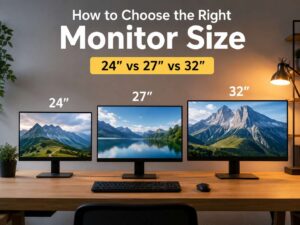
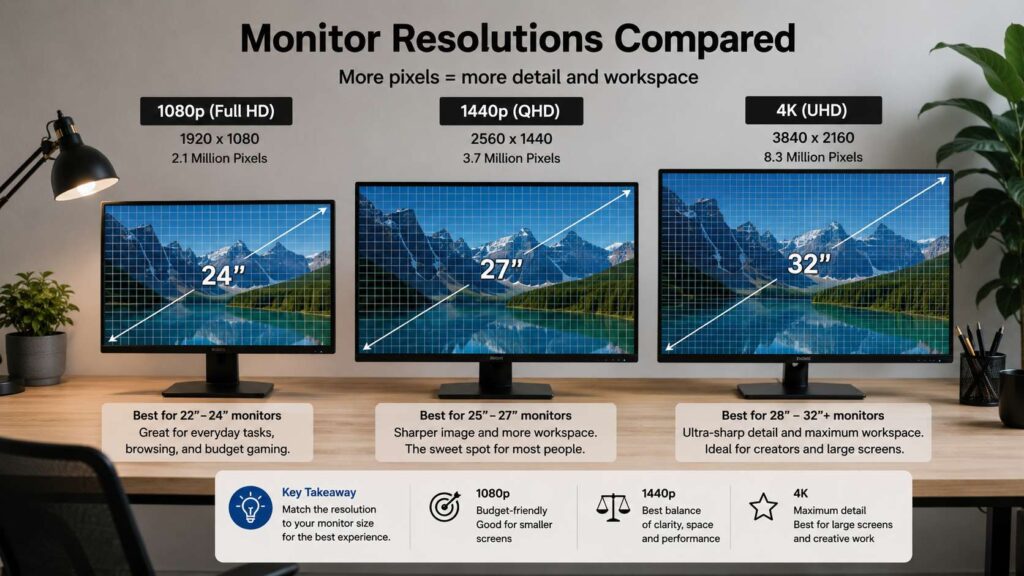
A 24-inch monitor still works well at 1080p. It suits office work, school tasks, email, browsing, and light gaming. A 27-inch monitor feels much better at 1440p. Text looks sharper, windows fit better, and the screen does not feel cramped. A 32-inch monitor pairs best with 4K, since the larger panel needs more pixels to stay crisp.
For most people, a 27-inch 1440p monitor gives the best balance. It costs less than many 4K screens, runs well on more computers, and still looks sharp enough for daily use.
What monitor resolution means
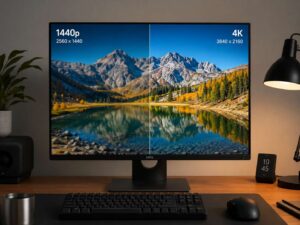
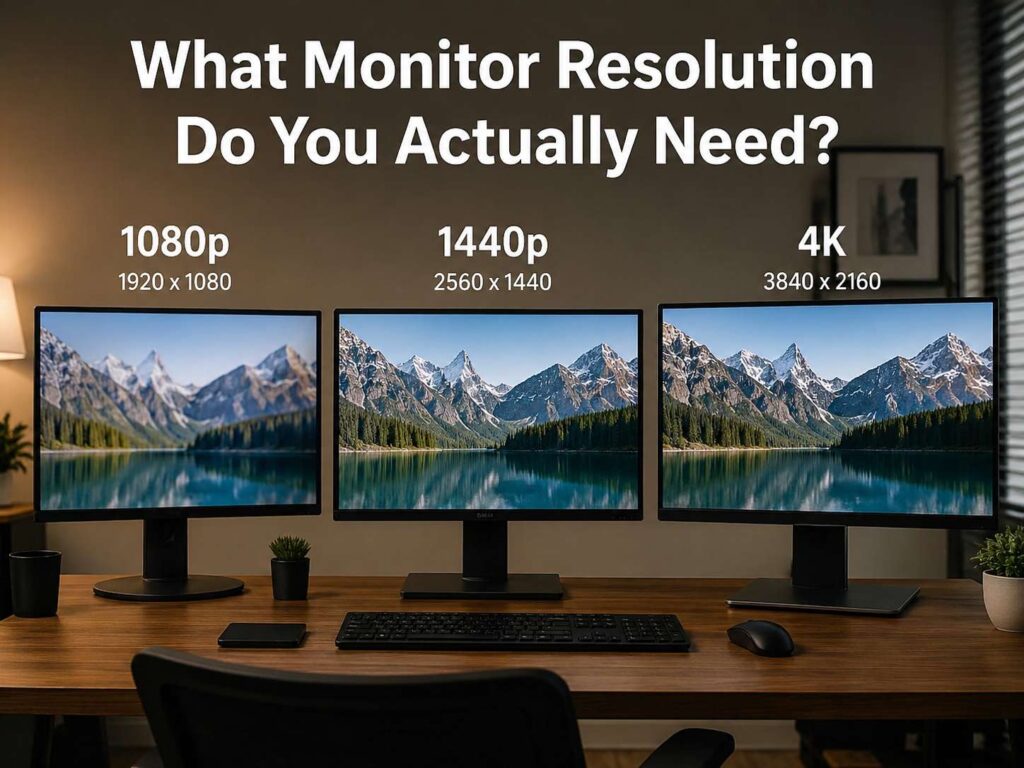
Monitor resolution tells you how many pixels sit on the screen. A 1080p monitor has 1920 x 1080 pixels. A 1440p monitor has 2560 x 1440 pixels. A 4K monitor has 3840 x 2160 pixels.
More pixels give the screen more detail. Text can look cleaner. Photos can show finer edges. Games can look sharper. Work apps can fit more content on the screen.
Screen size matters just as much. A 24-inch 1080p monitor can look fine. A 32-inch 1080p monitor can look soft, since the same number of pixels spread across a larger area. That is why resolution and monitor size need to match.
This is where it is easy to overspend. 4K on the box looks like the best choice. Sometimes it is. Still, a good 1440p monitor can feel better than a cheap 4K monitor with poor brightness, weak contrast, or a flimsy stand.
1080p: still useful for smaller monitors
1080p is not dead. It remains a good choice for small screens and lower budgets.
A 22-inch or 24-inch 1080p monitor works well for basic tasks. You can write documents, check email, watch videos, use web apps, and join video calls without trouble. Text looks clear enough at this size, and the price stays low.
Gamers on a budget still get value from 1080p too. It asks less from the graphics card, so many PCs can push higher frame rates. That matters for fast games, especially shooters and esports titles.
The downside shows up on larger screens. A 27-inch 1080p monitor gives you bigger text, but it does not give you much extra room. Two windows side by side can feel tight. Spreadsheets need more scrolling. Fine text can look a bit rough.
Choose 1080p for a 24-inch desk monitor, a secondary screen, a cheap work setup, or a gaming PC that needs high frame rates more than sharp detail.
1440p: the best middle choice
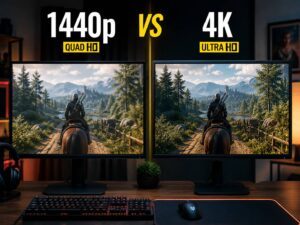
1440p is the best pick for many people. It gives you a clear upgrade over 1080p without the cost and hardware demands of 4K.
A 27-inch 1440p monitor feels comfortable for office work, writing, coding, browsing, photo editing, and gaming. You get more room for apps. You can place two windows side by side and still read them. WordPress, Google Docs, Excel, Canva, Figma, and code editors all feel easier to use.
Text looks sharper too. The screen does not feel crowded, yet the interface does not look tiny. That balance makes 1440p very strong for home offices and mixed-use desks.
Gamers get a strong deal here as well. A 1440p monitor looks much sharper than 1080p, but it does not punish the graphics card as much as 4K. Many mid-range gaming PCs handle 1440p well, especially at 144Hz or 165Hz.
Need a deeper side-by-side view? This 1440p vs 4K monitor guide can help you compare sharpness, price, and real daily use.
4K: best for sharp text and larger screens
4K gives you a much denser image. It works best for people who care about crisp text, detailed photos, video editing, design work, and large screens.
A 27-inch 4K monitor can look very sharp. Text appears clean, and photos show fine detail. Turn on display scaling, so menus and icons do not look too small. That gives you sharp text without making everything hard to read.
A 32-inch 4K monitor often feels more natural. The larger panel gives you more space, and the extra pixels keep everything crisp. This size works well for spreadsheets, dashboards, timelines, editing apps, and multitasking.
4K has a few trade-offs. The monitor costs more. Gaming needs a stronger graphics card. Some laptops struggle with 4K at higher refresh rates. Cheap 4K models can cut corners on brightness, color, ports, and stand quality.
Pick 4K for a 32-inch screen, creative work, sharp text, or a premium desk setup that you plan to keep for years.
Ultrawide monitors: great for multitasking
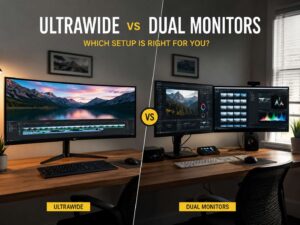
Ultrawide monitors use a wider screen shape than standard 16:9 monitors. The most common size is 34 inches with 3440 x 1440 resolution.
This type of screen gives you a wide workspace. You can keep a browser open next to a document. You can edit video with a longer timeline. You can compare products, read reports, or manage several apps without a second monitor.
A 34-inch ultrawide can replace two smaller screens. It also removes the bezel gap in the middle. That makes the desk feel cleaner.
Super ultrawide monitors go even wider. A 49-inch 5120 x 1440 monitor works much like two 27-inch 1440p screens joined together. It suits traders, video editors, heavy spreadsheet users, and people who live inside several tools at once.
Still, ultrawide monitors need desk space. Before buying one, check your desk depth and width. This best monitor size for your desk guide can help you match screen size with your setup.
Best resolution by monitor size
The easiest way to choose resolution is to start with screen size.
For 22-inch and 24-inch monitors, 1080p is enough. It keeps the price low and works with almost any laptop or desktop.
For 25-inch to 27-inch monitors, 1440p is the safest choice. It gives sharper text and more room than 1080p, but it still feels easy to use.
For 28-inch to 32-inch monitors, 4K makes more sense. The larger screen benefits from the extra pixels, and text stays crisp.
For 34-inch ultrawide monitors, 3440 x 1440 is the common sweet spot. It gives a wide workspace without the huge load of higher resolutions.
For 49-inch super ultrawide monitors, 5120 x 1440 works well. It feels like a dual-monitor setup in one panel.
Best resolution for office work
Office work needs clear text, enough screen space, and good comfort. It does not always need 4K.
A 24-inch 1080p monitor works for simple office tasks. It suits email, forms, browser work, school work, and basic documents. It is cheap and easy to place on a small desk.
A 27-inch 1440p monitor is better for most office users. It gives you more room for windows, sharper text, and a more comfortable layout. You can keep a document on one side and research on the other. You can work in a spreadsheet without as much scrolling.
A 32-inch 4K monitor suits people who handle large spreadsheets, dashboards, long documents, design files, or many open windows. It gives a lot of room, but it needs more desk depth.
Comfort matters too. A height-adjustable stand can help your neck and posture. Matte coating can reduce glare. Good brightness control can make long workdays easier on your eyes.
Best resolution for gaming
Gaming resolution depends on your graphics card, your target frame rate, and the games you play.
1080p works best for budget gaming and competitive play. It helps your system reach higher frame rates. For fast shooters, that smooth feel can matter more than extra pixels.
1440p is the best choice for many PC gamers. It looks much sharper than 1080p, and it still runs well on many gaming PCs. A 27-inch 1440p monitor with 144Hz, 165Hz, or higher refresh rate gives a great mix of speed and detail.
4K gaming looks excellent, but it needs strong hardware. It suits story games, racing games, open-world games, and cinematic titles. For competitive games, 1080p or 1440p with a higher refresh rate is the better pick.
Do not buy a 4K gaming monitor just for the label. Match it to your PC. A smooth 1440p screen often feels better than a 4K screen running at low frame rates.
Best resolution for streaming and movies
For streaming, 4K makes the most sense on larger screens. A 32-inch 4K monitor can make movies and shows look sharp. It works best with a fast internet connection, the right streaming plan, and a device that supports 4K playback.
On smaller desk monitors, the jump from 1440p to 4K can feel less dramatic from normal viewing distance. Panel quality can matter more than the pixel count. Contrast, brightness, black levels, and HDR support can change the viewing experience a lot.
A good 1440p monitor still handles 1080p videos well. It is a strong choice for YouTube, Netflix, work, browsing, and casual gaming.
Best resolution for photo, video, and design work
Creative work benefits from extra detail. A 4K monitor gives photo editors more room to inspect images. Video editors get a sharper preview. Designers can see fine edges and small text more clearly.
A 27-inch 4K monitor works well for sharp previews. A 32-inch 4K monitor gives more space for panels, timelines, and toolbars.
Still, resolution is only one part of a creative monitor. Color accuracy, brightness, panel type, contrast, and uniformity matter too. A weak 4K panel can disappoint. A good 1440p monitor with better color can serve many creators better than a cheap 4K screen.
For light photo edits, social media graphics, and simple video work, 1440p is enough. For serious 4K video, print design, or detailed photography, 4K is the better pick.
The hidden cost of higher resolution
Higher resolution can cost more than the monitor price.
A 4K screen asks more from your computer. Games need more graphics power. Some laptops use more battery. Older ports and cables can limit refresh rate. Cheap adapters can create flicker, blank screens, or locked refresh settings.
Scaling can create small annoyances too. Most modern apps handle it well, but some older tools can look blurry or oddly sized on a high-resolution monitor.
There is also the desk factor. A larger, sharper screen only feels good at the right viewing distance. Too close, and a big screen can feel tiring. Too far, and small text becomes harder to read.
Buy the resolution that your setup can use well today. Paying more for pixels you rarely notice does not make sense.
Simple buying guide
Choose 1080p if you want a low-cost 24-inch monitor for email, browsing, school work, office tasks, or budget gaming.
Choose 1440p if you want the best all-round monitor for a 27-inch desk setup. It works well for productivity, gaming, writing, coding, and everyday use.
Choose 4K if you want a 32-inch monitor, sharper text, more detail, or a better screen for creative work.
Choose 3440 x 1440 ultrawide if you want a wide workspace for multitasking, timelines, coding, writing, or side-by-side windows.
Skip 8K for normal home and office use. It costs too much and needs hardware that this kind of use does not call for.
Final verdict
The best monitor resolution depends on size, not just specs on a product page. A 24-inch 1080p monitor can still work well. A 27-inch 1440p monitor gives most people the best balance. A 32-inch 4K monitor makes sense for sharper text, larger workspaces, and creative tasks.
For a simple rule, remember this: 24-inch works with 1080p, 27-inch works best with 1440p, and 32-inch works best with 4K.
That match will save you money, reduce buyer regret, and give you a screen that feels right every day.