Connecting one monitor to a MacBook is usually easy. Things get more confusing once you want two, three, or four external screens.
The biggest reason is simple. MacBook external monitor limits depend heavily on the Apple chip inside the computer. The MacBook name alone does not tell you enough.
For example, two MacBook Pro models released around the same time can support very different monitor setups. One model may stop at two external screens, yet another can handle four.
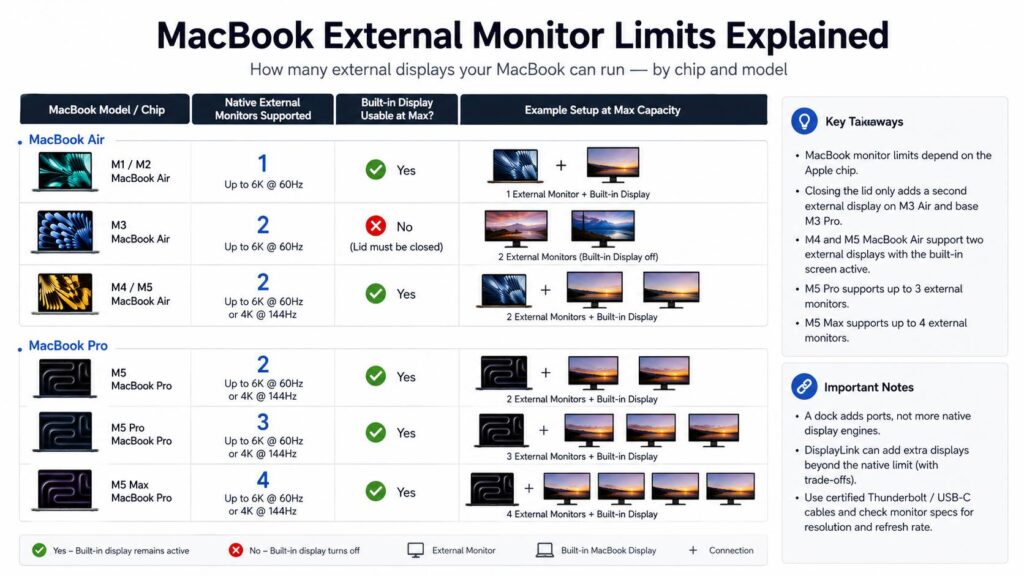
The rules have changed across Apple silicon generations too. Early M1 and M2 MacBook Air models support only one external display natively. M3 Air models can use two external monitors with the lid closed. Newer M4 and M5 MacBook Air models can run two external displays and keep the built-in screen active.
MacBook Pro models go further. Depending on the chip, current models support two, three, or four external displays.
So, before buying a monitor, dock, USB-C hub, HDMI adapter, or Thunderbolt dock, check what your exact MacBook can actually run.
MacBook External Monitor Limits at a Glance
The table below gives you a quick look at native monitor support across popular Apple silicon MacBooks.
| MacBook model or chip | Native external monitors | Built-in screen available at maximum? |
|---|---|---|
| MacBook Air M1 | 1 | Yes |
| MacBook Air M2 | 1 | Yes |
| MacBook Air M3 | 2 | No, lid must close for two |
| MacBook Air M4 | 2 | Yes |
| MacBook Air M5 | 2 | Yes |
| 13-inch MacBook Pro M1 | 1 | Yes |
| 13-inch MacBook Pro M2 | 1 | Yes |
| MacBook Pro M3 | 2 | No, lid must close for two |
| MacBook Pro M2 Pro / M3 Pro | 2 | Yes |
| MacBook Pro M4 / M4 Pro | 2 | Yes |
| MacBook Pro M5 | 2 | Yes |
| MacBook Pro M5 Pro | 3 | Yes |
| MacBook Pro M1 Max / M2 Max / M3 Max | Up to 4 | Yes |
| MacBook Pro M4 Max | 4 | Yes |
| MacBook Pro M5 Max | 4 | Yes |
Right away, one thing stands out. The chip matters more than the badge on the lid.
For that reason, someone buying a MacBook mainly for a multi-monitor desk should check display support before comparing storage, memory, or even CPU performance.
MacBook Air External Monitor Limits
MacBook Air display support has improved a lot since the original M1 model.
Still, the exact limit changes from one generation to another.
MacBook Air M5
The M5 MacBook Air supports two external displays and keeps the built-in display active.
Depending on the monitor setup, it can handle configurations such as:
- Two external displays up to 6K at 60Hz
- Two 4K displays at up to 144Hz
- One 8K display at up to 60Hz
- One 5K display at up to 120Hz
- One 4K display at up to 240Hz
So, you can run the MacBook screen plus two desktop monitors at the same time.
That gives you three active displays in total.
For most home-office setups, this is more than enough. You can keep email or chat on the MacBook screen, place your main work on a large central monitor, then use the second external display for documents, browser tabs, previews, or monitoring tools.
Another nice point is that closing the lid does not increase the two-monitor limit. You already get the full external display count with the MacBook open.
MacBook Air M4
The M4 MacBook Air follows a similar pattern.
It supports two external monitors with the laptop display active. As a result, it works very well as a compact three-screen workstation.
For regular office work, coding, photo editing, research, and multitasking, the display setup is much less restrictive than it was on M1 and M2 models.
In practice, the biggest improvement is not simply the second monitor. The real win is keeping the MacBook screen available at the same time.
MacBook Air M3
The M3 MacBook Air sits in an awkward middle ground.
With the lid open, it supports one external monitor. Close the lid and you can use a second external screen.
That means you can have:
- MacBook display plus one external monitor
- Two external monitors with the MacBook closed
You cannot use the MacBook panel as a third active screen in the dual-monitor configuration.
For a fixed desk setup, this may not matter much, especially if you already use the MacBook in clamshell mode with an external keyboard and mouse.
Still, the limitation becomes annoying if you like using the laptop screen beside two full-size monitors.
MacBook Air M1 and M2
M1 and M2 MacBook Air models support one external display natively.
That remains true even with the lid closed.
So, an M1 or M2 MacBook Air does not become a native dual-monitor Mac simply by entering clamshell mode.
The computers are fast enough for heavy multitasking, yet native external display support stops at one monitor.
For someone using a single 4K or 5K monitor, that limit is rarely a problem. For a dual-monitor desk, though, it changes what hardware you need.
MacBook Pro External Monitor Limits
MacBook Pro display support varies even more.
For this reason, do not assume every Pro model supports several monitors.
The base chip, Pro chip, and Max chip can have very different external display limits.
MacBook Pro M5
The standard M5 MacBook Pro supports two external displays with the internal screen active.
Typical supported configurations include:
- Two 6K displays at 60Hz
- Two 4K displays at up to 144Hz
- One 8K display at 60Hz
- One 5K display at 120Hz
- One 4K display at up to 240Hz
For most people, two large external screens plus the MacBook display provide plenty of workspace.
For example, a developer can put code on one monitor, documentation on the second, and communication tools on the laptop display.
MacBook Pro M5 Pro
M5 Pro raises native external monitor support to three displays.
So, with the built-in panel active, you can have four working screens at once.
That makes M5 Pro especially interesting for users who want a serious multi-monitor workstation without paying for a Max chip.
A three-monitor desk can work well for:
- Software development
- Financial dashboards
- Video editing
- Photo workflows
- Research
- Data analysis
- Content production
- Remote work
In my view, this is one of the strongest reasons to choose M5 Pro over the standard M5 if you already know that two external monitors will feel restrictive.
MacBook Pro M5 Max
M5 Max supports up to four external displays.
That means you can potentially use four desktop monitors and keep the MacBook display active.
Supported configurations can include several 6K displays or fewer screens at very high resolutions and refresh rates.
For most buyers, four external monitors is overkill. Still, some workloads genuinely benefit from that much screen space.
Developers with several environments open, video editors, traders, audio professionals, and people watching several live dashboards can make good use of it.
What About Older Pro and Max Chips?
Older MacBook Pro generations are still widely used, and many remain excellent multi-monitor machines.
M1 Pro supports up to two external displays.
M1 Max raises that number to four in supported configurations.
M2 Pro and M3 Pro support up to two external screens. M2 Max and M3 Max can run up to four.
So, an older Max-equipped MacBook Pro can still be a better choice for a four-monitor desk than a newer base-model MacBook Pro.
This is another reason not to judge display support from model year alone.
Does Closing the MacBook Lid Increase the Monitor Limit?
Sometimes, but not on every model.
This detail causes plenty of confusion.
M3 MacBook Air and base M3 MacBook Pro models can use a second external display after you close the laptop lid.
In that setup, the built-in screen switches off.
So, you still get two active displays in total, not three.
By comparison, M4 and M5 MacBook Air models can already use two external monitors with the laptop screen active.
The same basic idea applies to current MacBook Pro configurations. Closing the lid does not magically add another native display output.
For that reason, clamshell mode should not be treated as a universal trick for bypassing MacBook monitor limits.
Can a Thunderbolt Dock Add More Monitors?
A Thunderbolt dock adds ports. It does not automatically add native display engines.
That distinction matters.
For example, a dock may include three monitor outputs. Your MacBook may still support only one or two native external displays.
In that case, plugging three monitors into the dock does not mean macOS will give you three independent native desktops.
The dock still has value, of course. It can combine charging, Ethernet, storage, audio, USB devices, card readers, and monitor connections through one cable.
Still, the MacBook’s native display limit remains the deciding factor.
So, before spending a lot on a dock, compare the dock specifications with the actual monitor support of your Mac.
Can DisplayLink Add More Monitors to a MacBook?
DisplayLink can provide extra displays beyond the native limit.
It works through compatible hardware and software rather than normal GPU-driven DisplayPort or HDMI output.
For example, someone with an M1 MacBook Air can use a DisplayLink dock to run more than one external monitor.
This can work well for:
- Web browsing
- Spreadsheets
- Coding
- Documents
- Dashboards
- Office software
Still, I prefer native monitor output whenever the Mac supports the setup you need.
DisplayLink adds another software layer, and that can introduce small annoyances. Users sometimes run into sleep and wake problems, screen detection trouble, protected video restrictions, resolution changes, or screen-sharing quirks.
For a basic office desk, those compromises may be fine.
For gaming, video production, high-refresh displays, or color-sensitive work, native Thunderbolt, USB-C DisplayPort, or HDMI output makes more sense.
USB-C Does Not Always Mean Monitor Support
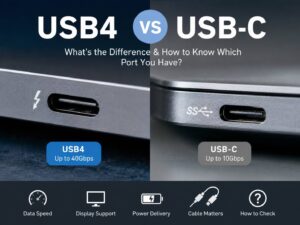
A USB-C connector can carry many different types of signals.
So, the fact that a laptop, hub, or adapter has USB-C does not guarantee full display support.
Some USB-C ports provide:
- Charging
- USB data
- Display output
- Thunderbolt
- Several of these functions together
This causes confusion with cables too.
A cheap USB-C cable may charge the MacBook perfectly but fail to drive a monitor at the resolution or refresh rate you expect.
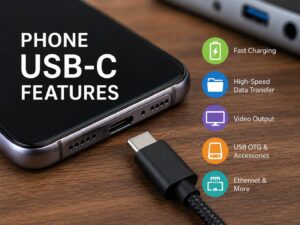
The same issue appears on phones and tablets. If you want a clearer breakdown of what the connector can actually do, our guide to phone USB-C features explained covers video output, charging, data transfer, and other USB-C functions.
For a MacBook monitor setup, check the complete connection path.
That means looking at:
- MacBook port capabilities
- Dock specifications
- Adapter specifications
- Cable bandwidth
- Monitor input type
- Resolution support
- Refresh-rate support
- HDR support
A single weak part can limit the entire setup.
Why a 4K Monitor Sometimes Runs at Only 30Hz
A 4K display at 30Hz usually feels sluggish.
Cursor movement looks less smooth. Scrolling feels rougher too.
In many cases, the monitor itself is not the problem.
The connection may be limiting bandwidth somewhere between the MacBook and the display.
Common causes include:
- Older HDMI adapters
- Cheap USB-C hubs
- Low-bandwidth cables
- Docks that share bandwidth across outputs
- Using the wrong HDMI port on the monitor
- Incorrect monitor input settings
For normal desktop work, 60Hz is a much better target.
High-refresh screens can feel even smoother, but the improvement from 30Hz to 60Hz is the one you notice immediately.
Can a MacBook Run a 4K 144Hz Monitor?
Recent MacBooks can support high-refresh 4K displays.
M4 and M5 MacBook Air models can run one 4K display at refresh rates above 144Hz in supported configurations. They can run two 4K displays at up to 144Hz too.
Recent MacBook Pro models support high-refresh 4K displays as well.
Still, the Mac is only one part of the connection.
Your monitor input, adapter, dock, and cable must support the same resolution and refresh rate.
For example, buying a 4K 144Hz monitor does not guarantee that an older USB-C hub will pass through 4K at 144Hz.
For that reason, check every device between the MacBook and the screen.
Can a MacBook Run an 8K Monitor?
Several recent MacBook models support 8K output.
Current MacBook Air models with newer Apple chips can drive one 8K display at 60Hz in supported configurations.
Recent MacBook Pro models offer 8K output too.
Still, 8K makes sense for a fairly small group of users.
A good 4K or 5K display usually gives a better balance of price, scaling, compatibility, and available monitor choices.
For a 27-inch Mac display, 5K is particularly attractive if sharp text is your main goal.
For larger screens, 4K remains a very practical choice.
Why Two Monitors Sometimes Show the Same Picture
You connect two screens, yet both show the same desktop.
That usually means the displays are mirrored or the dock cannot expose them as separate native displays on your Mac.
Start by opening:
System Settings > Displays
Check whether macOS detects each monitor as an independent screen.
Next, check your MacBook’s native external monitor limit.
For example, an M1 MacBook Air supports one native external display. Connecting two HDMI outputs through a basic dock does not automatically create two independent desktops.
Some docks rely on mirroring. Others use DisplayLink to create extra displays.
So, read the dock description carefully before buying.
Best Monitor Setup for Each MacBook Type
Different MacBooks suit different desk setups.
M1 or M2 MacBook Air
A single high-quality 4K or 5K monitor is the simplest option.
Need two or more external screens? A DisplayLink dock can fill that gap.
M3 MacBook Air
Two monitors work well if you are comfortable keeping the laptop closed.
For a permanent desk, that setup is perfectly reasonable.
M4 or M5 MacBook Air
Two external monitors plus the MacBook display create a very practical three-screen workspace.
For many users, this removes the need to buy a MacBook Pro purely for monitor support.
Base MacBook Pro
Two external displays suit most office, development, design, and productivity setups.
Add the MacBook screen and you have three active displays.
MacBook Pro with Pro chip
Three external displays give you much more desk space.
This is a strong middle ground for users who need more than two monitors but do not need everything offered by a Max chip.
MacBook Pro with Max chip
Choose a Max model if four native external monitors are part of your setup.
It is the most flexible MacBook option for large multi-display workstations.
What to Check Before Buying a Monitor or Dock
A few minutes of checking can save a lot of frustration later.
Before buying anything, confirm:
- Your exact MacBook model
- Your exact Apple chip
- Native external monitor count
- Whether the lid must stay open or closed
- Monitor resolution
- Desired refresh rate
- HDMI, DisplayPort, or USB-C requirements
- Dock display limits
- Cable bandwidth
- Charging requirements
- HDR support
- Whether DisplayLink is acceptable
For example, a dock marketed as “triple display” does not mean every MacBook can run three native external monitors through it.
The laptop still sets the native limit.
Common MacBook Multi-Monitor Problems
Even a compatible setup can have issues.
Here are some of the most common ones.
Monitor not detected after sleep
Disconnecting and reconnecting the cable often brings the screen back.
A dock firmware update can help too.
Wrong resolution
Open Display settings and check the available scaled resolutions.
A low-bandwidth adapter can remove higher-resolution options.
Refresh rate missing
Check the cable, dock, adapter, and monitor input.
One older component can remove high-refresh options.
USB-C monitor charges the Mac but shows no picture
The cable may support charging and USB data but not the video mode required by the display.
Try a cable rated for the monitor’s full video specification.
Two screens mirror each other
Check whether the Mac supports two native external monitors.
Then check whether the dock uses normal display output or DisplayLink.
Monitor flickers randomly
Try another cable first.
In my experience, cable quality causes a lot of display problems, especially at 4K high refresh rates.
Is One Ultrawide Monitor Better Than Two Displays?
For MacBooks with strict monitor limits, an ultrawide can be a smart workaround.
Instead of two 27-inch monitors, you can use one 34-inch, 38-inch, or larger ultrawide display.
That gives you plenty of horizontal workspace through one native monitor connection.
You lose the physical separation of two screens, but window management can make up for much of that.
This is especially useful for M1 and M2 MacBook Air owners who do not want to rely on DisplayLink.
A 40-inch 5K2K ultrawide can provide a huge workspace through a single display output, though these monitors tend to cost more.
MacBook External Monitor Limits: What Really Matters
MacBook monitor support has improved a lot since the first Apple silicon models.
M1 and M2 MacBook Air models remain limited to one native external display.
M3 brought support for two external monitors in clamshell mode.
M4 and M5 MacBook Air models can use two external displays with the built-in screen active.
MacBook Pro models offer more headroom. Depending on the chip, you can run two, three, or four external monitors.
So, the most useful rule is simple: check the chip, not just the MacBook name.
A powerful MacBook can still have a strict display limit. A dock does not automatically remove it.
For extra screens beyond native support, DisplayLink remains useful for office workloads. For the cleanest experience, native Thunderbolt, USB-C DisplayPort, or HDMI output is still the better choice.
Once you know the MacBook’s native limit, the rest becomes much easier. Pick the right monitor resolution, match the refresh rate, use a proper cable, and choose a dock that fits the setup rather than trying to work around it later.