HDMI Splitter vs HDMI Switch: Which One Do You Actually Need?

HDMI Splitter vs HDMI Switch: Which One Do You Actually Need?

HDMI splitters and HDMI switches often look almost identical. Both are small boxes with several HDMI ports, so it is easy to buy the wrong one.

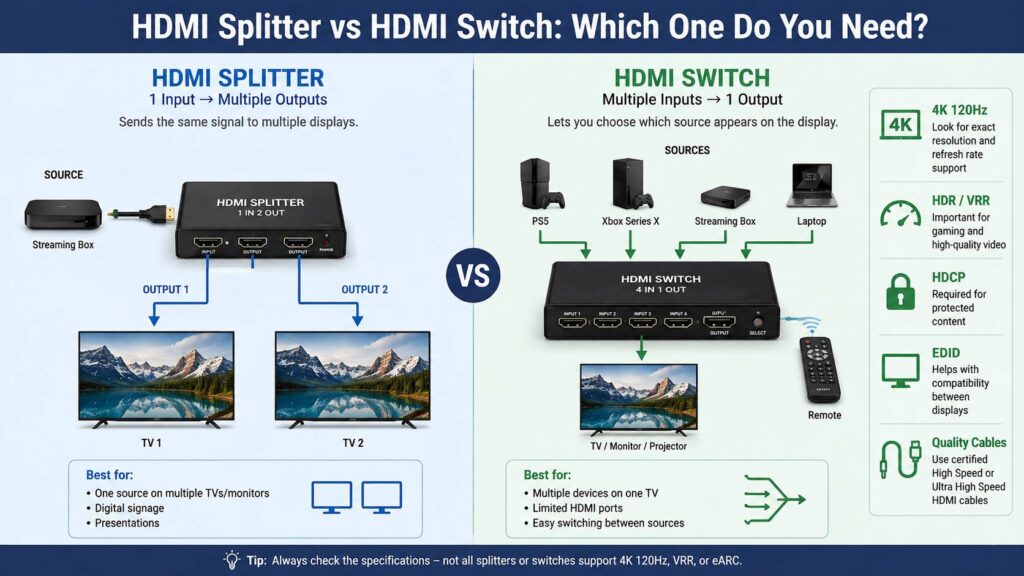
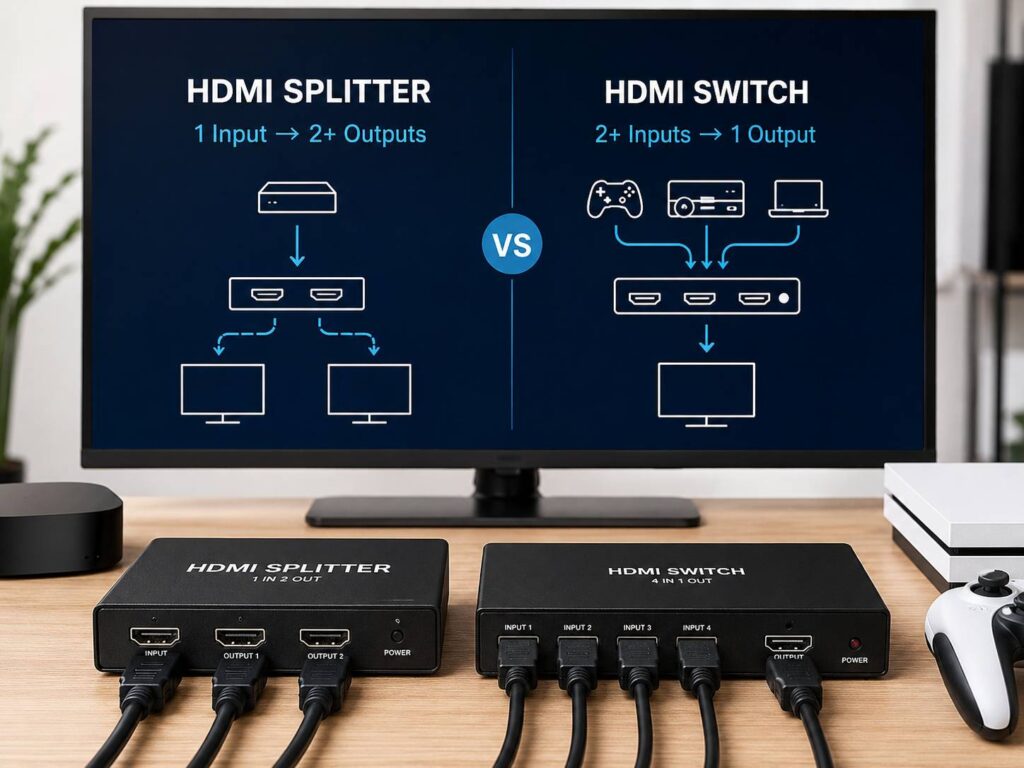
The difference is simple. An HDMI splitter takes one HDMI source and sends the same signal to two or more displays. An HDMI switch connects several HDMI sources to one display and lets you choose which device appears on the screen.

For example, a splitter can send one streaming box to two TVs. A switch can connect a PS5, Xbox, and streaming box to a TV that has only one free HDMI port.

Things become less obvious once 4K, 120 Hz, HDR, VRR, HDCP, EDID, ARC, eARC, capture cards, and mixed-resolution displays enter the setup. So, this guide explains what each device does, which one fits your setup, and what specifications matter before you buy.

HDMI Splitter vs HDMI Switch: The Quick Difference

The easiest way to remember the difference is this:

HDMI splitter: one input, multiple outputs.

HDMI switch: multiple inputs, one output.

A typical 1×2 HDMI splitter has one HDMI input and two HDMI outputs. Both connected displays receive the same picture.

A typical 4×1 HDMI switch has four HDMI inputs and one HDMI output. You connect up to four source devices, then select which one appears on the TV or monitor.

Use an HDMI splitter for setups such as:

  • One PC displayed on two TVs
  • One streaming device shown on two screens
  • One cable box connected to TVs in two rooms
  • One presentation shown on several displays
  • One console mirrored to a TV and another compatible screen

Use an HDMI switch for setups such as:

  • PS5, Xbox, and streaming box connected to one TV
  • Several computers sharing one monitor
  • Multiple media players connected to one projector
  • A TV with too few HDMI ports
  • A desk setup where you do not want to keep swapping cables

That basic difference solves most buying decisions.

What Does an HDMI Splitter Do?

An HDMI splitter copies one incoming HDMI signal and distributes it across two or more outputs.

A common setup looks like this:

Streaming box → HDMI splitter → TV 1 + TV 2

Both televisions show the same content.

For example, you can play a movie from one streaming box and watch it on two displays. You cannot normally use that same splitter to watch the movie on one TV and play a console on the other. Only one source enters the splitter.

Splitters work well in homes, shops, waiting rooms, classrooms, meeting rooms, restaurants, and entertainment spaces where several screens need to display the same content.

Can an HDMI splitter show different content on each screen?

No. A normal HDMI splitter mirrors the same source across its outputs.

If you need different sources on different TVs, an HDMI matrix is a better fit. We will cover that later.

Can an HDMI splitter extend two monitors?

No. This causes plenty of confusion.

A standard HDMI splitter does not create two independent displays for Windows or macOS. Instead, both monitors receive the same image.

So, connecting a laptop to a 1×2 HDMI splitter will usually give you duplicated screens rather than an extended desktop.

For a true multi-monitor setup, use separate graphics outputs, a compatible USB-C or Thunderbolt dock, or another multi-display method supported by your computer.

If you are planning a desk setup, the display itself matters too. Our guide to USB-C monitors vs standard monitors explains how USB-C displays can reduce cable clutter and make laptop connections much easier.

What Does an HDMI Switch Do?

An HDMI switch solves the opposite problem.

It takes signals from several source devices and sends one selected source to a single screen.

A typical setup looks like this:

PS5 + Xbox + streaming box → HDMI switch → TV

Instead of unplugging cables every time you change devices, you press a button or use a remote.

This is especially useful on televisions with limited HDMI ports. It can also help with monitors that only provide one HDMI input.

For example, you can leave your console, streaming box, and mini PC connected all the time. Then, switching between them takes a few seconds.

Manual vs Automatic HDMI Switches

HDMI switches normally use manual controls, automatic switching, or both.

A manual switch changes the active input after you press a button or use a remote.

An automatic switch tries to detect which connected device becomes active. Turning on a game console, for example, can make the switch move to that HDMI input.

Automatic switching sounds convenient. Yet it can become annoying with devices that stay partially active during standby.

A streaming box may keep sending a signal. A console can wake for an update. In those cases, the switch can jump to the wrong input.

For that reason, I prefer HDMI switches that include both automatic switching and a manual button. A remote is useful too, especially if the switch sits behind a TV.

HDMI Splitter vs HDMI Switch Comparison

FeatureHDMI SplitterHDMI Switch
Main purposeSends one source to several displaysConnects several sources to one display
Common layout1 input, 2 or more outputs2 or more inputs, 1 output
Shows same image on several screensYesNo
Adds more usable inputs to a TVNoYes
Creates an extended desktopNoNo
Good for several consolesNoYes
Good for digital signageYesSometimes
Remote controlLess commonCommon
EDID controlsAvailable on better modelsAvailable on some models
4K 120 Hz supportModel dependentModel dependent
VRR supportModel dependentModel dependent
ARC or eARC supportModel dependentModel dependent

Port labels can help too.

A device marked 1×2 usually means one input and two outputs.

A device marked 4×1 usually means four inputs and one output.

Still, read the full specification before buying. Product names are often vague, especially on cheaper models.

What Is a Bidirectional HDMI Switch?

Bidirectional HDMI switches blur the line between a switch and a splitter.

One of these devices can often work in two directions.

For example:

Device A or Device B → one TV

Or:

One source → TV A or TV B

The second setup sounds like an HDMI splitter, but there is an important catch.

Many bidirectional HDMI switches can send the source to only one display at a time. You select TV A or TV B rather than sending video to both simultaneously.

So, a bidirectional switch does not automatically replace a splitter.

If you need both displays active at the same time, look for wording such as 1 input to 2 outputs simultaneously.

What Is an HDMI Matrix?

An HDMI matrix combines parts of a switch and a splitter.

For example, a 4×2 HDMI matrix accepts four source devices and connects them to two displays.

Depending on the model, each display can select a different source.

You might watch a streaming box on the living-room TV and play a console on a projector at the same time.

An HDMI matrix fits setups such as:

  • TV plus projector
  • Game room with several consoles and screens
  • Meeting rooms
  • Sports bars
  • Multi-room AV systems
  • Home theaters with several source devices

A matrix costs more than a simple switch or splitter, but it offers far more routing control.

EDID Matters More Than Most Buyers Expect

EDID is one of the biggest causes of confusion with HDMI splitters.

Your TV or monitor communicates its supported resolutions, refresh rates, audio formats, and other capabilities to the connected source.

Things get more complicated once two different screens connect to one splitter.

For example, imagine connecting:

  • One 4K 120 Hz TV
  • One 1080p 60 Hz monitor

The source now needs a video mode that works with the connected displays and the splitter.

A basic splitter can fall back to the lowest common setting. In that case, your 4K TV may end up receiving 1080p.

Better splitters can provide EDID controls or per-output downscaling. That can make mixed-display setups much easier.

So, EDID support deserves attention if your screens have different resolutions, refresh rates, HDR support, or audio capabilities.

HDCP Can Cause Black Screens

HDCP protects some digital video content that travels through HDMI.

Streaming boxes, Blu-ray players, consoles, AV receivers, TVs, switches, and splitters can all become part of the HDCP connection chain.

If one device does not work correctly with the protected signal, you can see problems such as:

  • Black screen
  • No picture after changing inputs
  • Video playback errors
  • One TV working and another staying blank
  • Protected streaming content refusing to play

This issue appears more often with older or low-cost HDMI accessories.

So, check HDCP compatibility before buying a splitter or switch for 4K streaming services, Blu-ray playback, or other protected content.

Do HDMI Splitters Reduce Picture Quality?

A good HDMI splitter does not normally make the image look softer just by copying a digital signal.

Still, the entire connection becomes limited by the weakest component in the chain.

Consider this setup:

Console → HDMI splitter → TV

Your console, splitter, cable, and TV all need to support the video mode you want.

For example, a splitter limited to 4K 60 Hz cannot pass 4K 120 Hz from a gaming console. Your TV may support 120 Hz, but the splitter blocks that mode.

The same rule applies to HDR, VRR, and high-bandwidth audio.

In practice, picture-quality complaints often come from missing features or signal compatibility rather than the splitter reducing image sharpness.

Do HDMI Switches Reduce Picture Quality?

The same basic rule applies to switches.

A capable HDMI switch should pass the supported signal without changing the image.

Problems appear when the switch cannot handle the resolution, refresh rate, bandwidth, HDR mode, or gaming feature being used.

For example, you may connect a PS5 to a 4K 120 Hz TV through an older HDMI switch. The picture can still work, but the console may drop to 60 Hz.

So, do not buy a switch based only on the word “4K.”

Check the exact refresh rate too.

HDMI splitter vs HDMI switch diagram

What to Check for PS5, Xbox, and 4K 120 Hz Gaming

Gaming setups need more careful shopping than basic TV setups.

If you use a PS5, Xbox Series X, gaming PC, or high-refresh TV, check for explicit support for:

  • 3840 x 2160 at 120 Hz
  • 48 Gbps operation where required
  • Variable Refresh Rate
  • Auto Low Latency Mode
  • HDR formats used by your equipment
  • HDCP compatibility
  • The audio formats you need
  • ARC or eARC support where required

The key word here is explicit.

A product listing that only says “8K HDMI switch” does not tell you enough.

For example, one 8K switch may support 4K 120 Hz and VRR. Another may support 8K at a lower refresh rate but fail to pass VRR correctly.

So, check the complete feature list rather than relying on the HDMI version printed in the title.

HDMI 2.1 vs HDMI 2.2 Switches and Splitters

HDMI 2.2 is the newest HDMI specification in 2026. It raises the maximum transmission bandwidth to 96 Gbps and covers higher-resolution video formats.

That sounds impressive, but most people do not need to replace their HDMI hardware just for the newer version number.

A 4K 60 Hz TV has far lower requirements.

Many 4K 120 Hz gaming setups still work perfectly with suitable 48 Gbps HDMI equipment.

So, match the device to your actual hardware.

For a PS5, Xbox Series X, or current 4K gaming TV, a proven 4K 120 Hz switch with VRR support can make more sense than an expensive HDMI 2.2 accessory that offers features your equipment cannot use.

Future-facing hardware becomes more useful once TVs, monitors, graphics cards, and source devices start using those higher-bandwidth modes.

Which HDMI Cables Should You Use?

Your cables matter just as much as the switch or splitter.

For basic 1080p setups, high-quality older HDMI cables often work fine.

For 4K 60 Hz HDR, use a cable rated for the required bandwidth.

For 4K 120 Hz gaming, certified Ultra High Speed HDMI cables are the safer choice.

A poor cable can cause:

  • Random black screens
  • Signal loss
  • Flickering
  • Sparkles or visual artifacts
  • HDR problems
  • 120 Hz not appearing as an option
  • Audio dropouts

Cable length matters too. Longer runs become harder to manage at high bandwidth.

So, if a new switch or splitter creates problems, test with short known-good cables before replacing the HDMI device.

Powered HDMI Splitter vs Passive HDMI Cable

A proper HDMI splitter contains active electronics.

Some models use an external power adapter. Others receive power through USB.

You may also see cheap HDMI Y cables marketed as splitters. Treat those listings carefully.

A simple cable cannot magically turn one HDMI output into two fully independent outputs.

For a permanent setup, choose an active splitter from a manufacturer that clearly lists:

  • Maximum resolution
  • Refresh rate
  • HDR support
  • HDCP support
  • EDID behavior
  • Power requirements
  • Audio support

A cheaper unknown adapter can work, but troubleshooting random black screens is rarely worth saving a small amount of money.

Can You Use an HDMI Switch With a Soundbar?

Yes, but the connection layout matters.

A common arrangement looks like this:

PS5 + Xbox + streaming box → HDMI switch → TV

Then the TV sends audio to the soundbar through ARC or eARC.

That setup usually makes more sense than placing a basic HDMI switch directly inside the audio-return connection.

If you need eARC through the switch itself, check for explicit eARC support.

Do not assume an “8K” or “48 Gbps” label means eARC will work.

HDMI products can support different feature combinations, so read the audio specifications carefully.

Can You Use an HDMI Splitter With a Capture Card?

Yes, and this setup is common for game capture.

For example:

Console → HDMI splitter → TV + capture card

Yet the capture card now becomes part of the signal chain.

Suppose your TV supports 4K 120 Hz, but the capture card accepts only 4K 60 Hz. A basic splitter may force the whole connection down to a mode that both outputs accept.

A splitter with EDID management or downscaling can solve some of these problems.

For game capture, check:

  • Console output resolution
  • Gaming refresh rate
  • Capture resolution
  • HDR support
  • EDID controls
  • HDCP restrictions
  • Splitter bandwidth

This is one area where buying the cheapest splitter often causes frustration.

Common HDMI Splitter Problems

Both screens drop to a lower resolution

Mixed displays are often the reason.

For example, connecting a 4K TV and 1080p monitor can make the source choose 1080p for both.

Try a splitter with EDID controls or per-output downscaling.

One screen stays black

Start by testing each display directly from the source.

If both displays work individually, check the splitter, HDMI cables, HDCP compatibility, refresh rate, and EDID settings.

4K works but 120 Hz does not

The splitter or one of the cables may not support the required bandwidth.

Look for explicit 4K 120 Hz support.

Audio disappears

Two displays can report different audio capabilities.

For example, one TV may support Dolby Atmos and another may only accept basic stereo. EDID handling can affect the audio format selected by the source.

Common HDMI Switch Problems

The screen goes black after changing inputs

A short black screen during an HDMI input change is common.

The source, switch, and TV need to establish a new HDMI connection. Some equipment completes this process faster than others.

Your console loses 120 Hz

Check the switch specification.

A 4K switch may still support only 60 Hz.

Then check the cables on both sides of the switch.

VRR stops working

Not every high-resolution switch passes VRR.

Look for explicit VRR support rather than assuming it comes with 4K 120 Hz.

Automatic switching keeps selecting the wrong device

One connected device may remain active in standby.

Switch to manual mode if the model provides it.

The switch is awkward to reach

This seems minor until you change inputs several times every day.

For a TV setup, I would pick a switch with a remote plus a physical button. That gives you another control option if the remote disappears under the sofa.

HDMI Splitter vs HDMI Switch: Which One Should You Buy?

Choose an HDMI splitter if you want one source displayed on two or more screens at the same time.

Choose an HDMI switch if you want several source devices connected to one TV, monitor, or projector.

Choose an HDMI matrix if several sources need to feed several displays with more control over which source appears on each screen.

For a basic 1080p setup, the decision is usually simple.

For 4K gaming, home theater, capture cards, or mixed displays, spend more time reading the specifications.

Check:

  • Resolution
  • Refresh rate
  • HDMI bandwidth
  • VRR
  • HDR support
  • HDCP
  • EDID controls
  • Audio formats
  • ARC or eARC
  • Number of inputs and outputs
  • Remote control options

Product names can be misleading.

An “8K HDMI switch” can still miss a feature that matters to your setup.

So, focus on the exact video and audio modes you plan to use.

HDMI Splitter vs HDMI Switch FAQ

Can an HDMI splitter connect two devices to one TV?

No. Use an HDMI switch for that job.

A standard splitter takes one source and sends it to several displays.

Can an HDMI switch send one console to two TVs?

A standard switch cannot send the signal to both screens at once.

Use an HDMI splitter for simultaneous mirrored output.

Some bidirectional switches can send one source to either of two TVs, but only one output works at a time.

Can an HDMI splitter extend my desktop?

No.

A normal splitter duplicates the same image. Use separate graphics outputs or a compatible laptop dock for an extended desktop.

Does an HDMI switch add input lag?

A basic HDMI switch mainly routes the digital signal rather than processing the picture.

For gaming, the larger concern is feature support. Make certain the switch passes your required refresh rate, VRR, HDR, and resolution.

Do HDMI splitters support 4K at 120 Hz?

Some do.

Many older and cheaper models stop at 4K 60 Hz. Check for explicit 4K 120 Hz support.

Will an HDMI switch work with PS5 and Xbox Series X?

Yes, if the switch supports the video modes and gaming features you use.

For 4K 120 Hz gaming, check VRR and bandwidth support too.

Can I connect one HDMI switch to another?

It can work, but every extra device adds another possible point of failure.

You can run into EDID, HDCP, cable, handshake, or bandwidth problems.

A larger switch with enough inputs creates a cleaner setup.

Is HDMI 2.2 required in 2026?

No.

HDMI 2.2 provides higher maximum bandwidth and newer capabilities, but many current setups do not need them.

A quality 48 Gbps HDMI setup remains suitable for many 4K 120 Hz TVs, consoles, and gaming PCs.

Final Buying Advice

The choice between an HDMI splitter and an HDMI switch comes down to signal direction.

One source going to several screens needs a splitter.

Several sources going to one screen need a switch.

More complex installations with several sources and several displays call for an HDMI matrix.

From there, check the features your equipment actually uses. A gaming setup needs more than a basic 4K label. A mixed 4K and 1080p setup can benefit from EDID controls. A soundbar setup may need eARC support. A capture-card setup can need downscaling.

Get those details right and the HDMI box should disappear into your setup. You plug everything in, select the device you want, and use your TV or monitor without thinking about the hardware sitting behind it.

← Back to the blog