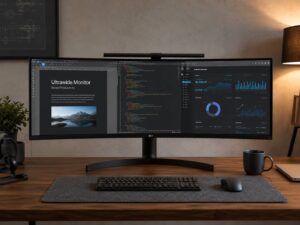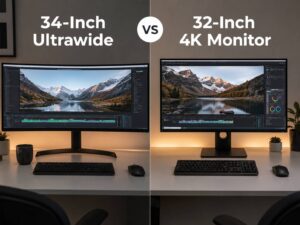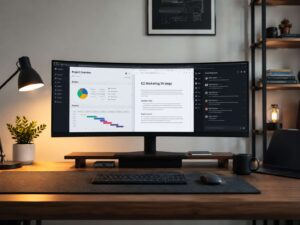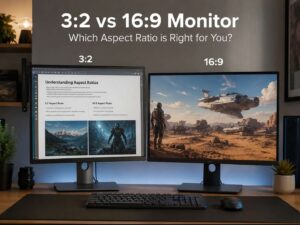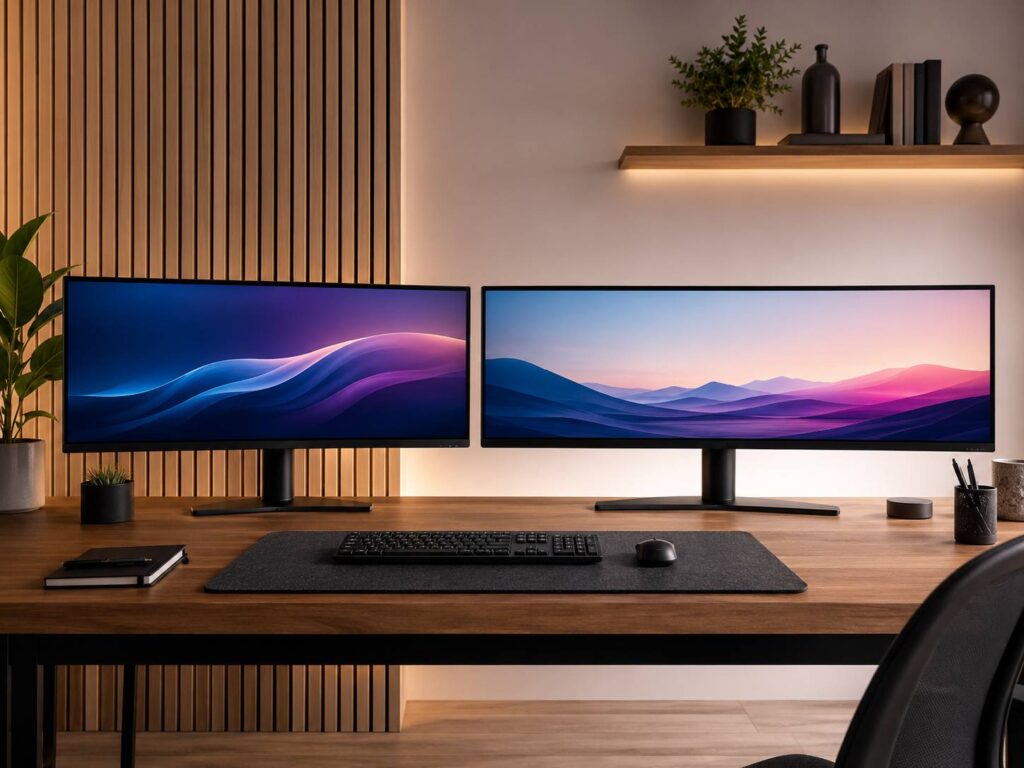
Choosing between a 21:9 and 32:9 ultrawide monitor mostly comes down to how much horizontal space you actually need and how you plan to use it.
For most people, 21:9 offers the better balance. It gives you noticeably more workspace and gaming immersion than a standard 16:9 display, but it doesn’t demand an enormous desk or an exceptionally powerful graphics card.
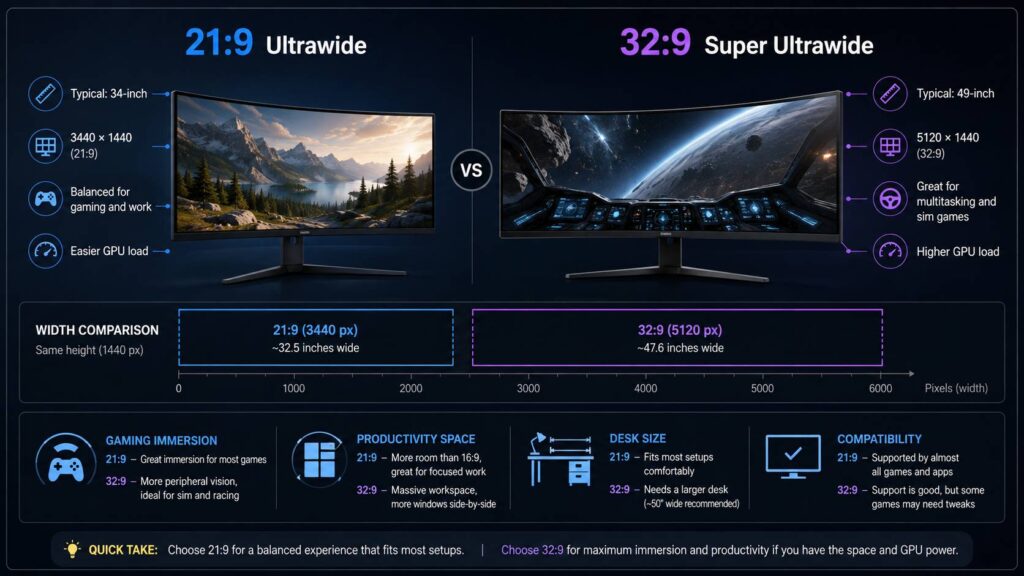
A 32:9 super ultrawide, by comparison, takes the concept much further. A 49-inch model with a 5120 × 1440 resolution can effectively replace two 27-inch QHD monitors. Meanwhile, larger 57-inch displays with 7680 × 2160 resolution offer roughly the screen area and pixel count of two 4K monitors placed side by side.
That extra width can be fantastic for simulation games, video editing, spreadsheets, programming, and heavy multitasking. Still, it also brings higher GPU requirements, greater desk-space demands, and more potential compatibility issues.
So, if you’re comparing 21:9 vs 32:9 ultrawide monitors, the best option isn’t simply the wider one. Instead, the right choice depends on gaming support, productivity needs, resolution, hardware, and available space.
What Is the Difference Between 21:9 and 32:9?
The aspect ratio describes the relationship between a screen’s width and height.
A 21:9 display is significantly wider than a standard 16:9 monitor. A 32:9 monitor stretches even farther horizontally and is often marketed as a super ultrawide monitor.
Here are several common configurations:
| Format | Common size | Typical resolution | Approx. pixels |
|---|---|---|---|
| 16:9 QHD | 27-inch | 2560 × 1440 | 3.69 million |
| 21:9 ultrawide | 34-inch | 3440 × 1440 | 4.95 million |
| 21:9 ultrawide | 38-inch | 3840 × 1600 | 6.14 million |
| 21:9 5K2K | 40-inch | 5120 × 2160 | 11.06 million |
| 32:9 super ultrawide | 49-inch | 5120 × 1440 | 7.37 million |
| 32:9 super ultrawide | 57-inch | 7680 × 2160 | 16.59 million |
These aren’t the only resolutions available, of course. However, they cover some of the most common ultrawide formats you’ll encounter.
There is also a small technical detail worth knowing. Displays marketed as 21:9 aren’t always mathematically exactly 21:9. For example, 3440 × 1440 works out to roughly 2.39:1 rather than exactly 2.33:1.
Even so, manufacturers and retailers still group these displays under the 21:9 ultrawide category. For practical buying decisions, the distinction doesn’t really matter.
How Much Wider Is a 32:9 Monitor?
The physical difference between the two formats is substantial.
A typical 34-inch 3440 × 1440 ultrawide has roughly the same screen height as a 27-inch 16:9 monitor. In other words, most of the extra space appears horizontally.
A 49-inch 5120 × 1440 display is different. Its dimensions are close to placing two 27-inch QHD monitors next to each other, but without the bezels meeting in the middle.
Likewise, a 57-inch 7680 × 2160 super ultrawide resembles two 32-inch 4K displays positioned side by side.
Because of that, 32:9 monitors make a lot of sense for people considering a dual-monitor setup but who dislike having a bezel directly in front of them.
If you’re still deciding between traditional widescreen and ultrawide formats, this guide to 32:9 vs 16:9 monitors can also help put the size difference into perspective.
21:9 vs 32:9 for Gaming
Both formats can create a more immersive gaming experience than 16:9. Still, 32:9 pushes peripheral vision much further.
That sounds appealing, and in the right game it absolutely can be. However, there are some practical differences you should consider before choosing.
21:9 is easier to run
A 3440 × 1440 monitor contains around 34% more pixels than 2560 × 1440.
As a result, GPU load increases, but the jump is still fairly manageable compared with more extreme resolutions.
Modern PC games also tend to handle 21:9 quite well. When proper ultrawide support is available, the game expands the horizontal field of view rather than simply stretching a standard 16:9 image.
Because 21:9 has been common in gaming monitors for years, compatibility is usually better too.
Even then, support isn’t perfect. Menus, loading screens, pre-rendered videos, and some cutscenes may still appear in 16:9 with black bars on either side.
32:9 requires considerably more GPU power
A 5120 × 1440 monitor renders approximately 7.37 million pixels per frame.
For comparison:
- 3440 × 1440: 4.95 million pixels
- 2560 × 1440: 3.69 million pixels
- 3840 × 2160: 8.29 million pixels
Therefore, 5120 × 1440 requires the GPU to process about 49% more pixels than 3440 × 1440.
Interestingly, the total pixel count still sits around 11% below standard 4K.
So, a graphics card capable of handling 4K gaming comfortably can often run 5120 × 1440 reasonably well. Actual frame rates will still depend on the game, graphics settings, ray tracing, CPU performance, and your GPU.
The situation changes dramatically with 7680 × 2160.
That resolution contains about 16.59 million pixels, which is exactly twice the pixel count of standard 4K UHD.
As a result, demanding games can become extremely heavy at native resolution. Features such as DLSS, FSR, XeSS, frame generation, or dynamic resolution scaling can become much more useful here.
Which Aspect Ratio Feels More Immersive?
For properly supported games, 32:9 can provide an impressive amount of peripheral vision.
It works particularly well in:
- racing simulators
- flight simulators
- space games
- driving games
- open-world games
- slower cinematic titles
- some strategy games
For example, a cockpit view in a racing or flight simulator can feel much closer to a multi-monitor setup on a 32:9 display.
Still, wider doesn’t automatically mean better.
In competitive games, you often need to process information quickly. On an extremely wide screen, HUD elements or important visual cues can sit far from your central vision.
Some games also restrict aspect ratio or field of view for balancing or design reasons.
So, for general PC gaming, 21:9 tends to be the easier compromise. It still feels much wider than 16:9, yet you avoid some of the extremes of 32:9.
Game Compatibility Can Matter More Than Resolution
Before buying either format, it’s a good idea to check the games you play most often.
A game can handle ultrawide monitors in several different ways:
- It can render the full resolution properly.
- It can expand the horizontal field of view.
- It can stretch the image.
- It can display black bars at the sides.
- Gameplay can work properly while cutscenes remain 16:9.
- HUD elements can remain centered or move toward the edges.
With 32:9, compatibility problems become more obvious simply because the display is so wide.
A small limitation on 21:9 might barely bother you. On 32:9, the same problem can become very noticeable.
That doesn’t mean 32:9 gaming is unreliable. Many modern PC games work well with it. Still, checking support beforehand matters more when you’re investing in such a large display.
21:9 vs 32:9 for Productivity
Productivity is one of the strongest reasons to consider an ultrawide monitor.
A 21:9 screen already gives you enough room for two large applications side by side.
For instance, you could keep:
- a browser beside a document
- code beside documentation
- Photoshop beside reference material
- email beside a spreadsheet
- a video timeline beside editing tools
Windows Snap also makes arranging applications much easier. In Windows 11, pressing Windows + Z displays available Snap layouts based on the monitor size and current configuration.
As a result, a 34-inch or 40-inch ultrawide can comfortably replace two smaller displays for many people.
32:9 behaves more like two monitors
A 49-inch 5120 × 1440 screen provides enough width for three or even four practical application areas.
For example, you could keep a browser, spreadsheet, chat application, and reference document visible at the same time.
That can be genuinely useful for software development, financial work, large spreadsheets, video-editing timelines, dashboards, and data analysis.
Still, simply maximizing one application across a 32:9 display often wastes a lot of space.
For that reason, window management becomes much more important.
32:9 vs Dual Monitors
A 32:9 monitor is often described as a replacement for two monitors, and that’s a fair comparison.
The obvious advantage is that you get one continuous desktop without a bezel in the center. Cable management can also become simpler, while games can use the entire display as one large screen.
Still, two separate monitors remain more flexible in several situations.
With dual monitors, you can:
- rotate one display vertically
- use screens with different resolutions
- adjust each display independently
- share only one screen during meetings
- dedicate one monitor to full-screen applications
- replace one display without changing the whole setup
So, a 32:9 monitor gives you a cleaner and more continuous workspace. Dual monitors, however, provide more physical flexibility.
Your workflow should decide which benefit matters more.
Picture-by-Picture Can Make 32:9 More Useful
Many super ultrawide monitors include Picture-by-Picture, usually shortened to PBP.
PBP allows the monitor to accept two separate video inputs and display them side by side.
For example, you could connect:
- a desktop PC on the left
- a work laptop on the right
This can make a single 32:9 monitor behave much more like two separate displays.
Some 21:9 monitors also support PBP, although the available layouts can be more limited.
If this feature matters to you, check the exact monitor specifications before buying. PBP resolution, refresh rate, HDR support, USB switching, and supported input combinations can vary considerably between models.
Text Sharpness Depends More on Resolution Than Aspect Ratio
A wider monitor isn’t automatically sharper.
Pixel density matters much more.
For example, a 34-inch 3440 × 1440 display offers roughly 110 pixels per inch. That’s very close to a typical 27-inch 2560 × 1440 monitor.
Likewise, a 49-inch 5120 × 1440 display sits around 109 PPI.
So, despite the much larger physical size, text sharpness is fairly similar between those two examples.
By comparison, a 40-inch 5120 × 2160 ultrawide reaches roughly 139 PPI.
A 57-inch 7680 × 2160 super ultrawide is also around 140 PPI.
Therefore, those higher-resolution displays can look noticeably sharper, especially for text and detailed desktop work.
The downside is that you may need operating-system scaling to keep text and interface elements comfortable.
A 21:9 5K2K Monitor Can Be Better for Office Work
It’s easy to assume that a wider aspect ratio automatically means more usable workspace.
Resolution tells a slightly different story.
A 40-inch 5120 × 2160 21:9 monitor contains around 11.06 million pixels.
A 49-inch 5120 × 1440 32:9 monitor contains about 7.37 million pixels.
Both have 5120 horizontal pixels. However, the 21:9 monitor provides 720 additional vertical pixels.
That extra vertical space can make a noticeable difference for:
- documents
- programming
- web development
- spreadsheets
- photo editing
- web browsing
- publishing tools
So, if productivity is your main priority, don’t automatically assume that 32:9 is better.
A high-resolution 21:9 5K2K display can offer a better balance between width, vertical space, and text sharpness.
Refresh Rate and Connection Bandwidth Matter
High-resolution ultrawide monitors can require a lot of display bandwidth.
A typical 3440 × 1440 monitor is relatively easy for modern graphics hardware to handle.
Once you move into very high resolutions and refresh rates, things become more complicated.
Current 49-inch gaming displays can combine 5120 × 1440 resolution with refresh rates around 240 Hz. Meanwhile, some 57-inch displays combine 7680 × 2160 with refresh rates reaching 240 Hz.
To reach those specifications, several things must line up correctly:
- GPU generation
- DisplayPort version
- HDMI version
- available connection bandwidth
- Display Stream Compression
- bit depth
- chroma format
- HDR configuration
- monitor firmware
- cable capability
For example, some high-end monitors use DisplayPort 2.1 to handle extremely demanding resolution and refresh-rate combinations.
Meanwhile, DisplayPort 1.4 models can still reach high refresh rates by using Display Stream Compression.
So, don’t assume that a powerful graphics card automatically means every refresh-rate option will appear.
Always check both the monitor specifications and your exact GPU outputs.
What Is Display Stream Compression?
Display Stream Compression, or DSC, allows compatible hardware to transmit high-resolution video while staying within the bandwidth limits of the connection.
Modern high-resolution gaming monitors often rely on it.
DSC is designed as visually lossless compression. In practice, the goal is to reduce bandwidth without creating visible image degradation during normal use.
Usually, you don’t need to configure it manually. The graphics card and monitor negotiate DSC automatically when required.
Problems are more likely when another device sits between the GPU and monitor.
For example:
- older docking stations
- adapters
- KVM switches
- incompatible cables
can prevent certain resolutions or refresh rates from working correctly.
Therefore, if you’re troubleshooting an ultrawide display, connect it directly to the graphics card first.
Console Gaming on Ultrawide Monitors
PC remains the better platform for ultrawide gaming.
Consoles usually target television-oriented resolutions such as 1080p, 1440p, and 4K rather than native 21:9 or 32:9 formats.
As a result, connecting a console to an ultrawide monitor can produce:
- black bars on the sides
- a centered 16:9 image
- a stretched picture if the monitor is configured to fill the screen
A stretched image isn’t true ultrawide output.
So, if a PlayStation or Xbox is your primary gaming device, buying an ultrawide specifically for the wider aspect ratio usually makes less sense than it does for PC gaming.
Curvature Matters More on 32:9
Curved screens become more useful as displays get wider.
Without curvature, the edges of a 49-inch or 57-inch screen can sit noticeably farther from your eyes than the center.
Monitor curvature is usually expressed with ratings such as:
- 1000R
- 1500R
- 1800R
- 2300R
A lower number means a stronger curve.
So, 1000R is more aggressively curved than 1800R.
There isn’t one perfect curvature for everyone. Viewing distance, screen size, desk depth, and personal preference all matter.
A mild curve often feels natural on a 34-inch monitor. On a 49-inch or 57-inch model, however, stronger curvature can make the edges easier to view.
Desk Space Is Easy to Underestimate
Before buying a 32:9 monitor, measure your desk carefully.
A 34-inch ultrawide already takes up a fair amount of horizontal space. A 49-inch model is significantly larger, while a 57-inch display can dominate an entire workstation.
Desk depth matters too.
If you sit too close to a very wide monitor, you’ll probably turn your head more often to see the edges. A deeper desk gives you more flexibility to find a comfortable viewing distance.
The monitor stand can also consume much more desk space than expected.
A monitor arm may help, although you shouldn’t choose one based only on the VESA mounting pattern.
Check:
- supported monitor weight
- supported screen size
- tilt capability
- arm extension
- desk thickness
- mounting method
Large curved monitors also place different forces on an arm than smaller flat displays.
OLED vs LCD Is a Separate Decision
Aspect ratio doesn’t determine panel technology.
Both 21:9 and 32:9 monitors are available with different display technologies, including OLED and LCD.
OLED can provide:
- near-instant pixel response
- deep blacks
- excellent contrast
- strong motion clarity
Meanwhile, LCD monitors may offer:
- no OLED burn-in mechanism
- strong sustained brightness on some models
- more productivity-focused options
- a wider range of prices
For people who display static spreadsheets, development environments, toolbars, or dashboards for many hours each day, OLED image retention and burn-in deserve some consideration.
For gaming and mixed media use, OLED’s response time and contrast can be very appealing.
So, choose the panel technology separately from the aspect ratio.
Common Ultrawide Problems and How to Fix Them
The monitor won’t run at its advertised refresh rate
Start with the connection.
Use the DisplayPort or HDMI input recommended by the manufacturer for the maximum refresh rate.
Then check:
- Windows display settings.
- GPU control panel settings.
- Cable specifications.
- Monitor input settings.
- GPU output capabilities.
- DSC requirements.
Also, keep in mind that adapters, docks, and KVM switches can limit bandwidth.
Games show black bars
The game may not support your aspect ratio.
First, open the game’s display settings and select the monitor’s native resolution.
If the game still shows black bars, forcing another resolution won’t necessarily provide proper ultrawide rendering.
It’s usually better to accept the black bars than stretch the image unnaturally.
Text looks too small
Increase Windows display scaling instead of lowering the monitor resolution.
Running an LCD or OLED monitor below its native resolution can make text and interface elements look softer.
Applications become too wide
Avoid maximizing every window.
Instead, use Windows Snap layouts or another window-management tool to divide the screen into useful sections.
This becomes especially important on 32:9 displays.
21:9 vs 32:9 Comparison
| Category | 21:9 | 32:9 |
| Gaming compatibility | Better | More variable |
| GPU requirements | Moderate to high | High to extreme |
| Immersion | Excellent | Exceptional in supported games |
| Productivity | Excellent | Excellent for heavy multitasking |
| Desk requirements | Manageable | Large |
| Window management | Easy | More important |
| Console compatibility | Limited ultrawide benefit | Limited ultrawide benefit |
| Simulation gaming | Excellent | Particularly strong |
| Typical price | Lower | Higher |
| Everyday practicality | Better for most users | Better for specialized setups |
Should You Choose 21:9 or 32:9?
Choose 21:9 if you want an ultrawide monitor that works well across many different tasks.
It makes particular sense for:
- general PC gaming
- office work
- coding
- video editing
- photo editing
- mixed gaming and productivity
- smaller desks
- users moving from one 16:9 monitor
A 34-inch 3440 × 1440 model remains one of the easiest ultrawide formats to fit into a normal PC setup.
Meanwhile, higher-resolution 21:9 displays such as 5120 × 2160 models are particularly attractive for productivity users who want more vertical resolution and sharper text.
Choose 32:9 if you specifically want huge amounts of horizontal workspace.
It makes more sense for:
- racing simulators
- flight simulators
- large editing timelines
- large spreadsheets
- financial applications
- software development
- complex multi-window workflows
- replacing two monitors with one continuous panel
The key question is whether your workflow genuinely benefits from the width.
If you mostly maximize one application at a time, a lot of a 32:9 screen may go unused.
Frequently Asked Questions
Is 32:9 better than 21:9?
Not always. A 32:9 monitor provides more horizontal space and stronger immersion in compatible games. However, 21:9 is easier to drive, easier to fit on a desk, and usually more compatible with games.
Is 32:9 the same as two monitors?
A 49-inch 5120 × 1440 display is roughly comparable to two 27-inch 2560 × 1440 monitors placed side by side. You gain one continuous screen without a center bezel, although separate monitors remain more flexible.
Is 21:9 good for gaming?
Yes. 21:9 provides a wider field of view in compatible PC games and usually requires less GPU power than 32:9.
Does every PC game support 32:9?
No. Support depends on the game. Some titles render properly at 32:9, while others may show black bars, restrict the field of view, or display certain cutscenes in 16:9.
Is 5120 × 1440 harder to run than 4K?
5120 × 1440 contains about 7.37 million pixels, while 3840 × 2160 contains about 8.29 million.
Therefore, its raw pixel count is roughly 11% lower than 4K.
Actual gaming performance can still vary substantially depending on graphics settings and the game itself.
Is 7680 × 2160 considered 8K?
Not in the standard UHD sense.
Standard 8K UHD is 7680 × 4320. A 7680 × 2160 32:9 monitor contains half as many pixels.
So, it’s more accurate to think of it as two 4K UHD displays arranged side by side.
Does 32:9 require a powerful GPU?
For gaming, usually yes.
A 5120 × 1440 monitor already approaches 4K in total pixel count. Meanwhile, a 7680 × 2160 monitor renders twice as many pixels as 4K.
As a result, demanding games may require reduced graphics settings, upscaling, frame generation, or very powerful hardware.
Is 21:9 or 32:9 better for work?
21:9 works better for many conventional office workflows.
However, 32:9 becomes more attractive if you regularly keep three or more applications visible or want to replace a dual-monitor setup.
Is a 49-inch ultrawide too big?
It depends on your desk and viewing distance.
A 49-inch 32:9 screen isn’t unusually tall, but it’s extremely wide. So, measure your desk and think about how far you’ll sit from the screen before buying.
21:9 or 32:9: Which One Makes More Sense?
For most buyers, 21:9 is the safer ultrawide format.
You gain plenty of horizontal workspace, strong gaming immersion, and manageable GPU requirements without completely redesigning your desk setup.
A 32:9 monitor is more specialized. It can replace two displays, create an impressive simulation setup, and provide enormous multitasking space. Still, that extra width only pays off if your games and workflow actually use it.
Resolution deserves just as much attention as aspect ratio.
For instance, a 5120 × 2160 21:9 display can provide more total pixels and considerably more vertical workspace than a 5120 × 1440 32:9 screen.
Likewise, moving from 5120 × 1440 to 7680 × 2160 dramatically increases GPU requirements.
So, don’t choose based on width alone.
For general gaming and everyday productivity, 21:9 is usually the more practical option. For simulation gaming, complex multitasking, or replacing a dual-monitor workstation, 32:9 can be an excellent fit.