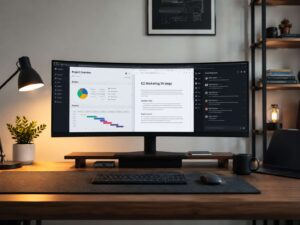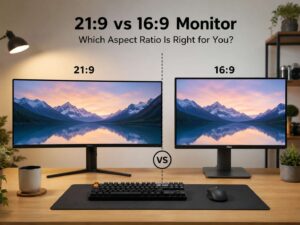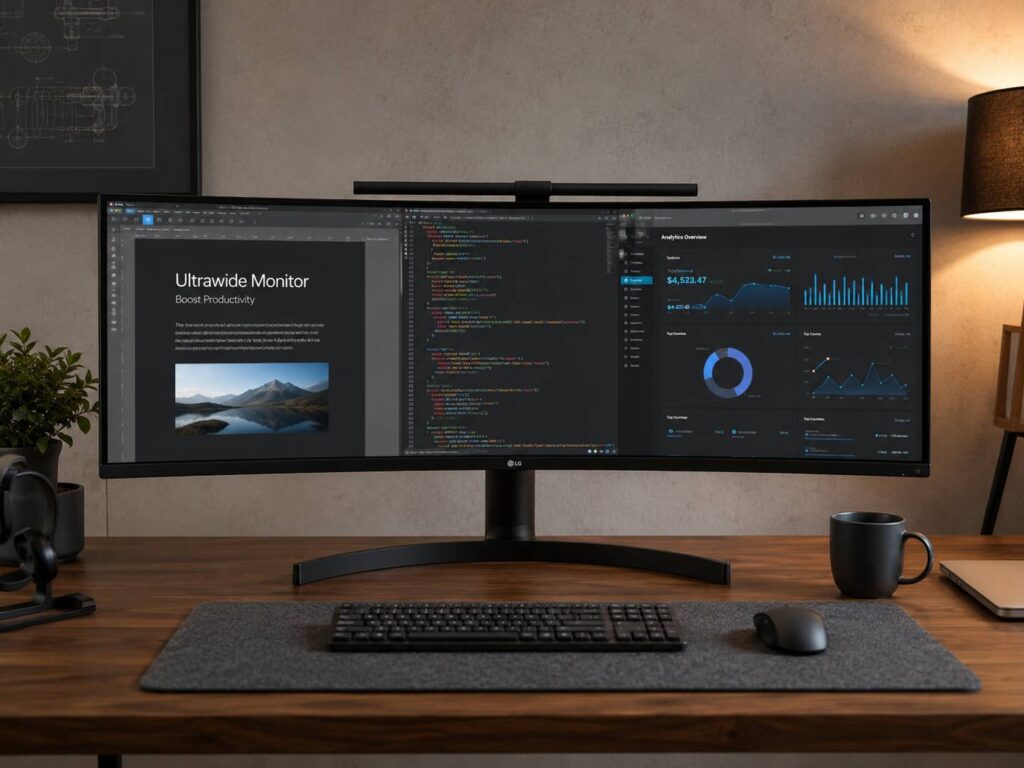
An ultrawide monitor is a computer screen with a wider shape than a regular monitor. Most standard monitors use a 16:9 aspect ratio. Most ultrawide monitors use a 21:9 aspect ratio, so they give you more screen space from left to right.
That extra width can make a big difference. You can keep two or three windows open side by side, stretch a video editing timeline, view more spreadsheet columns, or enjoy a wider view in supported games. An ultrawide monitor can be a cleaner replacement for a dual-monitor setup.
Still, it is not the perfect screen for every desk. Some models cost more, need more room, and require a stronger graphics card. Certain games, videos, apps, and consoles do not use the full width well either. So, before buying one, it helps to know what an ultrawide monitor does best and where it can become annoying.
What Is an Ultrawide Monitor?
An ultrawide monitor is a display with a wider aspect ratio than a normal widescreen monitor. A regular desktop monitor usually has a 16:9 shape. Common resolutions include 1920 x 1080, 2560 x 1440, and 3840 x 2160.
An ultrawide monitor stretches the screen wider. The most common ultrawide resolution is 3440 x 1440, usually found on 34-inch monitors. Cheaper models often use 2560 x 1080, and larger premium screens can use 3840 x 1600 or 5120 x 1440.
The main benefit is simple: you get more horizontal space. That makes an ultrawide monitor useful for work, gaming, video editing, coding, design, finance dashboards, and everyday multitasking.
A 34-inch ultrawide monitor with 3440 x 1440 resolution is the safest choice. It feels wide without being extreme. It also gives you better sharpness than cheaper 2560 x 1080 models.
Ultrawide vs Standard Monitor: What Is the Real Difference?
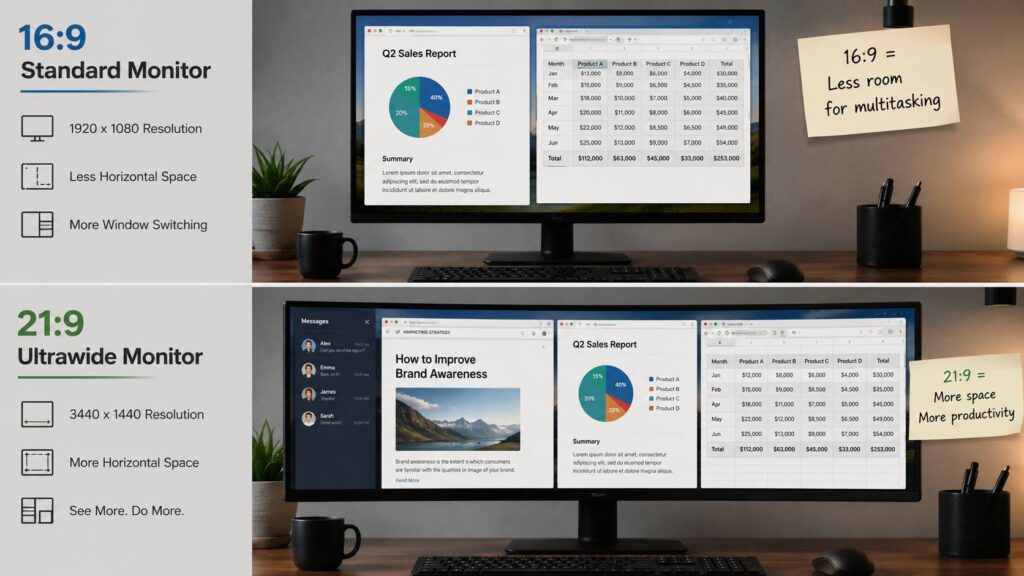
The biggest difference is workspace. A standard 16:9 monitor can feel tight when you place two windows side by side. A 21:9 ultrawide monitor gives each window more breathing room, so multitasking feels smoother.
For example, you can keep a browser on one side and a document on the other. You can place Slack, email, or notes next to your main task. You can compare two pages without constantly switching tabs.
A regular 27-inch 1440p monitor still has many strengths. It is usually cheaper, easier to fit on a desk, and better supported by videos and consoles. Most YouTube videos, streaming content, and console games still target a 16:9 screen.
An ultrawide monitor makes more sense if you work with many windows or dislike the gap between two monitors. A single wide panel looks cleaner, uses fewer cables, and gives you one continuous workspace.
If you want a deeper comparison, this guide on 21:9 vs 16:9 monitor explains how the two screen shapes feel in daily use.
Common Ultrawide Monitor Sizes and Resolutions
Ultrawide monitors come in several sizes, and the resolution matters just as much as the screen size.
Common options include:
- 29-inch ultrawide, 2560 x 1080: Affordable, but text can look less sharp.
- 34-inch ultrawide, 3440 x 1440: Best balance for most work and gaming setups.
- 38-inch ultrawide, 3840 x 1600: More vertical space, great for productivity.
- 40-inch ultrawide, 5120 x 2160: Very sharp, often aimed at professional users.
- 49-inch super ultrawide, 5120 x 1440: Similar to two 27-inch 1440p monitors side by side.
- 57-inch super ultrawide, 7680 x 2160: Huge, expensive, and very demanding.
At 34 inches, 3440 x 1440 resolution is the sweet spot. It gives you a lot of space without taking over the whole desk. It also works well with many modern gaming PCs and laptops.
A 29-inch ultrawide can be tempting because of the lower price. Still, the lower resolution can feel cramped. The screen is wide, but the height feels closer to a smaller monitor. For office work and reading, that can get tiring.
Is an Ultrawide Monitor Good for Work?
Yes, an ultrawide monitor can be excellent for work. It helps most if you use several apps at the same time.
Writers can keep research, notes, and the main document open together. Developers can place code, documentation, a browser preview, and a terminal on one screen. Video editors get a longer timeline. Spreadsheet users can see more columns without scrolling. Designers get extra room for tools, panels, and previews.
The benefit is not only the extra space. It is the reduced friction. You move windows less. You switch tabs less. You can see more of your work at once, and that makes long sessions feel easier.
Still, window management matters. A large screen can become messy fast. Windows Snap Layouts, macOS Split View, and monitor software can help you divide the screen into zones. Once you set a routine, the monitor starts to feel natural.
For home office users, a 34-inch ultrawide is often more comfortable than two smaller monitors. There is no middle bezel, and your main content can stay centered. If you are deciding for productivity, this article on is an ultrawide monitor worth it for work covers the work-focused side in more detail.
Is an Ultrawide Monitor Good for Gaming?
An ultrawide monitor can be great for gaming. The wider screen makes supported games feel more immersive. Racing games, flight simulators, open-world games, RPGs, and cinematic single-player games often look fantastic on a 21:9 display.
The wider view can make the game world feel larger and more natural. In some games, you see more of the environment on the sides. That can improve immersion, especially if the game supports ultrawide properly.
Still, game support is mixed. Some games work perfectly. Others show black bars during cutscenes or menus. A few games lock the view to 16:9, especially in competitive modes. Older games may need fixes from the community.
Performance is another point to think about. A 3440 x 1440 ultrawide monitor has more pixels than a standard 2560 x 1440 display. That means your graphics card has to work harder. A 5120 x 1440 super ultrawide is even more demanding.
For gaming, look for:
- 144Hz refresh rate or higher
- Adaptive sync support
- Low response time
- Good contrast
- Strong motion clarity
- A graphics card that can handle the resolution
OLED ultrawide monitors look amazing in games. Blacks look deep, motion feels fast, and contrast is excellent. Still, they cost more, and users who leave static windows on screen all day should understand burn-in risk.
Curved vs Flat Ultrawide Monitor
Most ultrawide monitors are curved, and that design makes sense. A wide screen places the far edges farther from your eyes. A curve brings those edges closer and makes the display easier to scan.
A gentle curve works well on a 34-inch ultrawide. Larger 49-inch super ultrawide monitors often need a stronger curve, since the panel stretches much farther across your desk.
Flat ultrawide monitors can still work well, mostly for office tasks and design work. A flat screen can suit image editing or layout work better, since straight lines look more predictable. For gaming, media, and daily multitasking, a curved ultrawide usually feels more comfortable.
Desk depth matters here. If you sit too close to a wide screen, you may move your head more than expected. A proper viewing distance makes the curve feel natural instead of overwhelming.
Ultrawide Monitor for Mac and Windows
Windows handles ultrawide monitors very well. Snap Layouts make it easy to divide the screen into sections. You can create a two-window setup, a three-column layout, or a larger main window with smaller side apps.
Mac users need to be more careful. macOS often looks best on high pixel density screens. A 34-inch 3440 x 1440 ultrawide can look good, but text may not look as crisp as it does on Apple’s own high-resolution displays.
Connection type matters too. USB-C can be very convenient, especially for laptop users. One cable can carry video, data, and charging on some monitors. Still, not every USB-C port supports the same resolution and refresh rate.
Before buying an ultrawide monitor for a laptop, check:
- Maximum external display resolution
- Refresh rate support
- HDMI version
- DisplayPort support
- USB-C or Thunderbolt display output
- Laptop charging support through the monitor
This saves frustration. Otherwise you may buy a high-refresh ultrawide and find that your laptop runs it only at 60Hz or at a lower resolution.
What Specs Matter Most?
The most important ultrawide monitor specs are size, resolution, refresh rate, panel type, brightness, contrast, ports, and stand quality.
Resolution should come first. A 34-inch 3440 x 1440 monitor feels much sharper than a 34-inch 2560 x 1080 monitor. If you read text for hours, avoid low-resolution ultrawide models unless price is the main concern.
Refresh rate matters for gaming and smooth desktop movement. A 100Hz screen already feels nicer than 60Hz. A 144Hz or 165Hz screen is better for gaming.
Panel type changes the image:
- IPS panels usually have good color and wide viewing angles.
- VA panels often have better contrast, but some models show motion blur.
- OLED panels have deep blacks and very fast response, but cost more.
HDR can be confusing. Some monitors advertise HDR but do not get bright enough for a strong HDR image. Real HDR needs high brightness, strong contrast, and good local dimming or OLED-level black control.
Do not ignore the stand. Ultrawide monitors are heavier and wider than normal screens. A weak stand can wobble. Height adjustment matters too. If you plan to use a monitor arm, check the monitor weight and VESA mount support first.
Real Issues You Can Face With an Ultrawide Monitor
An ultrawide monitor can be a great upgrade, but it has a few real annoyances.
Some apps do not use the wide space well. They stretch too much, or they leave empty areas. Full-screen mode is not always the best choice, so you may need to resize windows by hand.
Videos can show black bars. Most online videos use 16:9, so they will not fill a 21:9 screen. Movies filmed in wider formats look great, but regular YouTube and streaming videos often leave empty space on the sides.
Console gaming is another weak area. PlayStation and Xbox systems mostly target 16:9. Some ultrawide monitors can accept the signal, but you may see black bars or a stretched image.
Screen sharing can also feel awkward. If you share your full ultrawide screen during a meeting, the text can look tiny for other people. Sharing one window works better.
Desk space is a real concern too. A 34-inch ultrawide fits many desks. A 49-inch super ultrawide needs a wide desk, solid depth, and a strong stand or arm. It can look amazing, but it can also feel too large in a small room.
Who Should Buy an Ultrawide Monitor?
An ultrawide monitor is a smart choice for people who use many windows and want one clean screen instead of two separate displays.
It fits these users well:
- Remote workers
- Writers and researchers
- Programmers
- Video editors
- Music producers
- Spreadsheet users
- Designers
- Stock and crypto traders
- Sim racing fans
- Flight simulator players
- Gamers who play supported single-player games
It is less ideal for people who mainly watch 16:9 videos, play console games, need the lowest price, or want the sharpest possible text on a Mac without buying a premium display.
A simple test helps: if you often split your current screen into two windows and still feel cramped, an ultrawide monitor will likely feel useful every day.
Ultrawide Monitor Buying Tips
Do not buy only by screen size. A large ultrawide with poor resolution can disappoint you fast.
For most people, the best target is:
- 34-inch screen size
- 3440 x 1440 resolution
- 100Hz refresh rate or higher
- Height-adjustable stand
- VESA mount support
- USB-C for laptop setups
- Good return policy
- Solid warranty
For gaming, prioritize refresh rate, response time, adaptive sync, and GPU performance. For office work, prioritize text clarity, ports, stand comfort, and eye comfort. For creative work, check color accuracy, brightness, and panel uniformity.
If you use a monitor arm, check the weight without the stand. Some ultrawide monitors are too heavy for basic arms. A weak arm can sag, wobble, or fail to hold the screen in position.
Is an Ultrawide Monitor Worth It?
An ultrawide monitor is worth it if you want more workspace, cleaner multitasking, and a more immersive gaming experience. It can replace two monitors and make a desk setup look much cleaner.
The best reason to buy one is daily comfort. A good ultrawide makes normal tasks feel easier. You can keep your main work in the center, place supporting apps on the sides, and avoid constant tab switching.
That said, the cheapest ultrawide is not always a good deal. Low resolution, weak brightness, poor motion handling, and a bad stand can ruin the experience. A good ultrawide feels like a real upgrade. A poor one feels like a wide screen with too many compromises.
A 34-inch 3440 x 1440 ultrawide monitor is the best starting point. It gives you the wide-screen feel, strong productivity space, and good gaming support without becoming too expensive or too large.
Final Verdict
An ultrawide monitor is a wider computer display made for more workspace, better multitasking, and deeper immersion in supported games. It gives you more room from left to right, so you can work with several windows, edit timelines, view more data, or enjoy a wider gaming view.
The best choice for most people is a 34-inch ultrawide monitor with 3440 x 1440 resolution and at least a 100Hz refresh rate. It offers a strong mix of comfort, value, and daily usefulness.
Super ultrawide monitors can be amazing, but they suit a smaller group of users. They need more desk space, more graphics power, and more planning. For most home office and gaming setups, a good 21:9 ultrawide monitor is the smarter buy.