Is an ultrawide monitor worth it for work?
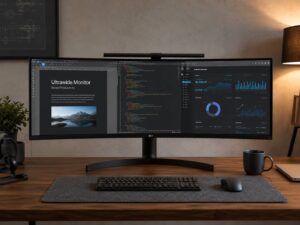
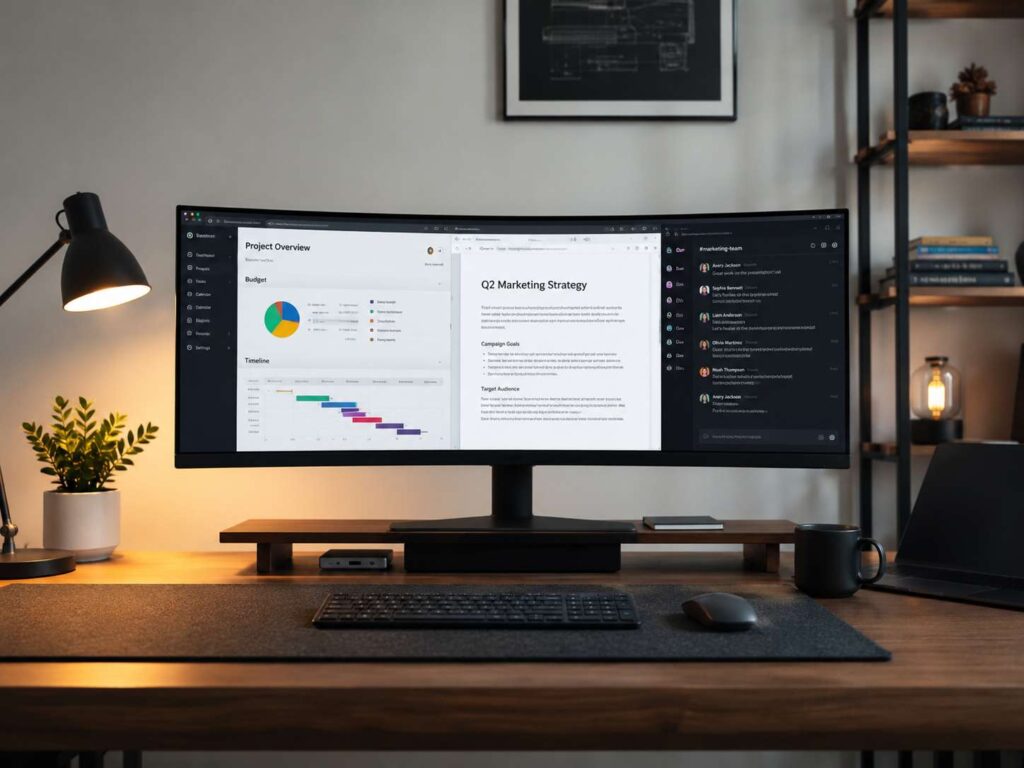
Yes, an ultrawide monitor is worth it for work for many desk setups. It gives you more horizontal space, so you can keep two or three windows open without squeezing them into small boxes. That helps with office work, coding, writing, spreadsheets, video editing, research, project tracking, and remote work.
A 34-inch ultrawide monitor with a 21:9 shape often uses a 3440 x 1440 resolution. That gives you more side-to-side room than a standard 27-inch 1440p monitor. For daily work, that extra width can feel more useful than a larger 16:9 screen.
The main value comes from space. You can place a browser on one side, a document in the center, and Slack, Teams, email, or notes on the other side. That can feel cleaner than using two separate monitors.
Still, it is not the right upgrade for every desk. A good ultrawide costs more than a basic monitor. It needs a wide desk too. Some apps still feel better on two separate screens, so the smart answer starts with your work style.
Why ultrawide monitors feel better for office work
Most office work involves switching between apps. You check email, read a document, compare numbers, edit a file, then jump back to a browser. A normal 16:9 screen can handle that, but it gets crowded fast.
An ultrawide monitor helps by giving you more width. Your main task can stay in the center, and support apps can sit on both sides. That reduces window switching, which makes the workday feel less scattered.
Window snapping tools help too. On Windows, you can split the screen into clean zones. On macOS, you can tile windows side by side. So, once you build a simple layout, the wide screen becomes easier to manage.
A 34-inch ultrawide works best for two large windows or three medium windows. A 49-inch super ultrawide works more like two 27-inch monitors joined into one wide panel. That sounds exciting, but it takes more desk space and better window habits.
Ultrawide monitor vs dual monitors for productivity
The biggest question is simple: should you buy one ultrawide monitor or two regular monitors?
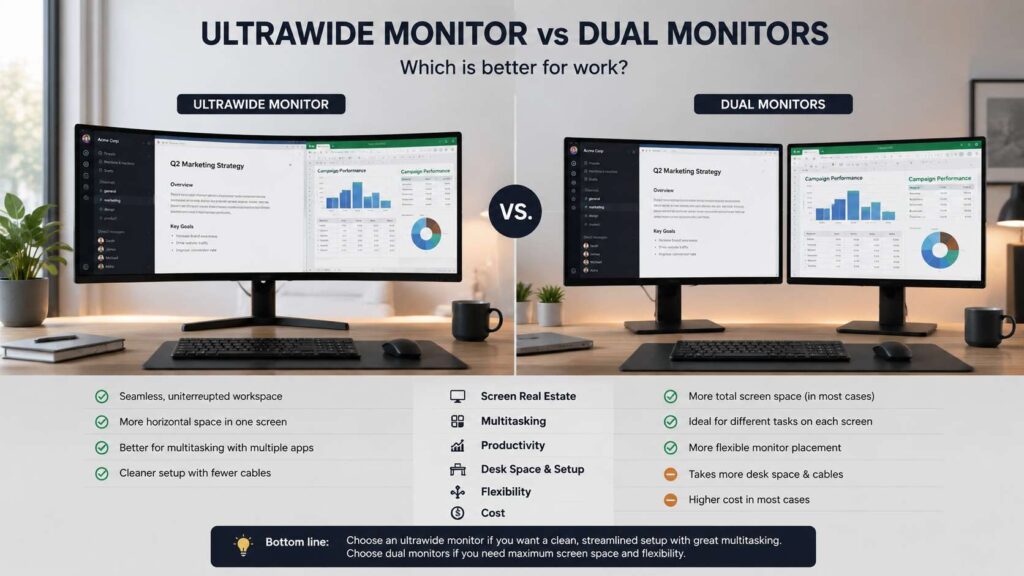
An ultrawide gives you one clean screen. You get no bezel in the middle, so wide timelines, spreadsheets, and design apps look better. Your mouse moves across the whole workspace without crossing a physical gap. Your desk looks cleaner too, since one screen often means fewer cables and less clutter.
Dual monitors still make sense for many workers. They let you run one app full screen on each display. They give you more flexible placement too. For example, you can rotate one screen vertically for code, writing, PDFs, or chat.
Price matters as well. Two 27-inch monitors often cost less than a premium ultrawide. So, if budget matters most, dual monitors can still win.
For a deeper comparison, this ultrawide vs dual monitors in 2026 guide breaks down the choice in more detail.
For most desk work, a 34-inch ultrawide beats a single standard monitor. Against two monitors, the result changes by task. Writers, analysts, coders, designers, and video editors often love ultrawide screens. Admin users, support agents, and people who run many full-screen apps often prefer dual monitors.
Best ultrawide monitor size for work
A 34-inch ultrawide is the safest choice for most work desks. It feels large, but not huge. It fits many home office setups, and it pairs well with 3440 x 1440 resolution.
A 38-inch ultrawide gives more height and width. It feels better for spreadsheets, editing, and large documents. The price rises, though, and fewer models exist.
A 45-inch or 49-inch ultrawide gives a huge workspace. These screens work well for finance dashboards, coding across many windows, video editing timelines, and heavy multitasking. Still, they need a deep desk and a user who likes managing many windows at once.
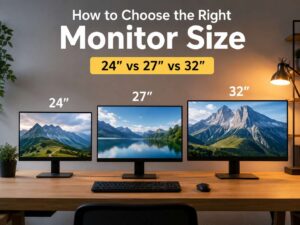
Most people should start with 34 inches. It gives sharp text, wide space, and a sane price range. Need help with desk fit? This guide to the best monitor size for your desk can help you match screen size to your space before you buy.
Is a curved ultrawide monitor better for work?
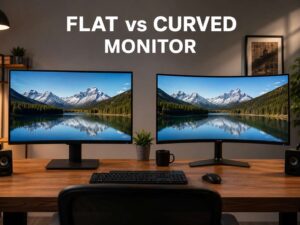
A curved ultrawide monitor often works better than a flat ultrawide. The curve keeps the left and right edges closer to your eyes. That matters on wide panels, since your eyes scan across a larger area.
A gentle curve, such as 1800R or 1900R, suits office work. It helps the screen feel natural without making documents look strange. A stronger curve can feel more immersive, but it can bother people who do design or layout work that needs straight-line accuracy.
For spreadsheets, writing, research, coding, dashboards, and email, a curved 34-inch ultrawide feels comfortable. For photo work, print design, or CAD, test the curve first if you can. Flat panels still suit some precision tasks.
Resolution matters more than size
Do not buy an ultrawide monitor based only on inches. Resolution matters more.
A 29-inch or 34-inch ultrawide with 2560 x 1080 resolution can feel soft. Text can look larger, but less sharp. That can work for casual use, yet it is not ideal for full-time office work.
A 34-inch ultrawide with 3440 x 1440 resolution gives a much better balance. Text looks clean. Windows have room. Spreadsheets show more columns. Browser tabs and sidebars fit better.
A 40-inch ultrawide with 5120 x 2160 resolution gives a sharper, taller workspace. It suits people who want more room without giving up text clarity. The price is higher, and your laptop or desktop must support the resolution at a good refresh rate.
For most buyers, 3440 x 1440 remains the practical choice.
What specs matter for work?
Refresh rate matters, but not as much as it does for gaming. A 75Hz, 100Hz, or 120Hz ultrawide feels smoother than 60Hz during scrolling and window movement. Many current work-focused 34-inch ultrawides now offer 100Hz or 120Hz, and some models go higher.
Panel type matters too. IPS panels often give better viewing angles and color consistency. VA panels often give stronger contrast. OLED panels give deep blacks and fast response, but static office content needs more care over long periods. For daily office work, IPS and good VA panels remain safe picks.
USB-C matters for laptop users. A monitor with USB-C video, power delivery, and a USB hub can turn one cable into display, charging, keyboard, mouse, webcam, and storage access.
KVM support matters for people who use two computers. A built-in KVM lets one keyboard and mouse control both machines. This helps remote workers who switch between a work laptop and a personal desktop.
Desk space and comfort still matter
An ultrawide monitor needs a proper desk. A shallow desk can place the screen too close to your face. That can lead to more eye and neck strain.
For a 34-inch ultrawide, aim for a desk depth of at least 24 inches. More depth feels better. A monitor arm can help too, since it frees desk space and lets you set the screen height with more control.
Screen height matters as much as screen width. The top of the monitor should sit near eye level or slightly below it. Your neck should stay relaxed. Your eyes should look forward, not up.
A wide screen can feel tiring if you sit too close. So, before you buy a 49-inch model, measure your desk. Make sure you have enough depth, not just enough width.
Who should buy an ultrawide monitor for work?
An ultrawide monitor makes strong sense for writers, editors, programmers, analysts, marketers, designers, video editors, music producers, project managers, and remote workers.
Writers can keep research on one side and the draft on the other. Coders can place the editor, browser, terminal, and documentation across one wide space. Spreadsheet users can view more columns without constant side scrolling.
Video editors get more room for timelines. Project managers can keep calendars, boards, documents, and chat visible. Remote workers can keep a meeting window open next to notes, files, and task lists.
The upgrade helps people who dislike clutter too. One screen can replace two mismatched monitors, two stands, and a messy cable setup.
Who should skip an ultrawide monitor?
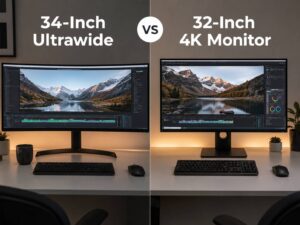
Skip an ultrawide monitor if you only use one app at a time. A good 27-inch 1440p or 32-inch 4K monitor will cost less and still feel roomy.
A narrow desk is another warning sign. A large curved screen placed too close can feel tiring. It can also make the left and right edges harder to scan.
Some workers need one vertical screen. Lawyers, researchers, coders, and writers sometimes prefer portrait mode for long pages. In that case, a dual-monitor setup works better.
Your computer matters too. Check your laptop or desktop ports before buying. Some older machines cannot run a large ultrawide at full resolution and a smooth refresh rate.
Best ultrawide monitor features for remote work
For remote work, look beyond screen size.
A USB-C port with enough charging power matters most for laptop users. Many work laptops need 65W, 90W, or more. Check your laptop charger rating, then match it to the monitor’s USB-C power delivery rating.
A built-in webcam can help, but many monitor webcams still look average. A separate webcam often gives better image quality.
Speakers help for quick calls, but they rarely beat a headset. Still, built-in speakers keep a desk cleaner.
Height adjustment matters more than gaming lights or glossy design. A monitor stand should offer height, tilt, and swivel. Without height adjustment, you may need a riser or monitor arm.
A matte coating helps in bright rooms. Glossy screens can look crisp, but they reflect windows, lamps, and light walls.
Is an ultrawide monitor good for spreadsheets?
Yes. Spreadsheets are one of the best reasons to buy an ultrawide monitor. More width means more visible columns. That helps with budgets, reports, inventory lists, analytics sheets, and finance work.
A 3440 x 1440 ultrawide gives enough room for a wide spreadsheet and a browser or chat window next to it. A 49-inch super ultrawide gives even more room, but it can feel excessive for normal home office use.
For Excel or Google Sheets, pick resolution first. Avoid low-resolution ultrawide monitors. They show more width, but text and grid lines can look less sharp.
Is an ultrawide monitor good for coding?
Yes, many developers like ultrawide monitors. You can keep your code editor in the center, documentation on one side, and a terminal or browser preview on the other side.
A 34-inch ultrawide suits most coding desks. A 38-inch or 40-inch ultrawide gives more vertical room, which helps with long files. A 49-inch super ultrawide works well for complex setups, but it can push side windows too far away.
For coding, text clarity matters more than HDR or extreme refresh rates. Look for 3440 x 1440 or higher, good font rendering, a solid stand, and strong brightness control.
Is an ultrawide monitor good for Mac?
An ultrawide monitor can work well with a Mac, but you need to check scaling and port support.
Many Mac users like sharper 4K and 5K screens, since macOS handles high pixel density well. A 34-inch 3440 x 1440 ultrawide works, but text may not look as sharp as on a 27-inch 5K display.
Mac users who need width for editing, writing, coding, or timelines still get real value from ultrawide screens. Use USB-C or Thunderbolt where possible. Then check that the monitor supports the resolution and refresh rate you want.
Built-in window tools can help, but many Mac users add a window management app for better control on wide screens. That small extra step can make an ultrawide feel much easier to use.
What to buy: practical spec checklist
Choose a 34-inch ultrawide with 3440 x 1440 resolution for the best mix of price, size, and work value.
Pick 100Hz or 120Hz refresh rate if the price gap is small. It makes scrolling and daily movement feel smoother.
Get USB-C with power delivery if you use a laptop. Check the wattage before buying.
Choose height adjustment, tilt, and swivel. Your neck will care more about that than flashy design.
Pick IPS for color consistency. Pick VA for stronger contrast. Pick OLED only if you accept the extra care that static office content needs.
Check your desk depth. A large monitor on a shallow desk can feel worse than a smaller monitor placed well.
Look for a built-in KVM if you switch between two computers.
Final verdict: is an ultrawide monitor worth it for work?
An ultrawide monitor is worth it for work if you spend the day in several apps at once. It gives you space to think, compare, write, code, plan, and review without constant window switching.
The best choice for most people is a 34-inch curved ultrawide with 3440 x 1440 resolution, USB-C, height adjustment, and at least 100Hz refresh rate. That setup fits most desks and covers most office tasks well.
Dual monitors still win for some users, mainly those who need a vertical screen or full-screen apps on separate displays. A single 27-inch or 32-inch monitor still works for people with light workloads.
For real productivity, the right ultrawide does not just make your desk look better. It gives your work more room.