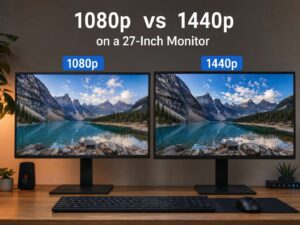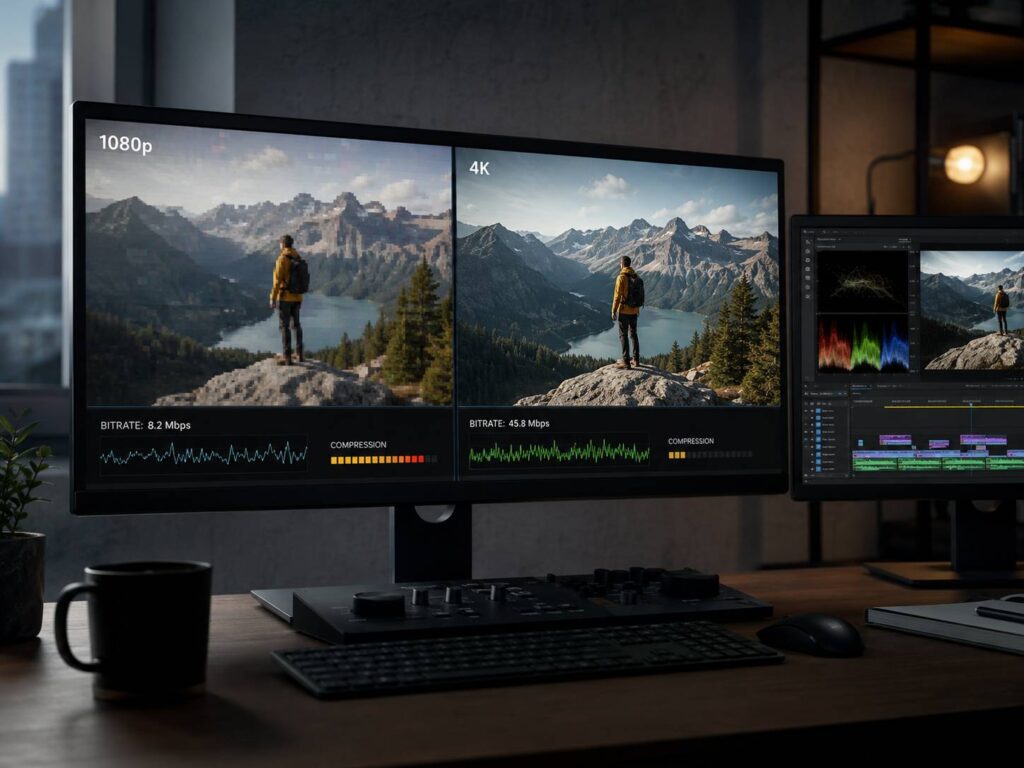
Choosing between 1080p and 4K sounds simple at first. Since 4K has four times as many pixels, it seems logical to assume it will always look better. Real video quality is a little more complicated than that.
Resolution tells you how many pixels make up each frame. Bitrate tells you how much data the encoder can use to describe those pixels. Codec, frame rate, source quality, compression settings, motion, screen size, and viewing distance also influence the final image.
Because of this, a well-encoded 1080p video can look cleaner than heavily compressed 4K. Properly encoded 4K can still deliver much more fine detail, especially on larger displays.
This guide explains how resolution and bitrate work together, when 4K really makes a visible difference, and how to choose sensible settings for streaming, recording, uploading, and storing video.
1080p vs 4K Resolution Explained
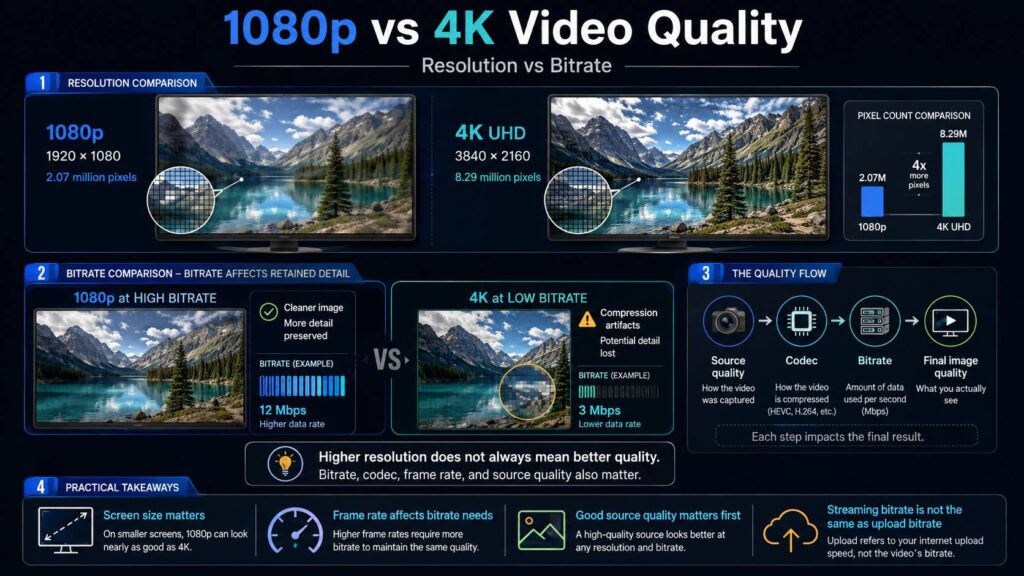
1080p, also known as Full HD, normally uses a resolution of:
1920 × 1080 pixels
That works out to roughly 2.07 million pixels in each frame.
Consumer 4K video usually means Ultra HD, or UHD:
3840 × 2160 pixels
This gives you around 8.29 million pixels per frame.
In simple terms, 4K contains four times the pixel count of 1080p.
| Resolution | Dimensions | Approx. pixels per frame |
|---|---|---|
| 1080p Full HD | 1920 × 1080 | 2.07 million |
| 4K UHD | 3840 × 2160 | 8.29 million |
Those extra pixels can preserve finer textures, small text, hair, foliage, distant objects, and subtle edges.
Still, extra pixels only help when there is genuine detail to display. Creating a 3840 × 2160 file does not automatically give you true 4K image quality.
For example, converting a 1080p clip into a 4K file increases its pixel dimensions. It does not recreate detail that the camera never captured.
What Is Video Bitrate?
Video bitrate measures how much data a video stream uses over a certain period. It is usually expressed in megabits per second, or Mbps.
A video encoded at 20 Mbps uses roughly twice as much video data per second as one encoded at 10 Mbps.
Giving the encoder more bitrate usually helps it preserve:
- Fine textures
- Small details
- Film grain
- Fast movement
- Complex backgrounds
- Smooth gradients
- Water, smoke, snow, and confetti
- Rapid camera movement
Lower bitrate reduces file size and bandwidth requirements. Push it too far, though, and compression artifacts become easier to see.
You may notice blockiness, smearing around moving objects, lost texture, banding in skies, muddy shadows, or details that disappear during motion.
That is why comparing 1080p and 4K based only on resolution can give you the wrong impression.
Resolution vs Bitrate: Which Matters More?
Neither one determines video quality by itself.
Resolution sets the maximum spatial detail the video can represent. Bitrate influences how much of that detail survives compression.
Imagine two files:
- Video A: 1080p at 20 Mbps
- Video B: 4K at 8 Mbps
The second file has four times the pixels, but less than half the bitrate.
Now the encoder has to describe far more pixels using much less data. Depending on the codec, source, and encoder, a lot of fine image information may be discarded.
As a result, Video A could look cleaner, especially during movement.
That does not mean 1080p at 20 Mbps will always beat 4K at 8 Mbps. Good encoders and modern codecs can make very effective use of available bandwidth. The example simply shows why resolution alone cannot predict picture quality.
A useful way to think about it is this:
Resolution determines potential detail. Bitrate helps determine how much of that detail survives compression.
Can High-Bitrate 1080p Look Better Than Low-Bitrate 4K?
Yes, and the difference can be surprisingly obvious in difficult scenes.
Footage containing grass, rain, waves, tree leaves, crowds, explosions, racing games, or fast camera pans is hard to compress efficiently. Large parts of the picture keep changing from one frame to the next.
If a 4K video receives too little bitrate, the encoder may remove much of the extra detail that makes 4K worthwhile.
Meanwhile, a cleaner 1080p encode could retain sharper edges and show fewer visible artifacts.
The difference is usually smaller with simple footage. A static interview against a plain background, for instance, is much easier to compress than a football match or a fast racing game.
So there is no single bitrate where 4K automatically becomes better than 1080p.
Why 4K Usually Needs More Bitrate
A 4K frame contains four times as many pixels as a 1080p frame.
It does not necessarily need four times the bitrate, because modern video compression does not store every pixel independently. Encoders identify repeated information within a frame and between consecutive frames.
Even so, 4K normally needs considerably more data if you want to preserve its extra detail.
YouTube’s SDR upload guidance gives a useful example. For standard frame rates such as 24, 25, or 30 fps, recommended H.264 upload bitrates include:
| Resolution | Recommended upload bitrate |
| 1080p | 8 Mbps |
| 1440p | 16 Mbps |
| 4K 2160p | 35 to 45 Mbps |
At higher frame rates such as 48, 50, or 60 fps, the recommendations increase:
| Resolution | Recommended upload bitrate |
| 1080p | 12 Mbps |
| 1440p | 24 Mbps |
| 4K 2160p | 53 to 68 Mbps |
These numbers are upload recommendations for one platform. They are not universal minimum bitrates for all 4K or 1080p video.
Streaming services often deliver 4K at very different bitrates because they use their own codecs, encoders, processing systems, and playback infrastructure.
Codec Choice Changes the Bitrate You Need
Bitrate comparisons only make sense if you also consider the codec.
Common video codecs include:
- H.264, also known as AVC
- H.265, also known as HEVC
- VP9
- AV1
More advanced codecs can often preserve similar visual quality while using less bitrate than older formats. The exact difference depends on the encoder, source material, and settings.
For that reason, two files with the same resolution and bitrate may look quite different.
A 10 Mbps H.264 file and a 10 Mbps AV1 file are not directly comparable in the same way as two files encoded with identical settings.
The same idea applies to audio compression. Different codecs use available bitrate differently, which is why comparisons such as SBC vs AAC vs aptX vs LDAC vs LC3 cannot be reduced to bitrate alone either.
Encoder quality matters too. Different software encoders may produce noticeably different results even when the codec, resolution, and target bitrate appear identical.
So Mbps by itself does not tell you the whole story.
Frame Rate Also Affects Video Quality
Frame rate tells you how many frames the video displays each second.
Common rates include:
- 24 fps
- 25 fps
- 30 fps
- 50 fps
- 60 fps
A 4K 60 fps video contains twice as many frames per second as 4K 30 fps.
That means the encoder has more visual information to process. As a result, higher frame rates usually need additional bitrate to maintain comparable picture quality.
This matters especially for gaming, sports, action cameras, and other fast-moving footage.
YouTube, for example, recommends a higher upload bitrate for 1080p60 than for 1080p30. The same pattern applies to 4K.
If bandwidth is limited, reducing resolution can sometimes produce a cleaner image than forcing a very low bitrate onto high-resolution, high-frame-rate footage.
Why Streaming 4K Uses Less Bitrate Than Some 4K Uploads
You may notice that streaming services can deliver 4K without requiring a 40 or 50 Mbps connection.
Netflix, for example, recommends a stable connection of at least 15 Mbps for Ultra HD 4K streaming. Its recommendation for Full HD 1080p is at least 5 Mbps.
These numbers should not be compared directly with YouTube upload recommendations.
A streaming platform can carefully encode each title before distribution. It may use modern codecs, several quality levels, adaptive streaming, and content-aware compression.
An uploaded master file serves a different purpose. A higher-quality source gives the platform more information before it creates its own compressed playback versions.
The practical rule is simple:
Recording bitrate, upload bitrate, and streaming bitrate are different things.
How Screen Size Changes the 1080p vs 4K Difference
The benefits of 4K become easier to see as screens get larger or viewing distances become shorter.
On a small phone display, clean 1080p and clean 4K may look very similar during normal use.
Move closer to a large 4K television or monitor and the additional resolution becomes much easier to notice.
The display’s native resolution matters too.
Playing a 4K video on a 1080p screen cannot show all 3840 × 2160 pixels at once. The image has to be scaled down to fit the panel.
That does not mean the 4K version must look identical to the 1080p version. Differences in source quality and platform compression can still change the picture. Still, the display cannot physically show native 4K detail.
Source Quality Matters Before Resolution or Bitrate
Encoding cannot restore information that was never captured.
A blurry 4K recording remains blurry even at a very high bitrate.
Poor focus, excessive sensor noise, bad lighting, digital zoom, motion blur, and heavy image processing can all reduce quality before compression even starts.
Lighting can make a particularly big difference.
Dark footage often contains more sensor noise. That random noise changes constantly between frames, which makes it difficult to compress.
The encoder then has two choices. It can spend more data preserving the noise, or it can smooth it away and risk removing genuine image detail at the same time.
That helps explain why clean footage may look excellent at a modest bitrate, while noisy footage can look poor even at a much higher one.
Bitrate and File Size
Higher bitrate usually means larger files.
You can estimate video size with a simple formula:
Bitrate × duration ÷ 8 = approximate file size
For example, imagine a 10-minute video encoded at 20 Mbps.
10 minutes equals 600 seconds.
20 Mbps × 600 = 12,000 megabits.
12,000 ÷ 8 = 1,500 megabytes.
The video stream therefore uses roughly 1.5 GB in decimal units.
A 40 Mbps version of the same 10-minute video would use roughly 3 GB.
Audio, metadata, container overhead, and rate-control behavior can change the final file size slightly.
This is one reason extremely high bitrates are not always practical.
Constant Bitrate vs Variable Bitrate
Bitrate does not have to stay exactly the same throughout a video.
Constant bitrate
Constant bitrate, or CBR, tries to keep data usage close to a fixed target.
This makes sense when predictable bandwidth matters, especially during live streaming.
Variable bitrate
Variable bitrate, or VBR, lets the encoder spend more data on difficult scenes and less on simple scenes.
For offline exports, that usually makes better use of available storage.
A static scene may need very little data. A fast-moving scene with lots of texture may need much more.
YouTube recommends variable bitrate for uploaded H.264 files, while its live-streaming guidance uses CBR.
The difference makes sense because uploading a finished file and sending a live stream have very different requirements.
Constant Quality Encoding Is Another Option
For local storage, you do not always need to choose a specific bitrate.
Programs such as HandBrake offer constant-quality encoding.
Instead of forcing every file toward a target Mbps value, you select a quality level. The encoder then adjusts the bitrate according to how difficult the source is to compress.
This approach can work well for personal video libraries.
A simple talking-head video may end up quite small. Grainy film footage or fast action may produce a much larger file.
The trade-off is that file size becomes less predictable.
Does Upscaling 1080p to 4K Improve Quality?
Upscaling increases output resolution, but it does not create genuine camera detail.
A traditional upscale takes existing pixels and estimates the additional pixels needed to create a 4K frame.
Modern televisions, GPUs, editing software, and AI-based tools can make upscaled footage appear sharper or cleaner. Even then, they cannot reproduce the exact detail a native 4K camera would have captured.
Repeated upscaling and re-encoding can make matters worse.
Every lossy re-encode has the potential to discard more image information.
Whenever possible, start with the highest-quality original source you have.
Should You Record in 4K or 1080p?
For many workflows, recording in 4K offers useful flexibility even when the final output will be 1080p.
A 4K source gives you more room for:
- Cropping
- Digital stabilization
- Reframing
- Zooming during editing
- Creating multiple compositions from one shot
- Exporting both 4K and 1080p versions
There are trade-offs, of course.
4K usually creates larger files, needs faster storage, requires more processing power, and can increase editing and export times.
Some cameras also change their available frame rates, crop factor, stabilization, or thermal limits depending on the selected recording mode.
If you do not need the extra resolution, good 1080p can still be the more practical choice.
1080p vs 4K for Gaming and Screen Recording
Screen recording brings slightly different challenges.
Text, interface elements, and fine geometric edges make compression artifacts easier to spot.
For 1080p gameplay, a sensible bitrate can give you a cleaner result than recording 4K with a severely restricted data rate.
Fast games usually need more bitrate than slow strategy titles or desktop tutorials.
Frame rate matters here too. A 1080p60 recording contains twice as many frames as 1080p30.
If you plan to edit and upload the footage later, focus on creating a clean recording master. Trying to minimize file size during capture can make later compression more noticeable.
1080p vs 4K for Video Streaming
For streaming playback, your internet connection becomes part of the equation.
A 4K stream normally needs more bandwidth than 1080p. Adaptive streaming platforms can automatically reduce quality when the connection cannot sustain the higher stream.
That means selecting 4K does not guarantee that the service sends maximum-quality 4K every second.
Connection stability often matters more than peak speed.
If 4K constantly buffers or switches quality, using 1080p may actually produce a better viewing experience.
Why a Video Can Say 4K but Still Look Bad
The 4K label only tells you the dimensions of the video. It does not certify image quality.
Poor-looking 4K may result from:
- Low source quality
- Excessive compression
- Low bitrate
- Heavy noise reduction
- Poor camera focus
- Digital zoom
- Upscaled 1080p footage
- Repeated re-encoding
- Fast motion at insufficient bitrate
- Poor lighting
- Weak encoder settings
The same principle applies to 1080p.
A carefully produced Full HD video can still look excellent. Resolution is only one part of the video pipeline.
Other Factors That Affect Perceived Quality
Resolution and bitrate get most of the attention, but several other factors can have a major visual impact.
HDR
High Dynamic Range can preserve a wider range between dark and bright areas when the entire capture, mastering, playback, and display chain supports it.
HDR is separate from resolution.
You can have 4K SDR, 4K HDR, 1080p SDR, or 1080p HDR depending on the format and platform.
Bit depth
Higher bit depth provides more possible tonal values.
This can help preserve smoother gradients and becomes especially relevant in HDR workflows.
Chroma subsampling
Video compression often stores color information at a lower resolution than brightness information.
Formats such as 4:2:0 are common for consumer delivery.
Higher chroma resolution can matter more during editing, graphics work, chroma keying, and some professional workflows.
Encoder settings
Codec presets, rate control, reference frames, keyframe behavior, and other options all influence compression quality.
Two files with the same bitrate and resolution can therefore look noticeably different.
Common Mistakes When Choosing Resolution and Bitrate
A few common choices cause disappointing exports.
Choosing 4K simply because the number is higher. If the bitrate is too low, much of the extra detail can disappear.
Using the same bitrate for every type of video. A static tutorial and a football match have very different compression needs.
Ignoring frame rate. A 60 fps video usually needs more data than a 30 fps version at the same resolution and quality target.
Upscaling low-resolution footage and expecting native detail. A larger frame does not recreate information missing from the source.
Re-encoding the same file repeatedly. Each lossy generation can reduce quality.
Using streaming bandwidth as an export target. The connection speed needed to watch a video is not the same thing as a sensible bitrate for a master file.
Using huge bitrates without a reason. Past a certain point, extra data may produce almost no visible improvement while consuming far more storage.
Practical Settings for Different Situations
There is no single perfect bitrate for every encoder and every type of footage. A few guidelines still work well.
For YouTube uploads
Export at the original frame rate and resolution whenever practical.
If your source is genuinely 4K, there is usually little reason to reduce it to 1080p unless storage, processing time, or workflow limitations make that necessary.
For H.264 SDR uploads, YouTube currently recommends 8 Mbps for 1080p at standard frame rates and 35 to 45 Mbps for 4K.
At 60 fps, the recommendations rise to 12 Mbps for 1080p and 53 to 68 Mbps for 4K.
For local video storage
Constant-quality encoding can be easier than choosing bitrate blindly.
Try encoding a short but demanding section first. Look closely at motion, dark areas, fine textures, gradients, and small details.
Check the result on the display you normally use for watching video.
For live streaming
Prioritize a stable connection.
Avoid setting your stream bitrate so close to your maximum upload speed that small network changes cause dropped frames.
If your connection struggles with 4K, a stable high-quality 1080p stream usually makes more sense.
For archiving important footage
Keep the original camera files whenever storage allows.
A compressed delivery copy is not a good replacement for your highest-quality source if you might edit or export the footage again later.
So, Is 4K Better Than 1080p?
Technically, 4K has a clear advantage in resolution.
It offers four times the pixels of 1080p and can reproduce much finer detail.
That advantage only becomes meaningful when the rest of the video chain can support it.
A genuine 4K source, enough bitrate, a good codec, proper encoding, and a suitable display can produce a noticeably sharper image.
Low-bitrate 4K is a different story.
If compression becomes aggressive enough, a high-quality 1080p version may look cleaner and more natural.
So instead of asking only whether a video is 1080p or 4K, look at the source quality, bitrate, codec, frame rate, compression method, and target display too.
Those factors together determine how good the finished video actually looks.
Frequently Asked Questions
Is 4K always better quality than 1080p?
No. 4K offers more potential detail because it contains four times as many pixels. Poor source material or heavy compression can still make a 4K file look worse than a clean 1080p version.
Does higher bitrate always mean better quality?
Not automatically.
A higher bitrate usually gives the encoder more information to work with, but codec efficiency, encoder settings, source quality, and resolution still matter.
Once bitrate is already high enough, increasing it further may produce very little visible improvement.
Is 1080p at a high bitrate better than 4K at a low bitrate?
It can be.
High-bitrate 1080p may preserve cleaner movement and fewer artifacts than heavily compressed 4K. The result depends on the codec, encoder, source footage, and exact bitrate.
How much more detail does 4K have than 1080p?
4K UHD uses 3840 × 2160 pixels, while Full HD uses 1920 × 1080.
That gives 4K four times the total number of pixels.
Does 4K need four times the bitrate of 1080p?
No.
Modern codecs compress repeated information within frames and across multiple frames, so bitrate does not scale directly with pixel count.
Still, 4K usually needs considerably more bitrate if you want to preserve its extra detail.
Is 1080p enough for streaming?
For many viewers, yes.
Good 1080p can look excellent on phones, laptops, monitors, and many televisions.
4K becomes more useful on larger screens, at shorter viewing distances, or with footage that contains lots of fine detail.
Does 4K use more internet data?
Usually, yes.
Higher-resolution streams normally require more data because they need to carry more visual information.
Netflix states that its highest quality setting can use up to around 3 GB per hour for HD and up to around 7 GB per hour for Ultra HD 4K.
Should I upload 4K if my video was recorded in 1080p?
Usually, keeping the video at its native resolution makes more sense unless your workflow gives you a specific reason to upscale.
Increasing the output dimensions does not turn a 1080p source into genuine native 4K.
Should I record 4K if I only export 1080p?
It can be worthwhile.
Recording in 4K gives you extra room for cropping, reframing, stabilization, and digital zoom before producing a 1080p export.
If storage space, battery use, editing performance, or recording limits matter more, native 1080p can still be the simpler option.