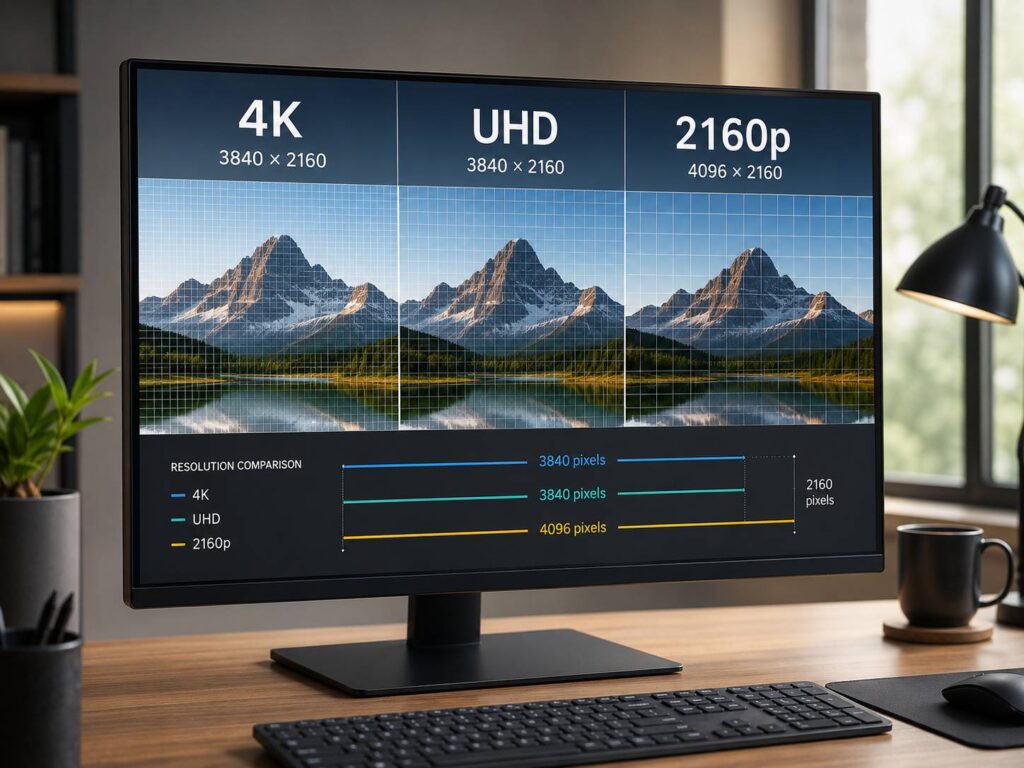
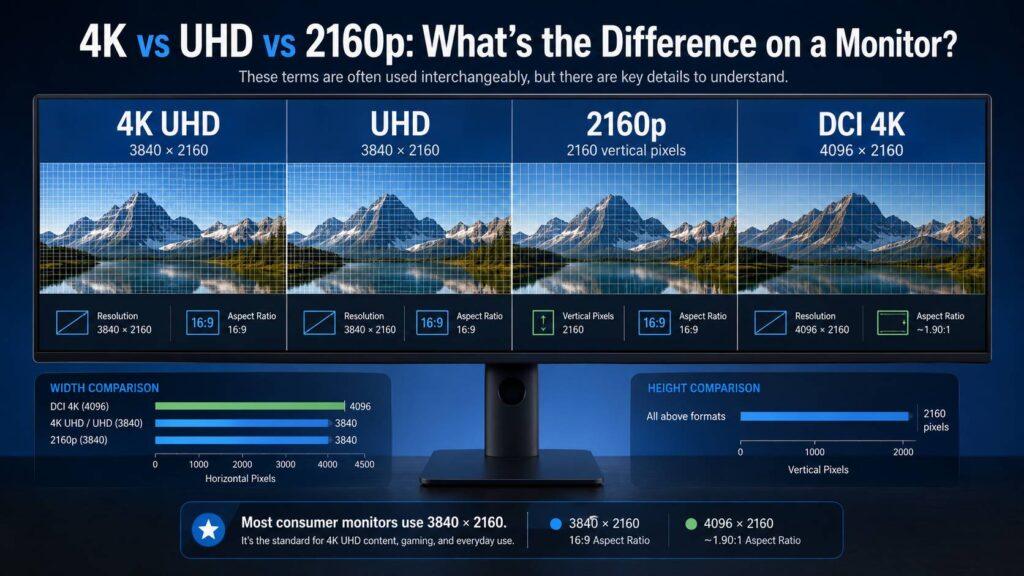
If you’re shopping for a new monitor, you’ll probably run into the terms 4K, UHD, 4K UHD, and 2160p. At first glance, they can look like different technologies. In most monitor listings, though, they describe the same basic resolution: 3840 × 2160 pixels.
There is one technical distinction worth knowing. Cinema 4K uses 4096 × 2160, while the 4K format found on almost every regular 16:9 computer monitor is 3840 × 2160. Meanwhile, 2160p mainly refers to the vertical resolution and progressive scanning.
For everyday monitor shopping, this difference usually won’t change your decision. Still, understanding the terminology makes it much easier to compare specifications and avoid paying extra for marketing labels that don’t actually improve the display.
4K vs UHD vs 2160p at a Glance
The easiest way to understand the terms is to compare them directly.
| Term | Typical resolution | Aspect ratio | Common use |
|---|---|---|---|
| 4K UHD | 3840 × 2160 | 16:9 | PC monitors, TVs, gaming displays |
| UHD | Usually 3840 × 2160 | 16:9 | Consumer monitors and TVs |
| 2160p | Usually 3840 × 2160 | Usually 16:9 | Video, consoles, streaming |
| DCI 4K | 4096 × 2160 | About 1.90:1 | Digital cinema and professional video |
For a standard desktop monitor, 4K, UHD, 4K UHD, and 2160p generally refer to a 3840 × 2160 display.
By contrast, DCI 4K uses a slightly wider 4096 × 2160 resolution. That format matters much more in professional cinema production than in normal PC use.
What Does 4K Mean on a Monitor?
The name “4K” comes from the image being roughly 4,000 pixels wide.
In practice, two resolutions commonly carry the 4K label:
- 3840 × 2160, usually called 4K UHD
- 4096 × 2160, usually called DCI 4K or Cinema 4K
Nearly every mainstream 4K PC monitor uses the first option.
A 3840 × 2160 screen contains:
3840 × 2160 = 8,294,400 pixels
For comparison, Full HD contains:
1920 × 1080 = 2,073,600 pixels
So, 4K UHD has exactly four times as many pixels as 1080p.
That happens because both dimensions double. Horizontal resolution increases from 1920 to 3840, while vertical resolution rises from 1080 to 2160.
As a result, text, photos, icons, spreadsheets, and fine graphical details can look noticeably sharper. The difference becomes especially visible on larger displays or when you sit fairly close to the screen.
Resolution isn’t the whole story, though. Screen size also affects how sharp the image appears.
What Is UHD?
UHD stands for Ultra High Definition.
On consumer monitors, UHD almost always means 3840 × 2160 pixels. In other words, a monitor labeled “UHD” usually has exactly the same resolution as one marketed as “4K.”
Technically, UHD is a broader family of high-resolution formats. It can also include 7680 × 4320, better known as 8K UHD.
For monitor shopping, however, things are much simpler.
If the specifications show:
3840 × 2160 UHD
you’re looking at a standard 4K monitor.
Because of that, there’s no reason to favor a monitor simply because the manufacturer writes “4K” instead of “UHD.” The native resolution is what matters.
What Does 2160p Mean?
The term 2160p describes the vertical resolution.
The number 2160 means there are 2,160 vertical pixels. Meanwhile, the letter “p” stands for progressive scan.
With progressive scanning, every frame contains the complete image. That differs from older interlaced video formats, where alternating lines were displayed separately.
In consumer video, 2160p almost always refers to:
3840 × 2160 progressive video
Still, the term doesn’t describe the full resolution by itself.
For example, an ultrawide monitor can have a resolution of 5120 × 2160. It still has 2,160 vertical pixels, yet it clearly isn’t a standard 3840 × 2160 display.
For that reason, checking the full resolution remains the safest approach.
Is 3840 × 2160 Really 4K?
Yes, at least in the consumer monitor and television market.
Some confusion comes from digital cinema, where true DCI 4K uses 4096 × 2160 pixels. Because 3840 is slightly short of 4,000, you may occasionally see claims that consumer 4K isn’t “real 4K.”
That argument isn’t particularly useful when buying a monitor.
The consumer electronics industry has long used 4K UHD to describe 3840 × 2160 displays. As a result, that resolution is now the normal 4K format for TVs and computer monitors.
There’s also a practical reason for it. A 3840 × 2160 display uses a 16:9 aspect ratio, which matches most TVs, gaming monitors, laptops, streaming video, and PC content.
DCI 4K is slightly wider.
A 4096 × 2160 image contains:
8,847,360 pixels
Meanwhile, 3840 × 2160 contains:
8,294,400 pixels
That makes DCI 4K about 6.7% wider. Still, the difference is far less important for normal desktop use than other monitor specifications.
DCI 4K vs 4K UHD
DCI 4K mainly matters if you work with professional cinema content.
Its native resolution is:
4096 × 2160
Standard consumer 4K UHD uses:
3840 × 2160
Both formats have 2,160 vertical pixels. However, DCI 4K adds 256 horizontal pixels.
That also changes the aspect ratio.
A 3840 × 2160 display uses 16:9, which is approximately 1.78:1. By comparison, a full 4096 × 2160 DCI image is roughly 1.90:1.
Professional reference monitors sometimes support native 4096 × 2160 signals for cinema production. Most home and office users don’t need that extra width.
If you mainly edit photographs, watch video, play games, use productivity software, or create standard online video, 3840 × 2160 is usually the more practical format.
Can You Display DCI 4K Content on a UHD Monitor?
Yes, in most cases.
A 3840 × 2160 monitor can still display 4096 × 2160 video. Software or hardware simply adapts the image to the panel.
Depending on the application, it may:
- Scale the complete frame to fit
- Crop a small section from the sides
- Add black space
- Display a scaled preview inside an editing interface
For casual playback, you probably won’t care about the difference.
Professional cinema mastering is different. In that case, exact pixel dimensions, scaling, color handling, and preview accuracy can become much more important.
Does 4K Automatically Mean Better Image Quality?
Not necessarily.
4K gives you more pixels, which can improve sharpness and fine detail. However, resolution is only one part of image quality.
A monitor can have 3840 × 2160 pixels and still perform poorly in other areas.
The 4K label tells you almost nothing about:
- Contrast
- Black levels
- Color accuracy
- Color gamut
- HDR performance
- Peak brightness
- Refresh rate
- Response time
- Viewing angles
- Motion clarity
- Local dimming
- Variable refresh rate
- Panel uniformity
For instance, two monitors may both use 3840 × 2160 panels. One could run at 60 Hz, while the other supports 144 Hz or even higher.
Their gaming experience would feel completely different.
Similarly, a 4K label doesn’t guarantee good HDR. Some entry-level 4K monitors accept an HDR signal but lack the brightness or contrast needed for impressive HDR reproduction.
So, resolution should be one item on your checklist, not the entire checklist.
How Screen Size Changes the 4K Experience
Pixel density determines how tightly the pixels sit together.
That means two 4K monitors can look slightly different even though they have the same resolution.
A 27-inch 3840 × 2160 monitor has roughly:
163 pixels per inch
A 32-inch 3840 × 2160 monitor has about:
138 pixels per inch
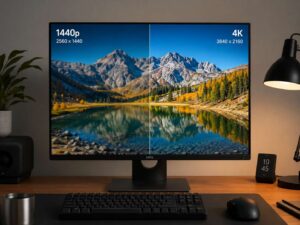
Meanwhile, a 27-inch 2560 × 1440 monitor sits around:
109 pixels per inch
As a result, a 27-inch 4K display can produce extremely sharp text and fine details.
The trade-off is interface size. At 100% scaling, Windows text and icons can look very small on a 27-inch 4K monitor.
If that screen size interests you, our guide on whether a 27-inch 4K monitor is worth it goes deeper into pixel density, scaling, gaming performance, and practical viewing differences.
For many users, operating-system scaling solves the small-text problem without giving up the sharpness of the native 4K panel.
Should You Use Display Scaling on a 4K Monitor?
Usually, yes.
A 27-inch or 32-inch 4K monitor often feels more comfortable with some scaling enabled.
The important part is to keep the panel at its native 3840 × 2160 resolution.
Instead of lowering the resolution, increase interface scaling.
On Windows 11:
- Open Settings.
- Select System.
- Open Display.
- Select the correct monitor if you use more than one.
- Set Display resolution to 3840 × 2160.
- Adjust Scale until text and icons feel comfortable.
- Open Advanced display to check the refresh rate.
Windows may suggest a recommended scaling percentage. Still, you can adjust it if another setting feels better for your screen size and viewing distance.
On macOS, open:
System Settings > Displays
Then choose the scaling option that gives you the right balance between workspace and readable text.
Scaling allows the operating system to make interface elements larger while still rendering them with the extra detail available from the 4K panel.
Why Does My 4K Monitor Look Blurry?
A 4K monitor running correctly should produce very sharp desktop text.
If the image looks soft, several issues could be responsible.
The monitor isn’t using its native resolution
This is one of the first things to check.
A 3840 × 2160 panel may look noticeably softer if your computer outputs 2560 × 1440 or 1920 × 1080.
Open your display settings and confirm that the native resolution is selected.
The cable or adapter is limiting the connection
Sometimes the monitor itself isn’t the problem.
An older HDMI cable, USB-C adapter, docking station, KVM switch, or graphics output can restrict the available display modes.
For example, a connection may support 3840 × 2160 at 30 Hz but not 60 Hz.
That’s why “supports 4K” isn’t specific enough when comparing cables and adapters. Instead, check the resolution and refresh rate together.
Chroma subsampling may affect text
Some display connections use chroma subsampling to reduce bandwidth.
Formats such as 4:2:2 and 4:2:0 preserve less color information than RGB or 4:4:4.
That usually works well enough for video. On a PC desktop, though, small colored text and fine edges may appear less clear.
For desktop use, RGB or 4:4:4 output is preferable when your hardware supports it.
An older application may not handle scaling well
Most current applications work properly with high-density displays.
Older software can behave differently. You may see blurry text, tiny menus, or interface elements that scale poorly.
If Windows itself looks sharp but one application doesn’t, the problem is probably related to that program rather than the monitor.
Why Is a 4K Monitor Stuck at 30 Hz?
Another common issue appears when a monitor supports 60 Hz, 120 Hz, 144 Hz, or more, but the computer only offers 30 Hz at 4K.
Several things can cause this:
- Limited graphics output bandwidth
- An older HDMI connection
- A restricted USB-C port
- A 4K 30 Hz adapter
- Docking station limitations
- The wrong monitor input setting
- A cable that can’t reliably handle the required bandwidth
- Graphics hardware that doesn’t support the desired display mode
Start by connecting the monitor directly to the computer if possible.
Next, check the exact capabilities of the graphics output and monitor input. The connector shape alone doesn’t tell you enough.
USB-C is a good example. Two laptops may both have USB-C ports, yet their supported display resolutions and refresh rates can differ substantially.
In Windows 11, check your current mode here:
Settings > System > Display > Advanced display
Select the monitor, then review the available refresh rates.
4K vs UHD for Gaming
There is no meaningful gaming difference between a monitor labeled 4K and another labeled UHD if both use a 3840 × 2160 panel.
Instead, gamers should compare the specifications around the resolution.
Check:
- Maximum refresh rate
- Variable refresh rate support
- Response characteristics
- DisplayPort and HDMI capabilities
- HDR performance
- GPU requirements
- Panel type
- Input latency
Running games at 3840 × 2160 can put a substantial load on the graphics card.
Consider the pixel counts:
3840 × 2160 = 8.29 million pixels
2560 × 1440 = 3.69 million pixels
1920 × 1080 = 2.07 million pixels
So, 4K contains around 2.25 times as many pixels as 1440p and four times as many as 1080p.
That doesn’t mean frame rates will drop by exactly those amounts. Game engines, graphics settings, CPU limits, memory bandwidth, upscaling, and GPU architecture all affect performance.
Still, the extra rendering workload can be substantial.
Modern upscaling technologies can help by rendering the game internally at a lower resolution and reconstructing a higher-resolution image.
2160p Doesn’t Tell You the Refresh Rate
The term 2160p only gives you part of the display information.
You could have:
- 2160p at 30 Hz
- 2160p at 60 Hz
- 2160p at 120 Hz
- 2160p at 144 Hz
- 2160p at 240 Hz
The resolution can stay at 3840 × 2160 in every example.
However, the experience can feel very different.
A higher refresh rate can make scrolling, mouse movement, animations, and games appear smoother.
For normal productivity, 60 Hz may be completely adequate. By comparison, gamers often prefer 120 Hz or higher when their hardware can maintain suitable frame rates.
Because of that, compare resolution and refresh rate together.
A specification such as 3840 × 2160 at 144 Hz tells you far more than a simple “4K” badge.
4K Doesn’t Automatically Mean HDR
4K and HDR describe two separate display characteristics.
4K describes resolution.
HDR describes how the display handles a wider range of brightness and color information.
A monitor can support:
- 4K without HDR
- 4K with limited HDR
- 4K with strong HDR performance
- 1440p with HDR
- 1080p with HDR
So, don’t assume that a UHD monitor will automatically deliver good HDR.
If HDR matters to you, check characteristics such as peak brightness, contrast, local dimming, panel technology, color gamut, and HDR certification separately.
OLED and Mini LED displays, for example, can handle HDR very differently from a basic edge-lit LCD even when all three have the same 3840 × 2160 resolution.
What Should You Check Before Buying a 4K Monitor?
Instead of focusing on the large “4K” badge on the product page, start with the specification table.
For a conventional 16:9 monitor, confirm that the native resolution is:
3840 × 2160
After that, consider the specifications that match your intended use.
For office work, you may care most about:
- Text clarity
- Ergonomic adjustment
- USB-C connectivity
- Good viewing angles
- Display scaling
- Built-in USB hubs
Gaming priorities tend to be different:
- Higher refresh rates
- Variable refresh rate
- Fast pixel response
- Suitable HDMI or DisplayPort bandwidth
- Good HDR, if desired
Photo and video editing may require:
- Accurate color modes
- Wide color gamut
- Hardware calibration support
- Good panel uniformity
- Suitable bit-depth handling
Meanwhile, DCI 4096 × 2160 support becomes relevant mainly for specialized cinema workflows.
Common 4K Monitor Buying Mistakes
A common mistake is paying extra for a monitor marketed as “true 4K” because someone claims 3840 × 2160 isn’t genuine 4K.
For consumer monitors, 3840 × 2160 is the established 4K UHD standard.
Another mistake is assuming every 4K monitor looks equally sharp. Screen size changes pixel density, while panel quality affects the overall image.
Refresh rate is easy to overlook too. A 4K 60 Hz office display and a 4K 240 Hz gaming monitor may share the same resolution, but they serve very different purposes.
Connectivity can also become a problem. Buying a high-refresh 4K monitor doesn’t guarantee that your laptop, graphics card, dock, cable, or adapter can drive its maximum display mode.
Finally, avoid lowering a 4K monitor to 1080p just because the interface feels too small. Instead, try display scaling first. Modern flat-panel monitors normally look best at their native resolution.
Frequently Asked Questions
Is UHD the same as 4K on a monitor?
For mainstream monitors, yes. UHD and 4K UHD normally refer to a resolution of 3840 × 2160 pixels.
Is 2160p the same as 4K?
Usually, yes in consumer video and monitor discussions. Still, 2160p technically describes the vertical pixel count and progressive scanning. The full resolution gives you more precise information.
Is 4096 × 2160 better than 3840 × 2160?
Not necessarily. It has 256 extra horizontal pixels, but standard 3840 × 2160 fits the 16:9 format used by most consumer displays and content. DCI 4K mainly matters in digital cinema production.
Why does my 4K monitor show 3840 × 2160 instead of 4096 × 2160?
That’s normal. Consumer 4K monitors generally use 3840 × 2160 UHD panels. The wider 4096 × 2160 format is mainly associated with digital cinema.
Is 3840 × 2160 four times 1080p?
Yes, by total pixel count.
1920 × 1080 contains about 2.07 million pixels. Meanwhile, 3840 × 2160 contains about 8.29 million pixels.
Because both the horizontal and vertical dimensions double, the total number of pixels becomes four times larger.
Should I choose 1440p or 4K for a monitor?
It depends on your screen size, viewing distance, GPU performance, and priorities.
4K offers higher pixel density and sharper fine details. By comparison, 1440p requires less graphics processing and can make high frame rates easier to achieve.
Does a 4K monitor need a special cable?
Not necessarily. Still, the cable and connection must support the resolution, refresh rate, color format, and bit depth you want to use.
A cable or adapter that supports 4K at 30 Hz may not handle 4K at 120 Hz or 144 Hz.
For that reason, always check the complete display mode rather than relying on a generic “4K compatible” label.
4K, UHD, or 2160p: Which Label Should You Choose?
For a normal computer monitor, 4K, UHD, 4K UHD, and 2160p usually point to the same 3840 × 2160 resolution.
The main exception is DCI 4K at 4096 × 2160, which is mostly relevant to professional cinema workflows.
So, there’s little reason to choose one monitor over another simply because one product page says UHD and another says 4K.
Instead, check the native resolution first. Then compare screen size, refresh rate, panel technology, HDR capability, connectivity, color performance, and the features that actually matter for your setup.
If the specification says 3840 × 2160, you’re looking at the standard 4K format used by modern consumer monitors.