OLED monitor pixel refresh needs power even while the screen is dark. The Alienware, ASUS, Samsung, MSI and LG models covered here have automatic cleaning cycles tied to standby or shutdown. Their triggers differ, so check the row for your model before starting a manual run. Disconnecting power can prevent or interrupt cleaning.
Before you start
- The model number, from the label on the back of the monitor
- An outlet that stays live overnight (a switched strip or a scheduled smart plug stops the refresh)
- Time without the screen for the cycle shown by your model’s menu or manual
- The remote, on a Samsung smart model such as the Odyssey OLED G8 G80SD
Let the automatic refresh run
- Keep the monitor connected to power while its cleaning cycle runs.
- When you finish, switch the monitor off with its own power button, or let the computer put the display to sleep. On a Samsung, use the power button or the remote. An LG UltraGear switches off when you hold its joystick for more than five seconds.
- Allow the full cycle length shown for your model. The short automatic cycles below take several minutes, but a manual maintenance function can take longer. Several models blink their power light while cleaning.
- Wait for the light to stop blinking before you switch the monitor back on. Turning an ASUS on mid-run stops the cleaning, and an Alienware puts up a message that the refresh didn't finish, with an offer to carry on.
| Brand and manual | Name of the run | Starts by itself | Length | What you see |
|---|---|---|---|---|
| Alienware AW3225QF, AW3425DW | Pixel Refresh | After 4 hours of use, at standby or power-off | 6 to 8 minutes | Power light blinks slowly green |
| ASUS ROG PG27UCDM, XG27AQDMG | Pixel Cleaning | When the monitor is switched off | About 6 minutes | Black screen, and the XG27AQDMG's light blinks orange |
| Samsung Odyssey OLED | Screen Optimization | When you switch it off without unplugging it | About 10 minutes | A pop-up at the next start says it's done |
| MSI MAG 272UP QD-OLED E16 | Panel Protect | After 4 hours of use, at standby or power-off | Several minutes | Power light blinks orange |
| LG UltraGear 27GX790B-B | OLED Image Cleaning | At power saving or power-off, 4 hours after the last run | About 10 minutes | Not described in the manual |
Keep power connected until the cycle finishes. If you normally cut power with a smart plug or strip, allow the monitor to finish its maintenance first. Follow its manual for the completion signal.
Start a refresh by hand
A manual run is worth it when a shadow of a still image stays after the picture changes. ASUS and LG also ask for one when the monitor is new or comes back from long storage. ASUS's FAQ recommends a cleaning every four hours of use. The automatic run at power-off covers that for shorter sessions, so the manual run, or ASUS's reminder, is for days when the monitor stays on longer.
Alienware
Dell's guides for the AW3225QF and the AW3425DW put the refresh in the same place.
- Press the joystick at the bottom of the monitor to open the Menu Launcher, then choose "Menu".
- Go to "Others" > "OLED Panel Maintenance" > "Pixel Refresh".
- Choose "Yes" at the prompt. The monitor switches itself off and runs the refresh. The other answer, "No, do it during monitor in Standby", leaves it for the next standby.
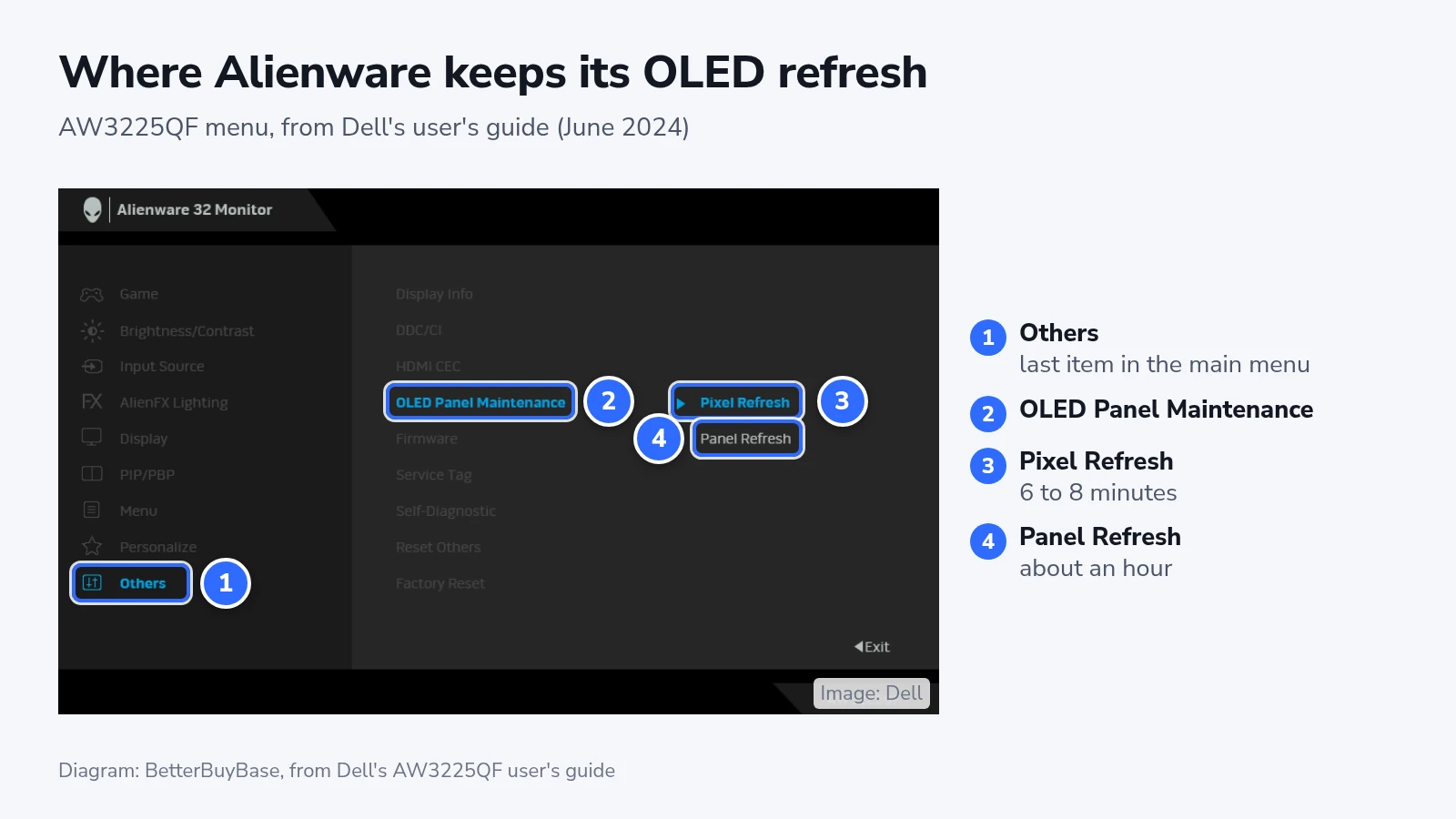
The AW3225QF also lists "Panel Refresh", which takes about an hour. Dell runs it by itself once the panel passes 7,000 hours of use. A colored line may scroll across the screen while it works, and the power light blinks slowly red. Don't unplug the monitor until it's done. The AW3425DW's guide, dated March 2025, lists only Pixel Refresh.
With the Menu Launcher open, the AW3225QF shows a Panel Health dot. Green is normal and yellow suggests a Pixel Refresh. Red means the panel has reached 7,000 hours without Panel Refresh. These indicators belong to the documented model, so do not assume another Alienware has the same long-cycle schedule.
ASUS ROG
ASUS uses two menu layouts on its current OLED monitors.
- Open the on-screen menu with the monitor's control button.
- Open "OLED Care" > "Pixel Cleaning" on the ROG Swift OLED PG27UCDM, or "System Setup" > "Screen Protection" > "Pixel Cleaning" on the ROG Strix OLED XG27AQDMG.
- Select it and confirm. The XG27AQDMG asks "Would you like to execute the Pixel cleaning?" first.
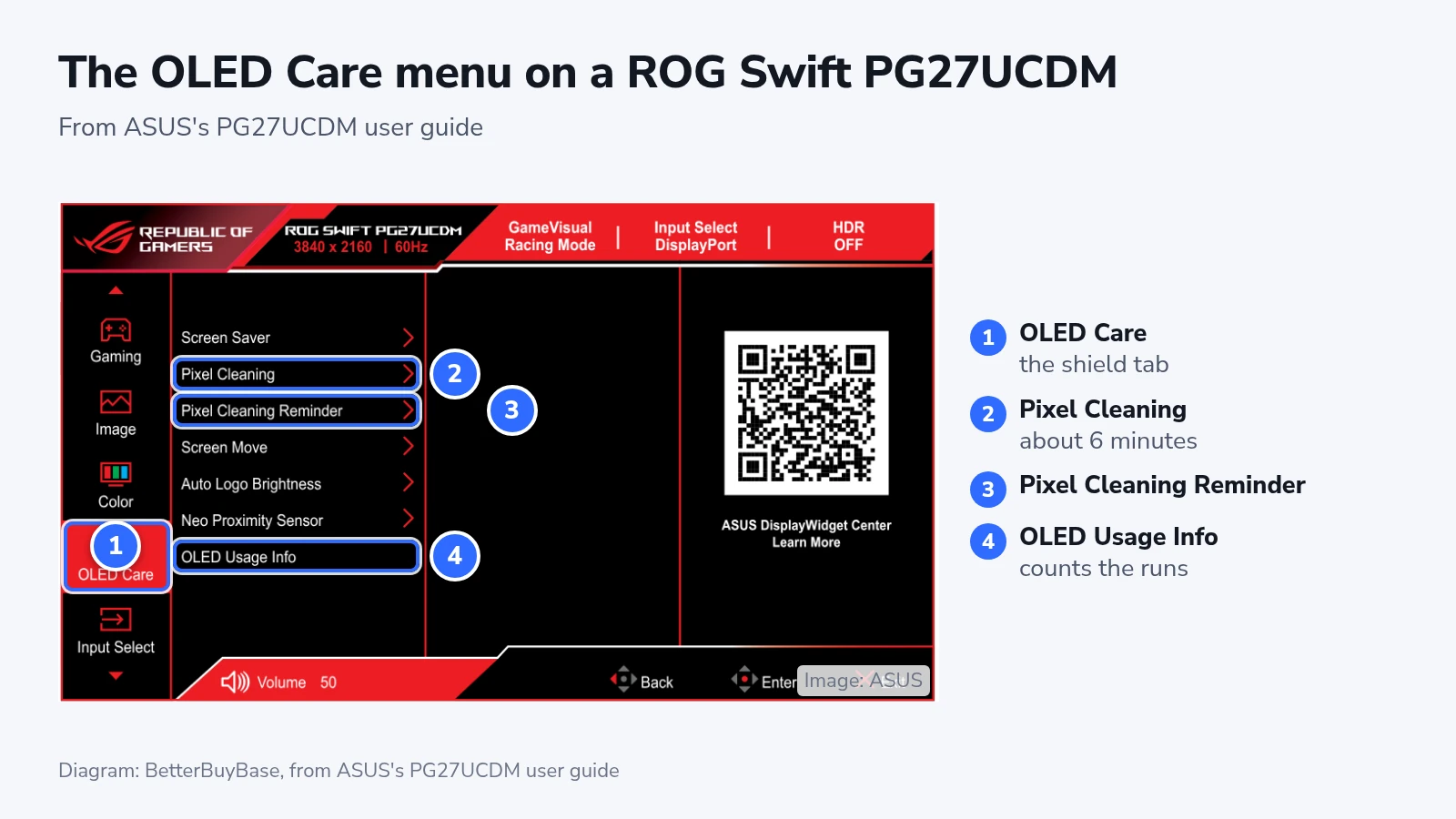
With the menu closed, the Close button on the PG27UCDM goes straight to Pixel Cleaning. On the XG27AQDMG, a downward push of the navigation button does the same. "Pixel Cleaning Reminder" sets a reminder, and the PG27UCDM's "OLED Usage Info" records how many cleanings have run.
Check your exact model’s support page for firmware updates, which can change cleaning behavior and reminders.
Samsung Odyssey OLED
On a Samsung joystick model such as the Odyssey OLED G6 G60SD, use these steps.
- Press the joystick to open the Function Key Guide, then choose "Menu".
- Go to "System" > "Panel Care".
- Select "Pixel Refresh".
A smart model with a remote, such as the G80SD, starts from the remote instead.
- Press "Home" on the remote, then choose "Menu".
- Select "Settings" > "All Settings".
- Select "General & Privacy" > "Panel Care" > "Pixel Refresh".
- Choose "Start Now", or "Start After Smart Monitor Off" to run it the next time you switch off.
The G60SD also switches on a screen saver after 10 minutes of the same still image, and Samsung doesn't let you turn it off.
MSI QD-OLED
MSI's guide for the MAG 272UP QD-OLED E16 gives these steps.
- Press the Navi Key to open the menu.
- Go to "MSI OLED Care" > "Panel Protect" and select it.
- Leave the monitor alone while the power light blinks orange. Pressing the power button again cancels the run.
In the same menu, Protect Notice set to Auto displays a reminder after four hours of accumulated use. Usage 24 hrs waits a full day. An interrupted Panel Protect produces a notice at the next startup. Choose the reminder with the manual’s maintenance instructions in mind, and let the cleaning finish when it runs.
LG UltraGear OLED
LG's manual for the UltraGear 27GX790B-B gives one route.
- Press the joystick button to open the menu.
- Go to "Settings" > "General" > "OLED Image Cleaning" and choose "Yes".
- Keep your hands and any cloth off the screen until it finishes. Static from touching or wiping it can leave the cleaning incomplete.
If the shadow stays or the refresh never runs
If a shadow survives a manual run, follow the troubleshooting advice for your exact model. ASUS’s FAQ suggests leaving the screen off for at least an hour, preferably a day. It also suggests up to three Pixel Cleaning runs, stopping once the shadow disappears. If that does not help, contact support. A refresh is not a guarantee that permanent burn-in can be repaired.
Repeated reminders can mean a cycle was interrupted. Samsung’s guidance describes prompts after 4 or more accumulated hours and a further Screen Optimization prompt after 12 hours. MSI shows Protect Notice at the next startup if Panel Protect was interrupted. Check the power connection and allow the next cycle to finish.
An Alienware that you switch back on mid-refresh shows "The refresh process did not finish". Choose "Yes" there, and the monitor turns off again to finish the job.
Checking that it ran
Use the completion signals your model documents. ASUS’s PG27UCDM records the number of Pixel Cleaning runs in OLED Usage Info. MSI’s orange power-light blink ends when Panel Protect completes. OLED Panel Info. shows information about its care functions. Samsung displays a completion pop-up at the next startup. LG’s manual describes no counter, and a screen without a shadow does not prove that cleaning ran.