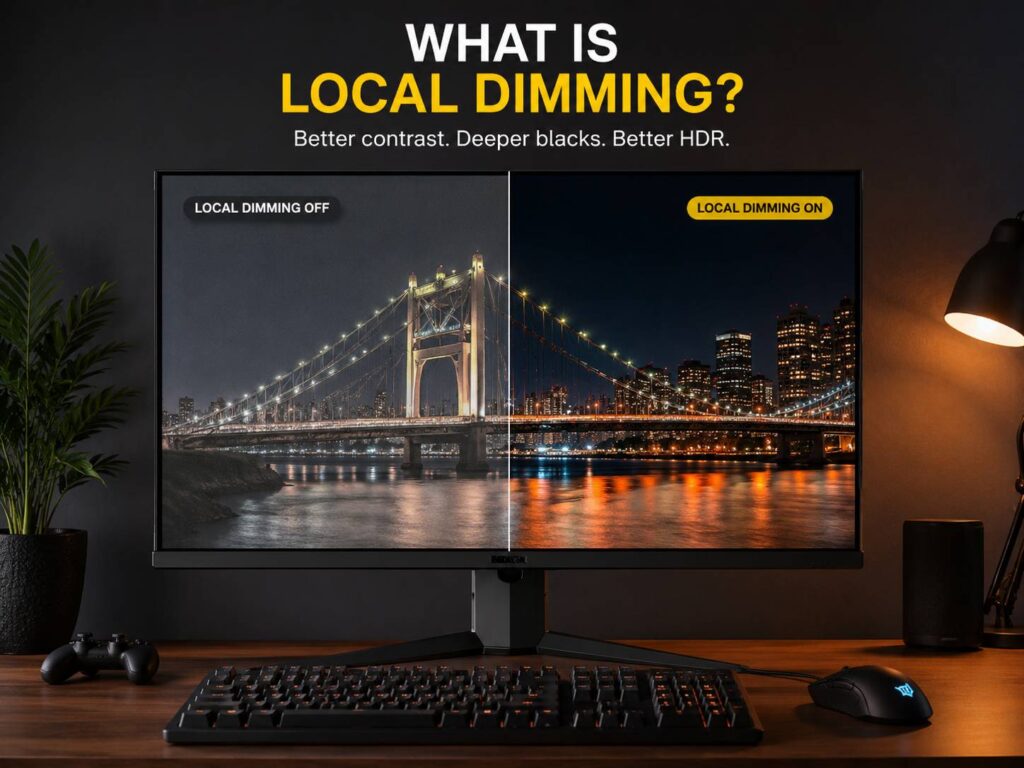
Local dimming on a monitor is a display feature that controls the screen’s backlight in separate areas. Instead of brightening or dimming the whole screen at once, the monitor adjusts smaller zones behind the image. As a result, bright parts can stay bright, and dark parts can look deeper.
That sounds simple, but it makes a real difference. Local dimming can improve HDR games, movies, dark scenes, bright highlights, and overall contrast. At the same time, it can introduce problems such as blooming, halos, crushed shadows, and uneven brightness.
So, before you buy an HDR monitor, it helps to understand what local dimming does and what it cannot fix. Some monitors use the feature well. Others add it mostly for marketing.
What Is Local Dimming on a Monitor?
Most LCD monitors need a backlight. The pixels create the image, but they do not create their own light. A light source behind the panel shines through the screen, then the LCD layer shapes the final picture.
On a basic monitor, the backlight often works as one large light source. If the image gets brighter, the whole backlight rises. If the image gets darker, the whole backlight drops. This limits contrast, mainly in scenes with bright and dark objects on the screen at the same time.
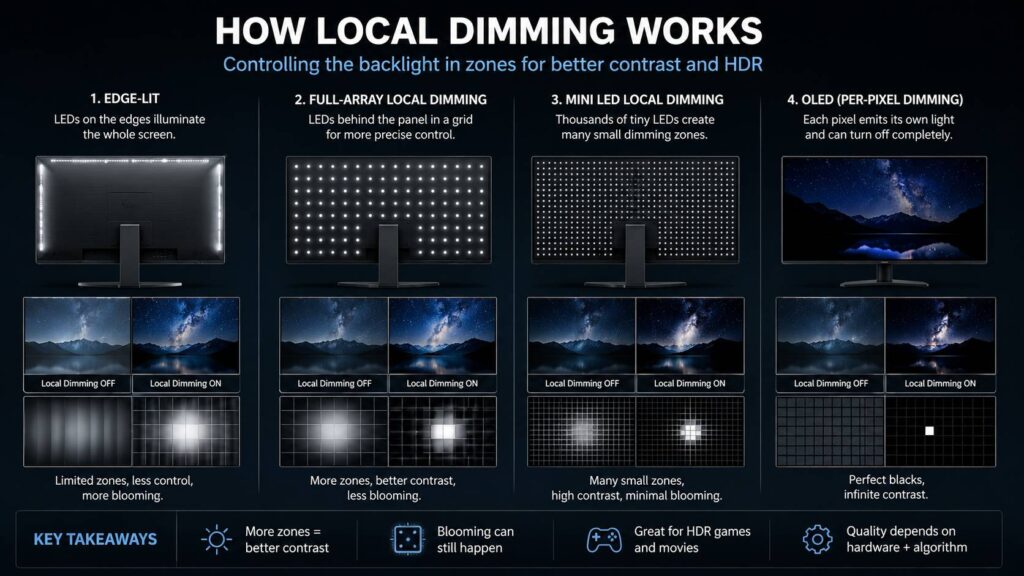
Local dimming improves this by splitting the backlight into zones. Each zone can brighten or dim based on the content in that area.
For example, picture a dark sky with a bright moon. A simple LCD monitor may lift the whole black sky and make it look gray. A monitor with local dimming can dim the sky area and brighten the zone around the moon. The image can look deeper, cleaner, and more dramatic.
Still, the quality depends on the monitor. A weak local dimming system can look distracting. A good one can make HDR feel much more convincing.
Why Local Dimming Matters for HDR
HDR stands for High Dynamic Range. In everyday use, HDR tries to show brighter highlights, deeper blacks, and more detail between bright and dark areas.
Local dimming helps LCD monitors get closer to that effect. Without it, many HDR monitors only raise brightness. The screen gets brighter, but dark scenes still look flat. So, the HDR label alone does not always mean the picture will look impressive.
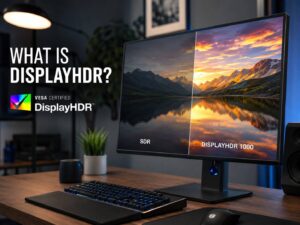
This is one reason many entry-level HDR monitors disappoint buyers. They can accept an HDR signal, but they lack the contrast needed to show HDR well. For a clearer breakdown of HDR badges and what they mean, read this guide on what DisplayHDR is.
A strong HDR monitor needs more than one good feature. It needs high peak brightness, wide color coverage, good tone mapping, decent black levels, and strong backlight control. Local dimming plays a major part in that mix.
Local Dimming vs Global Dimming
Global dimming changes the whole backlight at once. It can help in simple scenes, but it struggles with mixed images.
Local dimming works with smaller areas. One part of the screen can dim, and another part can stay bright. That gives the monitor better control over contrast.
Here is the easy way to compare them:
- Global dimming changes the whole screen brightness.
- Local dimming changes separate backlight zones.
- OLED uses per-pixel light control, so each pixel can turn off on its own.
Local dimming sits between a normal LCD backlight and OLED. It can look very good, but it cannot match OLED’s pixel-level control.
Types of Local Dimming
Local dimming quality depends heavily on the backlight design. The term can appear on many monitors, but the actual result can vary a lot.
Edge-Lit Local Dimming
Edge-lit monitors place LEDs around the edge of the panel. This design helps keep monitors thin and cheaper to build. It can offer basic dimming, but the control is limited.
For that reason, edge-lit local dimming often creates visible glow. Dark scenes can still look patchy, and bright objects can light up too much of the screen. It may improve contrast slightly, but it rarely creates a great HDR image.
Full-Array Local Dimming
Full-array local dimming places LEDs behind the panel. The monitor can control groups of LEDs across the screen, not just along the edges.
This gives the display much better control. Blacks can look darker, highlights can look brighter, and HDR content can gain depth. Still, zone count and tuning matter. A low-zone full-array monitor can still show halos around bright objects.
Mini LED Local Dimming
Mini LED monitors use many smaller LEDs behind the panel. Since the LEDs are smaller, brands can fit more dimming zones into the backlight.
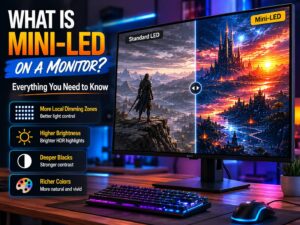
This usually gives better HDR performance than standard LCD monitors. Bright highlights stand out more, black areas look deeper, and contrast feels stronger. If you want a deeper explanation of this panel type, read this guide on Mini LED monitors explained.
Even so, Mini LED is not perfect. A bright cursor on a black background can glow. Subtitles can create halos. Small white objects can light up the surrounding area. These issues do not always ruin the experience, but they are worth knowing before you buy.
OLED and Per-Pixel Dimming
OLED monitors do not use a traditional backlight. Each pixel creates its own light. If a pixel needs to show black, it can turn off.
That gives OLED excellent contrast. Still, OLED has its own trade-offs. Buyers often look at burn-in risk, full-screen brightness, text clarity, warranty terms, and price before choosing one.
So, local dimming is not the same as OLED. It is LCD backlight control, not pixel-level light control.
What Are Local Dimming Zones?
A local dimming zone is one controllable area of the monitor’s backlight. More zones usually give the screen finer control.
A monitor with 8 zones has very limited control. A monitor with 96 zones can do more. A Mini LED monitor with hundreds or more than 1,000 zones can handle dark and bright areas much better.
Still, zone count alone does not tell the full story. The monitor’s software matters too. A display with many zones can still look bad if it reacts too slowly or brightens the wrong areas.
Screen size matters as well. A 27-inch monitor with 576 zones can control light more tightly than a much larger ultrawide with the same number of zones. The larger screen spreads those zones over more space.
What Is Blooming?
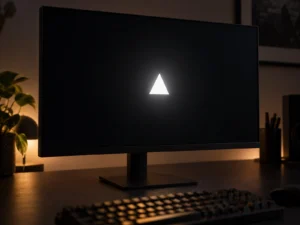
Blooming is the glow you see around bright objects on a dark background. It happens when a dimming zone lights up for a bright object, but that zone covers more space than the object itself.
You may notice blooming around:
- White subtitles on black bars
- A bright moon in a night scene
- A mouse cursor on a black desktop
- Game HUD elements in dark areas
- Stars in space games
- Loading icons on black screens
This is one of the most common local dimming issues. Mini LED can reduce blooming, but it cannot remove it fully. The backlight still works in zones, not individual pixels.
In my experience, blooming can look worse on the desktop than in games or movies. A black wallpaper with white text, icons, and a bright cursor can expose the problem fast. During video playback, your eyes often focus more on the scene, so the glow feels less obvious.
Can Local Dimming Make Image Quality Worse?
Yes, it can. A poor local dimming system can distract you more than it helps.
Some monitors dim dark areas too much. Then shadow detail disappears, and dark clothing, hair, cave walls, or night scenes lose texture. Some monitors react too slowly, so you see brightness trails behind moving objects. Others shift brightness in steps, which can make the screen feel unstable.
Common problems include:
- Blooming around bright objects
- Halo effects near subtitles
- Raised blacks in dark scenes
- Lost shadow detail
- Brightness flicker
- Slow transitions from dark to bright scenes
- Uneven desktop brightness
- Washed-out dark scenes
That is why it pays to test local dimming in several modes. Some monitors offer low, medium, and high settings. Medium often gives the best balance. High can create deeper contrast, but it can make blooming worse.
Local Dimming for Gaming
Local dimming can make games look much better, mainly in HDR. Bright sunlight, fire, explosions, neon signs, reflections, and magic effects can look more intense.
Story games benefit the most. Open-world games, racing games, RPGs, horror titles, and cinematic single-player games often use lighting that shows off HDR well.
Competitive games are different. Turning local dimming off keeps visibility stable. In a fast shooter, a changing backlight can distract your eyes. Clear motion and predictable brightness can matter more than deeper blacks.
Input lag can matter too. Many modern gaming monitors handle local dimming well, but not every model does. For serious competitive play, check real measurements before buying.
Local Dimming for Movies and Streaming
Movies can look excellent with good local dimming. Dark scenes gain depth. Bright highlights stand out. Black bars can look darker. HDR films can feel more natural.
Still, subtitles can be annoying. White text on a dark image often triggers blooming. This can create a glowing patch around the subtitle area.
For movie watching, local dimming works best in a darker room. In a bright room, reflections and room light reduce the visible contrast gain. So, the feature still helps, but you may not notice the full benefit.
Local Dimming for Office Work
For office work, local dimming matters less. Documents, spreadsheets, email, web browsing, and coding do not need dramatic HDR contrast.
In fact, local dimming can make desktop use worse. White windows on dark backgrounds can cause uneven brightness. A cursor can glow. Menus can shift in brightness as you move them.
So, if you use your monitor mostly for work, do not pay extra for local dimming alone. Text clarity, ergonomics, brightness, panel coating, USB-C support, and color accuracy may matter more.
Local dimming becomes more useful once you play HDR games, watch HDR movies, or want stronger contrast from an LCD monitor.
IPS vs VA vs OLED: How Panel Type Changes the Result
Panel type affects local dimming performance.
IPS monitors often have weaker native contrast. Blacks can look gray in a dark room. Local dimming can help, but blooming can stand out more.
VA monitors usually have better native contrast than IPS. This gives local dimming a stronger base. Dark scenes can look richer, though some VA monitors have slower pixel response.
OLED monitors do not need local dimming zones. Each pixel controls its own light. That gives OLED excellent black levels, but buyers still need to think about burn-in risk, brightness limits, text rendering, and price.
For many buyers, a good Mini LED monitor sits in the middle. It gives strong brightness and better HDR than basic LCD, without the same burn-in concern as OLED.
How Many Local Dimming Zones Do You Need?
There is no perfect number, but this rough guide helps.
- Under 16 zones: very basic dimming, weak HDR impact
- Around 96 to 384 zones: better contrast, but visible blooming remains common
- Around 500 to 1,000 zones: much stronger HDR, mainly on 27-inch and 32-inch monitors
- Over 1,000 zones: strong Mini LED performance, if the tuning is good
Do not buy a monitor by zone count alone. A high zone count helps, but it does not guarantee great image quality. The dimming algorithm, panel type, brightness, and firmware all matter.
Should You Turn Local Dimming On or Off?
For HDR content, turn local dimming on. That includes HDR games, HDR movies, console gaming, and high-contrast video.
For desktop work, test both options. You may prefer local dimming off for browsing, writing, coding, and photo work in SDR. The image can look more stable that way.
A simple setup works well for most users:
- Use local dimming for HDR games and movies.
- Turn it off for office work if brightness shifts bother you.
- Try medium mode first if your monitor offers dimming levels.
- Use high mode only if blooming does not distract you.
This gives you the benefits where they matter most and avoids the worst desktop issues.
Is Local Dimming Worth It?
Local dimming is worth it if you care about HDR gaming, movies, and deeper contrast. It is less useful if you mostly work in documents, browsers, or spreadsheets.
My honest view: local dimming is one of the most oversold monitor features. Good Mini LED local dimming can look fantastic. Cheap edge-lit dimming can feel like a checkbox feature.
So, do not buy a monitor just because the product page says “local dimming.” Check the backlight type, zone count, HDR brightness, panel type, and real user complaints. Search for the model name plus terms like blooming, halo, dimming issue, HDR washed out, and firmware bug.
That extra check can save you from a monitor that looks better in marketing photos than it does on your desk.
What to Check Before Buying a Local Dimming Monitor
Before buying, look for details that affect real picture quality.
Check for:
- Mini LED or full-array backlighting
- A clearly listed dimming zone count
- Strong HDR brightness
- Good black uniformity
- Low blooming in dark scenes
- Fast response time for gaming
- Low input lag
- Useful local dimming settings
- Good firmware support
- Real complaints from owners
Pay special attention to subtitle blooming, desktop brightness shifts, and dark-scene detail. Those are the issues people notice most after the first few days.
Common Local Dimming Myths
“More zones always mean better image quality.” Not always. More zones help, but poor tuning can still make the image look bad.
“Local dimming makes any monitor true HDR.” No. HDR also needs strong brightness, good color, contrast, and tone mapping.
“Mini LED is the same as OLED.” No. Mini LED still uses an LCD panel with backlight zones. OLED controls light per pixel.
“You should leave local dimming on all the time.” Not always. It often works better on for HDR and off for normal desktop work.
“Blooming means the monitor is broken.” Usually, no. Blooming is a normal limit of zone-based backlighting. Too much blooming can still point to weak design or poor tuning.
Final Verdict: What Is Local Dimming on a Monitor?
Local dimming on a monitor is a backlight feature that dims and brightens separate areas of an LCD screen. It can improve contrast, deepen blacks, and make HDR highlights look brighter.
Good local dimming can make games and movies look much better. Poor local dimming can create halos, flicker, crushed shadows, and uneven brightness. Mini LED monitors usually give the best LCD version of this feature, especially with many zones and clean tuning.
If you want a monitor for HDR gaming, movies, or console use, local dimming matters. If you mostly need a monitor for office work, it should not be your main buying reason.
The best choice is to judge the whole monitor. Look at the backlight type, zone count, HDR brightness, panel type, and real-world feedback before you buy.