A bad scroll wheel can make a good mouse feel broken fast. One minute, everything works fine. Then the page jumps, scrolls the wrong way, stops moving, or moves only after you press the wheel hard.
Still, you do not need to replace the mouse right away. Many scroll wheel problems come from dust, weak batteries, loose USB connections, odd settings, old software, or app conflicts. So, start with the simple checks first. They fix more cases than you might expect.
This guide walks through the most common mouse scroll wheel issues and gives you practical fixes that work on office mice, wireless mice, Bluetooth mice, and gaming mice.
Common mouse scroll wheel problems
Scroll wheel issues usually show up in clear ways. For example, the wheel spins, but the page does not move. In other cases, the page moves up during a downward scroll. Sometimes the wheel feels rough, stiff, or loose.
You may see one of these problems:
- The mouse wheel does not scroll.
- The scroll wheel jumps up and down.
- The page scrolls in the wrong direction.
- Scrolling feels too fast or too slow.
- The wheel feels stuck or gritty.
- Middle click works, but scrolling fails.
- Scrolling works in one app, but not another.
- A wireless mouse scrolls badly after the battery gets low.
- A gaming mouse scrolls strangely after a software change.
Jumpy scrolling is the most frustrating one in daily use. It breaks your focus, especially on long pages, spreadsheets, shopping guides, and product comparison tables. After a few minutes, it feels like the mouse has a mind of its own.
The good news is simple: most scroll wheel problems have a clear cause. So, work through the checks below in order.
Start with a quick reset
Start with a basic reset. It sounds too simple, but it often works.
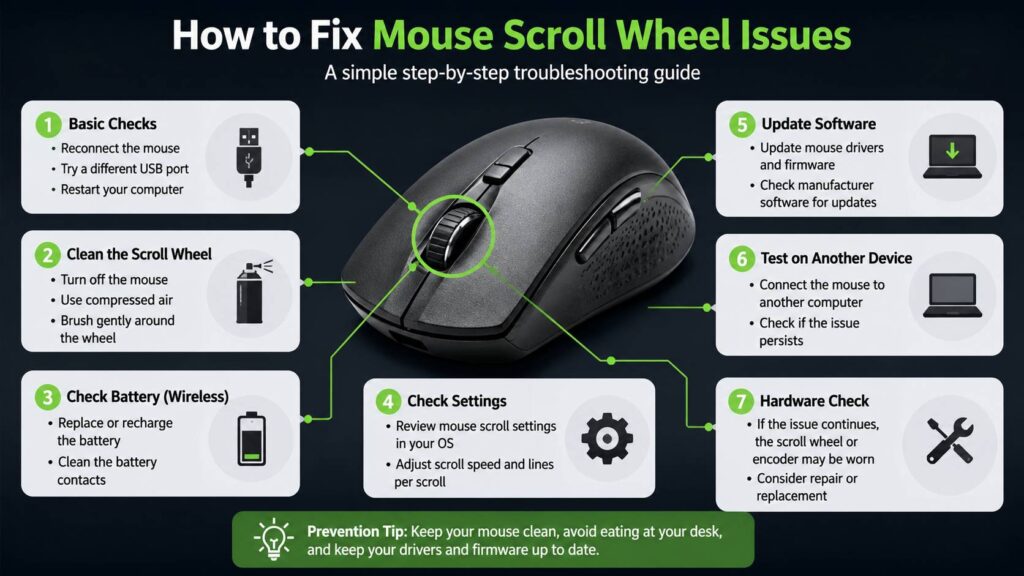
For a wired mouse, unplug it. Wait 10 seconds. Then plug it back into a different USB port. Use a port on the computer, not a USB hub. Hubs can cause power or signal issues, especially with older accessories.
For a wireless mouse, turn it off. Wait 10 seconds. Then turn it back on. After that, remove the USB receiver and plug it back in. Place the receiver closer to the mouse. A rear desktop port can sit too far away, and metal around the case can block the signal.
For a Bluetooth mouse, remove it from your device list. Then pair it again. This helps when the mouse connects, but the wheel acts strange.
Next, restart the computer. A fresh restart clears stuck drivers, frozen background apps, and small input bugs.
Clean around the scroll wheel
Dust, skin oil, pet hair, and desk crumbs collect around the wheel. Over time, that dirt blocks the wheel sensor or makes the wheel feel rough. So, cleaning should be your first real fix.
Turn the mouse off first. For a wired mouse, unplug it. For a wireless mouse, remove the battery or turn it off.
Then use short bursts of compressed air around both sides of the wheel. Tilt the mouse forward, backward, and sideways. This helps loose dirt fall out instead of moving deeper inside.
Next, use a soft brush around the wheel gap. A clean, dry toothbrush works well. Roll the wheel while you brush. Do not press hard. The goal is to loosen dirt, not force the wheel out of place.
After that, wipe the outside with a soft cloth. You can lightly dampen the cloth with 70% or weaker isopropyl alcohol. Do not pour liquid on the mouse. Do not spray cleaner into the wheel gap. Liquid inside the mouse can damage the sensor and leave sticky residue.
This quick cleaning can fix a wheel that skips, drags, or feels gritty. It only takes a few minutes, and it costs almost nothing.
Check the battery on wireless mice
Weak batteries can cause odd scroll behavior. The pointer may still move, but the wheel can skip, lag, or stop for a second.
Replace the battery with a fresh one. For a rechargeable mouse, charge it for at least 30 minutes, then test it again. Do not judge the mouse during the first few seconds after plugging it in. Some wireless mice need a short moment to reconnect.
Next, check the battery contacts. Dust or corrosion can cause small dropouts. Use a dry cotton swab to clean the battery area. Do not scrape the contacts with a knife or any metal tool.
After that, test the mouse again on a long page. Scroll slowly first. Then scroll faster. This gives you a better idea of whether the wheel reads movement in a steady way.
Test the mouse on another computer
This step tells you where the problem sits. It also saves time.
Plug the mouse into another computer. Open a long web page and scroll up and down for one full minute. Use both slow and fast scrolling.
Then compare the results:
- The mouse fails on both computers: the mouse likely has dirt inside or a hardware fault.
- The mouse works on the second computer: your main computer has a setting, driver, app, or connection issue.
- The problem appears only in one app: that app likely has its own scroll setting or bug.
This test gives you a clear direction. For that reason, do it before you spend time changing every setting in Windows or macOS.
Fix mouse scroll settings in Windows
Windows has built-in scroll settings that control wheel behavior. A small change here can make the wheel feel too fast, too slow, or jumpy.
Open Settings. Go to Bluetooth & devices, then Mouse. Check these options:
- Mouse wheel scrolls
- Lines to scroll at a time
- Scroll inactive windows
For normal use, set the wheel to scroll multiple lines at a time. Then set the number of lines to 3 to 5. A very high number can make scrolling feel jumpy. A very low number can make the wheel feel weak or broken.
Next, turn on scrolling for inactive windows. This lets you scroll a window by hovering over it, without clicking it first. Once you are used to this behavior, turning it off can make the mouse feel wrong.
For older settings, search for Mouse in Control Panel. Then open the Wheel tab. Check vertical and horizontal scrolling. Reset odd values to normal numbers.
Fix scroll settings on Mac
Mac scroll settings can change how the wheel feels, especially after switching from a Windows computer.
Open System Settings, then Mouse. Check tracking speed and scrolling options. For a trackpad, open Trackpad settings too.
Next, check natural scrolling. This setting changes scroll direction. After a Mac update or a move from Windows, the mouse can seem to scroll the wrong way. Turn natural scrolling on or off based on what feels correct.
For a Magic Mouse, clean the top surface with a soft cloth. It has no physical wheel, so finger movement on the surface controls scrolling. Oil or dirt on that surface can make scrolling feel uneven.
After that, test the mouse in a browser, Finder, and a document. This helps you spot app-specific behavior.
Update mouse software and firmware
Many modern mice use companion apps. Logitech mice use Logi Options+ or G HUB. Razer, Corsair, SteelSeries, and other gaming brands use their own apps too.
Open the app for your mouse. Then check for firmware updates. After that, check button assignments, scroll mode, and app profiles.
A scroll wheel can act strange after a profile change. For example, a gaming profile can remap the wheel to zoom, volume, weapon select, or a macro. Then the mouse feels broken in normal apps.
For Logitech MX mice, check the scroll mode. Some models switch between ratchet mode and free-spin mode. Free-spin mode moves fast, and it can feel wild at first. Ratchet mode gives more control, line by line.
For gaming mice, check onboard profiles too. Some settings stay saved inside the mouse, even after you move it to another computer. For a clearer breakdown, read this guide on what onboard memory means on a mouse.
Next, lower the polling rate for testing. A very high polling rate can work well for gaming, but some older systems or USB hubs can behave badly with it. Try a lower setting, then test scrolling again.
Reinstall the mouse driver in Windows
Driver issues can break scrolling after updates, crashes, or software changes. So, reinstall the driver next.
Open Device Manager. Expand Mice and other pointing devices. Right-click the mouse, then choose Uninstall device. Restart the computer. Windows will install the driver again.
For a Bluetooth mouse, open Bluetooth & devices too. Remove the mouse from the list. Restart the computer. Then pair the mouse again.
This fix works best after a Windows update, a new mouse app install, or a sudden scroll failure with no clear reason.
Check browser and app settings
Some scroll issues happen only in Chrome, Edge, Firefox, Excel, Word, design apps, or games. So, test the wheel in several places.
Open a long web page. Then open a document. After that, open a settings window. Scroll in each one.
The pattern matters:
- Bad scrolling everywhere points to the mouse, driver, or system settings.
- Bad scrolling in one app points to that app.
- Bad scrolling only in a browser can point to extensions.
- Bad scrolling in games can point to keybinds or profiles.
In browsers, turn off extensions one by one. Smooth scrolling extensions can cause jumping. PDF viewers can behave differently from normal web pages too.
In Excel, test the mouse in a blank file. Frozen panes, selected cells, add-ins, or zoom settings can make scrolling feel odd.
For multi-device desks, check your display and input setup too. Some people switch one keyboard and mouse between two computers through a monitor or hub. If your setup works this way, this guide on what a KVM monitor is can help you understand how the mouse signal moves between devices.
Fix wrong-way scrolling
Wrong-way scrolling means the page moves up when you scroll down, or the reverse. This usually comes from settings or a worn wheel encoder.
Start with software. On Mac, change natural scrolling. On Windows, check mouse software profiles. Some mouse apps allow scroll direction changes per app or per profile.
Then test the mouse on another computer. Wrong-way scrolling on every computer points to the wheel hardware. The encoder inside the mouse reads wheel movement. Dirt or wear can make it send the wrong signal.
At this point, compressed air can still help. Use short bursts around the wheel, then test again. If the issue returns right away, the encoder may be worn.
Fix a stiff or stuck scroll wheel
A stiff wheel often means dirt sits between the wheel and the shell. It can also mean the rubber grip shifted out of place.
Turn off the mouse first. Then blow compressed air around the wheel. Roll the wheel while you clean it. Next, use a dry brush along both sides of the wheel.
Do not use cooking oil, WD-40, hand lotion, or general lubricant. These products can spread inside the mouse and attract more dirt. They can also damage plastic or rubber parts.
A good scroll wheel should feel even. It should not scrape, stick, or grind. So, a stiff wheel that returns after cleaning usually points to a physical fault.
Fix middle-click problems
The scroll wheel often works as a middle button. Middle click can fail even when scrolling still works.
Start with your mouse software. Check the wheel button assignment. Set it back to middle click.
Then test it in a browser. Middle-click a link. It should open in a new tab. Press the wheel on a blank part of a page and move the mouse slightly. Many Windows apps should start auto-scroll.
If middle click fails on every computer, the switch under the wheel may be worn. That is a hardware issue, not a settings issue.
Check for hardware damage
A scroll wheel is a moving part, and moving parts wear out. Cheap office mice can fail after heavy daily use. Gaming mice can fail too, even expensive ones.
Replace the mouse or use the warranty when you see these signs:
- The wheel scrolls badly on every computer.
- Cleaning does not help.
- Fresh batteries do not help.
- The wheel feels loose.
- The wheel makes a grinding sound.
- Middle click no longer works.
- The problem comes back right after every fix.
My honest opinion: do not waste hours on a very cheap mouse with a bad wheel. Replace it and move on. For a premium mouse, warranty service makes more sense.
How to prevent scroll wheel problems
A few simple habits can keep the wheel working longer.
Keep food and drinks away from the desk. Crumbs cause many scroll wheel problems. Clean the mouse every few weeks with a dry cloth. Then blow dust from the wheel gap once a month.
Use a mouse pad too. It keeps the sensor area cleaner and gives the mouse a stable surface.
For wireless mice, charge or replace the battery before it gets very low. Weak power can cause small dropouts that feel like scroll bugs.
Next, keep mouse software updated. Still, check profiles after each update. Some apps reset button assignments or scroll behavior.
Final advice
Start with the easy fixes first. Reconnect the mouse, clean the wheel, change the battery, and test the mouse on another computer. These steps solve many scroll wheel problems without cost.
Then check Windows or Mac settings. After that, review mouse software, firmware, profiles, and app settings. A small setting can make a good mouse feel broken.
Replace the mouse only after you test the basics. A scroll wheel that fails on every computer after cleaning likely has a worn encoder or switch. For a cheap mouse, replacement is the cleanest fix. For a premium model, use the warranty or ask the brand for repair options.