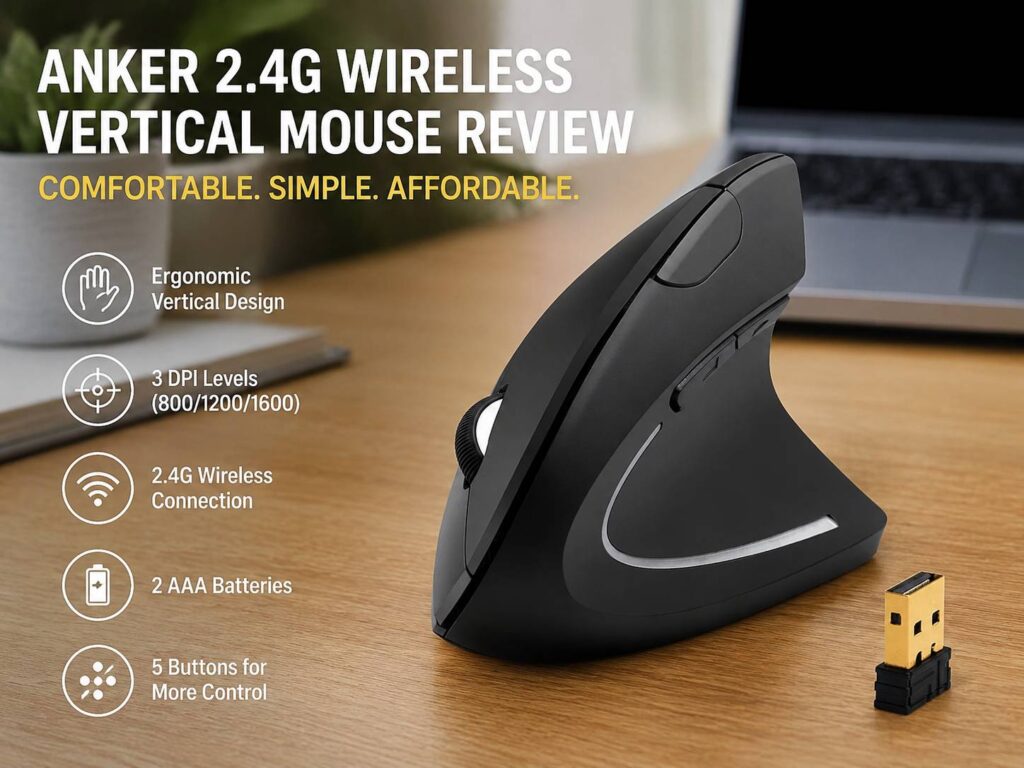
The Anker 2.4G Wireless Vertical Ergonomic Optical Mouse is a simple product with one clear goal: make daily mouse use feel less tiring. It does not chase premium features, and it does not pretend to be a gaming mouse. Instead, it gives you a vertical grip, 2.4 GHz wireless control, three DPI settings, five buttons, and a low price.
That mix makes it a strong pick for people who want a budget ergonomic mouse for home office work. It suits browsing, emails, documents, spreadsheets, online forms, and long CMS sessions. It also works well for buyers who want to try a vertical mouse before spending more on a high-end model.
At first, the shape feels different. Your hand sits more upright, closer to a handshake position. After a short adjustment period, the grip starts to make sense. Your wrist does not twist as much as it does on a flat mouse, so the Anker feels calmer during long desk sessions.
The tradeoff is clear. This mouse focuses on comfort and value, not advanced control. It has no Bluetooth, no rechargeable battery, no software for button changes, and no premium scroll wheel. Still, for basic work, it gives you a lot for the money.
Quick Verdict
The Anker 2.4G Wireless Vertical Ergonomic Optical Mouse is worth buying if you want a cheap vertical mouse for everyday work. It feels best during slow, steady tasks like writing, scrolling, browsing, and spreadsheet use. The shape supports a more natural wrist angle, and the simple receiver setup keeps things easy.
Its biggest win is comfort. The vertical body lets your hand rest at a more relaxed angle than a regular flat mouse. For many users, that matters more than extra buttons or software controls.
That said, the mouse has limits. The buttons cannot be programmed. The previous and next thumb buttons are not recognized on Mac OS X. It uses 2 AAA batteries, so there is no built-in charging. Plus, the USB receiver needs a USB-A port, which can be awkward on newer laptops.
For Windows office users, remote workers, students, and casual home users, this mouse makes sense. For Mac users, gamers, and shortcut-heavy users, it feels more limited.
Specs and Measurements
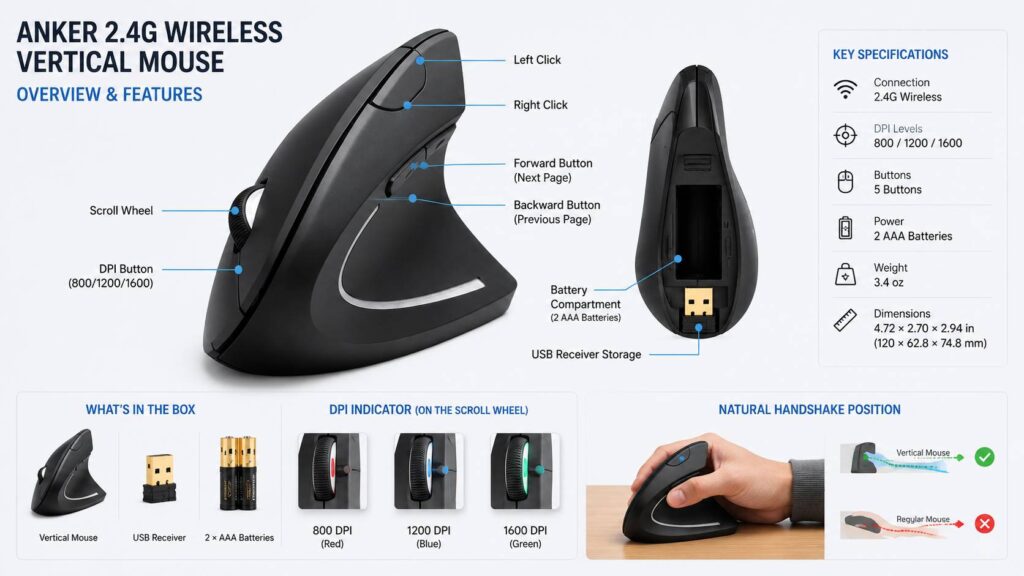
The Anker 2.4G Wireless Vertical Ergonomic Optical Mouse uses a USB receiver for its wireless connection. It runs over 2.4 GHz wireless, so you plug in the small dongle and start using it.
The mouse has optical tracking and three DPI settings: 800, 1200, and 1600 DPI. A DPI button lets you switch between those levels. This gives you a slower cursor for tighter control, a middle speed for daily work, and a faster setting for larger screens.
Anker lists five buttons on this model. The layout includes left click, right click, scroll wheel, DPI button, and two thumb buttons for previous and next page control. Still, there is one clear warning for Mac users. The previous and next page buttons are not recognized on Mac OS X.
The mouse uses 2 AAA batteries. The USB receiver sits near the battery compartment, so check that area before you assume the receiver is missing.
Confirmed measurements:
Product dimensions: 4.72 × 2.7 × 2.94 inches
Metric dimensions: 120 × 62.8 × 74.8 mm
Product weight: 3.4 oz
Those measurements tell you a lot about the feel. This is not a tiny travel mouse. The 2.94-inch height gives your hand a tall grip. The 4.72-inch length gives your palm space to rest. At 3.4 oz, it stays fairly light, but its height makes it feel larger than a normal compact wireless mouse.
Design and Shape
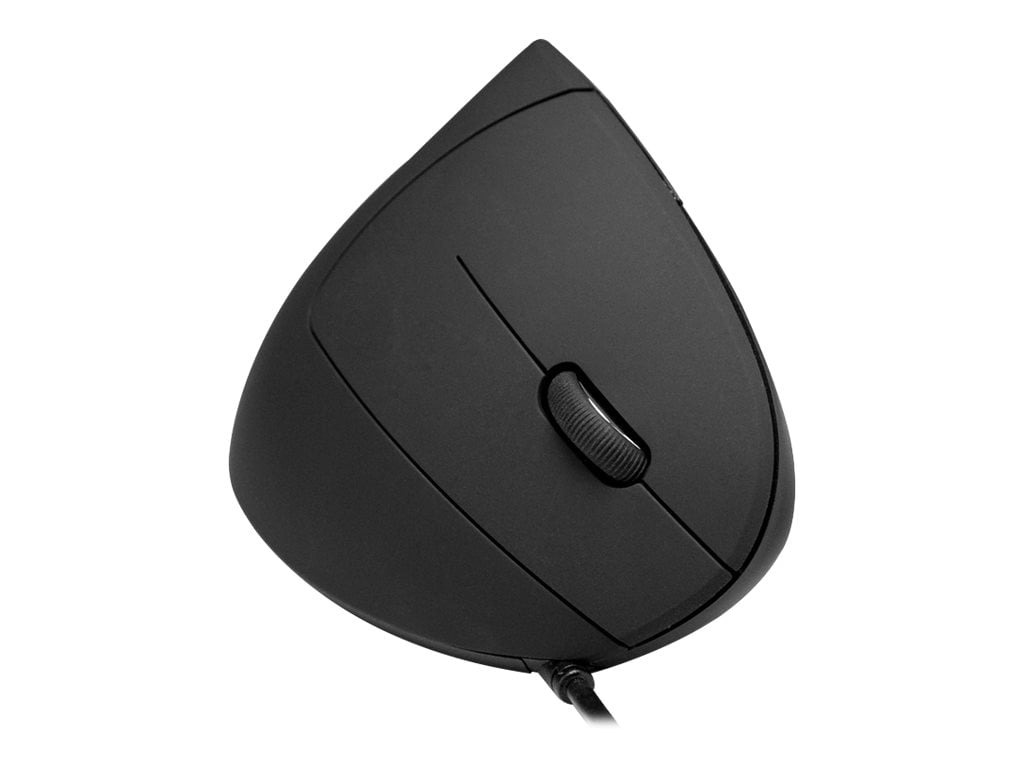
The design looks plain, but that is not a bad thing. Anker built this mouse around comfort, not style. The black shell, tall body, and sloped button area all serve the same purpose.
A normal mouse keeps your palm flat. Over long sessions, that position can feel tense for some users. By comparison, the Anker vertical shape lets your wrist rotate outward into a more natural angle. If you are new to this type of design, our guide on what is a vertical mouse explains the basic idea in more detail.
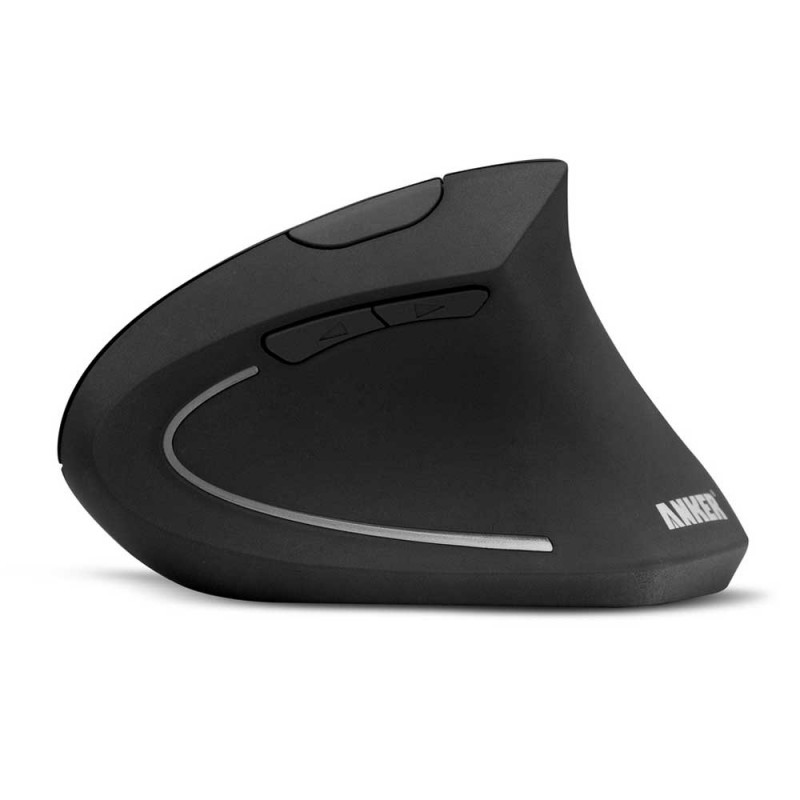
In the hand, the Anker feels taller and narrower than a regular mouse. Your thumb rests on the left side, and your fingers fall across the right-side click area. The thumb buttons sit above the thumb rest, so they are easy to find after a short learning period.
The plastic finish feels basic. That matches the price. This is not a luxury office mouse with a soft-touch shell or metal scroll wheel. It feels more like a practical budget tool for people who care more about wrist position than premium materials.
The size suits medium and larger hands best. Smaller hands can still use it, but the body may feel bulky at first. After some time, the shape becomes easier to control, mainly during slow office work.
Comfort During Long Desk Sessions
Comfort is the main reason to choose this mouse. The vertical grip changes your wrist angle, and that makes the biggest difference during long sessions.
For everyday work, the Anker feels most useful during tasks that do not need fast flicks. Writing emails, editing documents, working inside WordPress, checking reports, browsing product pages, and moving through spreadsheets all feel like a natural fit.
The handshake-style grip helps your forearm sit in a more relaxed line. You do not need to flatten your wrist against the desk in the same way. For that reason, the mouse can feel easier to live with during a full workday.
Still, the shape will not fix every comfort problem. Desk height, chair height, keyboard position, wrist angle, and break habits all matter. A vertical mouse can help, but it works best as part of a better desk setup.
The Anker’s thumb rest adds support without making the mouse too wide. The main buttons slope down at an angle that matches the fingers well. After the first adjustment period, clicking feels natural.
Fast movements feel less precise than they do on a low-profile mouse. That is normal for many vertical mice. The taller body gives comfort, but it can reduce the quick control some users expect from gaming mice or low-profile office mice.
Comfort rating: 4.0 out of 5
Tracking and DPI Performance
The Anker mouse gives you three DPI choices: 800, 1200, and 1600. This is enough for normal work.
The 800 DPI setting feels best for slower cursor control. It works well for careful spreadsheet selections, form fields, and smaller laptop screens. The 1200 DPI setting feels like the best middle ground for most daily tasks. It gives enough speed without feeling jumpy.
The 1600 DPI setting moves faster. It works better on larger monitors or desks where you want to cross the screen with less hand movement. For users with dual monitors, this setting can feel more convenient.
The optical sensor performs well for basic work. It is made for browsing, writing, emails, office software, and light edits. It is not built for high-speed gaming or detailed creative work.
There is no software control, so you cannot fine-tune sensor behavior. You cannot set custom DPI levels, polling rate, lift-off distance, or profiles. For casual users, that keeps things simple. For power users, it feels basic.
Tracking rating: 3.5 out of 5
Buttons and Scroll Wheel
The Anker vertical mouse has five buttons, which gives it more control than a basic three-button mouse. The button setup is simple and easy to learn.
The left and right buttons sit under your index and middle fingers. The scroll wheel handles normal page movement. The DPI button changes cursor speed. The two thumb buttons are meant for previous and next page actions.
For web browsing, the thumb buttons can save time on supported systems. You can move back and forward through pages without reaching for the keyboard. That feels useful during research, shopping, admin work, or product comparison pages.
There is a downside, though. The buttons cannot be programmed or customized. That means no app shortcuts, no copy and paste mapping, no custom macros, and no per-app control.
Mac users get a second drawback. The previous and next page buttons are not recognized on Mac OS X. The mouse still works for basic pointing and clicking, but Mac users lose part of its value.
The scroll wheel feels basic. It works for normal pages and documents, but it does not feel premium. There is no side scroll, no free-spin mode, and no advanced scroll control.
Button rating: 3.0 out of 5
Wireless Setup
The setup is simple. Add 2 AAA batteries, remove the receiver from the battery area, plug it into a USB-A port, and start using the mouse.
That plug-and-play style is one of the best parts of the product. You do not need an app. You do not need a pairing menu. You do not need to create profiles. For many users, this makes the mouse feel less annoying than Bluetooth models that sometimes fail to reconnect.
The receiver storage is practical. Since the dongle sits near the battery compartment, it is less likely to get lost during storage or travel.
Still, the receiver setup has one modern problem. Many thin laptops now ship with USB-C ports only. If your laptop has no USB-A port, you need an adapter or hub. The mouse does not list Bluetooth, so the receiver is required.
For desktop PCs, work docks, and monitors with USB-A ports, that will not matter much. For travel, it may feel less convenient.
Wireless rating: 3.5 out of 5
Battery Life and Power Setup
The Anker mouse uses 2 AAA batteries. This choice feels simple, but not modern.
The good part is easy replacement. If the batteries run out, you can swap them fast. You do not need to stop work and charge the mouse. Rechargeable AAA batteries can also reduce waste if you use the mouse every day.
The weak part is convenience. Many office mice now use built-in rechargeable batteries. USB-C charging feels cleaner on a desk and avoids battery swaps. With the Anker, you still need spare AAA cells nearby.
For the price, this setup is acceptable. A built-in battery would feel nicer, but it would likely raise the cost. Since this mouse aims at budget buyers, the battery choice makes sense.
Battery rating: 3.5 out of 5
Anker Vertical Mouse vs Regular Mouse
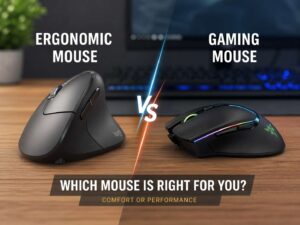
The Anker feels very different from a regular mouse. A flat mouse keeps your palm facing down. The Anker puts your hand in a more upright position. That changes both comfort and control.
During long writing or browsing sessions, the Anker feels more relaxed. Your wrist does not need to roll inward as much. For people who feel wrist tension after hours at a desk, this can make the mouse easier to use.
A regular mouse still wins for speed. It feels easier to control during quick movements, gaming, and precise pointer work. It also feels familiar from the first minute.
So which one fits better? For comfort-first office work, the Anker has the edge. For fast control, gaming, or compact travel use, a regular mouse can still make more sense. Our full guide on vertical mouse vs regular mouse breaks down those differences in more detail.
Real Usage Observations
The Anker mouse feels strongest in basic office tasks. It suits people who spend long hours clicking, scrolling, and moving between browser tabs.
For writing and content work, the vertical shape feels comfortable. It pairs well with tasks like editing articles, using WordPress, checking product pages, and managing email. The 1200 DPI setting feels like the best fit for this type of work.
For spreadsheet work, the 800 DPI setting gives better control. It helps with cell selection and small movements. The tall body takes a little adjustment, but the comfort gain can be worth it during longer sessions.
For web research, the thumb buttons are useful on supported systems. Moving back and forward through pages feels faster than reaching for browser controls. Mac users should not buy it mainly for those buttons, though, since they are not recognized on Mac OS X.
For light design work, the mouse is fine for basic edits. Cropping, dragging files, adjusting sliders, and selecting tools feel acceptable. Detailed photo work or precise design edits call for a more accurate mouse or a tablet.
For gaming, this is not the right pick. The shape is too tall for fast flicks, and the sensor setup is basic. Casual games are fine, but serious gaming needs a mouse built for speed and control.
For travel, the receiver storage helps. The height does not. This mouse takes more space in a bag than a compact laptop mouse.
Who Should Buy It?
The Anker 2.4G Wireless Vertical Mouse is best for people who want a cheaper way to try an ergonomic mouse. It makes sense for office workers, remote workers, students, writers, and anyone who spends long hours at a desk.
It is a good fit for Windows users who want a simple plug-and-play wireless mouse. Linux users who want basic receiver-based control may also find it useful.
People with medium or larger hands will likely enjoy the shape more than users with very small hands. The body is tall, so it takes space under your palm.
Mac users should be more careful. The mouse still works for basic use, but the previous and next buttons are not recognized on Mac OS X. If those buttons matter to you, this is not the best choice.
Gamers, designers, and shortcut-heavy users should look elsewhere. This mouse does not offer the speed, control, or customization they usually need.
Pros
- Comfortable vertical shape for a more natural wrist position
- Low price for an ergonomic wireless mouse
- Three DPI settings: 800, 1200, and 1600
- Simple 2.4 GHz USB receiver setup
- Five-button layout for basic work and browsing
- Receiver stores near the battery compartment
- Light listed weight at 3.4 oz
- Good for documents, browsing, emails, and home office use
Cons
- Buttons cannot be programmed or customized
- Previous and next thumb buttons are not recognized on Mac OS X
- Uses 2 AAA batteries instead of built-in charging
- No Bluetooth listed
- Needs a USB-A port or adapter
- Basic plastic feel
- Not ideal for serious gaming
- Tall shape may feel bulky for small hands
Price

Final Verdict
The Anker 2.4G Wireless Vertical Ergonomic Optical Mouse is a good budget pick for anyone who wants a more comfortable desk mouse without spending much. Its vertical grip is the main reason to buy it. The shape feels more relaxed than a flat mouse during long work sessions, mainly for browsing, writing, documents, and spreadsheets.
It does not feel premium, and it does not offer advanced control. You do not get Bluetooth, rechargeable power, button remapping, app profiles, or a premium scroll wheel. Mac users also lose the previous and next thumb button feature.
Even so, the Anker mouse gets the main thing right. It gives you a low-cost way to try a vertical ergonomic mouse, and it works well for normal office use. If comfort matters more than extra features, it is easy to recommend.
Buy it if you want an affordable ergonomic wireless mouse for daily desk work. Skip it if you need custom controls, gaming performance, USB-C charging, or a compact travel design.