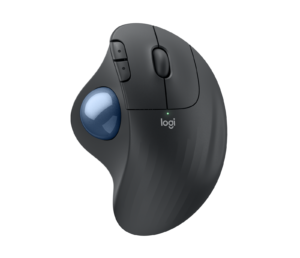
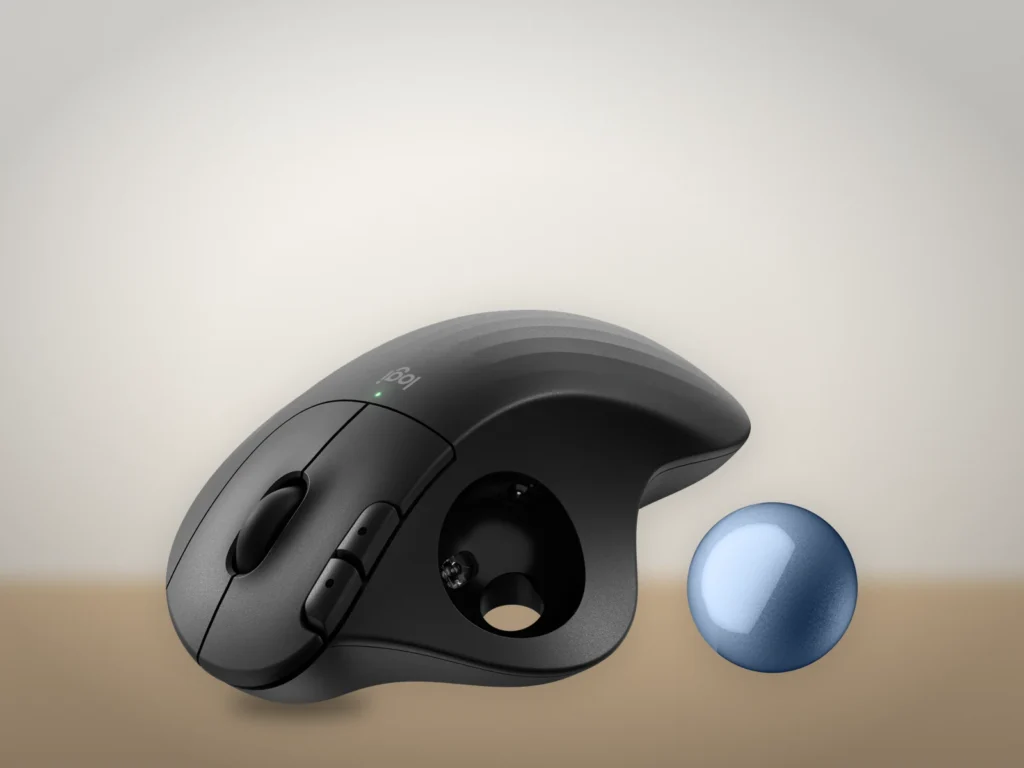
When the ball in a Logitech trackball starts to drag, push it out through the eject hole underneath and wipe away the lint. The hole is accessible on the ERGO M575S and M575. On the original MX Ergo, the magnetic plate covers it.
Switch off the trackball before cleaning
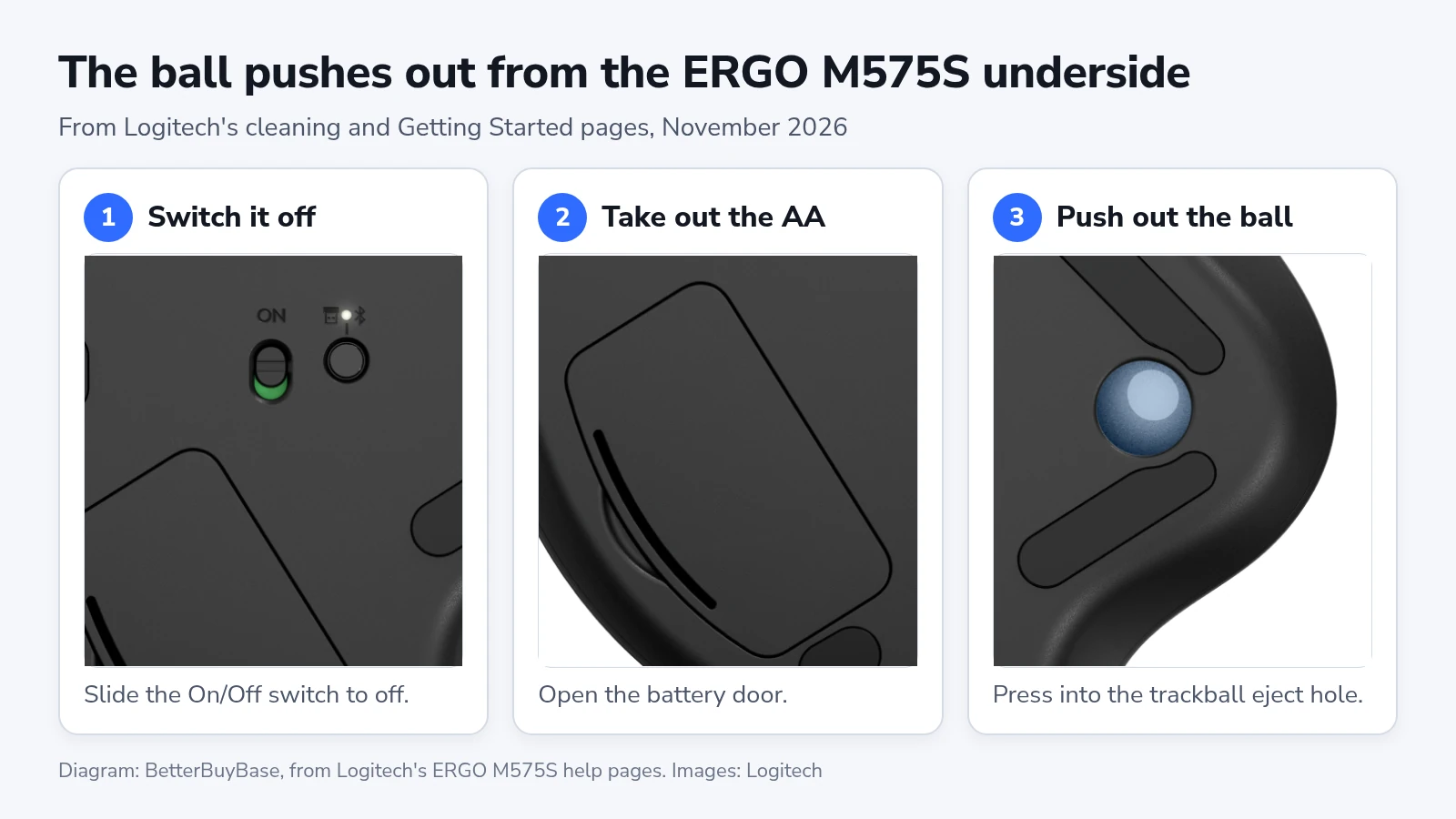
Use a soft, lint-free cloth and water. Switch off the trackball, unplug it if it has a cable attached and remove the battery if it’s replaceable. Logitech asks you to wait five to ten seconds before you begin.
Push the ball out of the ERGO M575S or M575
- Hold the trackball over the desk with a hand cupped over the ball.
- Find the round hole where you can see the ball from below, near the battery door.
- Press through the hole with your fingertip or the blunt back of a pen and catch the ball.
Wipe the ball and the cup
- Lightly dampen the cloth with water and wipe the ball.
- Wipe the spots where the ball rests, clearing hair or lint from the cup. Use a dry swab or compressed air for dust near the optical sensor, as Logitech’s cleaning guidance suggests.
- Give the ball and cup time to dry before putting the ball back.
Keep cleaning liquid on the cloth and away from openings. Leave abrasive cleaners, bleach and strong solvents off the trackball. For anything stronger than water, follow the cleaning instructions for your model.
Remove the plate on the original MX Ergo
Logitech’s MX Ergo cleaning instructions start by pulling the metal plate away from the bottom. The plate is held by a magnet. With it out of the way, use the back of a pen to push the ball out. Wipe the ball and the white supports, then put the plate back with the rubber side facing the desk.
Check if the cursor moves smoothly
Restore power and roll the ball slowly in both directions. If it moves freely but the cursor still stutters, reconnect using the method for your model. The M575S can use Bluetooth or Logi Bolt. A problem that only happens over one wireless connection gives you a reason to check that connection before taking the ball out again.
For persistent cursor jumps, see Logitech’s troubleshooting instructions for your model and check for any firmware update it lists. If you use Logi Options+, look for the device on the home screen so you can confirm that the app sees it.